User Management
👥 User Management is where you add the people on your team to your tenant, assign them roles, and deactivate or remove them when they leave.
This guide was verified against staging as of August 6, 2026.
📍 Accessing User Management
Adding, editing, deactivating, and deleting users requires the Manage Users permission.
- Log in to your tenant with your email address and password.
- Click your profile avatar in the top-right corner to open the account menu.
- Click Settings. The System Settings page opens.
- Click Users in the settings menu on the left.
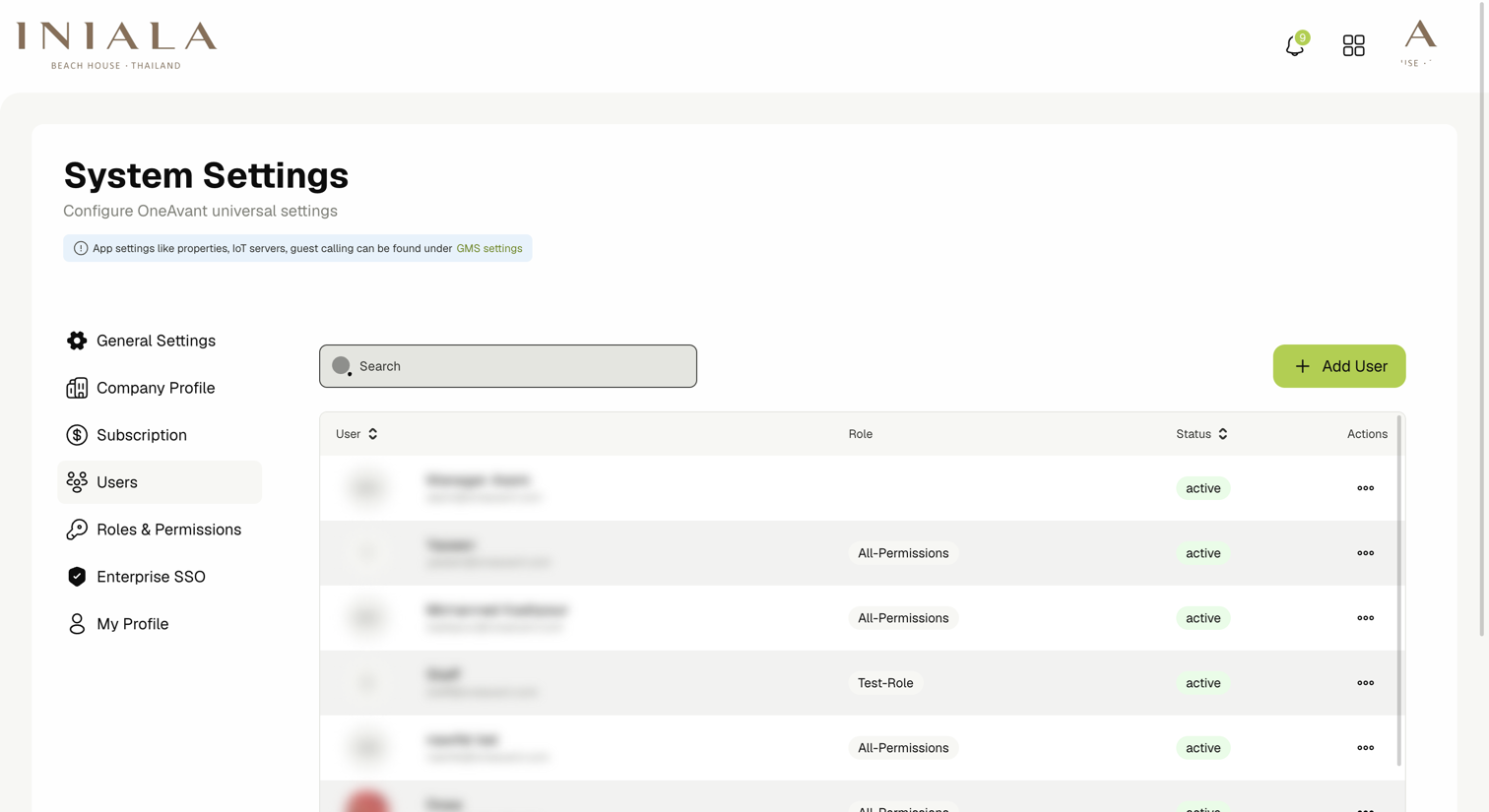
📋 Viewing the Users List
The list shows:
- User — The user's name and email address. Click the column header to sort.
- Role — The roles assigned to that user, shown as badges. A user with no badge has no role and therefore no access.
- Status — active for users who can log in, inactive for users who have been deactivated. Click the column header to sort.
- Actions — The ••• menu for that user.
Use the Search field to filter by name or email, and the page controls at the bottom of the table to move through the list.
➕ Adding a User
Click Add User at the top-right to open the Add User dialog. It has two tabs, and which one you use depends on whether you want to set the password yourself or let the user set their own.
🔑 Create Account
Use this tab to create the account and set its password immediately.
- Click the Create Account tab.
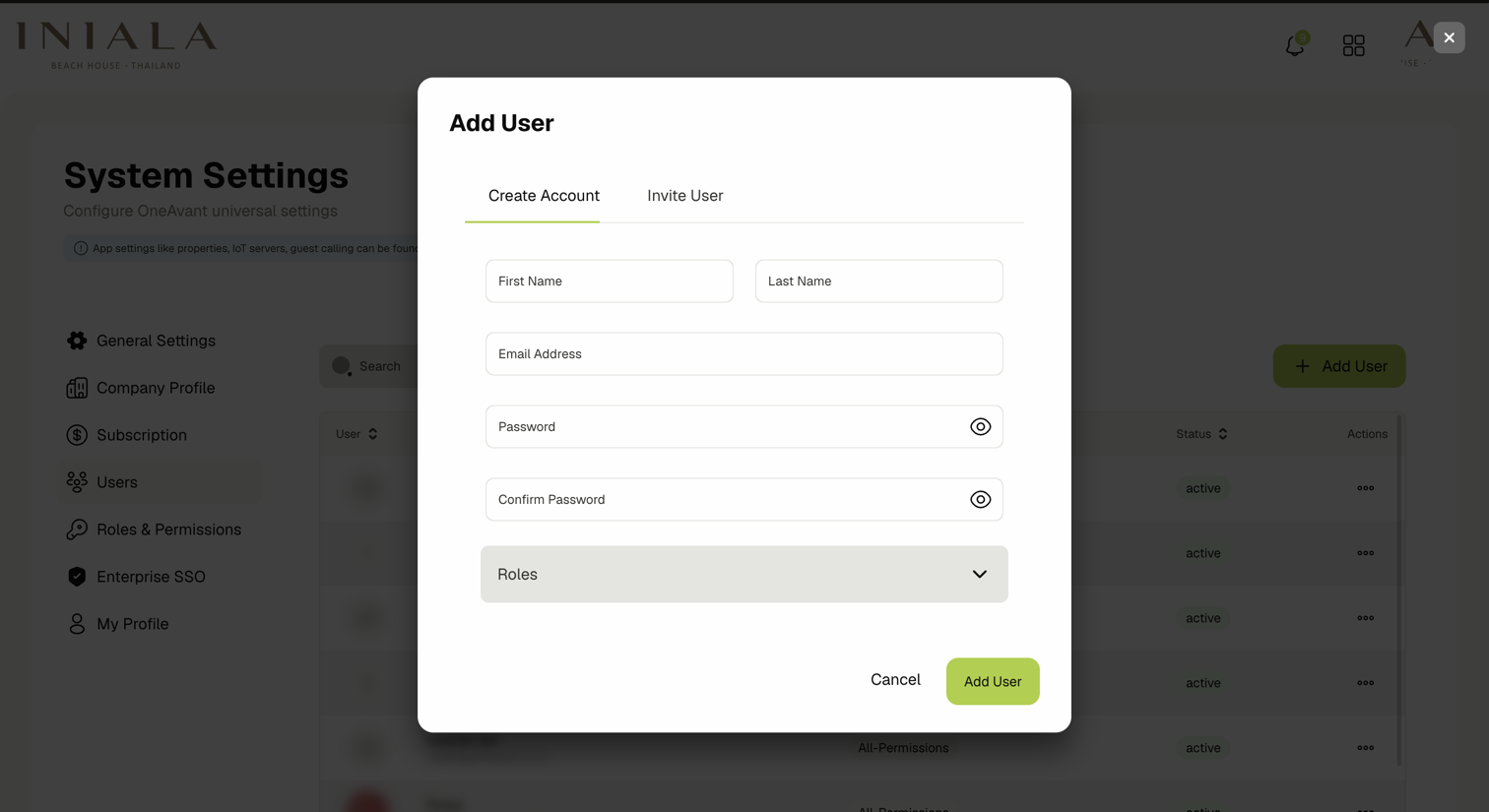
- Fill in the following fields:
- First Name — The user's first name.
- Last Name — The user's last name.
- Email Address — The address the user will log in with.
- Password — The user's initial password.
- Confirm Password — Re-enter the same password.
- Open the Roles field and tick every role this user should have.
- Click Add User.
You are choosing this person's password, which means you know their credentials. Use Invite User instead wherever possible, and ask the user to change their password after their first login.
✉️ Invite User
Use this tab to email an invitation and let the user set their own password.
- Click the Invite User tab.
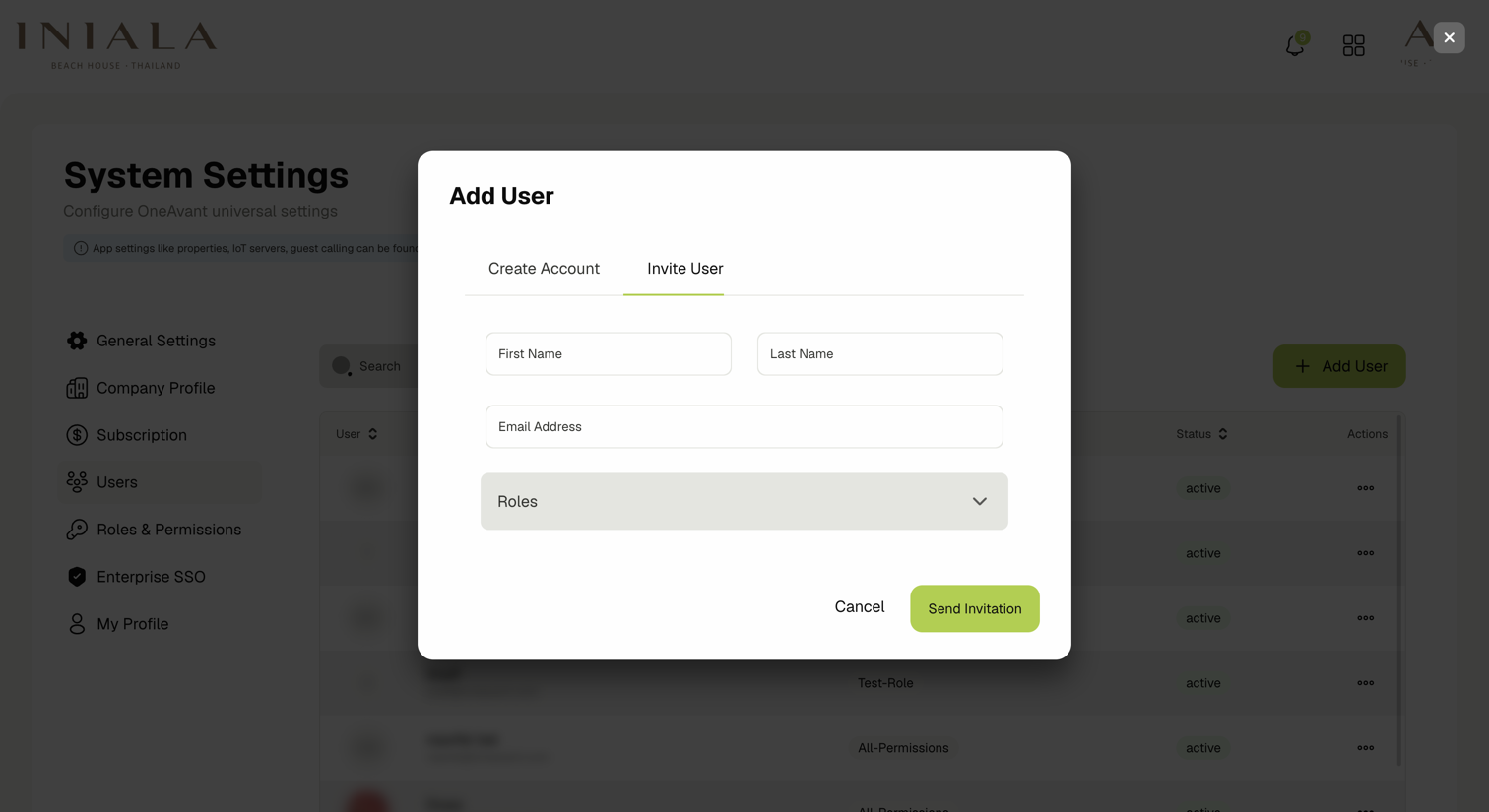
- Fill in the First Name, Last Name, and Email Address fields.
- Open the Roles field and tick every role this user should have.
- Click Send Invitation.
The user receives an email invitation and sets their own password when they accept it.
The Roles field is a multi-select list. Tick as many roles as you need — the user receives the combined permissions of all of them. Leaving it empty creates a user who can log in but cannot see anything.
✏️ Editing, Deactivating, and Deleting a User
Open the ••• menu on the user's row to see the available actions.
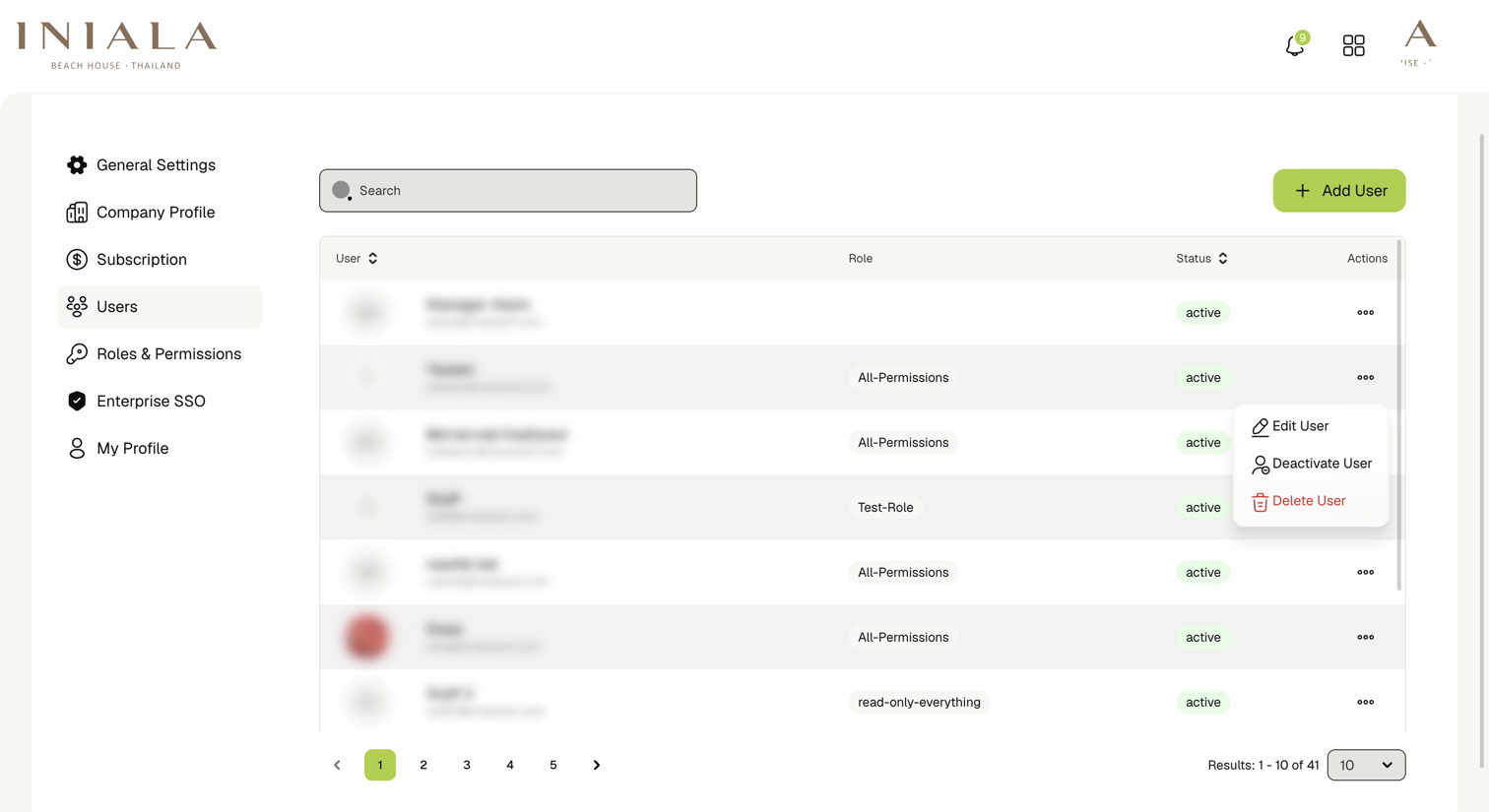
- Edit User — Change the user's name, email address, or assigned roles.
- Deactivate User — Block the user from logging in while keeping their account and history. Use this when someone leaves temporarily or is between roles.
- Delete User — Remove the user from the tenant.
Delete User cannot be undone. Use Deactivate User unless you are sure the account should be removed permanently.
🔐 Managing Roles
Roles are created and edited on the Roles & Permissions page, not here. Assigning an existing role to a user is done through the Roles field described above.
To create a role, adjust its permissions, or see exactly what a role grants, see Roles & Permissions.
🚫 Scope Notes
- Permissions cannot be granted directly to a user. Access is always granted through a role.
- A user's roles apply across the whole tenant, not per property location.
Related Docs
- Roles & Permissions — create roles and choose the permissions they grant
- Roles & Access — the extra access controls that apply to BI databoards