SMS Settings
How-to guides related to SMS configuration and phone number management.
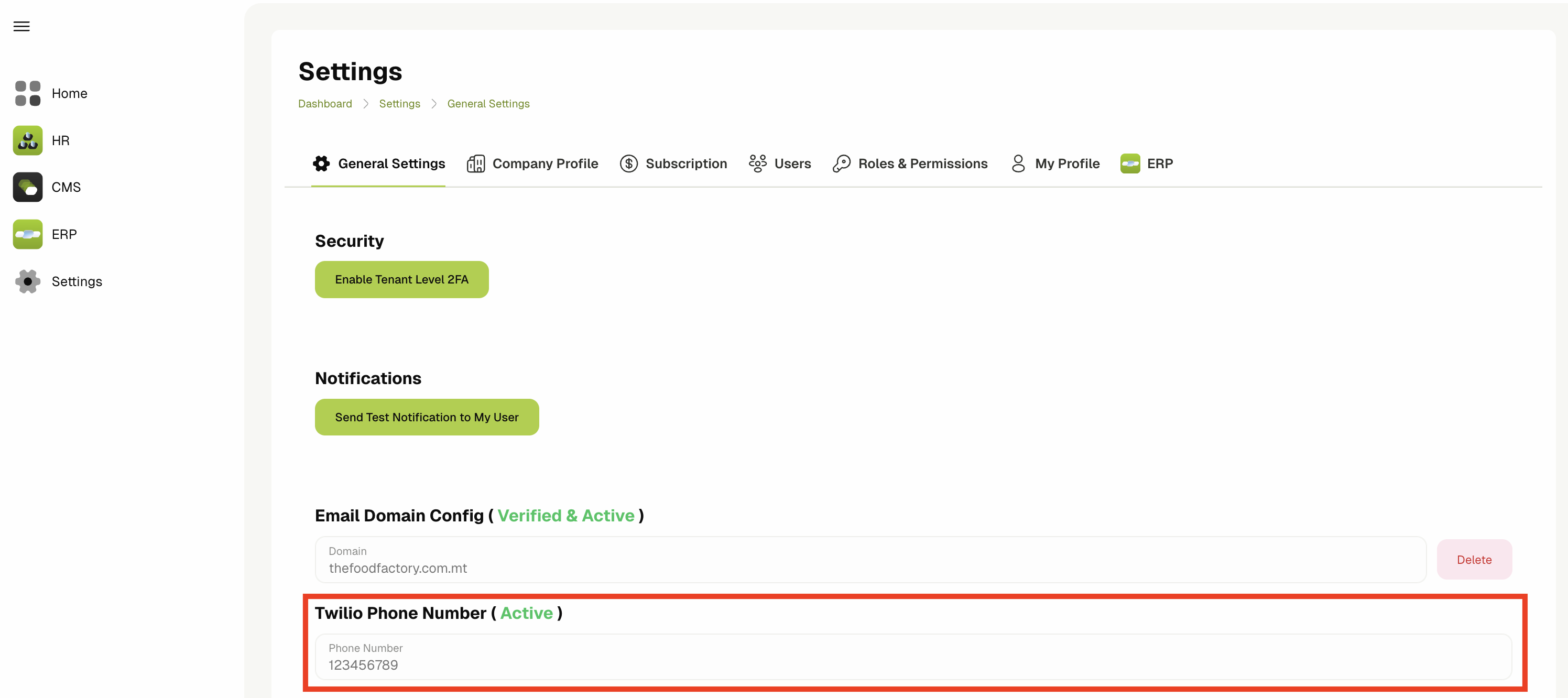
View System Phone Number
- Navigate to Settings from the sidebar or the user menu.
- Click on the General Settings tab.
- Scroll down to the System Phone Number section. You will see your configured phone number displayed in a read-only field.
info
- If a phone number is configured, you will see Active status in green next to the section title.
- If no phone number is configured, you will see Inactive status in gray.
- The phone number field is read-only and cannot be edited directly from the interface once configured.
Configure Delivery Notifications
You can configure how customers are notified when delivery status changes occur. You can choose to send notifications via SMS, Email, or Both.
- Navigate to Settings from the sidebar or the user menu.
- Click on the ERP tab and then select the Sales category.
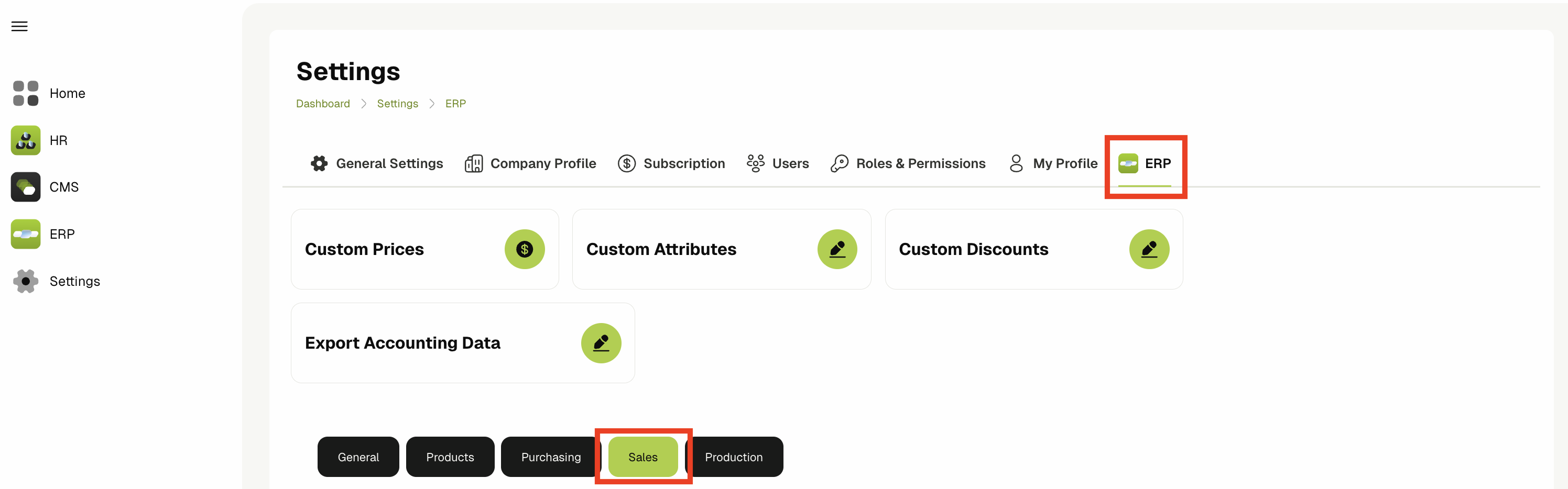
- Click on the Delivery notifications filter button.
- You will now see a list of delivery notification settings. Each setting allows you to configure how customers are notified for different delivery status changes:
- Delivery Scheduled Notification Method - When a delivery is scheduled (assigned to a route)
- Delivery Rescheduled Notification Method - When a delivery is rescheduled (delivery date/time is updated)
- Delivery Active Notification Method - When a delivery becomes active (on the way)
- Delivery Paused Notification Method - When a delivery is paused
- Delivery Delivered Notification Method - When a delivery is delivered or partially-delivered
- Delivery Cancelled Notification Method - When a delivery is cancelled
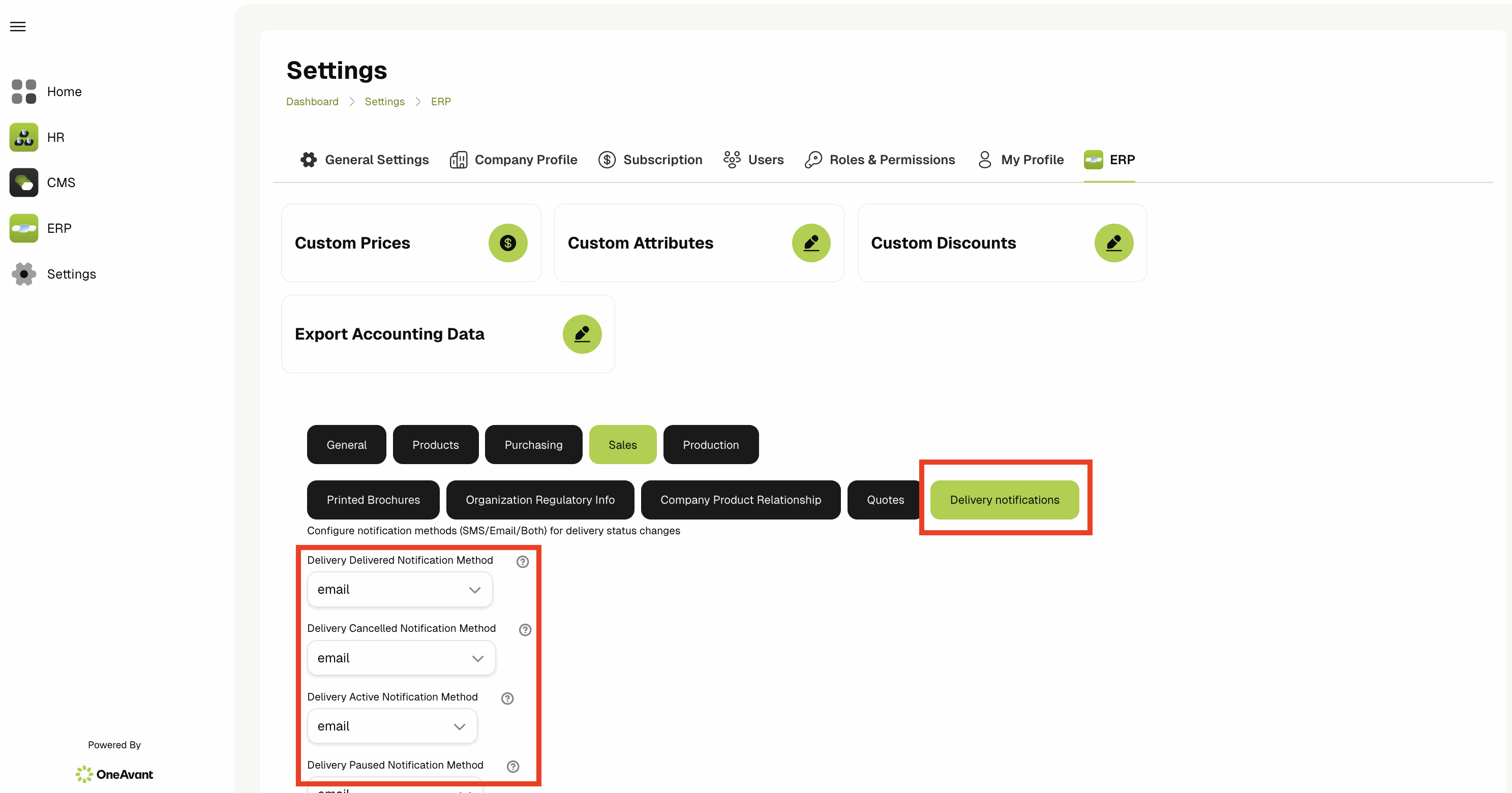
- For each notification method, click on the dropdown and select your preferred notification method:
- sms - Send notifications via SMS only
- email - Send notifications via Email only
- both - Send notifications via both SMS and Email
info- The default value for all notification methods is email.
- Changes are saved automatically when you select a new value from the dropdown.
- Make sure your system phone number is configured (see View System Phone Number) for SMS notifications to work.
- Once configured, customers will receive notifications according to your selected method(s) when delivery status changes occur.