Devices & Entities
📦 Devices & Entities in the IoT Server Dashboard is the main page for everything reported by your connected integrations. Use it to review devices and their entities, control visibility, manage relationships between things, and trace which dashboard controls use which entities.
📍 Accessing Devices & Entities
This page requires an account with the Admin or Engineer management role.
- Log in to the IoT Server Dashboard with your management credentials.
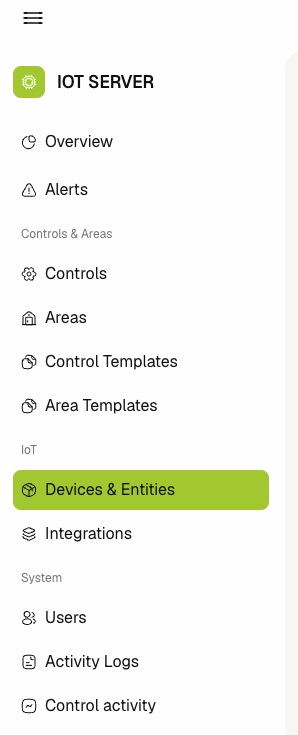
- Open IoT from the left sidebar.
- Click Devices & Entities to open the inventory page.
📋 Viewing Devices & Entities
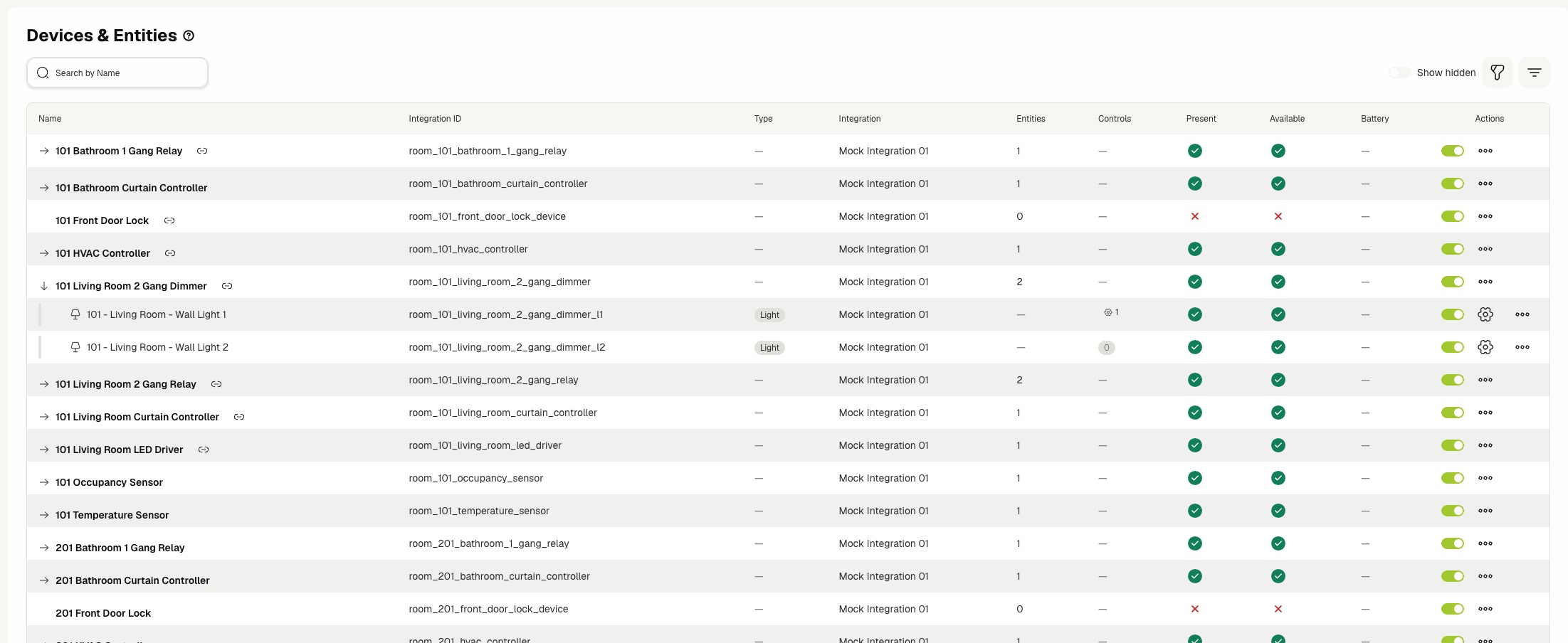
The page shows one row per device and one row per entity. Devices that have entities can be expanded to reveal their entities, and entities reported without a parent device appear at the top level with a standalone badge.
The table includes the following columns:
- Name — The device or entity name. Click a device that has entities to expand or collapse its child list.
- Integration ID — The integration-side identifier for the row.
- Type — The entity category, such as light, lock, hvac, cover, toggleable, sensor, button, scene, or remote. Devices leave this column blank.
- Integration — The owning integration name.
- Entities — The number of entities under a device. Entity rows leave this column blank.
- Controls — The number of dashboard controls linked to an entity. Click the count to open the Linked Controls popup. Device rows leave this column blank.
- Present — Whether the integration currently reports the device or entity as present.
- Available — Whether the integration currently reports the device or entity as available for commands.
- Battery — The reported battery percentage or a Low or Critical badge for devices that expose battery data.
- Created At — Hidden by default. Enable it from the column settings to display the row creation timestamp.
Rows that already have at least one linked thing show a link chip next to the Name. Click the chip to jump directly to Linked Things for that row.
🔍 Searching, Filtering, and Pagination
- Enter text in Search by Name to narrow the list to matching devices or entities.
- Open the Integration filter to limit the list to one or more integrations.
- Open the Type filter to show only the selected entity types.
- Open the Hide Type filter to exclude the selected entity types from the list.
- Click Clear filters to reset all selected filters.
- Use the pagination controls to move between pages and to change the rows-per-page value.
👁️ Showing Hidden Rows
- Locate the Show hidden toggle above the table.
- Toggle Show hidden on to include hidden devices and entities in the list.
- Toggle Show hidden off to return to the default view that omits hidden rows.
Hidden rows are highlighted with a warning background and a Hidden badge so they are easy to spot when the toggle is on. Your toggle choice is remembered per browser.
⚙️ Enabling and Disabling
- Locate the device or entity row in the table.
- Use the row toggle in the actions column to set the row to Enabled or Disabled.
Disabling a device or entity stops the dashboard from sending commands through it. Use this to take a misbehaving entity offline without removing it from the integration.
🙈 Hiding and Showing Rows
- Click the three-dot menu on the row you want to update.
- Click Hide to remove the row from the default view.
- (To restore) Turn on Show hidden, open the three-dot menu on the hidden row, and click Show.
Hiding a device also hides its entities in the default view. Turn on Show hidden to see hidden rows and to access the Show action on them.
🔗 Managing Linked Things
Use Linked Things to relate a device or entity to another device or entity for cases that are not direct ownership.
-
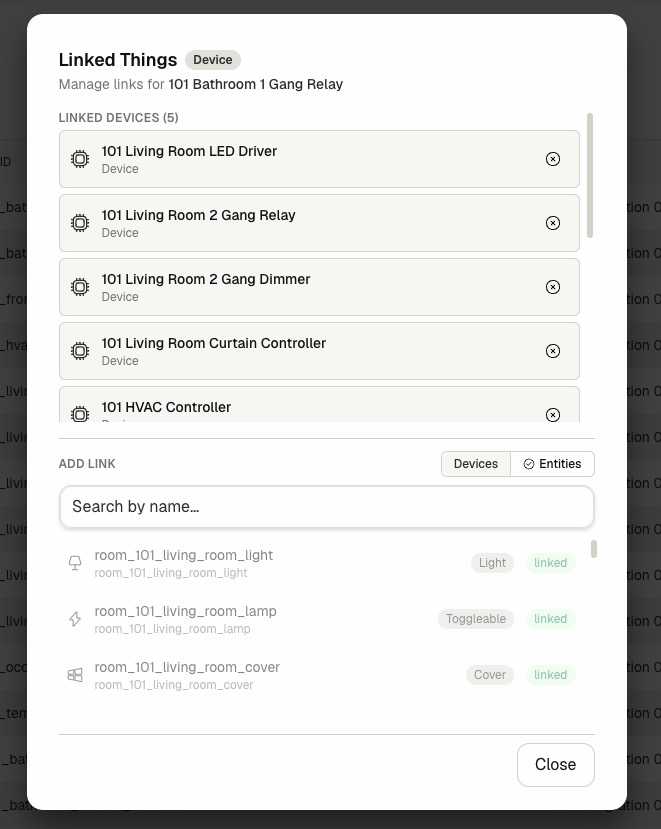
Open the Linked Things dialog for a row by clicking its link chip, or by opening the three-dot menu and clicking Manage links.
-
Review the Linked Devices and Linked Entities sections to see the existing relationships for this row.
-
Click Unlink on a linked item to remove the relationship.
-
In the Add Link section, click Devices or Entities to choose which type to pick from.
-
Enter text in Search by name to filter the candidate list.
-
Click a candidate to create the link. Candidates that are already linked appear with a linked badge, and the row itself appears with a self badge so you cannot link a thing to itself.
-
Click Close to dismiss the dialog.
🧩 Viewing Linked Controls
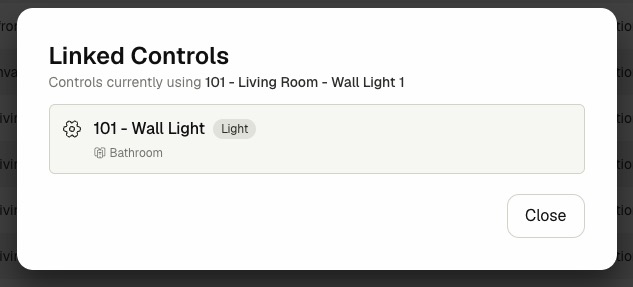
Use Linked Controls to see every dashboard control that references a given entity.
- Locate the entity row in the table.
- Open the Linked Controls dialog by clicking the Controls count chip, or by clicking the View linked controls icon in the row actions.
- Review the list of controls. Each row shows the control name, type, area, and template when available.
- Click a control to open its details page in a new tab.
- Click Close to dismiss the dialog.
Devices never link to controls directly. Only entities expose the Controls count and the Linked Controls popup.
Related Docs
- Integrations — Connect and manage the external platforms that report devices and entities.
- Control Activity — Review runtime commands sent through entities.
- Activity Logs — Audit management-side actions on devices, entities, and links.
- Areas — Organize where entities surface as guest-facing controls.