Integrations & Data Sources
📦 Integrations is where you connect analytics data. BI supports automated ETL sync from platforms and direct connections to your own databases.
📍 Accessing Integrations
BI → Integrations (/app/avantbi/integrations)
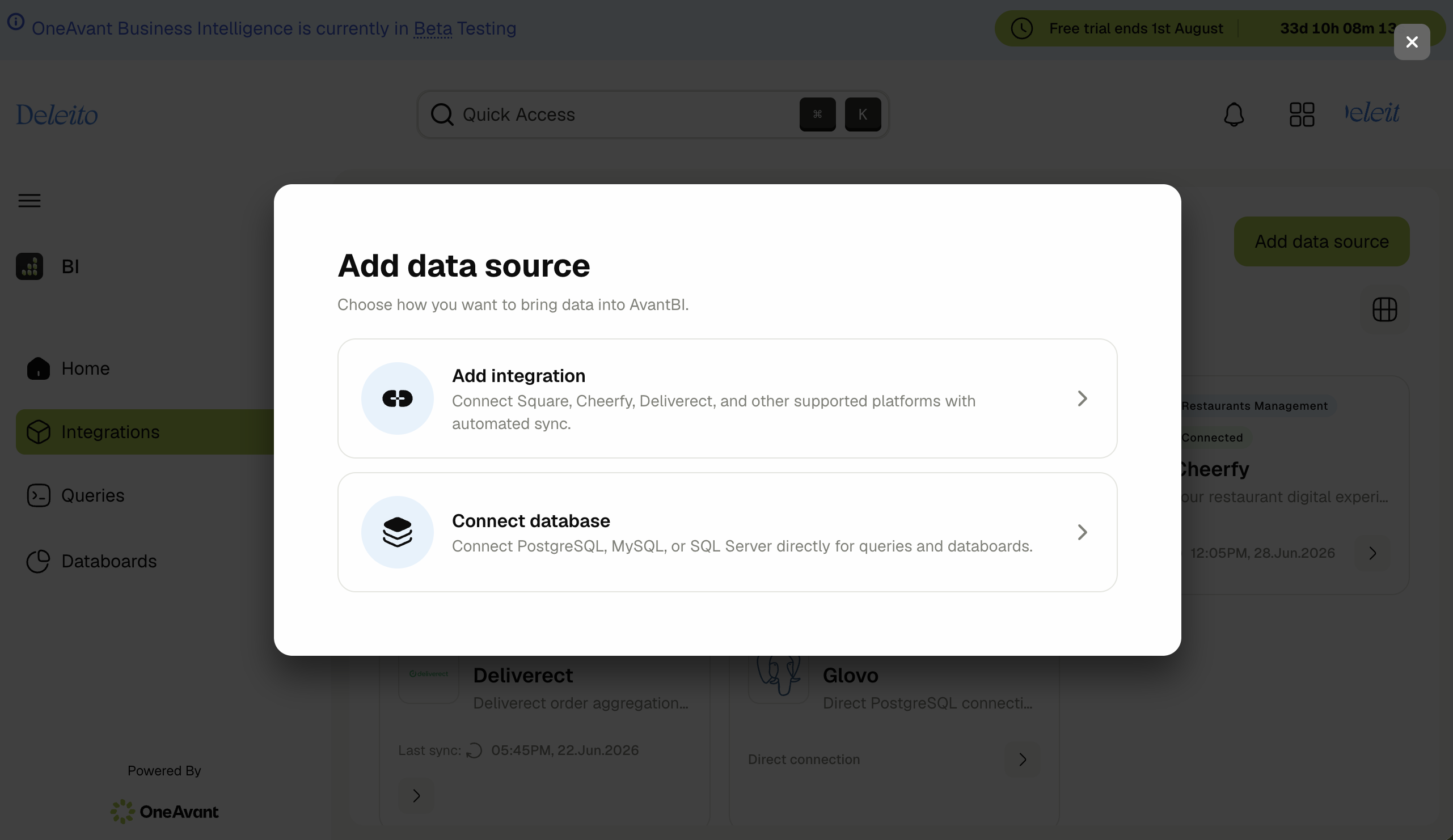
The page shows all data sources as cards (or a table view). Use Add data source to connect something new.
➕ Adding a data source
Add data source opens a two-path chooser:
| Option | Use when |
|---|---|
| Add integration | You want automated sync from Square, Cheerfy, Factorial, Deliverect, or internal ERP data |
| Connect database | You have PostgreSQL, MySQL, or SQL Server you want to query directly |
📋 ETL integrations (automated sync)
Available integrations depend on your tenant subscription:
| Integration | Data | Credentials required |
|---|---|---|
| ERP | Logstock / inventory, sales, procurement, production, etc. | None — appears when the ERP (Logstock) module is enabled; syncs from your tenant database |
| Square | Locations, catalog, orders | Access token, API base URL |
| Cheerfy | Restaurant loyalty / CRM | Token, organization code |
| Factorial | HR — employees, teams, leaves, expenses | API key, base URL |
| Deliverect | Multi-channel delivery orders (webhook-driven) | Client ID, client secret, account ID, API base URL |
| tSpoonLab | Kitchen / inventory / recipe management | Username, password, optional API base URL |
Integration availability can change between releases. If an integration you expect is missing, contact your administrator.
Connecting an ETL integration
- Add data source → Add integration.
- Select the platform card.
- Review requirements on the Get started step.
- Enter credentials on the Requirements step.
- Test connection → Add integration.
- The first sync starts automatically when the integration is enabled.
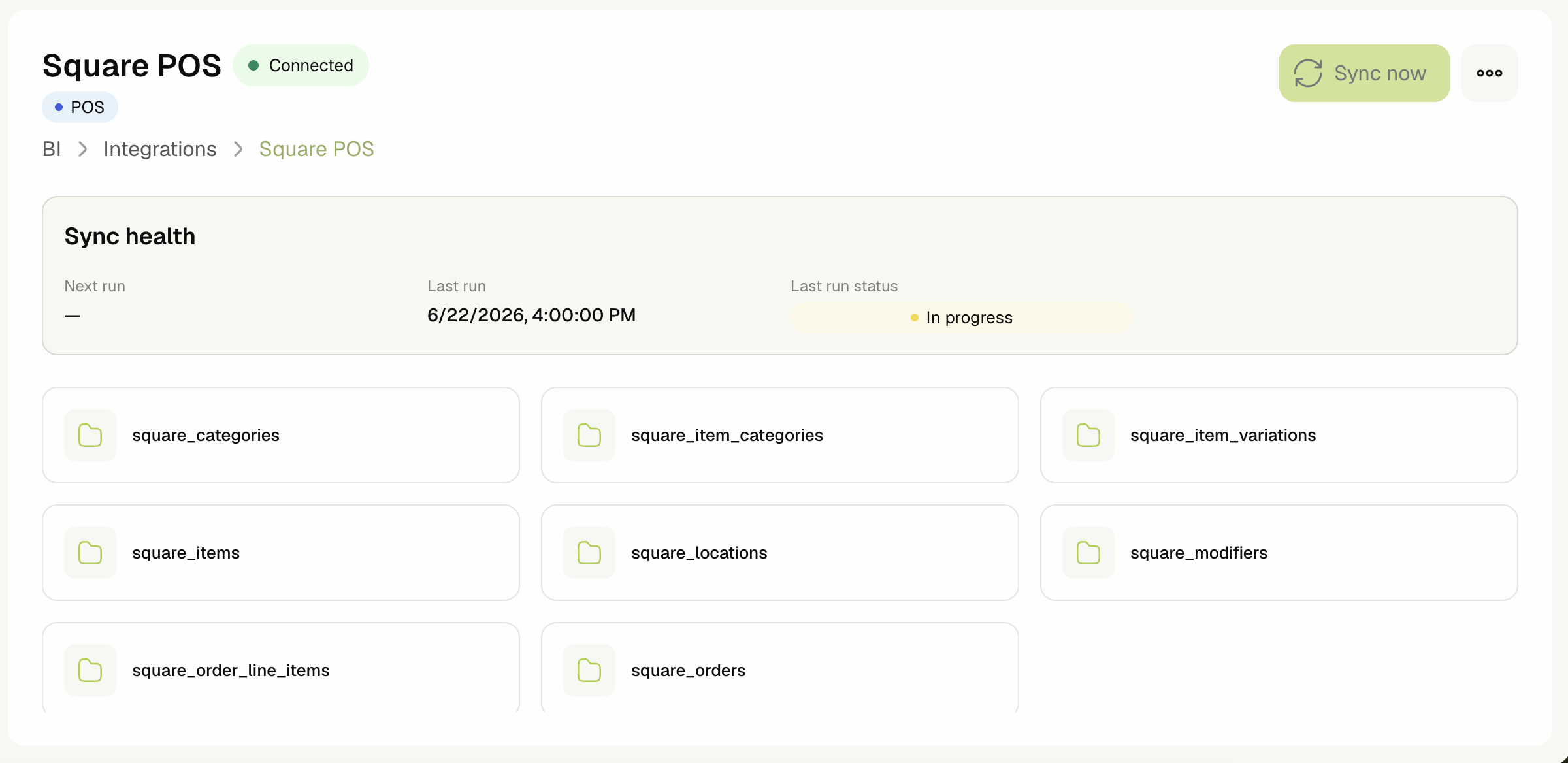
Integration detail page
Open any connected integration to:
- Browse tables synced into the analytics warehouse.
- Open a table detail view to inspect columns (useful when writing SQL).
- Review Sync health: next run, last run, status, and error messages.
- Sync now — trigger an immediate incremental sync.
- Run historical sync — full backfill (only shown when supported for that integration).
- Disconnect — disable the integration.
📋 Direct database connections
Connect PostgreSQL, MySQL, or SQL Server for live querying (no warehouse sync).
- Add data source → Connect database → Get Started.
- Choose Database Engine.
- Enter Connection Details — host, port, database, username, password, a friendly name, and optionally Use SSL.
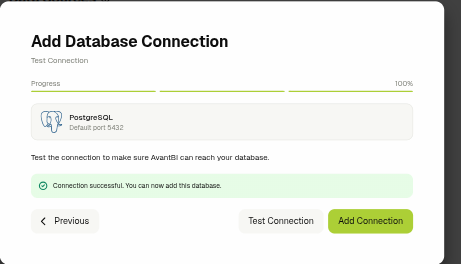
- Test Connection — you must get a successful test before Add Database becomes available. Editing any credential after a successful test requires re-testing.
- Optionally choose Explore tables after saving to browse schemas immediately.
On the connection detail page:
- Pick a schema (when the engine exposes multiple schemas).
- Browse tables and open table details.
- Remove connection from the ⋮ menu when no longer needed.
Credentials are stored encrypted.
Each tenant can have up to 10 direct database connections.
A connection can't be removed while any saved query still uses it — update or delete those queries first.
The product labels new connections read-only, but this isn't enforced by AvantBI itself — the app doesn't block write statements sent through a saved query on a direct connection. Use a read-only database user on your side for real protection, exactly as the connection wizard recommends.
⚙️ Managing integrations
| Action | Where |
|---|---|
| View all sources | Integrations list (card or table toggle) |
| Search / filter | Toolbar on Integrations list |
| Re-sync | Integration detail → Sync now |
| Troubleshoot failed sync | Integration detail → Sync health error panel |
| Remove ETL integration | Integration detail → ⋮ → Disconnect |
| Remove DB connection | Connection detail → ⋮ → Remove connection |
🚫 Scope notes
- ERP integration only appears if your tenant has the Logstock module enabled.
- Direct DB queries run against your database in real time — large unfiltered queries may be slow; use parameters and limits in SQL.
- Sync schedules are managed by the platform; you trigger manual syncs from the UI but do not edit cron expressions directly.