Maya AI Assistant
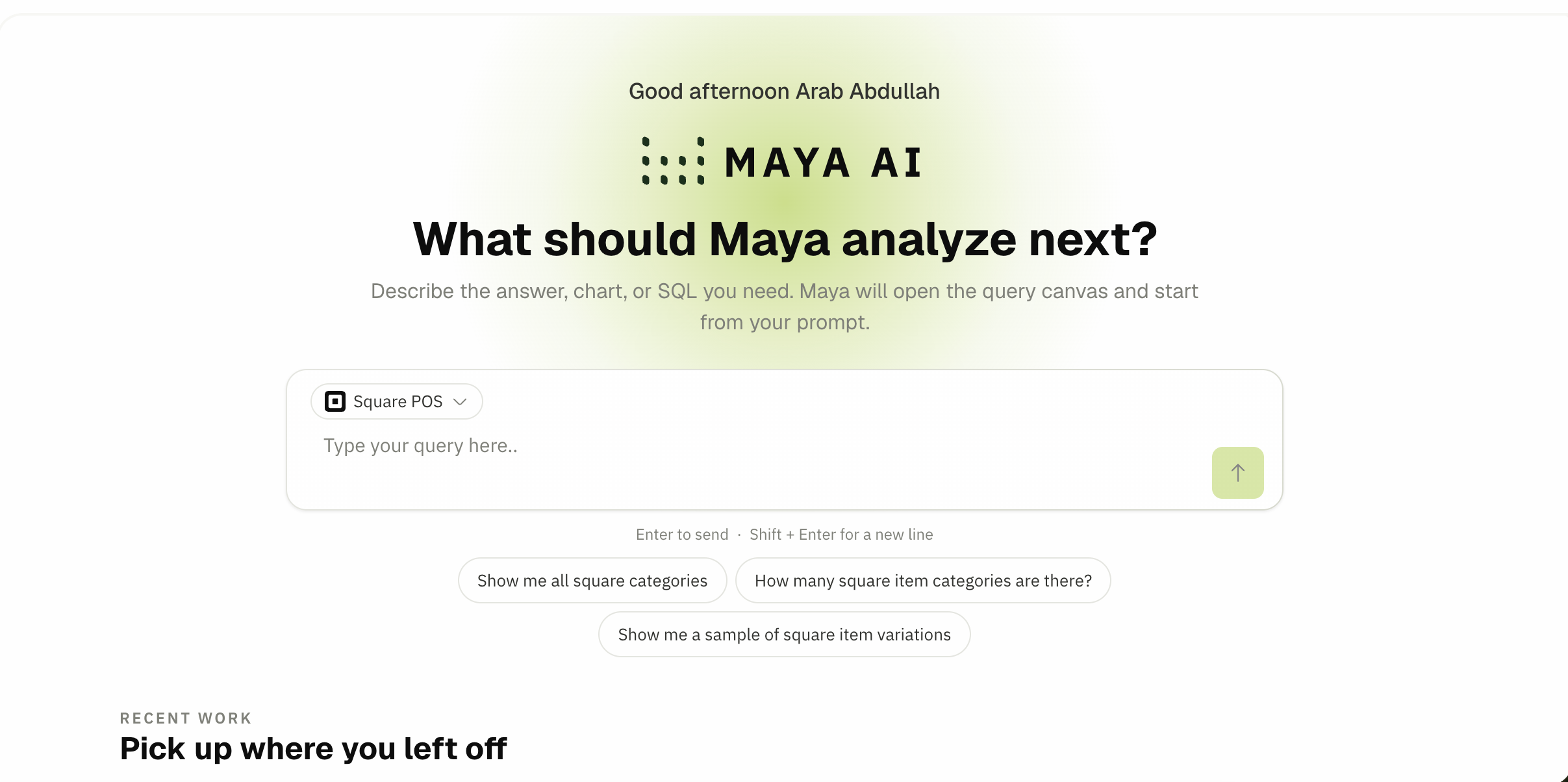
✨ Maya is OneAvant’s AI assistant. In BI, Maya helps you explore data, generate SQL, debug failed queries, and start analyses from the home page.
Maya requires the Maya module on your tenant subscription.
📍 Where Maya appears in BI
| Location | Capability |
|---|---|
| Home | “What should Maya analyze next?” prompt — describe a question and jump into a new query |
| Query editor | Full SQL generator chat panel with schema-aware prompts |
| Databoard AI briefing | Natural-language summary of a databoard’s contents |
➕ Starting from Home
- Open BI → Home.
- Select a data source chip (integration or database).
- Type your question (e.g. “Top 10 products by revenue last month”).
- Submit — BI opens the query editor with Maya already working on SQL.
Starter prompt examples are generated from real table names in your selected source (system tables are filtered out).
⚙️ SQL generator (query editor)
- Chat panel — left side by default; drag the splitter to resize.
- Open editor — collapse chat to full-width SQL canvas, or expand canvas while keeping chat.
- Target source — ensure Maya knows which dataset/schema to use.
- Suggested replies — quick follow-ups after Maya responds.
- Apply SQL — review diffs before replacing your query text.
- Debug execution — send query errors back to Maya for correction.
Hidden automation can retry failed SQL up to a configured limit (auto-debug setting stored in browser).
⚙️ AI briefing (databoards)
When enabled, a ✦ Maya briefing card appears on the databoard showing a readable summary of its metrics and trends.
- The card shows a short summary first; click Show more / Show less to expand or collapse a more detailed version in the same card.
- Maya also generates a third, Slack-formatted version of the summary at the same time. It isn't shown on the databoard itself — it's used automatically when the databoard is shared to a Slack channel (see Sharing & Delivery).
- The briefing is cached for up to 24 hours; click the refresh icon (Regenerate briefing) to force a fresh one immediately.
- If regeneration fails (for example, a temporary AI service issue), the last successfully generated briefing keeps showing instead of an error, as long as one exists yet.

Click the edit icon (Edit briefing settings) to change:
- Briefing language — English (default), Spanish, Maltese, or Arabic.
- Briefing prompt (optional) — up to 4000 characters, to focus the narrative (e.g. "Highlight week-over-week changes only").
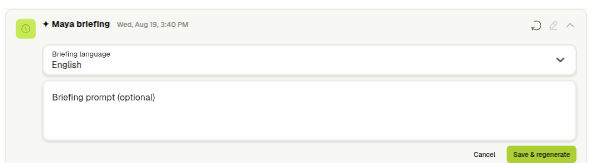
Click Save & regenerate to apply. Changing either setting discards the cached short, detailed, and Slack summaries so the next view regenerates all three.
Editing briefing settings requires being the databoard's owner (with access-control rights intact) or having the Manage Databoards Access Controls permission — see Roles & Access.
🚫 Scope notes
- Maya consumes AI tokens from your tenant quota.
- Generated SQL should always be reviewed before sharing databoards externally.
- Maya’s schema awareness depends on synced tables being available — connect and sync integrations first.
- If Maya is disabled, Home shows recent queries/databoards without the prompt hero.
Related Docs
- Queries
- Building databoards
- Integrations & data sources
- Roles & Access — who can edit briefing settings
- Sharing & Delivery — where the Slack-formatted summary is used