Sharing & Delivery
📤 Share databoards with colleagues, external recipients, or Slack channels. Deliver live links, optional PDF attachments, and scheduled sends.
📍 Accessing sharing
| Entry point | Path |
|---|---|
| From a databoard | Editor or list → Share |
| All shares admin view | BI → Databoards → Databoards Sharing |
➕ Creating a share
- Open a databoard → Share (or create from the sharing list).
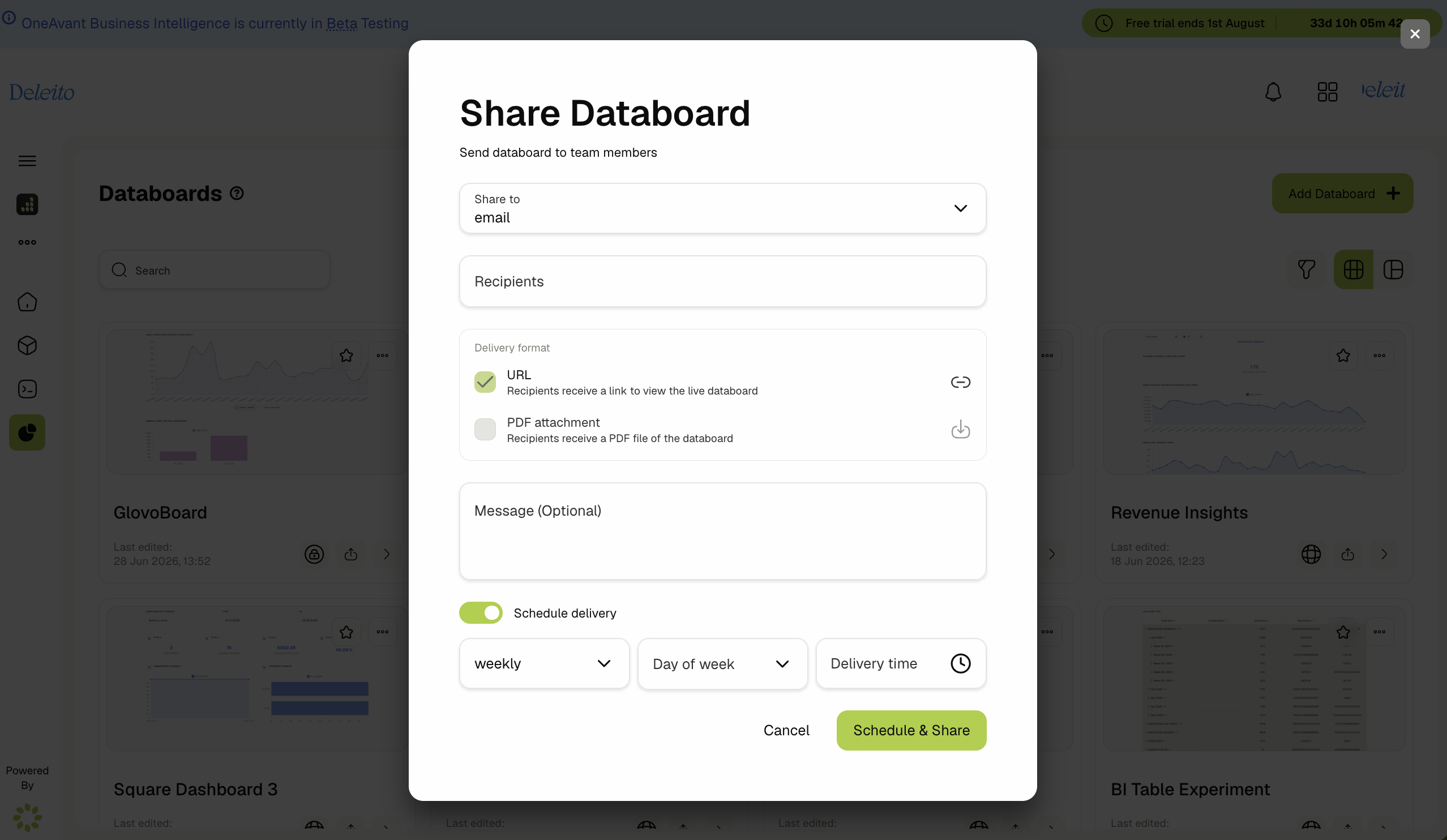
- Choose delivery channel:
- Email — enter recipient addresses (comma or space separated).
- Slack — select one or more channels (requires Slack workspace connection).
- Set delivery format:
- URL (live link) — always included; recipients open the interactive databoard.
- PDF attachment — optional snapshot; preview layout with A4 preview in the editor first.
- Add an optional message.
- Optionally enable Schedule delivery — daily, weekly, or monthly with time and (for weekly) day of week.
- Save and Send now, or rely on the schedule.
📋 Managing shares
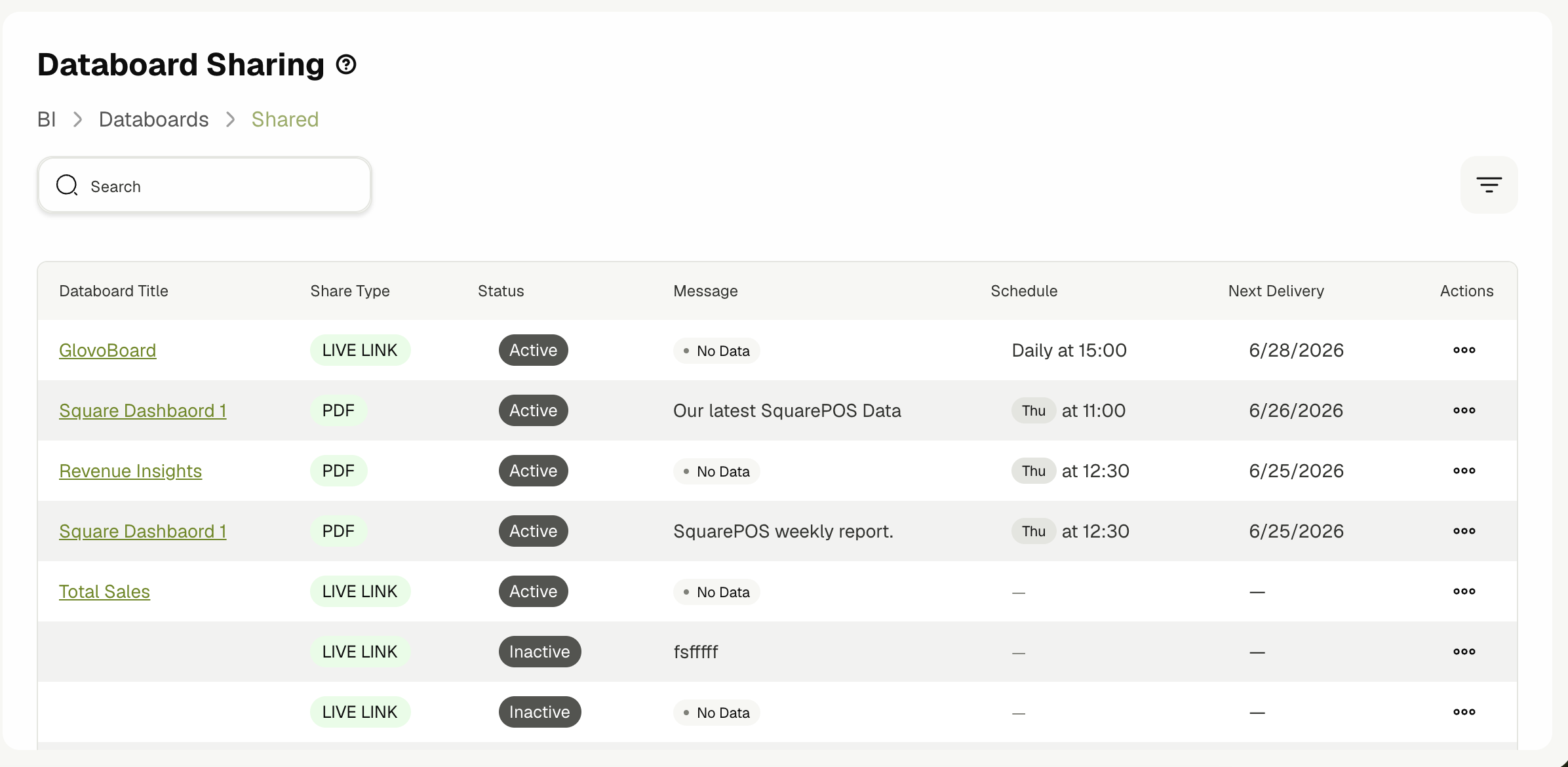
Databoards Sharing lists all share sessions across databoards:
- Filter and search shares.
- See status (active/inactive), delivery type, schedule, last delivery.
- Open delivery history for a share to audit success/failure per send.
Managing a share (editing recipients, sending, or deactivating it) isn't limited to the databoard's owner — any tenant user with BI access can manage shares for any databoard, not just their own.
⚙️ Slack integration
To share via Slack:
- When creating a share, choose Slack as the channel.
- If not connected, click Connect Slack workspace — complete OAuth in the popup.
- Select target channels from the loaded channel list.
- Slack messages include the live link and optionally upload the PDF.
Slack is connected once per tenant; an administrator typically performs the initial OAuth install.
⚙️ Public / token access
Shared live links include a shareToken query parameter. Recipients can open the databoard in a browser without signing in (read-only view), subject to share remaining active.
Example pattern:
https://<tenant>.<domain>/app/avantbi/databoards/<id>?shareToken=<token>
Public share route also available at /app/avantbi/share/<token>.
⚙️ Deactivating a share
Deactivate a share to:
- Stop scheduled deliveries.
- Invalidate public tokens.
- Pause the share without deleting history.
🚫 Scope notes
- PDF generation captures the databoard as rendered — complex layouts may need A4 tuning.
- Email delivery uses the platform email service (Mailgun in production).
- Slack requires workspace admin approval for the OneAvant Slack app.
- External recipients on live links see view mode only — no edit access.
Related Docs
- Building databoards
- Roles & access
- Query Alerts — email/Slack notifications for saved queries, using the same Slack connection