Query Alerts
🔔 Query Alerts notify you automatically when a saved query's result crosses a condition you set — by email or Slack, on a schedule you choose.
📍 Accessing Query Alerts
| Entry point | Path |
|---|---|
| From a saved query | Query editor → More actions (⋯) → Create alert |
| All alerts for a query | Query editor → More actions (⋯) → View alerts |
| All alerts admin view | BI → Queries → Query Alerts |
➕ Creating an Alert
Opening Create alert starts a 3-step wizard, titled after the query by default. Edit the title at the top of the dialog any time.
The query must return exactly one result row. Build it to summarize down to a single count, total, or flag rather than a list of matching records — the wizard blocks you from continuing if the query currently returns zero or multiple rows.
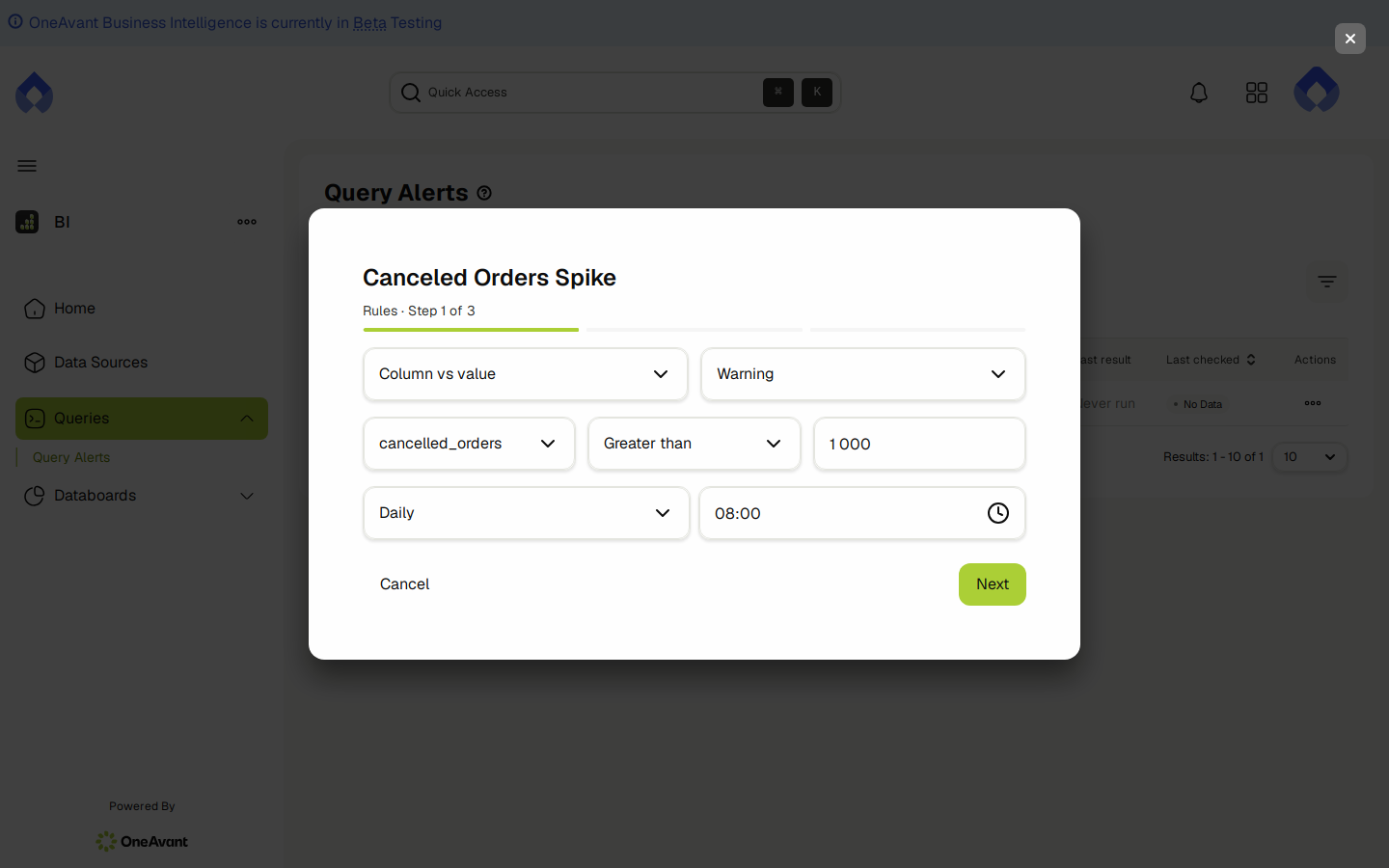
Step 1 · Rules — set the condition, severity, and schedule:
- Condition — pick Column vs value or Column vs column, a column from the query's result, a comparison, and either a fixed value or a second column to compare against.
- Severity — Info, Warning, or Critical.
- Schedule — how often to check: every 15 minutes, every 30 minutes, hourly, daily, weekly, or monthly. Daily, weekly, and monthly schedules also ask for a time of day; weekly asks for the day(s) of the week and monthly asks for the day of the month.
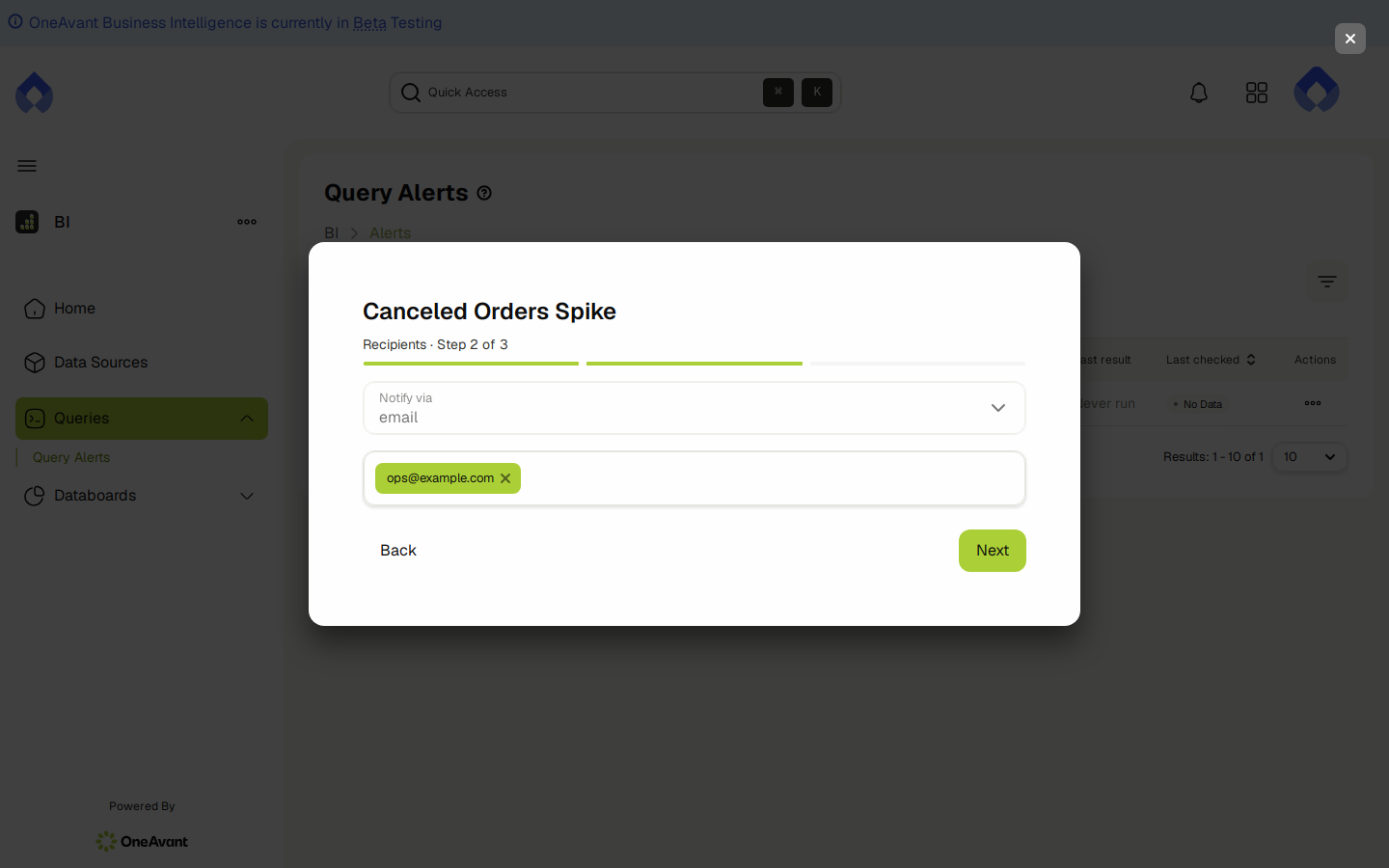
Step 2 · Recipients — choose how to be notified:
- Email — add one or more recipient email addresses.
- Slack — pick a channel from your tenant's connected Slack workspace. If Slack isn't connected yet, you're prompted to connect it first.
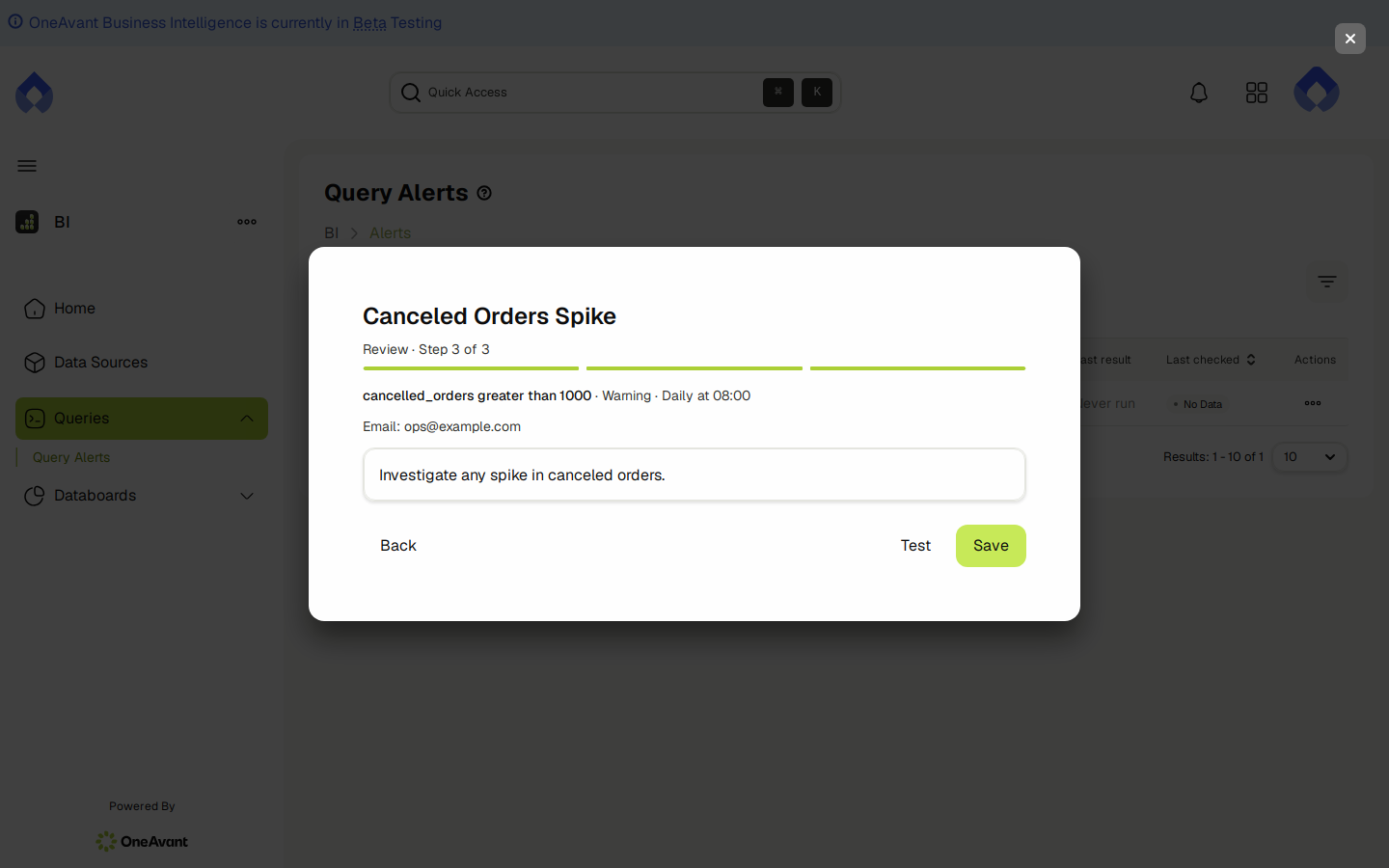
Step 3 · Review — check the summary, optionally add a short note, then either:
- Test — runs the query right now and shows whether the condition would trigger, without saving the alert or sending any notification.
- Save — creates the alert and activates it immediately.
⚙️ Choosing a Condition
| Comparison | Example |
|---|---|
| is greater than | Daily Revenue is greater than 5000 |
| is less than | Quantity On Hand is less than 10 |
| is greater than or equal to | Occupancy % is greater than or equal to 90 |
| is less than or equal to | Days Until Expiry is less than or equal to 3 |
| equals | Order Status equals Failed |
| does not equal | Sync Status does not equal OK |
Compare a column to a fixed value (Column vs value), or to another column from the same result row (Column vs column — e.g. Actual Cost is greater than Budgeted Cost).
📋 Managing Your Alerts
The Query Alerts list shows every alert with two independent pieces of state:
- Status — whether the alert itself is turned on: Active or Paused. A paused alert stops checking until resumed.
- Last result — the outcome of the most recent check:
- Never run — no scheduled check has happened yet.
- Condition not met — the check ran and nothing needed to be reported.
- Condition met — the condition was true but no notification went out (for example, no recipients are configured).
- Triggered — email sent / Triggered — Slack sent — the condition was true and a notification was delivered.
- Error:
<details>— the last check couldn't run (for example, the query stopped returning a single row). The alert keeps checking on schedule but won't notify anyone until the underlying issue is fixed.
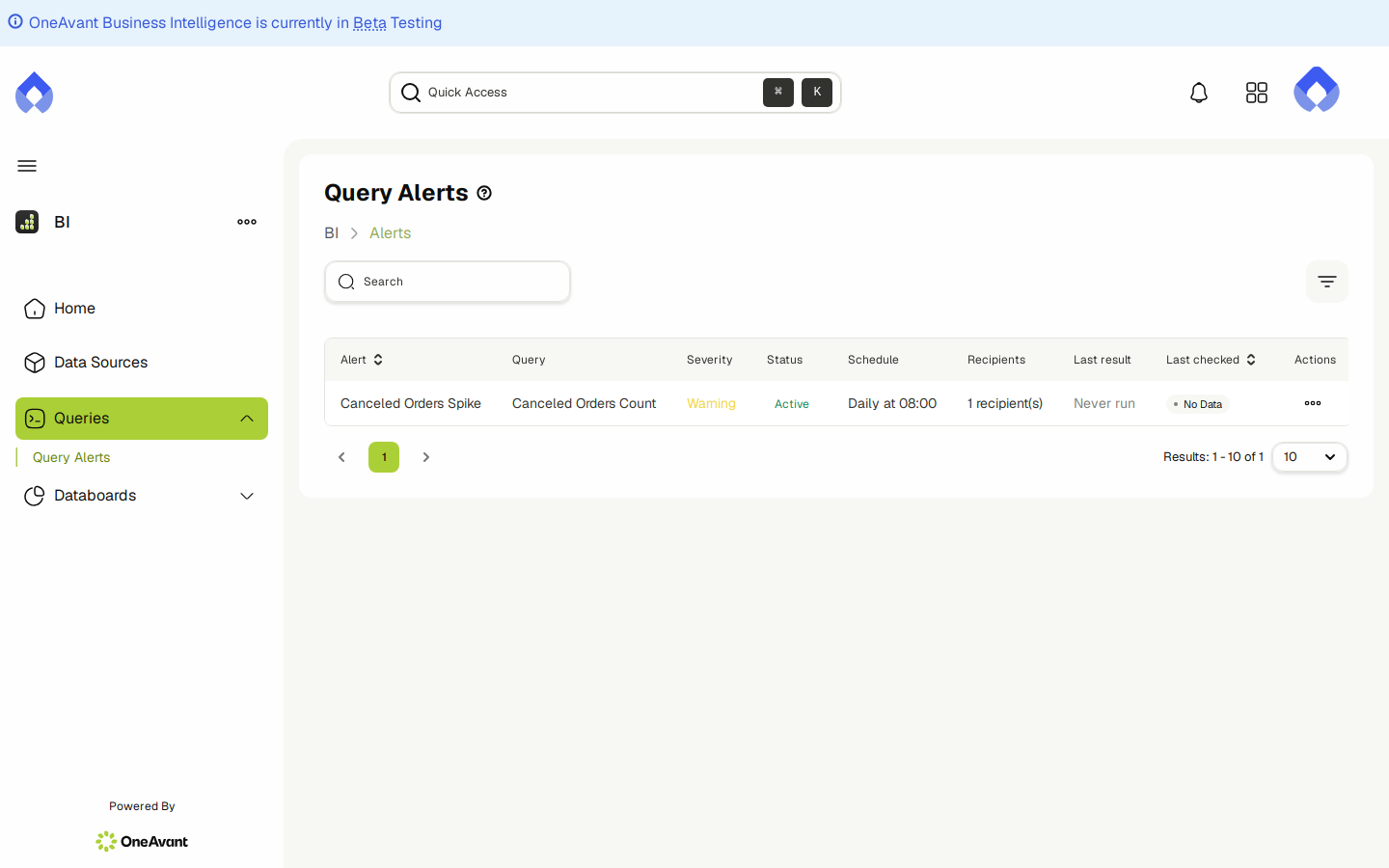
From the list, each alert has:
- Evaluate now — runs a real check immediately. Unlike Test in the creation wizard, this is a genuine check: if the condition is met, it notifies recipients for real, the same as a scheduled run.
- Edit — reopens the same 3-step wizard to change the condition, schedule, severity, or notification settings.
- Open query — jumps to the query this alert is built on.
- Pause / Resume — shown depending on the alert's current Status.
- Delete — permanently removes the alert and its evaluation history.
Deleting an alert cannot be undone.
🔔 Notification Channels
- An alert delivers to exactly one channel — Email or Slack — never both at once. Create a second alert on the same query if you need both.
- Slack alerts require your tenant's Slack workspace to stay connected — the same connection used by Sharing & Delivery.
- Changing an alert's channel while editing it clears the previous channel's recipients or channel selection.
🚫 Scope Notes
- Severity only affects how the notification is labeled (an
[INFO]/[WARNING]/[CRITICAL]prefix) — it does not change who is notified or how quickly. - An alert's query must return exactly one result row on every scheduled check, not just when the alert was created.
Reserve every-15-minute and every-30-minute schedules for genuinely time-sensitive checks.