Products & Materials
How-to guides related to Products & Materials.
Manage Product Categories
Creating a Category
-
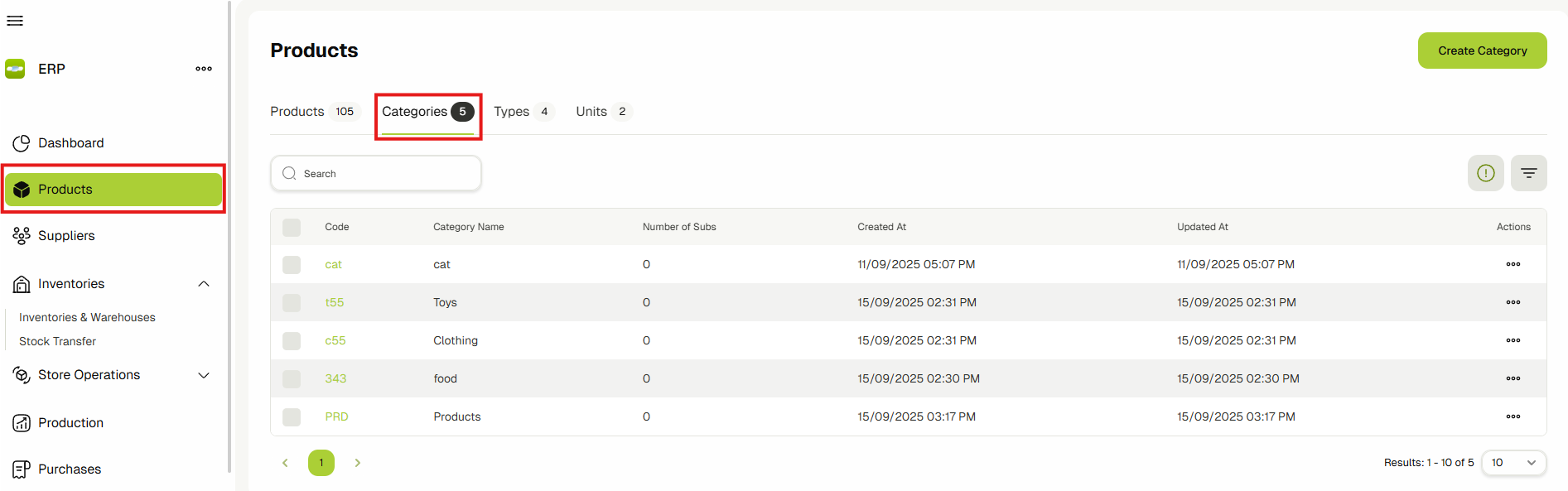
Navigate to Product Categories by clicking on the Products link in the sidebar and then click on the Categories tab.
-
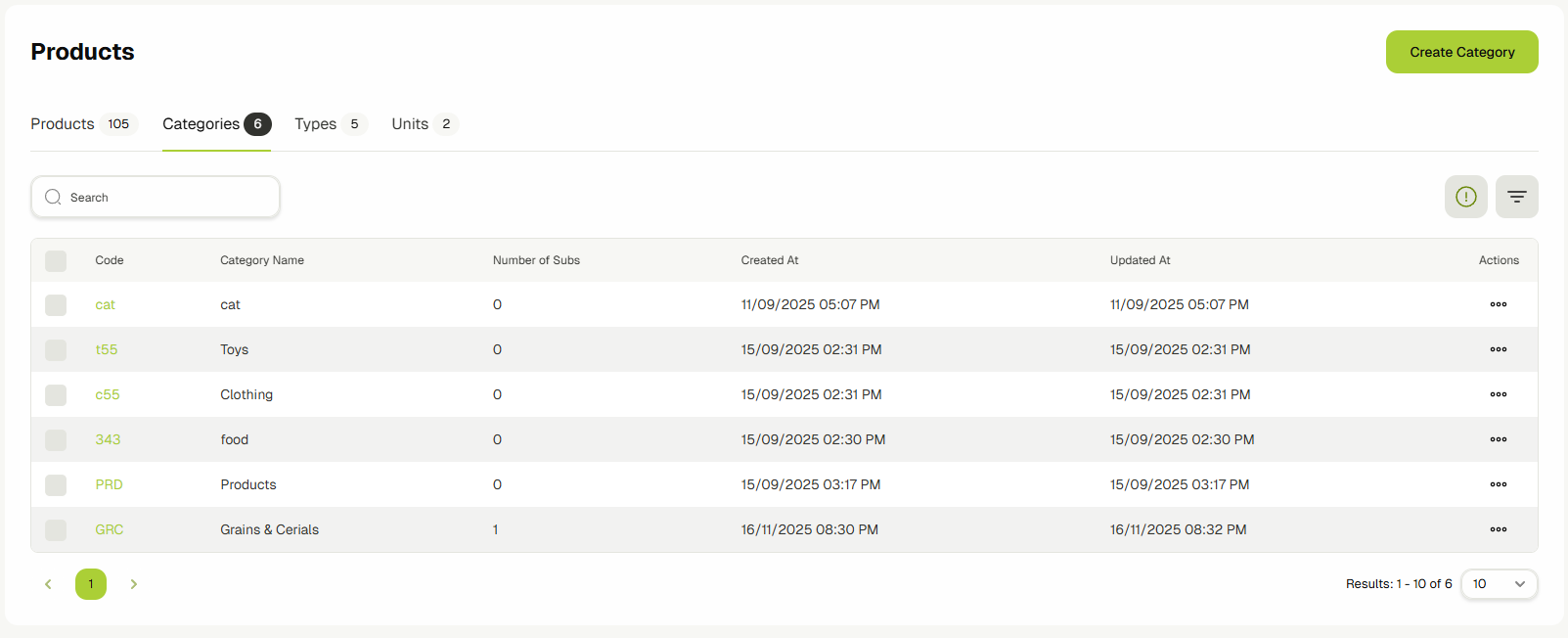
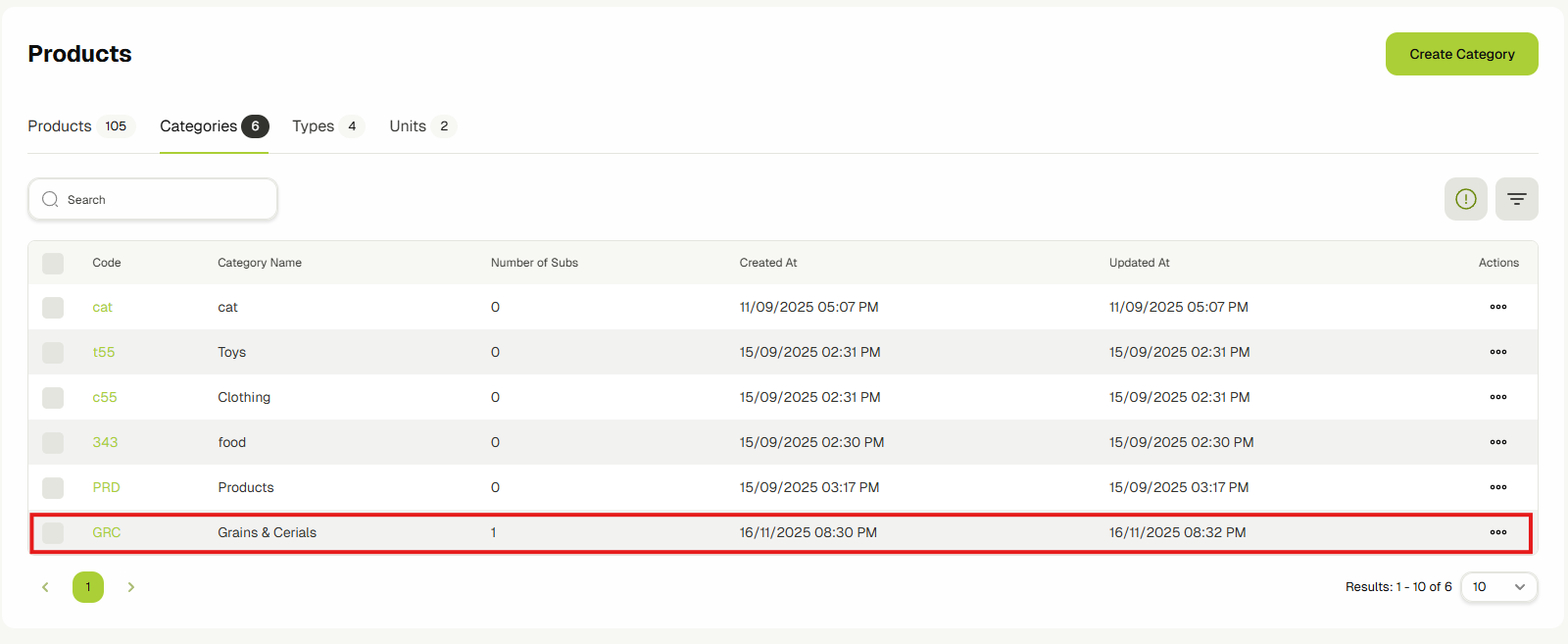
You will now be on the product categories list page. This page will have a list of all the categories that are created in the system.
-
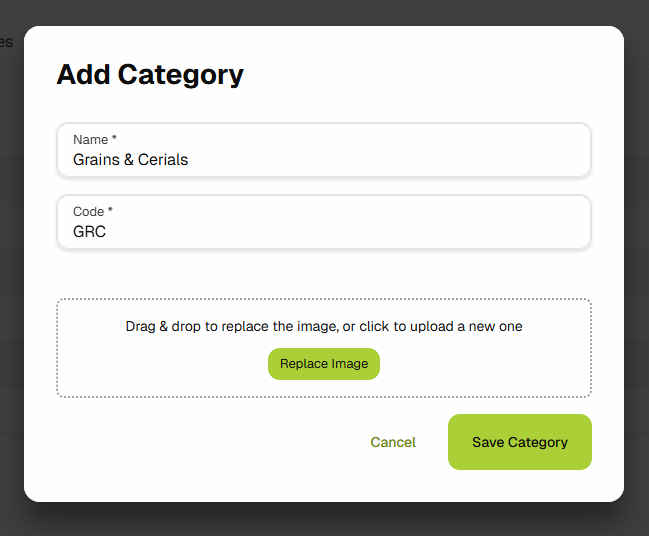
Click the Create Category button to open the add form. This will open up a form in a dialog. Fill up the form by entering a category name and code and click Save Category.
-
Once the product category is created, you'll be able to see it in the table.
-
To edit the category, either click on the Code in the table column or choose the Edit option from the actions dropdown.

-
This will open up the edit category form in a dialog, allowing you to update the category name or code.

Adding a Subcategory
If you've created a category and want to add a subcategory to it, follow the below steps.
-
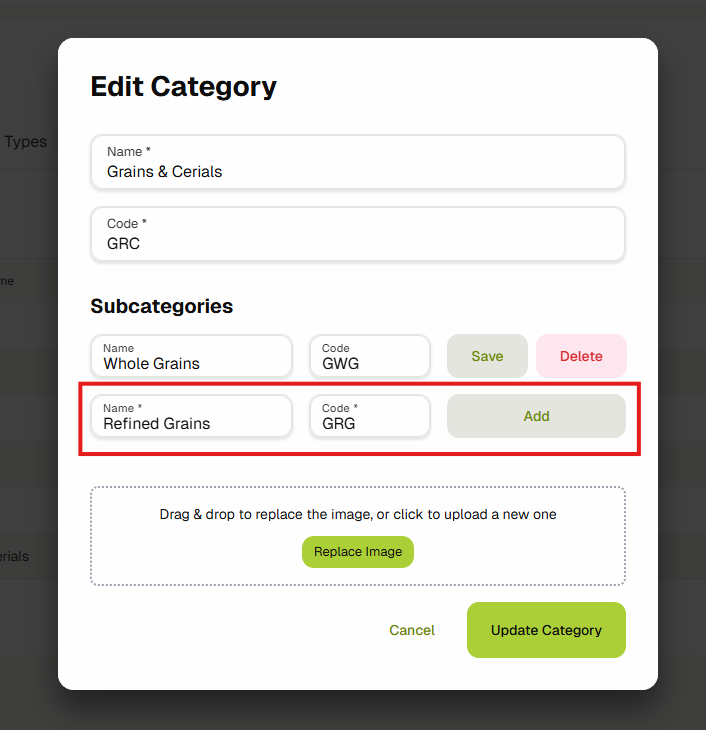
Open the edit category dialog by clicking on the Code column or by choosing the Edit option from the actions dropdown.
-
Enter a Subcategory Name and Code and click on the Add button.
-
You can also Update any subcategory by simply updating the name or code field and clicking the Save button or Delete any subcategory by clicking the Delete button.
Manage Product Types
-
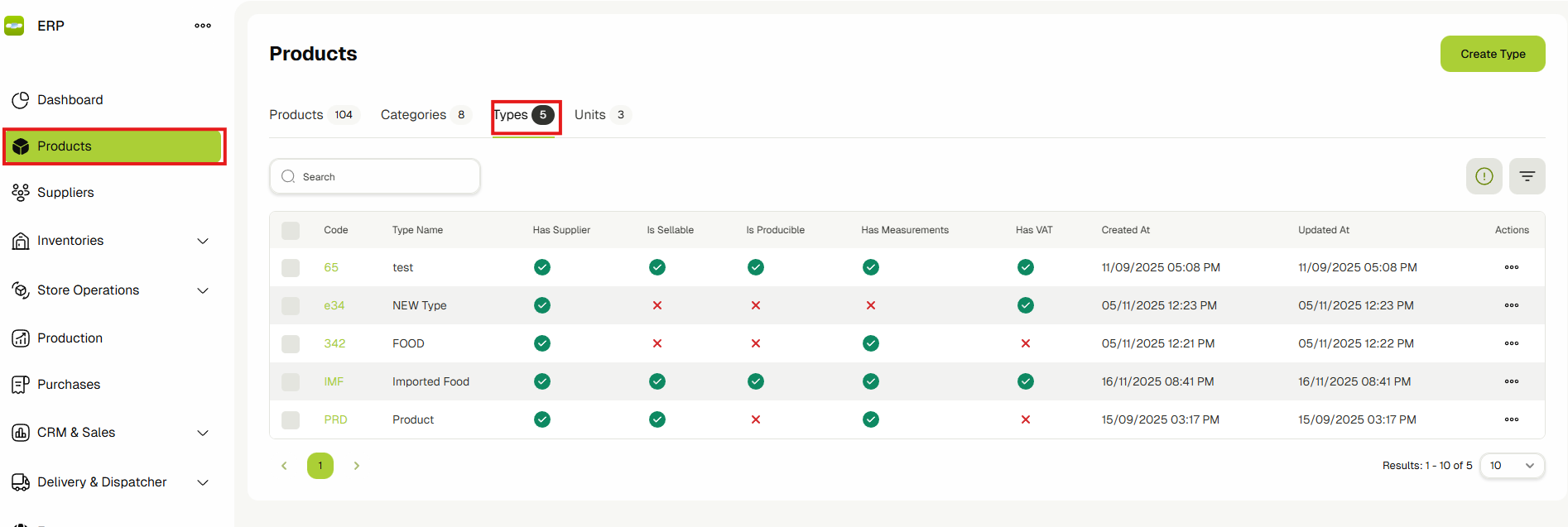
Navigate to Product Types by clicking on the Products link in the sidebar and then clicking on the Types tab.
-
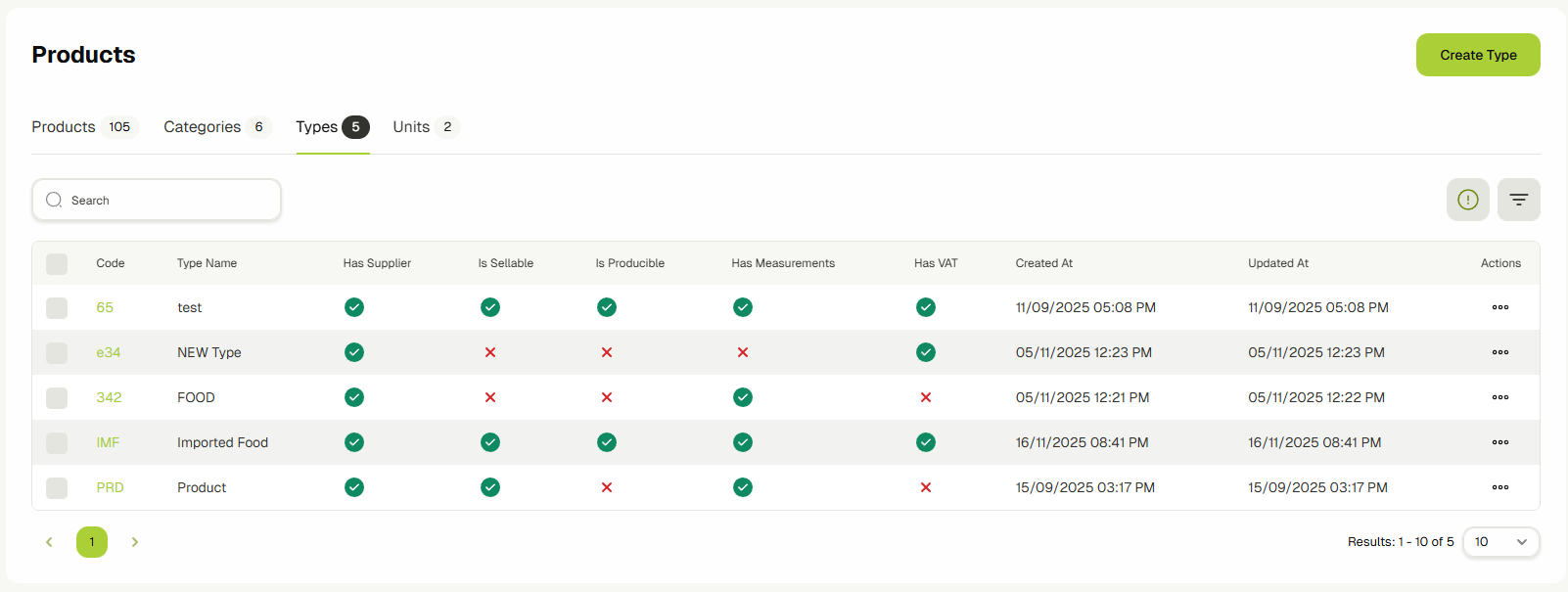
You will now be on the product types list page. This page will have a list of all the types that are created in the system.
-
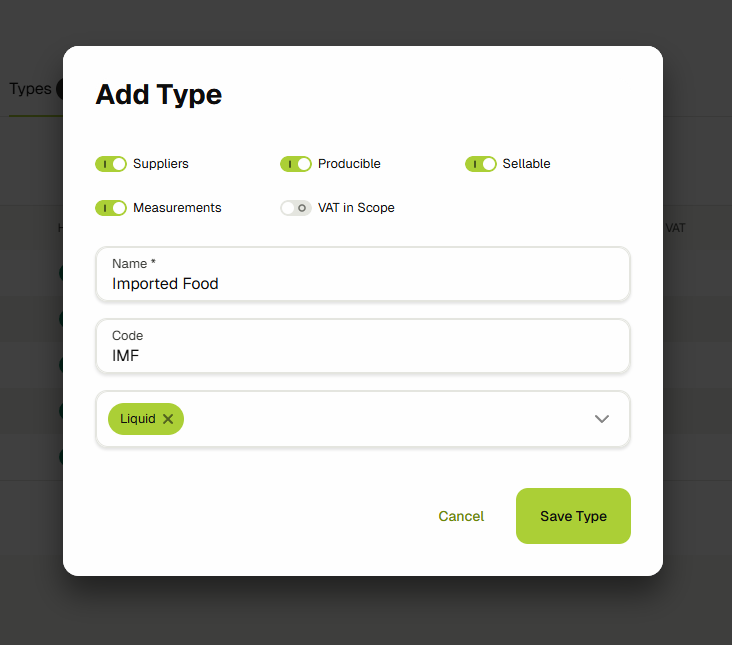
Click the Create Type button to open the add form. This form has some additional toggles that you can turn on/off based on your requirements.
Field Description Suppliers Products with this type will allow you to add multiple suppliers and their details. Producible Products with this type will be visible in Production Executions. Sellable Products with this type will be visible in the sales system and support sales operations. Measurements Products with this type will have measurements like height, weight, etc. VAT In Scope Products with this type will have a VAT rate dropdown in the products page, which will be used in purchasing flows. infoYou can also link multiple custom attributes to your product type. They affect the create product form, where the custom attributes linked to the product will depend on the selected type.
Fill up the form and click the Save Type button.
-
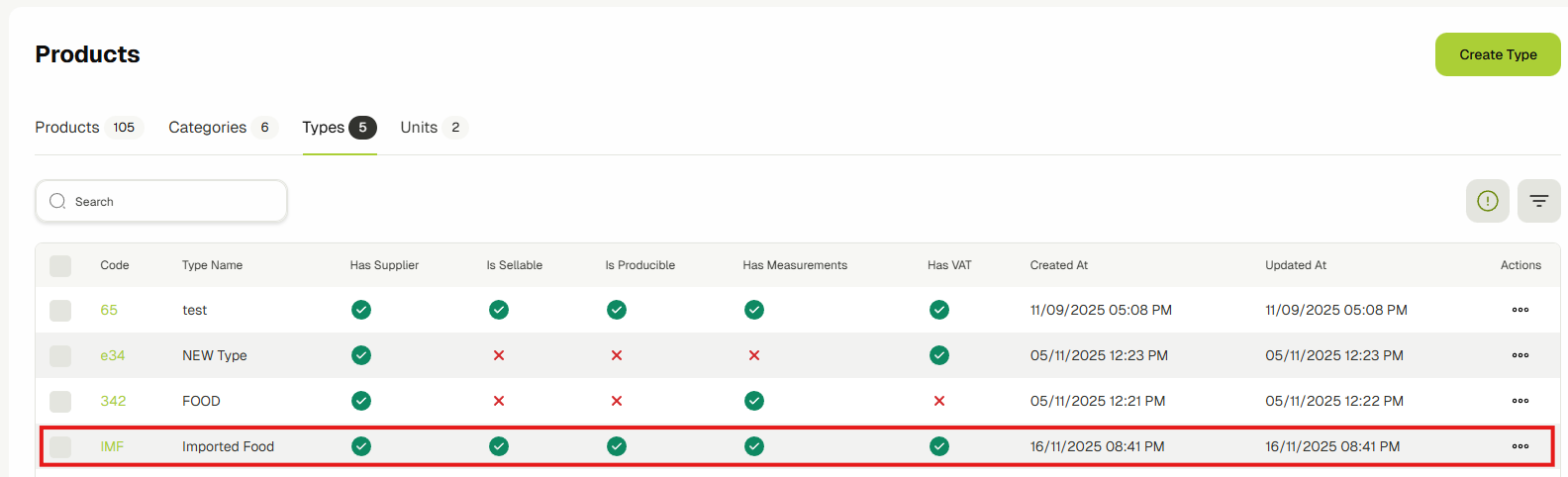
Once saved, your newly added Product Type will start appearing in the table and will also be available for selection in the Types dropdown on the Products form.
-
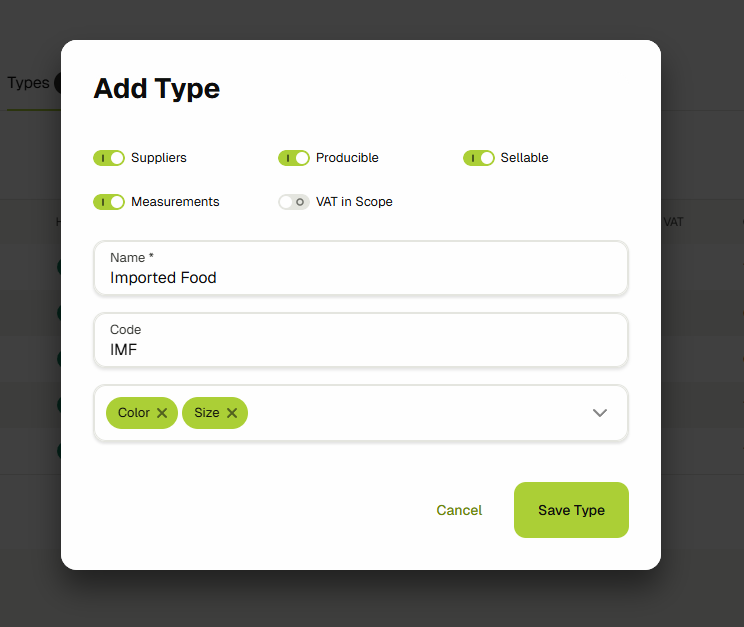
To edit the type, either click on the Code in the table column or choose the Edit option from the actions dropdown.

-
This will open up the edit types form in a dialog, allowing you to update the product type.
Manage Product Units
-
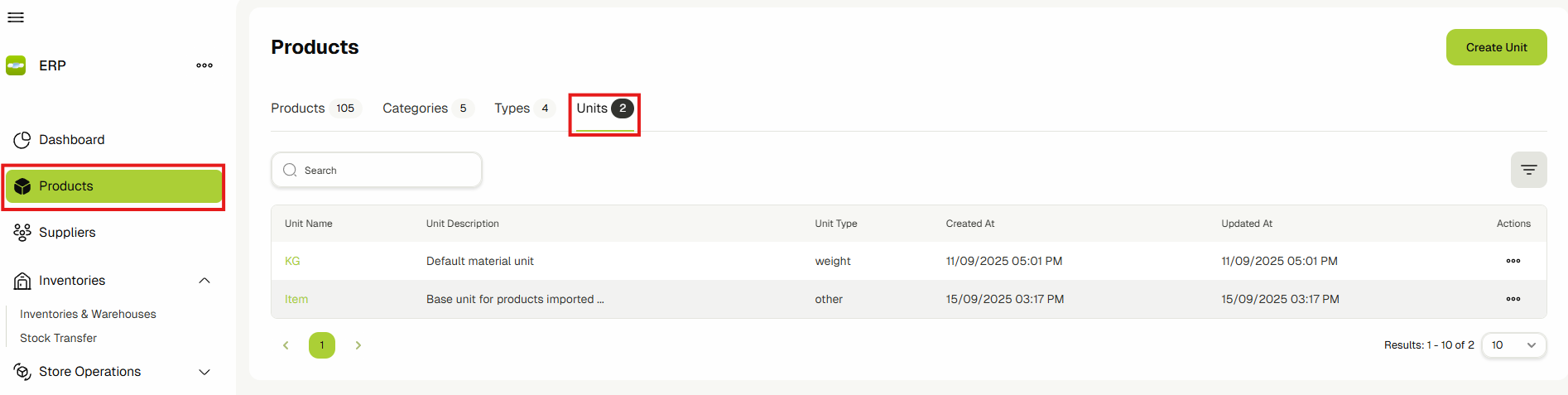
Navigate to Product Units by clicking on the Products link in the sidebar and then clicking on the Units tab.
-
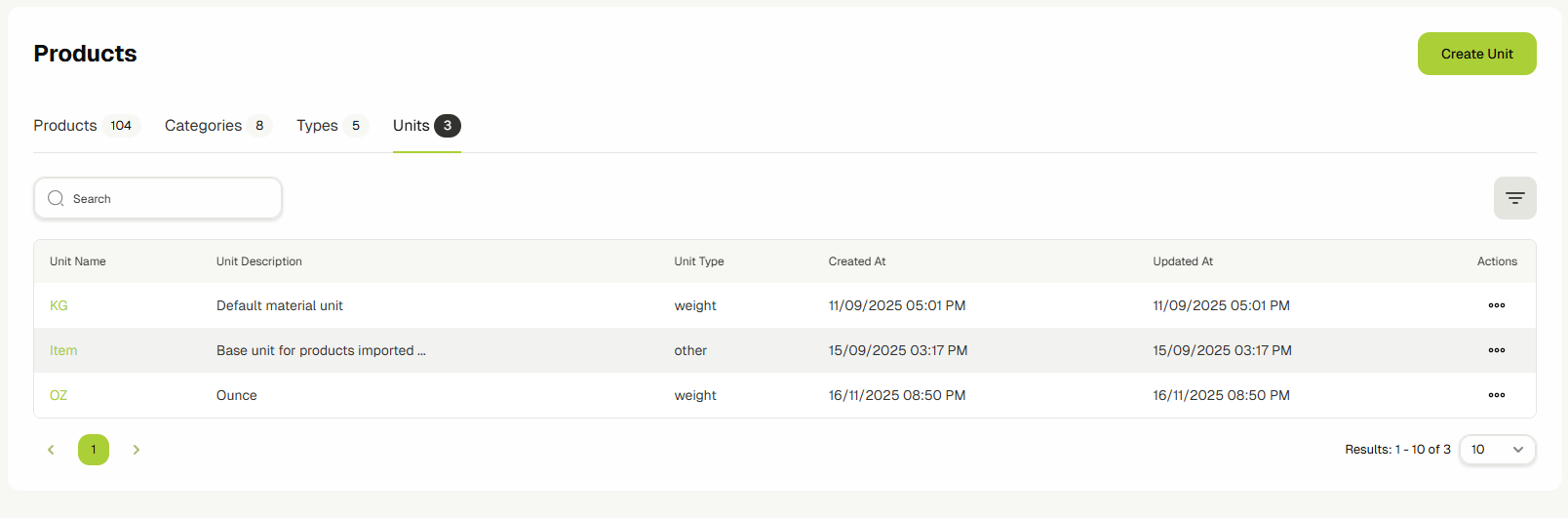
You will now be on the product units list page. This page will have a list of all the units that are created in the system.
-
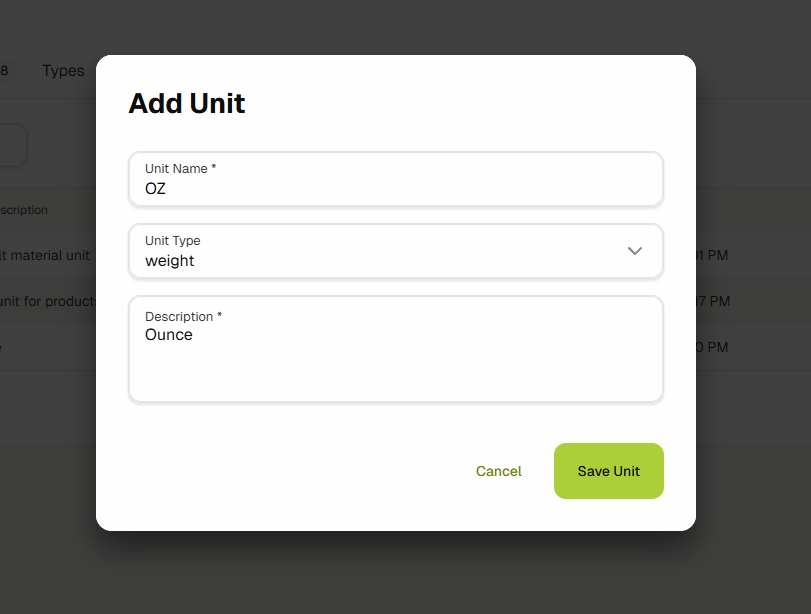
Click the Create Unit button to open the add form. This will open up a form in a dialog. Fill up the form by entering a unit name, description and choosing a unit type. Then click on Save Unit.
-
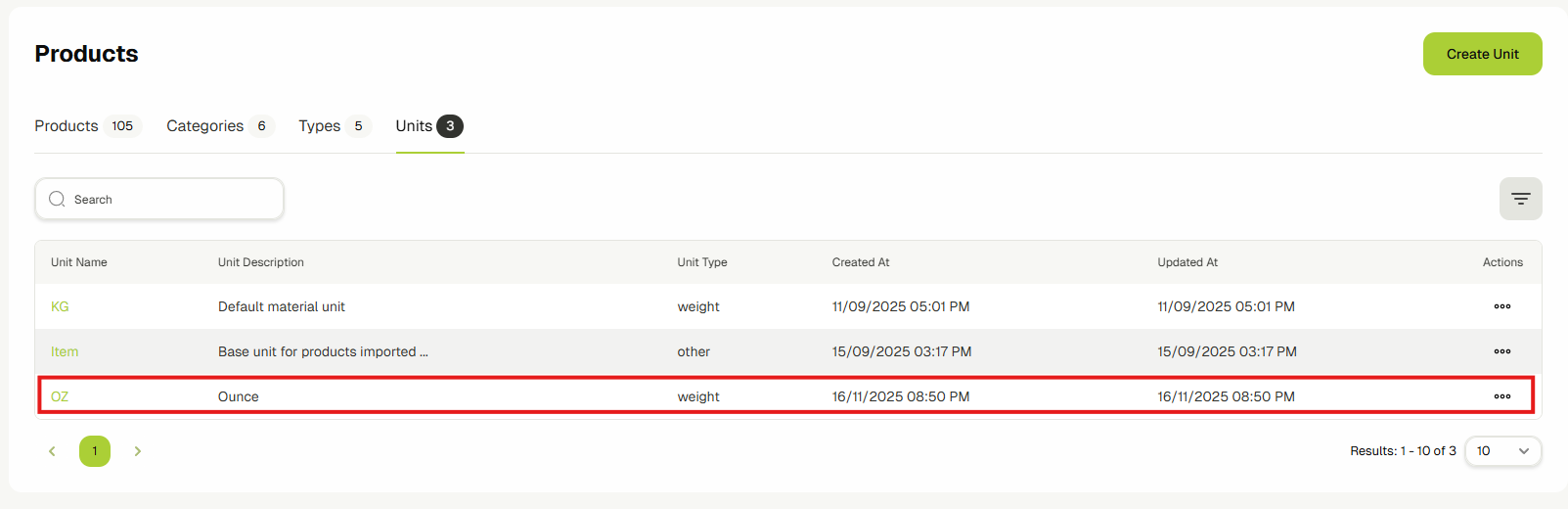
Once saved, your newly added Product Unit will start appearing in the table and will also be available for selection in the Units dropdown on the Products form.
-
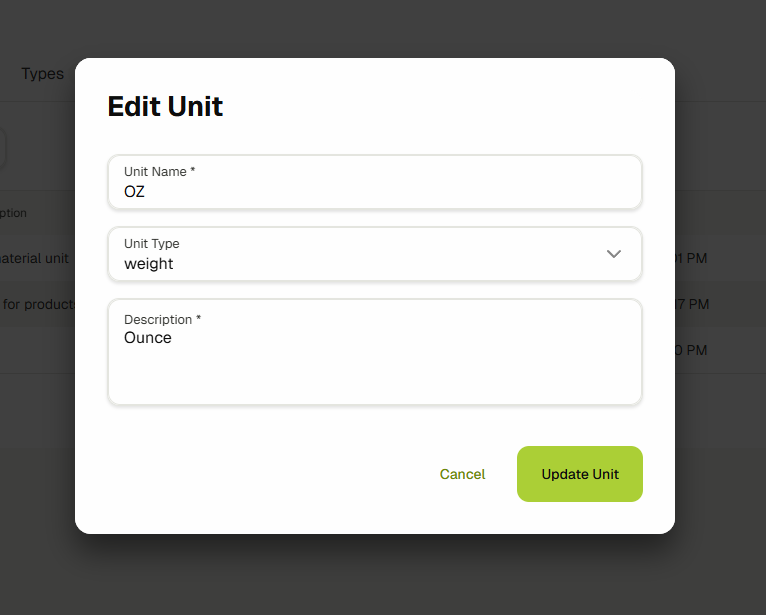
To edit the unit, either click on the Unit Name in the table column or choose the Edit option from the actions dropdown.

-
This will open up the edit units form in a dialog, allowing you to update the product unit.
Manage Products
Products are a core part of ERP, used in almost all entities across the app.
-
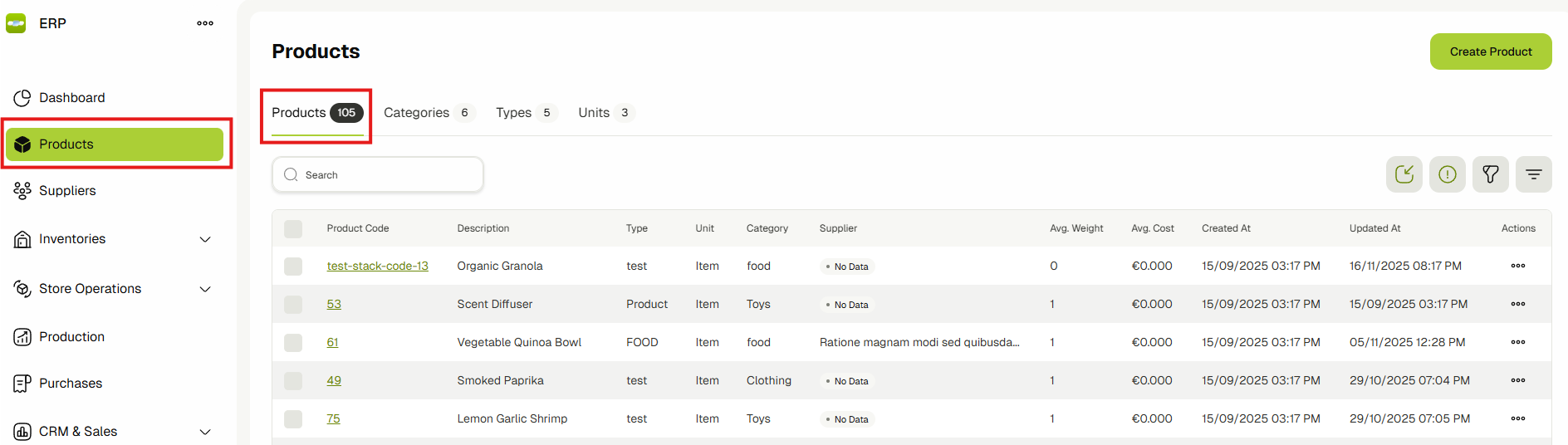
Navigate to Products by clicking on the Products link in the sidebar and then clicking on the Products tab.
-
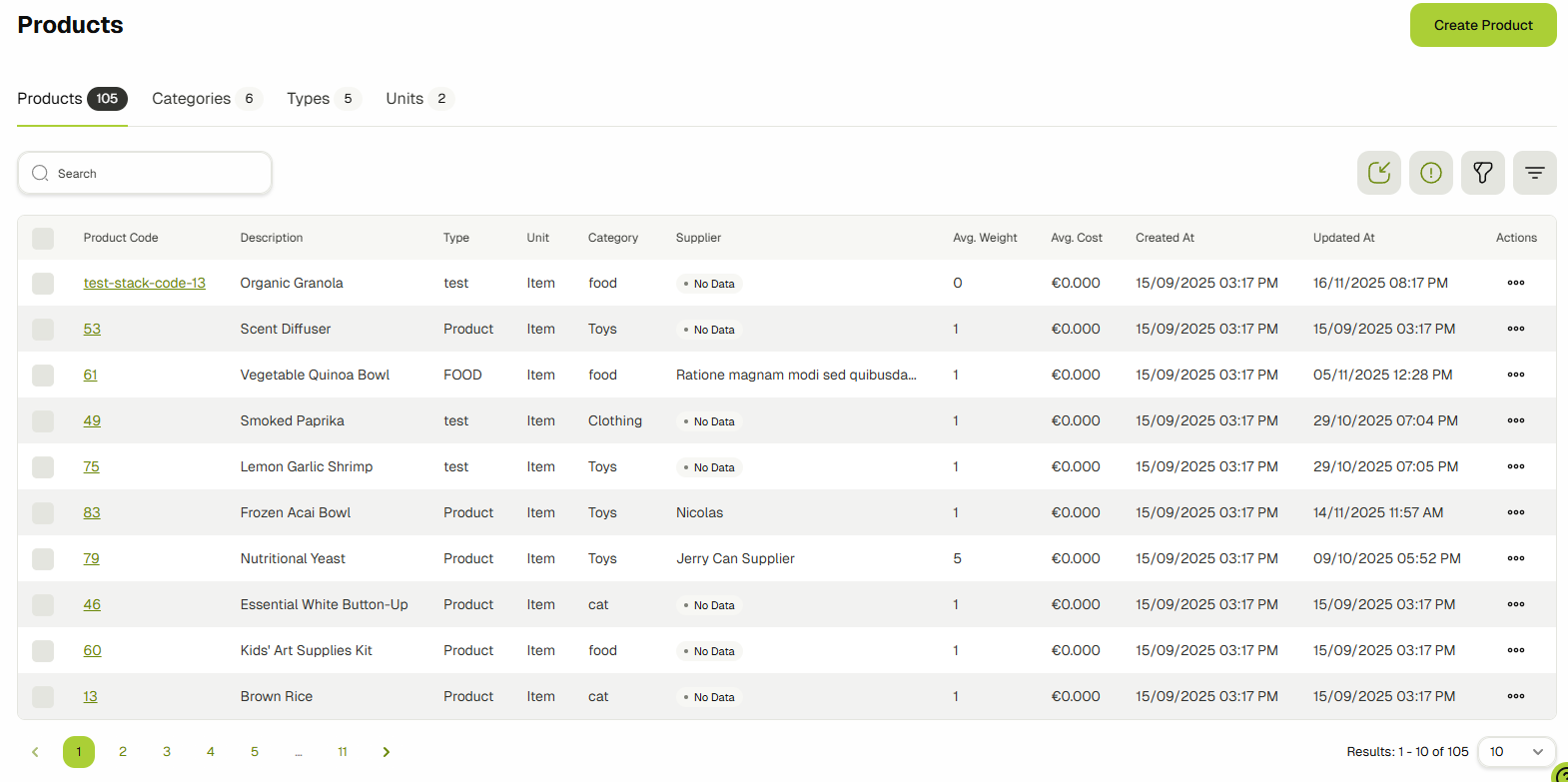
You will now be on the products list page. This page will have a list of all the products and materials that are available in the system.
-
Click the Create Product button to open the add form. This form is divided into several sections.
infoYou can rearrange the section cards on the add/edit product page according to your preference by clicking on the edit grid button next to the Save button and choosing Customize View.
You'll then be able to drag/drop the sections on the page. Once satisfied with your layout, click the button again and choose Save Customization.
The layout will remain persistent until you change it again. If you want to reset it back to default, choose the Reset Customization option.
General Section
This is the first section on the page by default. You can fill out the general details of your product here.
infoIf you don't fill out the ID Code field, the system will automatically assign a code based on the structure defined in the ERP settings.
infoIf you don't have a category, you can quickly create one by opening the dropdown and selecting Add New Category. This approach allows you to create new categories without leaving the page.
Click here to learn more about Product Categories.

Type Specific Details
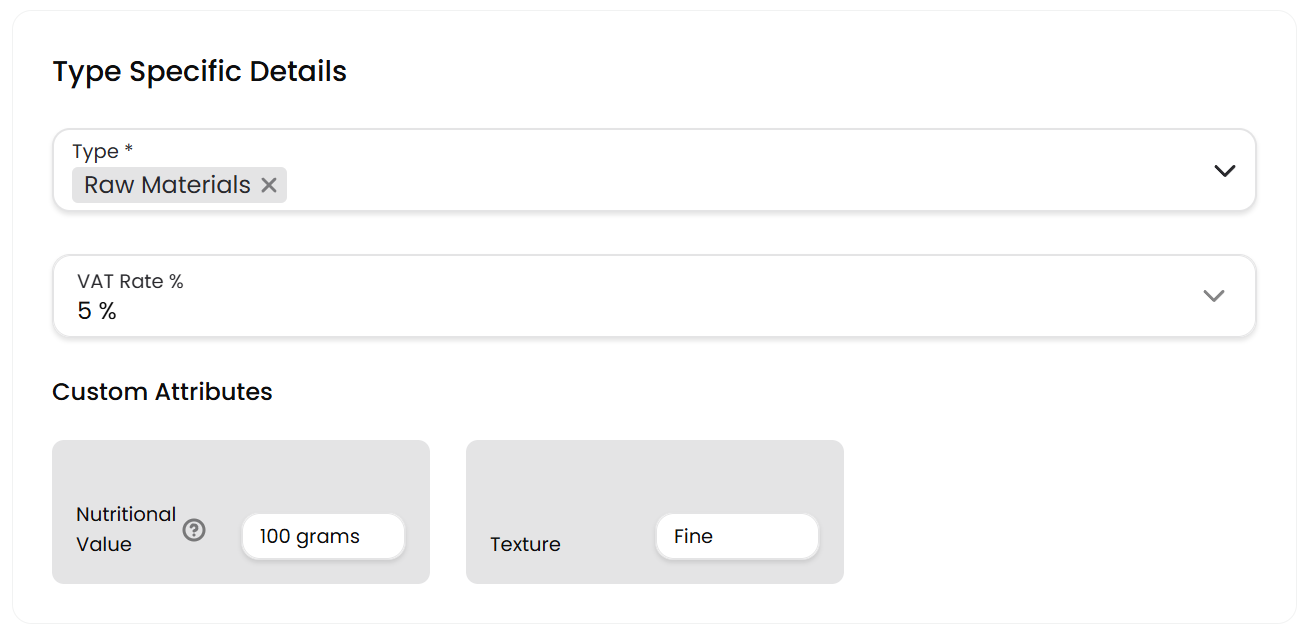
The next section is the Type Specific Details section. You can choose a type and fill out any custom attribute fields if you have them.
infoIf you don't have a type, you can quickly create one by opening the dropdown and selecting Add New Type. This approach allows you to create new types without leaving the page.
Each type has several options like Suppliers, Sellable, VAT In Scope, etc. Some of the sections & fields on the page show/hide based on the type options.
Click here to learn more about Product Types.
infoThe displayed custom attributes depend on the selected product type, as each product type will have its own list of custom attributes that can be assigned to it in the create/update forms for the product type.
infoYou can also rearrange the custom attribute field cards in this section. Hover over them and you'll see a drag handle to drag them. Their layout will remain persistent until you change it again.
Measurements
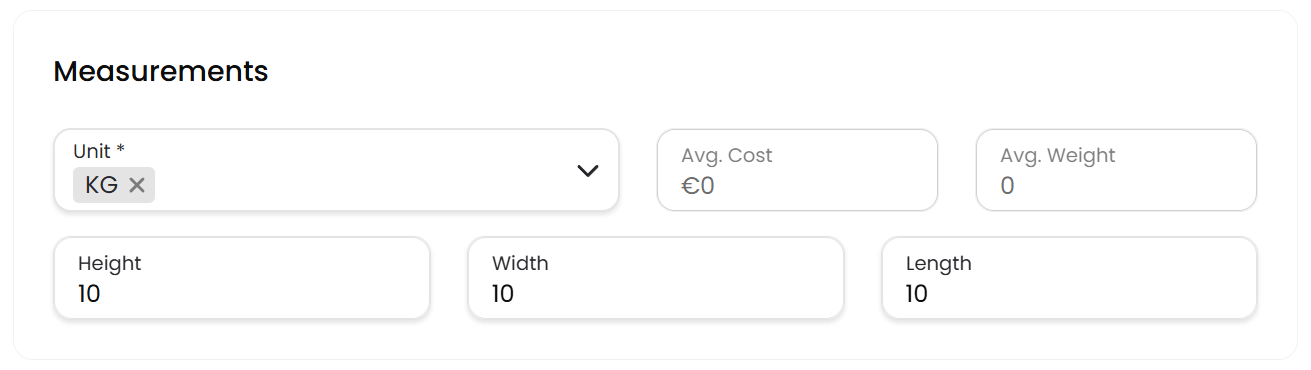
In this section, you can choose a unit and fill out the dimensions and cost/weight of the product.
infoThe Average Cost & Average Weight fields will only be editable if the type you chose in the previous section has the Supplier toggle turned off.
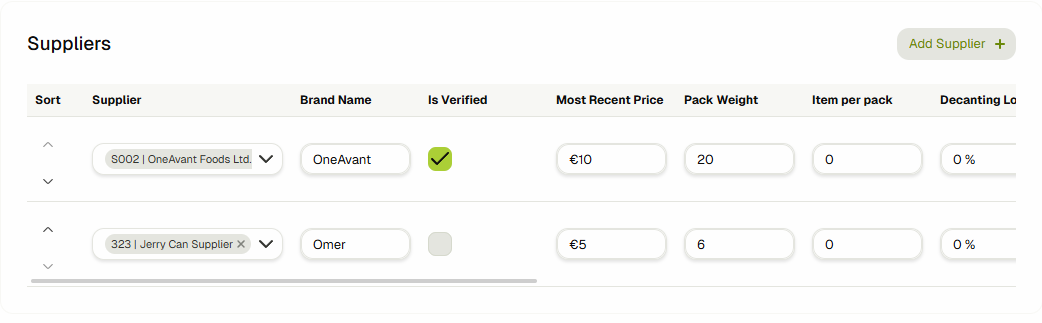
If your type does have the option turned on, then these fields will be calculated automatically based on the average of the Most Recent Price & Pack Weight values you set in the supplier section (more details in the Supplier section below).
infoThe Length, Width & Height fields will only be shown if the type you chose in the previous section has the Has Measurements toggle turned on.
Suppliers
This section will only be visible if the Product Type you chose had the Suppliers option toggled on. Here you can add multiple suppliers to associate them with this product. You can also turn on/off the fields for this supplier section from the ERP settings.
infoIf you don't have a Supplier, you can quickly create one by opening the supplier dropdown and selecting Add New Supplier. This approach allows you to add new suppliers without leaving the current page.
Click here to learn more about Suppliers.
Sales
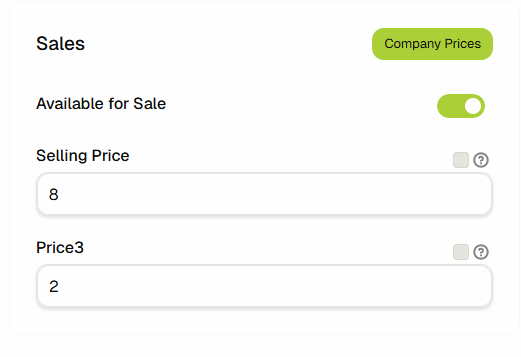
This section will only be visible if the Product Type you chose had the Sellable option toggled on.
infoYou can toggle on Set to Sellable to view and set the Custom Price fields.
Click here to learn more about Custom Price fields.
infoSellable type products are also shown on the Sales Product catalogue page.
Click here to learn more about the Sales Product Catalogue.
 info
infoThe Company Prices button may or may not be available depending on the Company–Product relationship settings configured for your tenant.
If it's enabled, you can also link sellable products to a company. Click here to read more about it.
Images
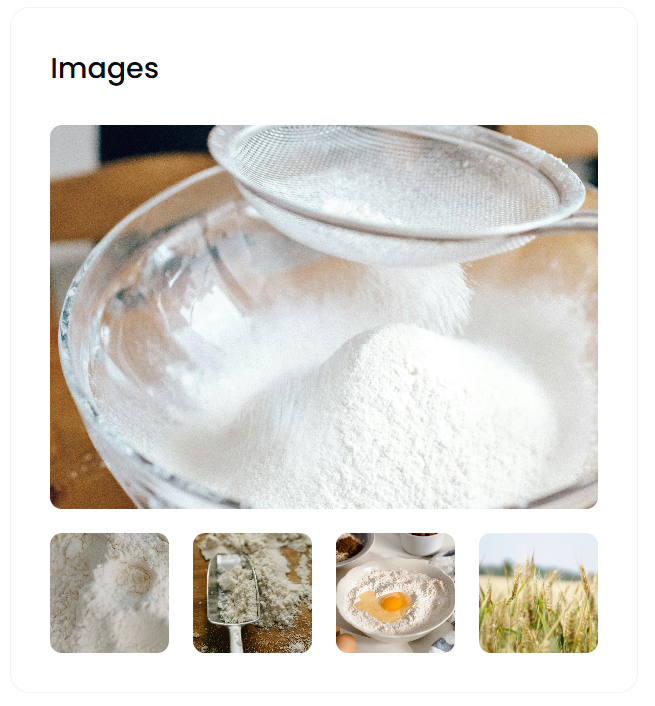
You can upload up to 5 images for a product. Allowed image formats are PNG, JPG, and WebP.
infoYou can click on the uploaded image to view it in a larger size, with the option to zoom in or out.
Files
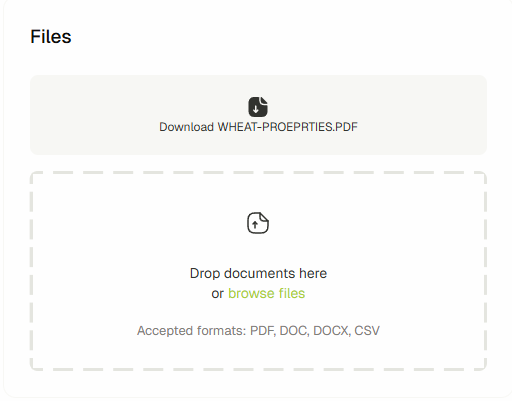
Similar to images, you can also add multiple files to your product. Allowed file formats are PDF, DOC, DOCX, and CSV.
Once you're satisfied with the entered details, you can click the Save Product button to save this Product.
Your newly added Product will start appearing on the Products table and will also be available for selection in Products & Material dropdowns available in multiple entities across ERP.