Suppliers
How-to guides related to Suppliers.
Manage Suppliers
-
Navigate to Suppliers by clicking on the Suppliers link in the sidebar.

-
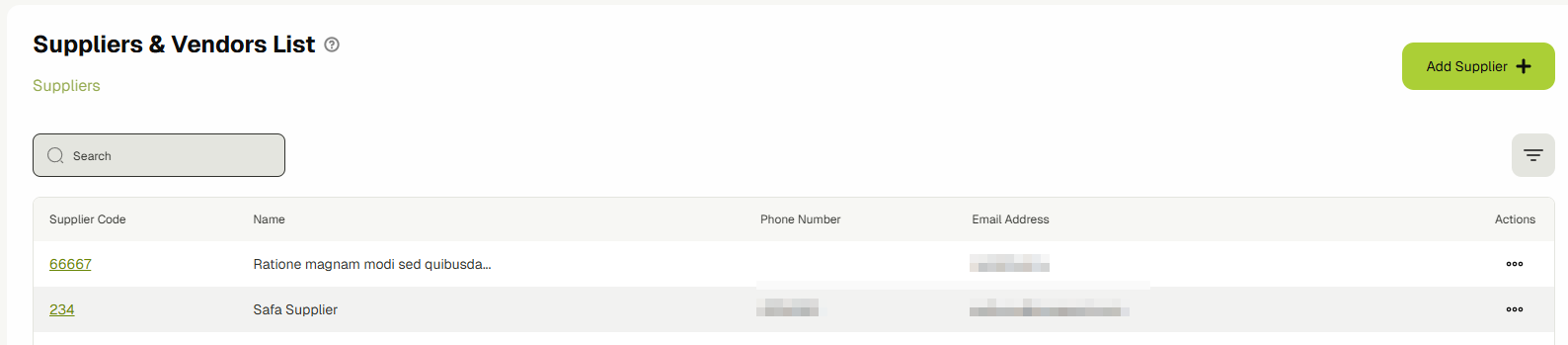
You will now be on the suppliers list page. This page will have a list of all the suppliers that are available in the system.
-
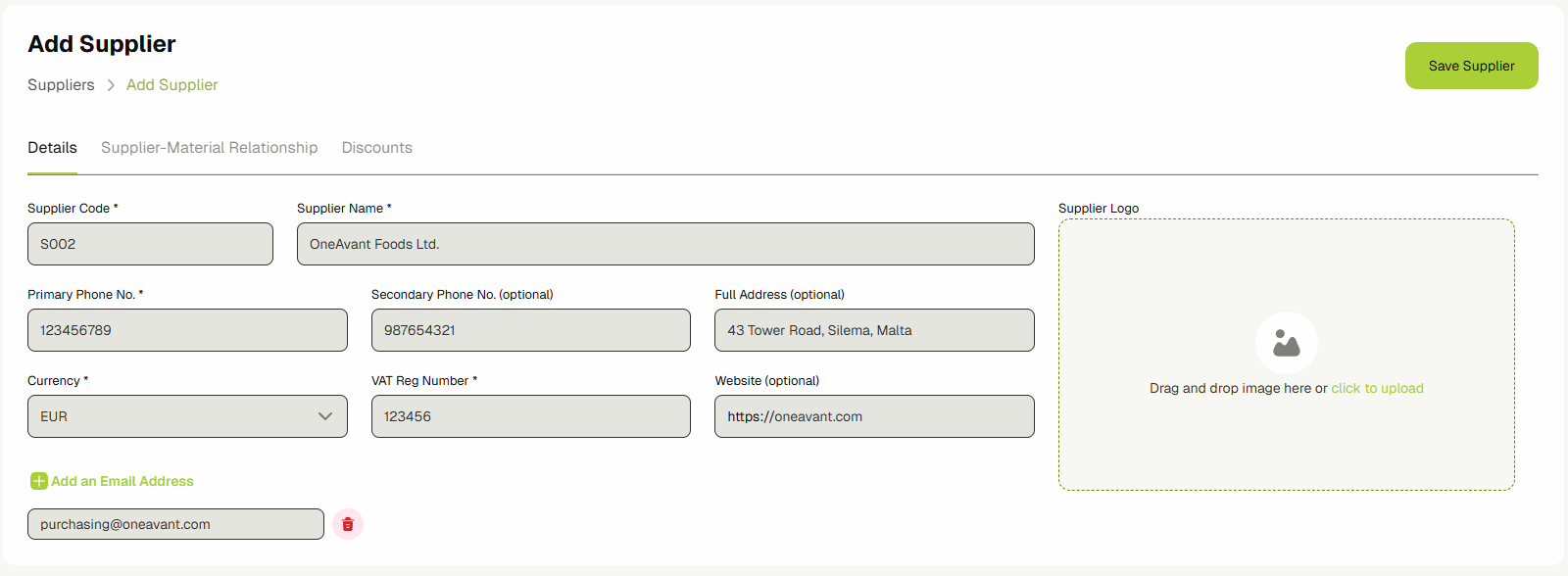
Click the Add Supplier button to open the supplier add form. Fill up the form and click the Save Supplier button to save this supplier.
infoYou can add multiple email addresses for a single supplier.
-
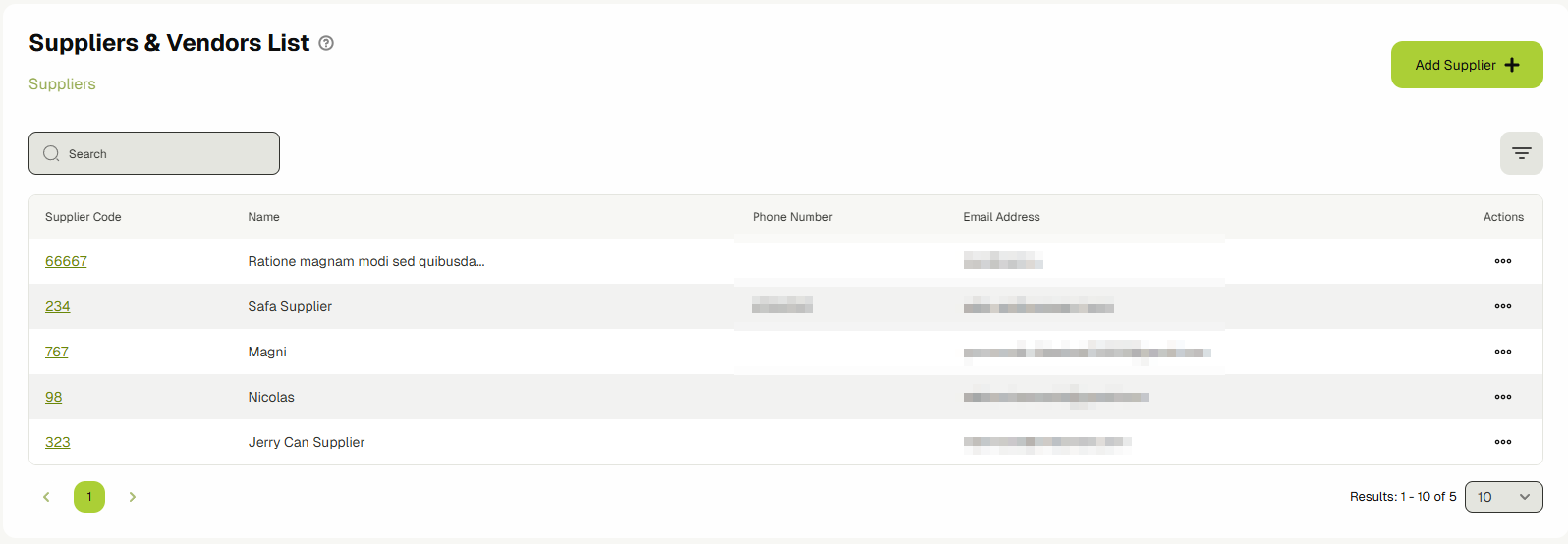
Once saved, your newly added Supplier will start appearing on the main Supplier list view page and will also be available for selection in the Suppliers dropdown available on other pages.
Manage Supplier Discounts
Supplier discounts can only be created once you have a supplier. If you don't have a supplier yet, check out this guide to learn how to create a new supplier before continuing.
-
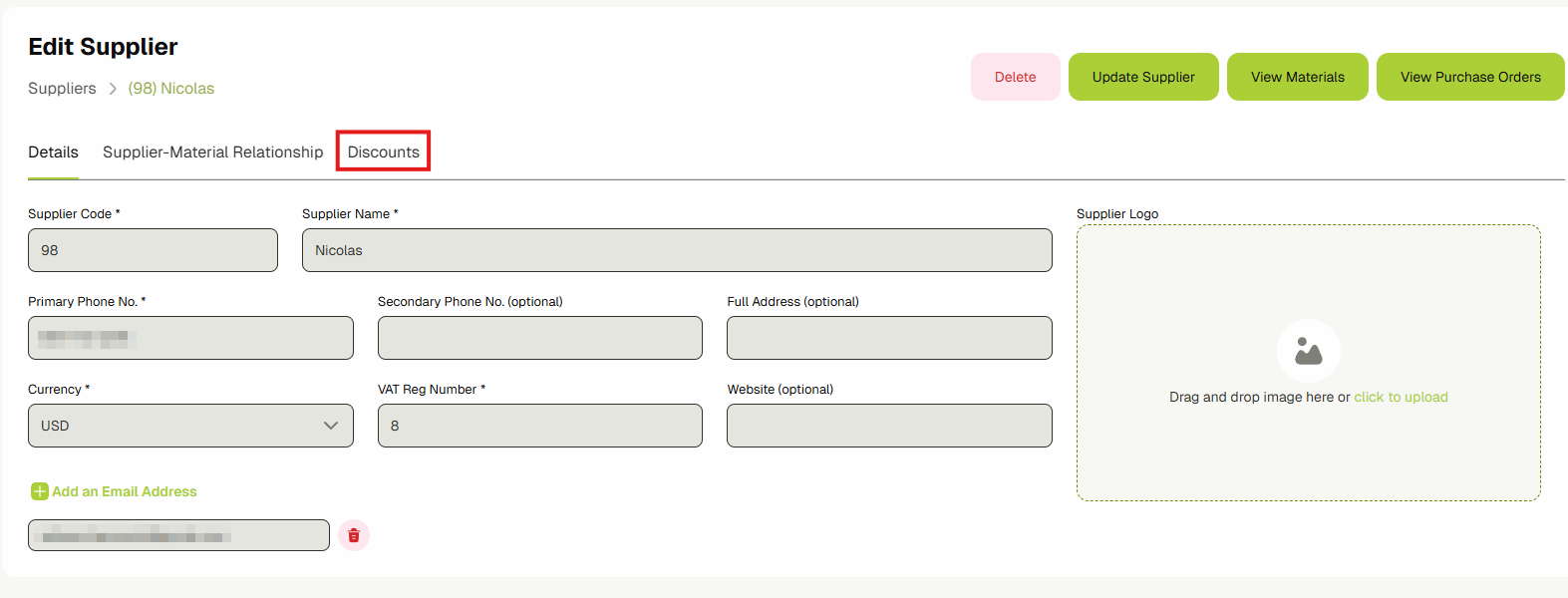
Once you have a supplier, open its edit page and click on the Discounts tab.
-
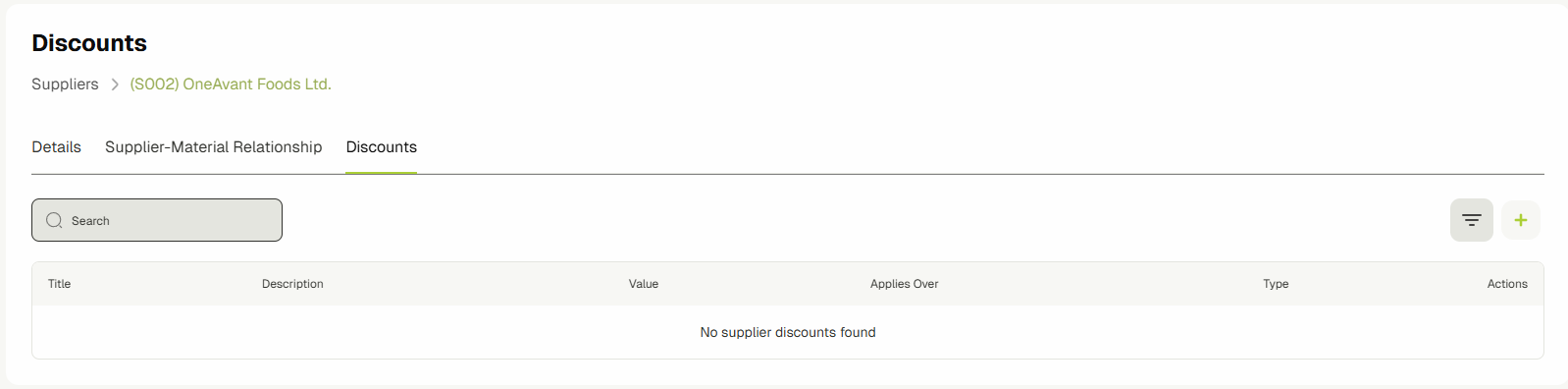
It will show you a table list page with all the discounts associated with this supplier.
-
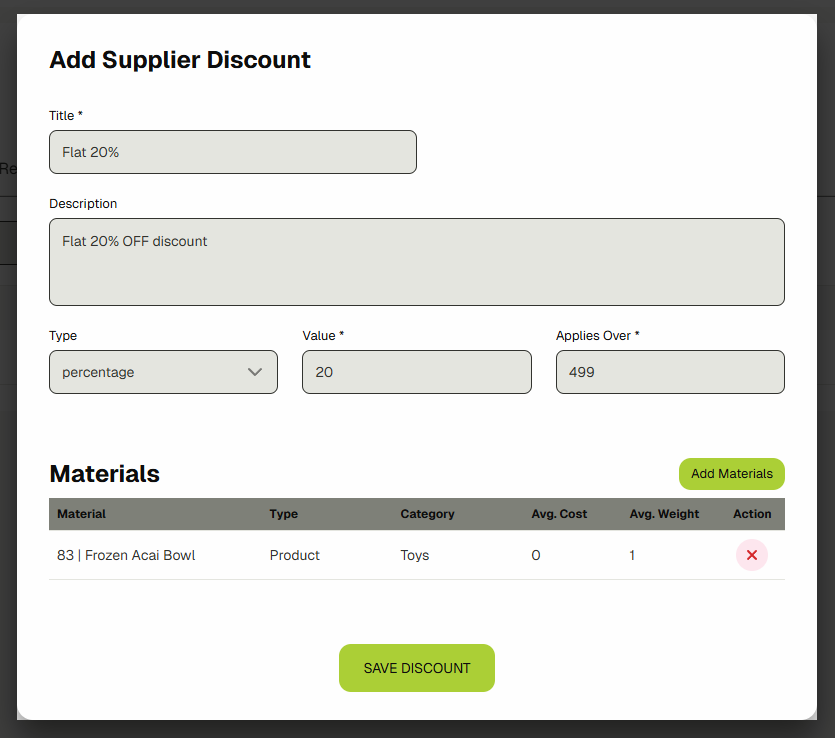
Click the Add Discount button to open the add discount form. Fill up the form and click the Save Discount button to save this discount.
infoYou can link multiple materials that have the same supplier to this discount while you're creating it by clicking on the Add Materials button and selecting the materials.
If you don't have a material linked with this supplier while you're creating a discount, you can link them up later by coming to this page and selecting the materials in the edit discount dialog.
Alternatively, you can also use the Supplier-Material Relationship tab to update a discount associated with the material. Click here to read more about it.
-
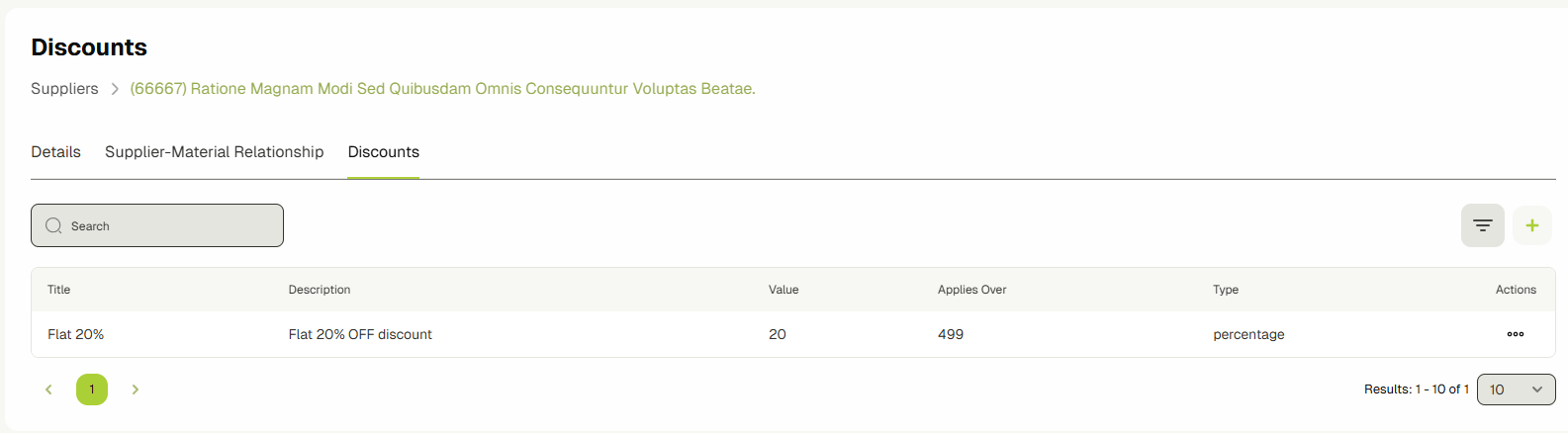
Once saved, your newly added Supplier discount will start appearing on the Supplier discounts list view page of this supplier, and the discount values will automatically be filled in the Purchasing forms when selecting this specific supplier-material.
Supplier-Material Relationship
The Supplier-Material relationship tab inside the supplier's edit page allows you to quickly view/update the relationship between a material and its supplier.
Before continuing with this guide, check out this guide to learn how to create a new supplier if you don't already have one.
You'll also need to add this supplier to a material before this table shows any data. If you need help with that, click here to read about managing Products & Materials.
-
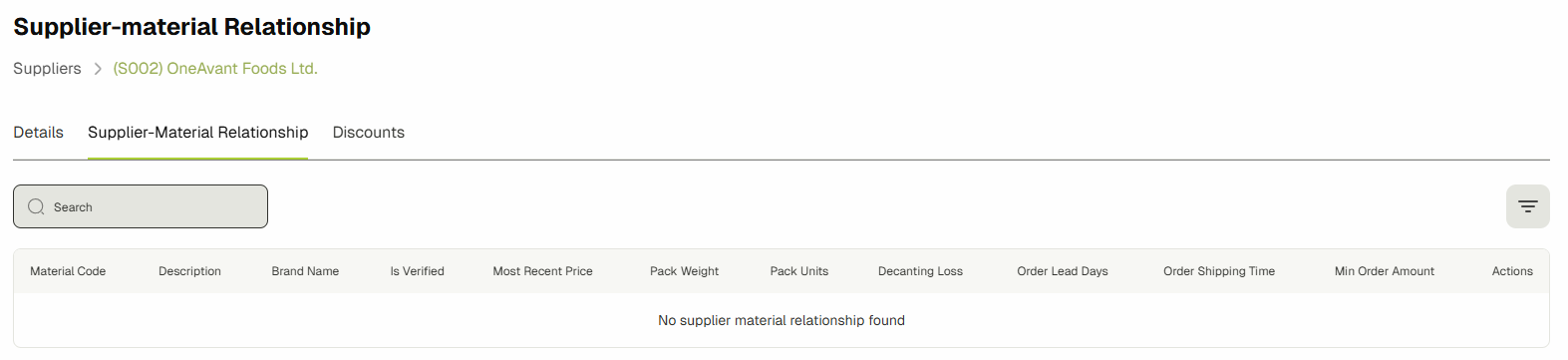
Open a supplier edit page and click on the Supplier-Material Relationship tab. Here you'll see a list of all the materials that have the current supplier in their suppliers list.
-
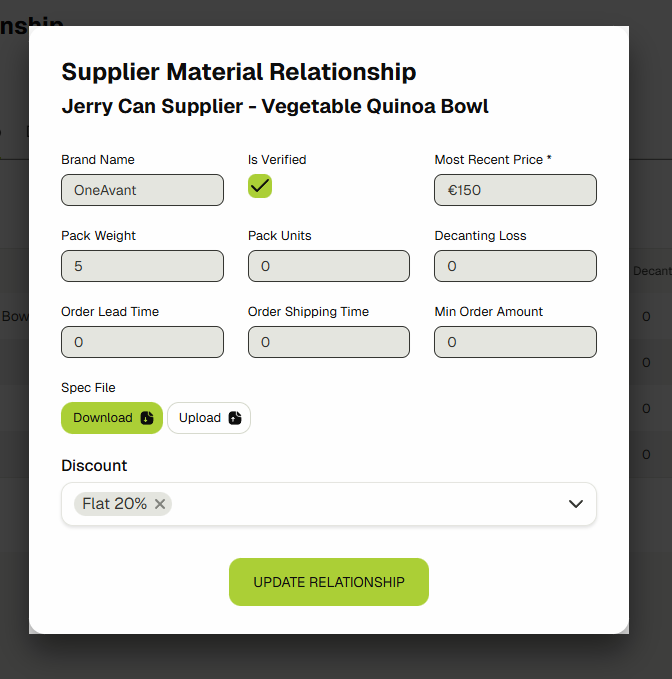
Click the Edit button to open up the relationship dialog. Update the values in the form and click the Update Relationship button to save them.
infoUpdating the supplier-material relationship through this form automatically updates all values for the corresponding supplier row in the Supplier section within the Material form.