Dashboard Notifications
🔔 Notifications & Alerts
Notifications help you stay on top of important updates from both guests and staff. Whether it’s a new message, a service request, or a staff assignment, the notification system ensures you never miss a beat.
📩 Guest Notifications: Messages & Requests
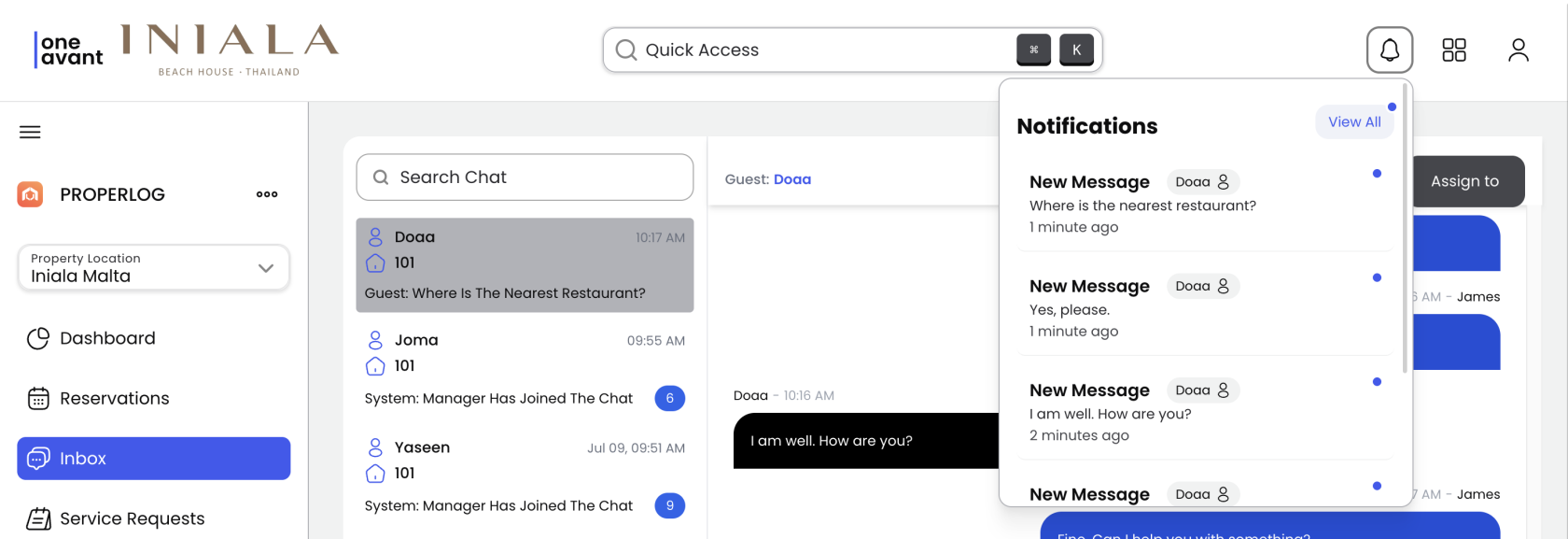
If you're assigned to a reservation and the guest sends a message or service request, you'll receive a real-time notification alert.
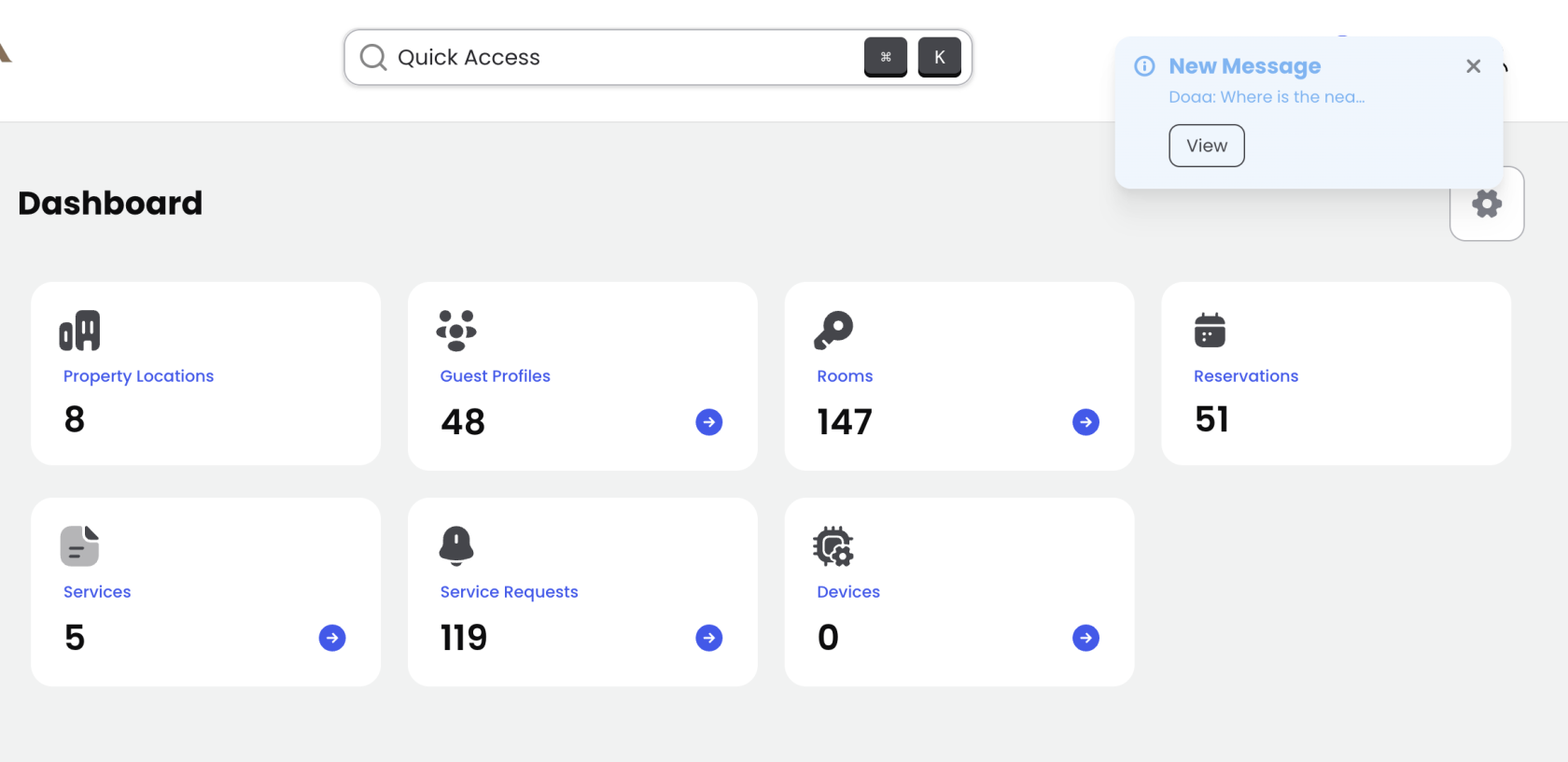
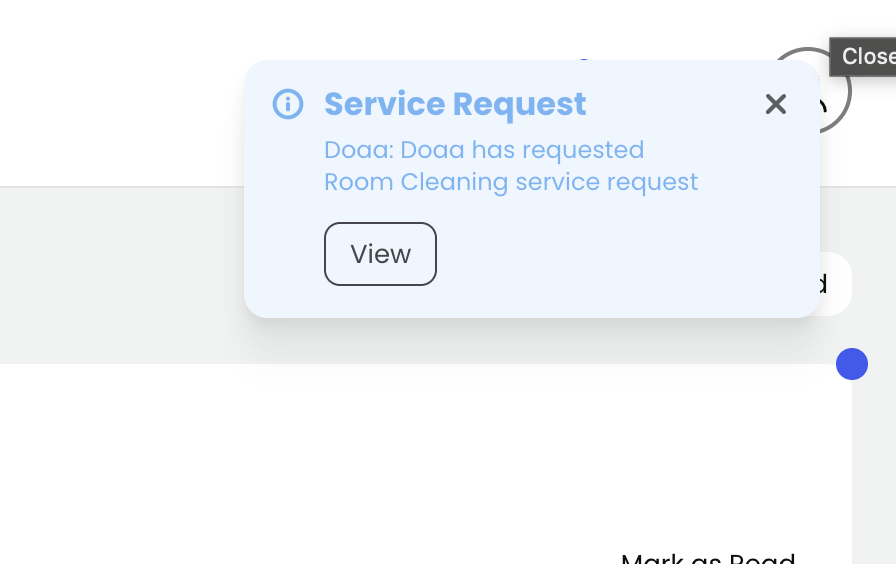
-
Tap "View" on the notification to jump directly to the related chat.
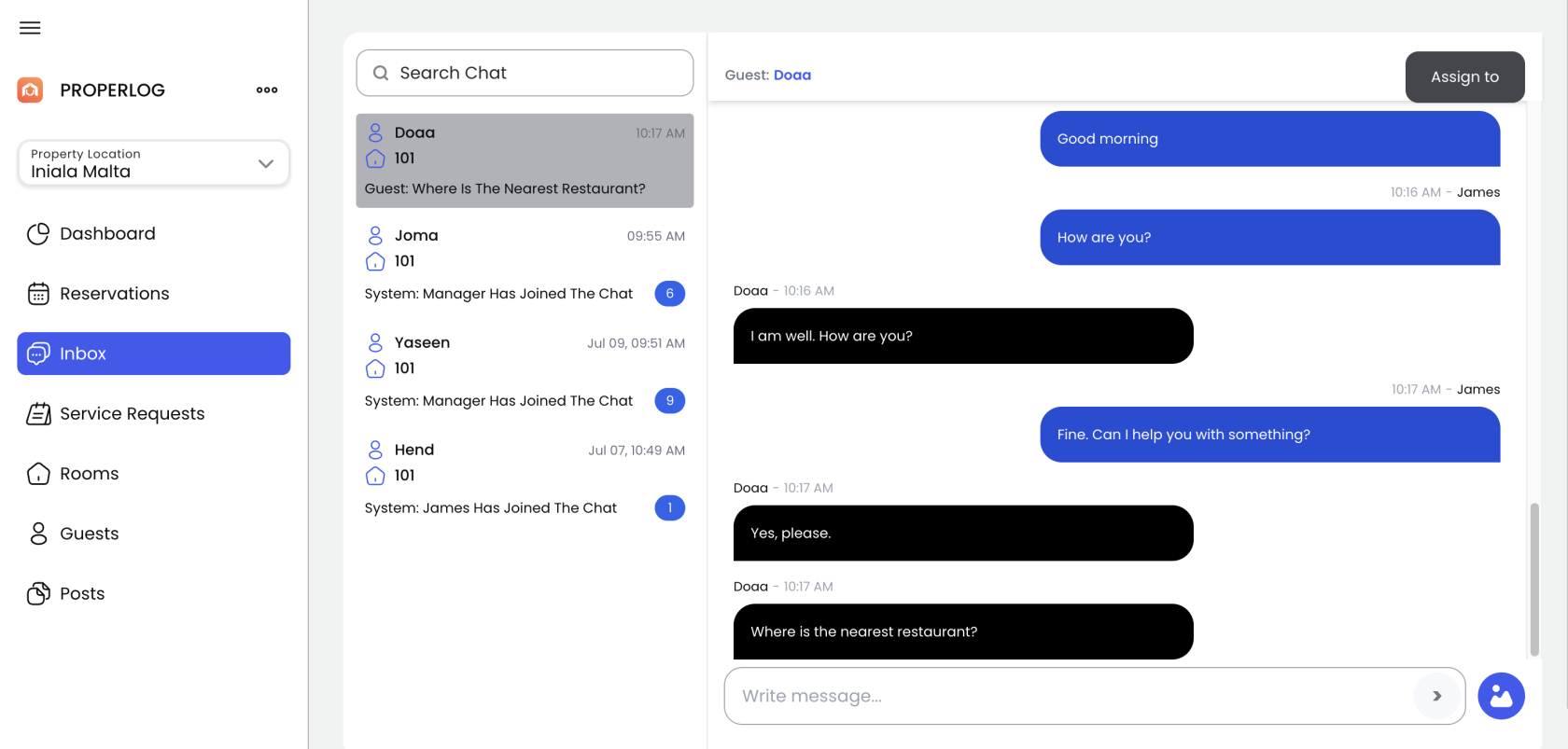
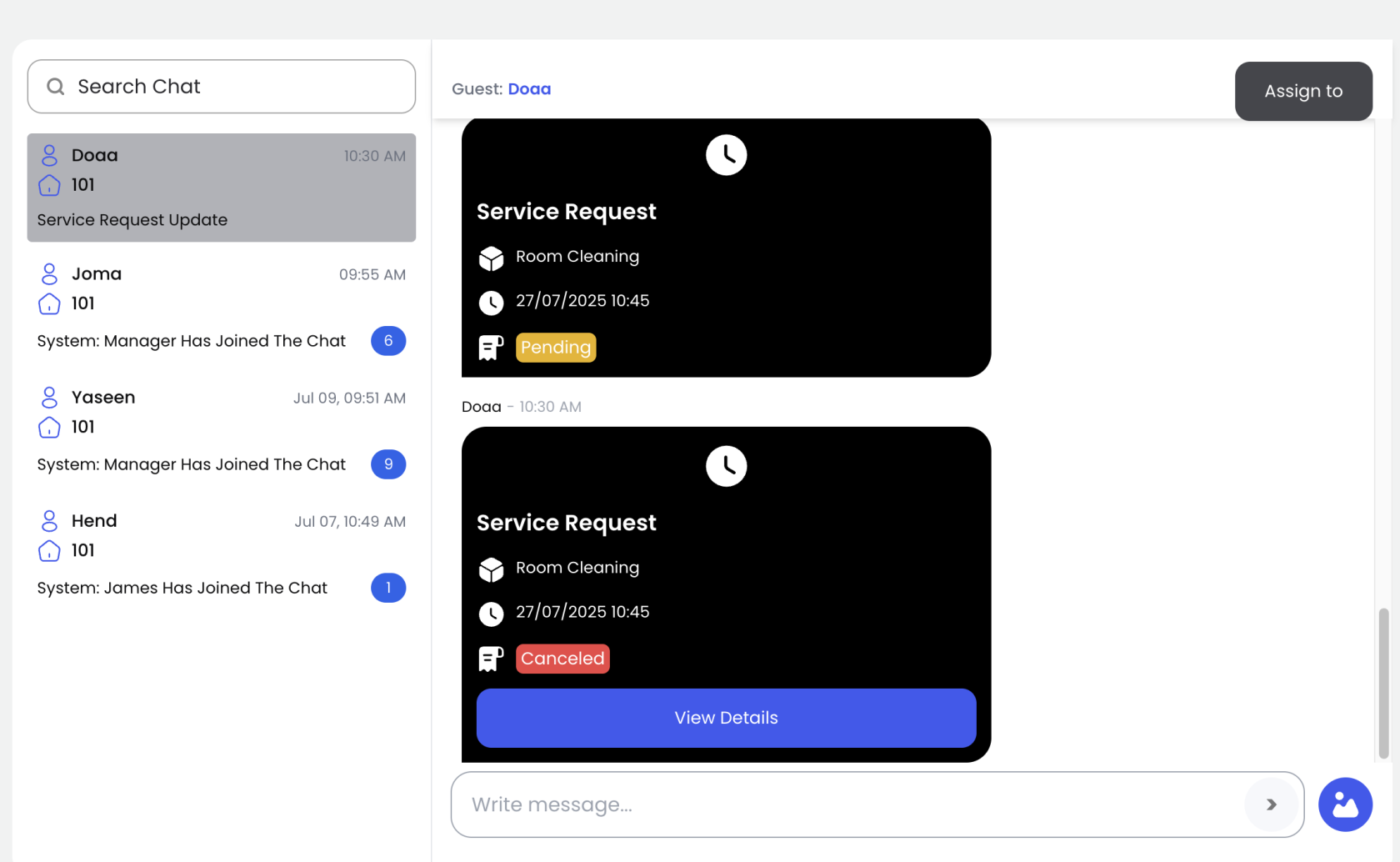
-
Alternatively, click the Bell icon in the top header to open the notifications dropdown and access recent alerts.
-
From the dropdown, tap "View All" to navigate to the full notifications center.
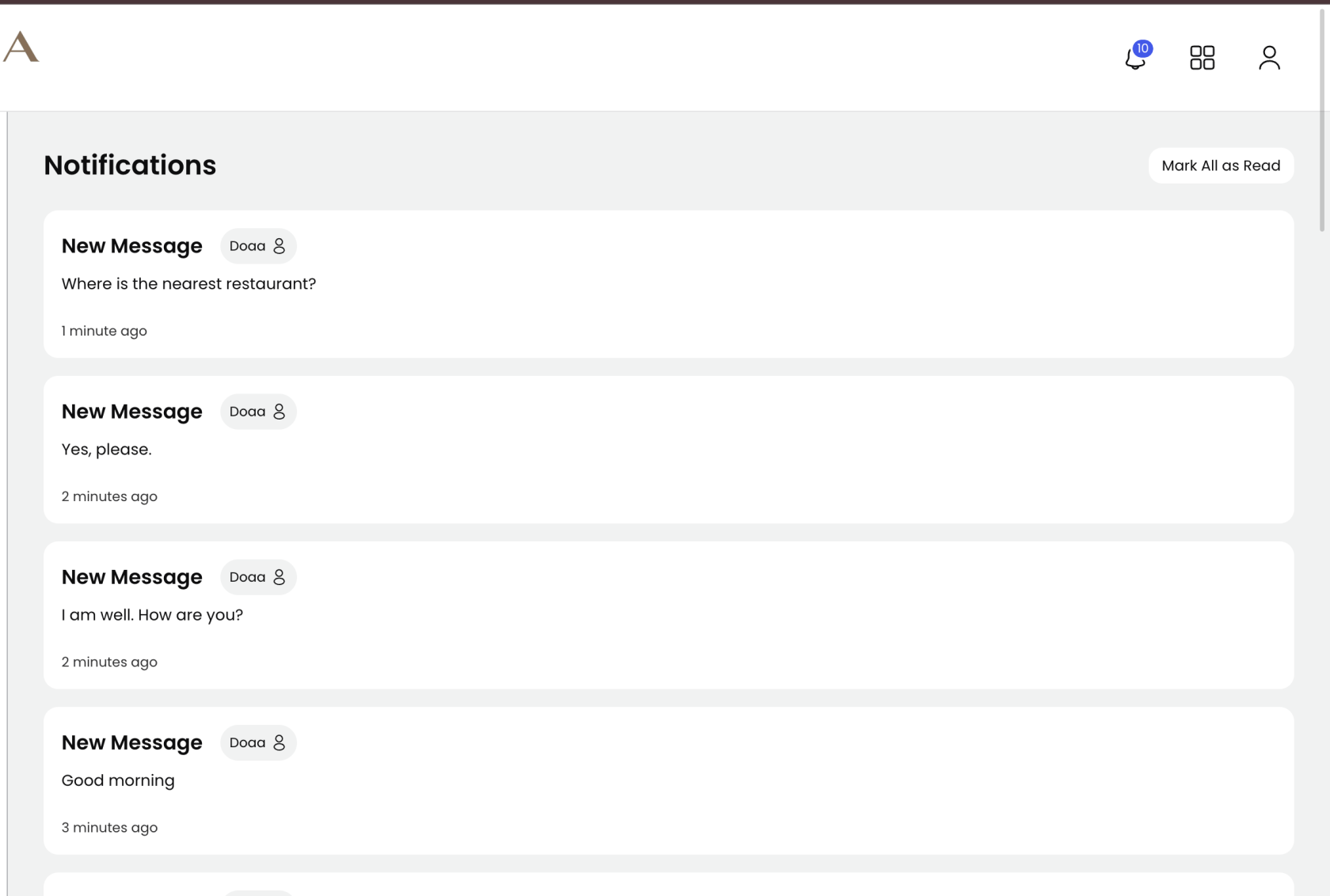
Guest-related notifications always include the guest’s name for easy identification.
👥 Staff Assignment Notifications
Staff members will also receive alerts when their access or responsibilities change:
-
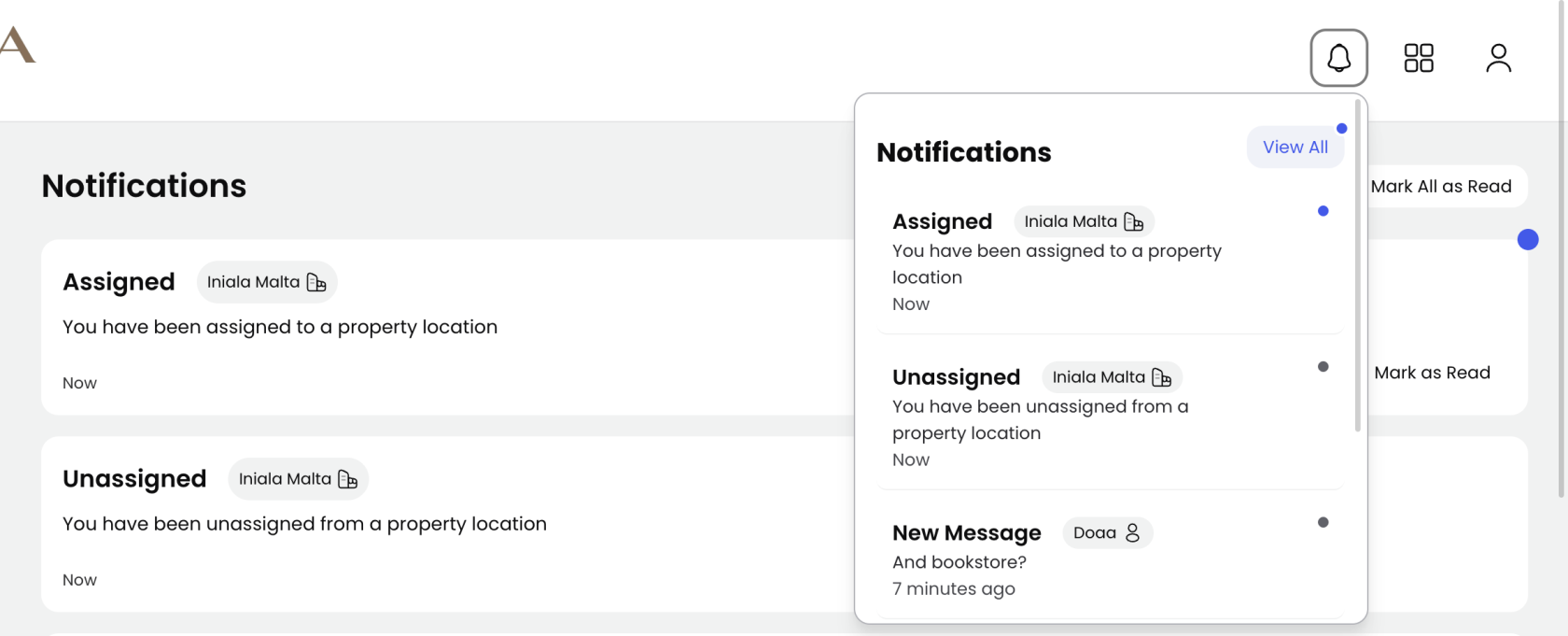
Assigned to a Property: When an admin assigns you to a property, you'll get a notification. Tap it to open the property details (if you have the necessary permissions).
-
Unassigned from a Property: You'll be notified if you're removed from a property. These notifications are informational and do not include a clickable link.
-
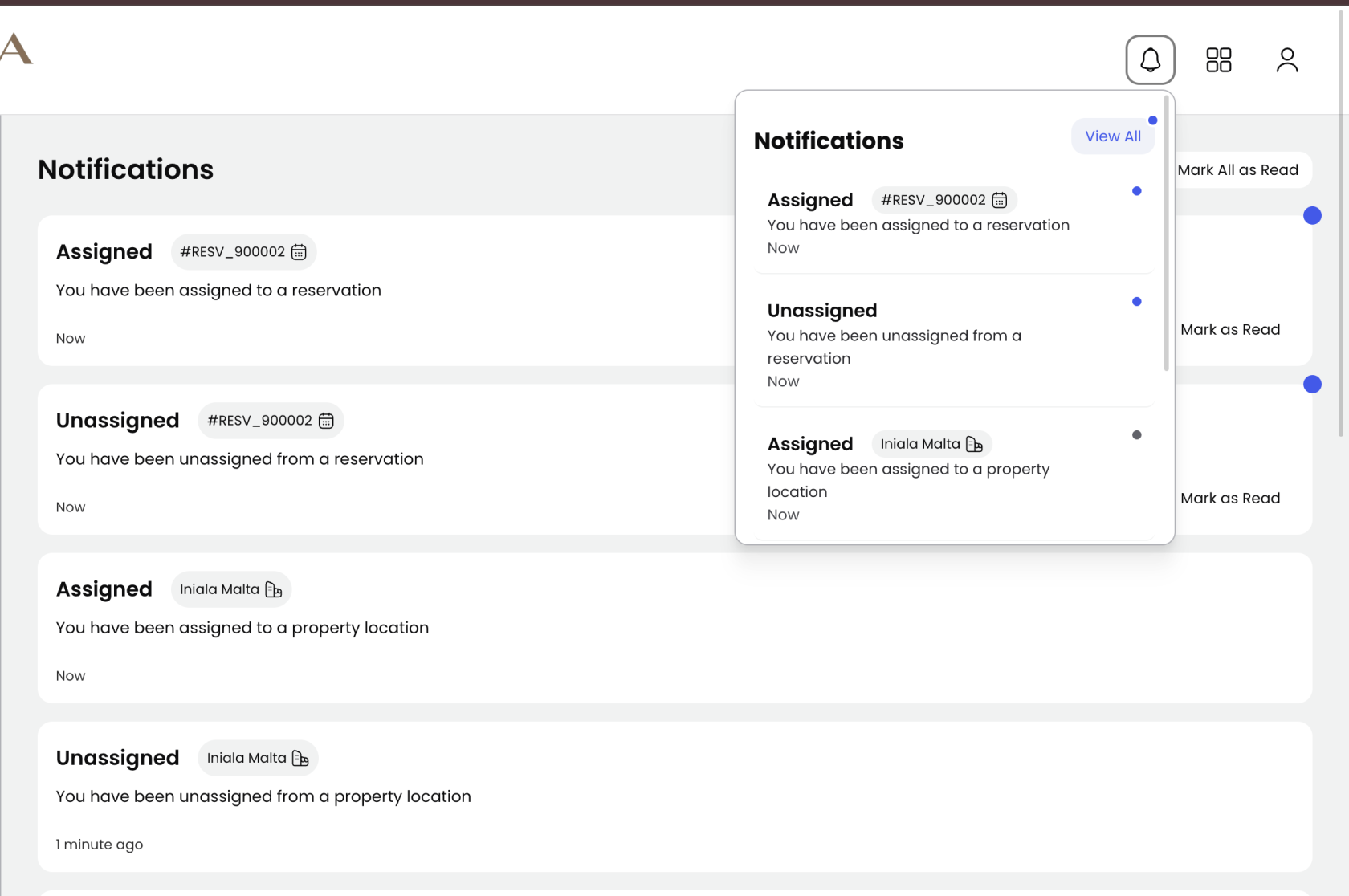
Assigned to a Reservation: If you're assigned to a guest reservation, a notification will appear with an option to View the reservation details.
-
Unassigned from a Reservation: You will be notified if you are unassigned from a guest reservation. These notifications are informational and do not include a clickable link.
✅ Managing Notifications
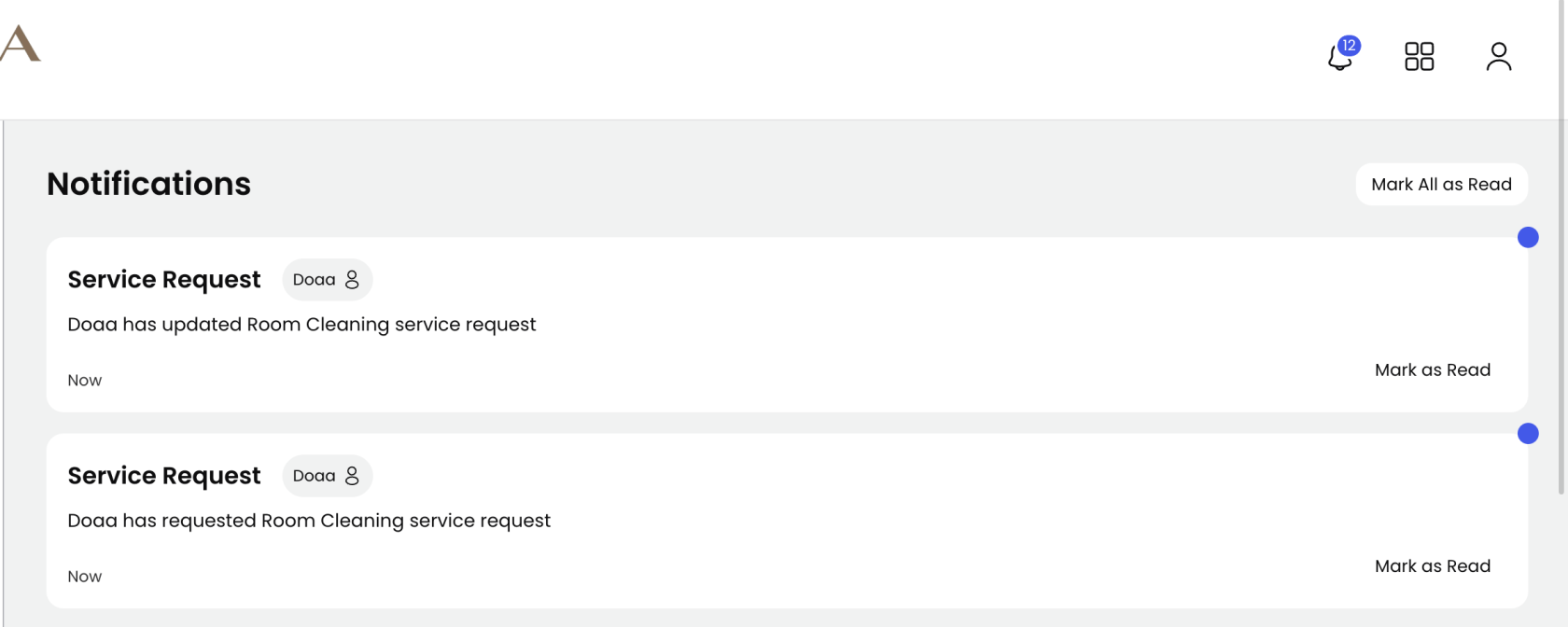
From the Notifications Center (accessed by clicking "View All"):
-
Click "Mark as Read" on individual messages to update their status.
-
Use "Mark All as Read" to clear your entire list of unread notifications at once.
🧭 Other Notification Types
📌 Unread Messages Badge
In addition to system notifications, you'll also see a badge indicator for unread messages:
-
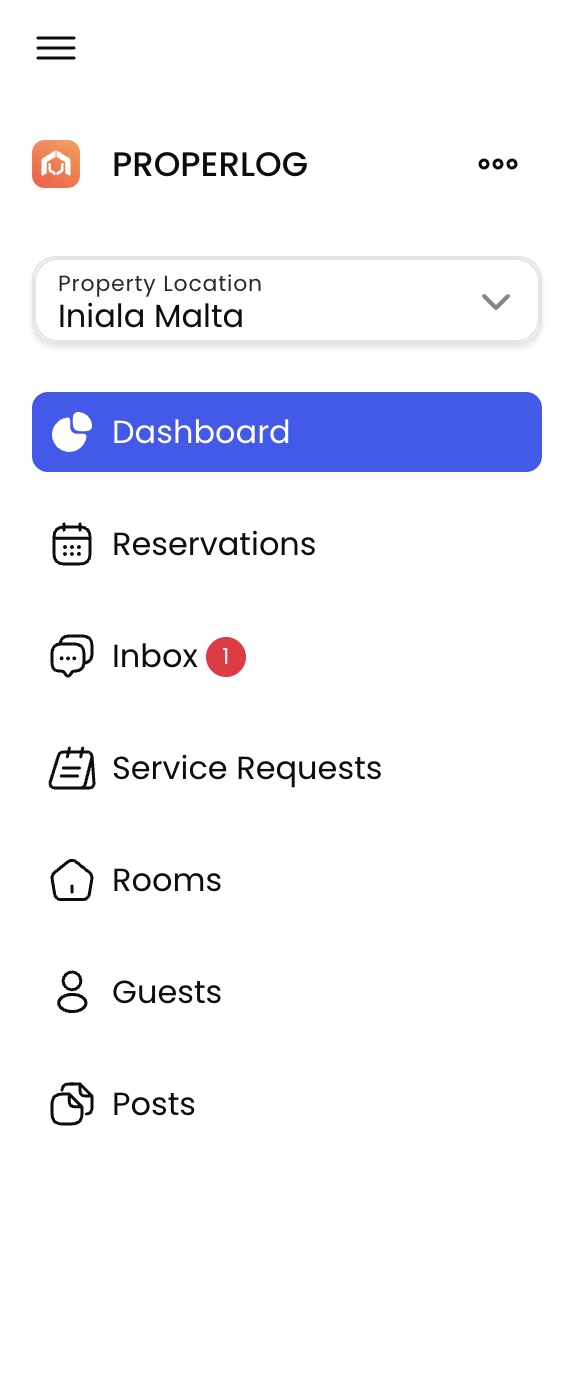
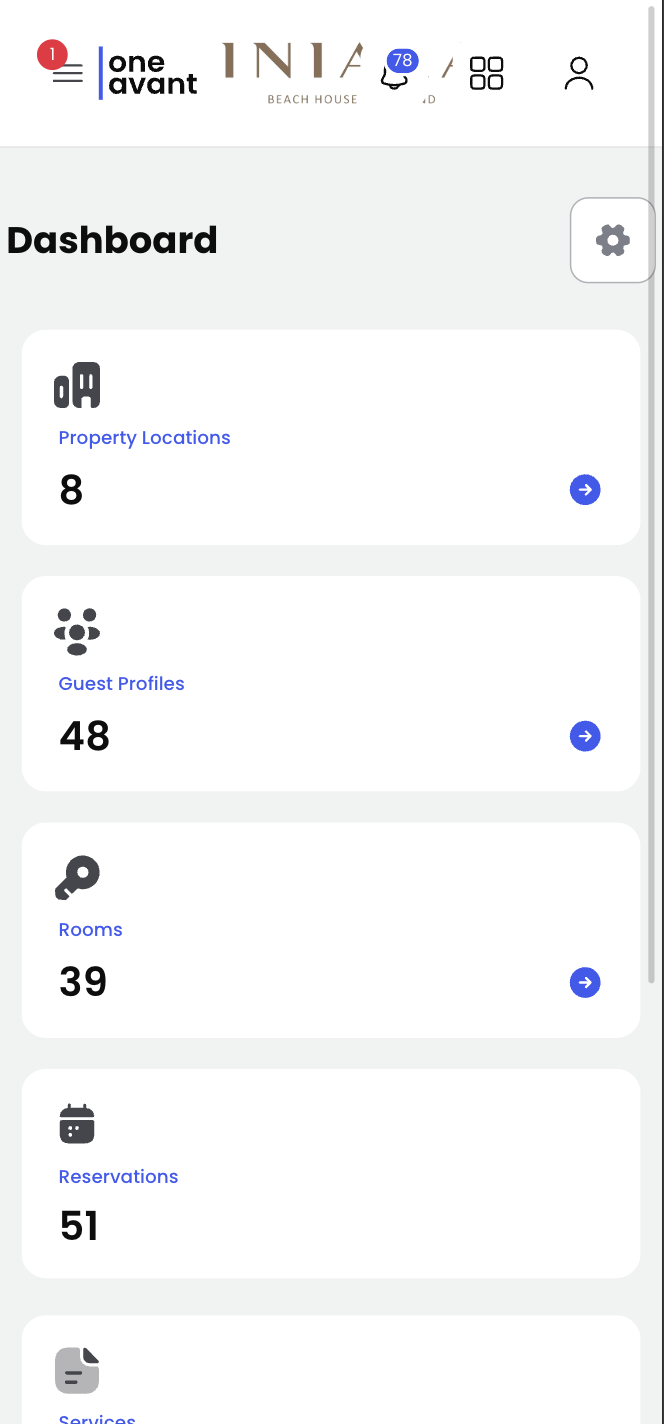
When a guest sends a new message related to a reservation you're assigned to, an unread messages badge will appear:
-
On the sidebar menu (for desktop).
-
Or on the menu icon (on smaller screens).
-
-
The badge shows the number of unread messages assigned to you.
-
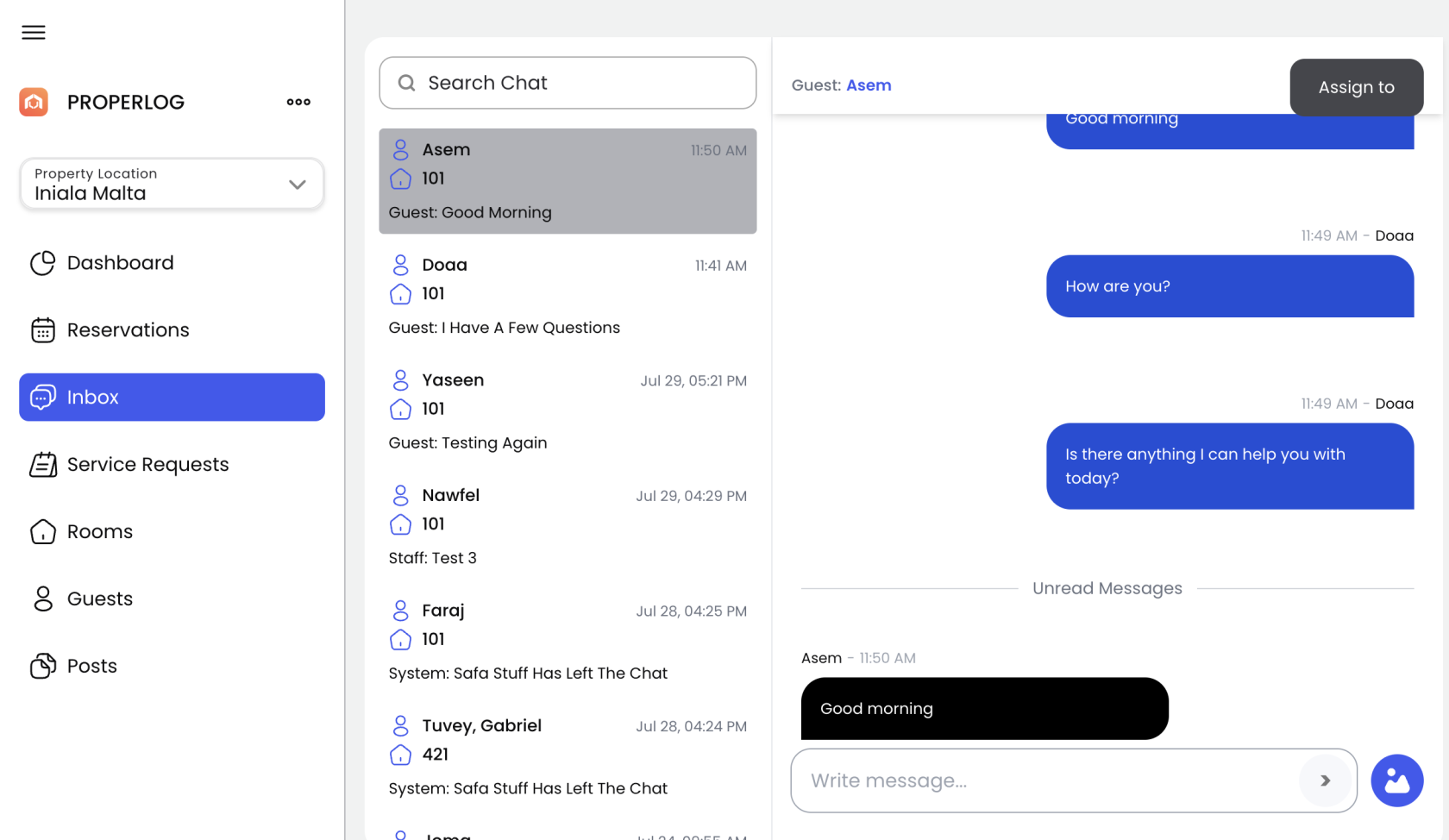
Once you open the chat and view the new message, the count will automatically update.
📧 Reminder Emails for Unread Messages
To make sure you don’t miss anything:
-
If you haven’t opened a new message within 5 minutes, you’ll receive a reminder email alerting you about it.
-
This helps ensure timely responses to guests, especially when you're away from the app.
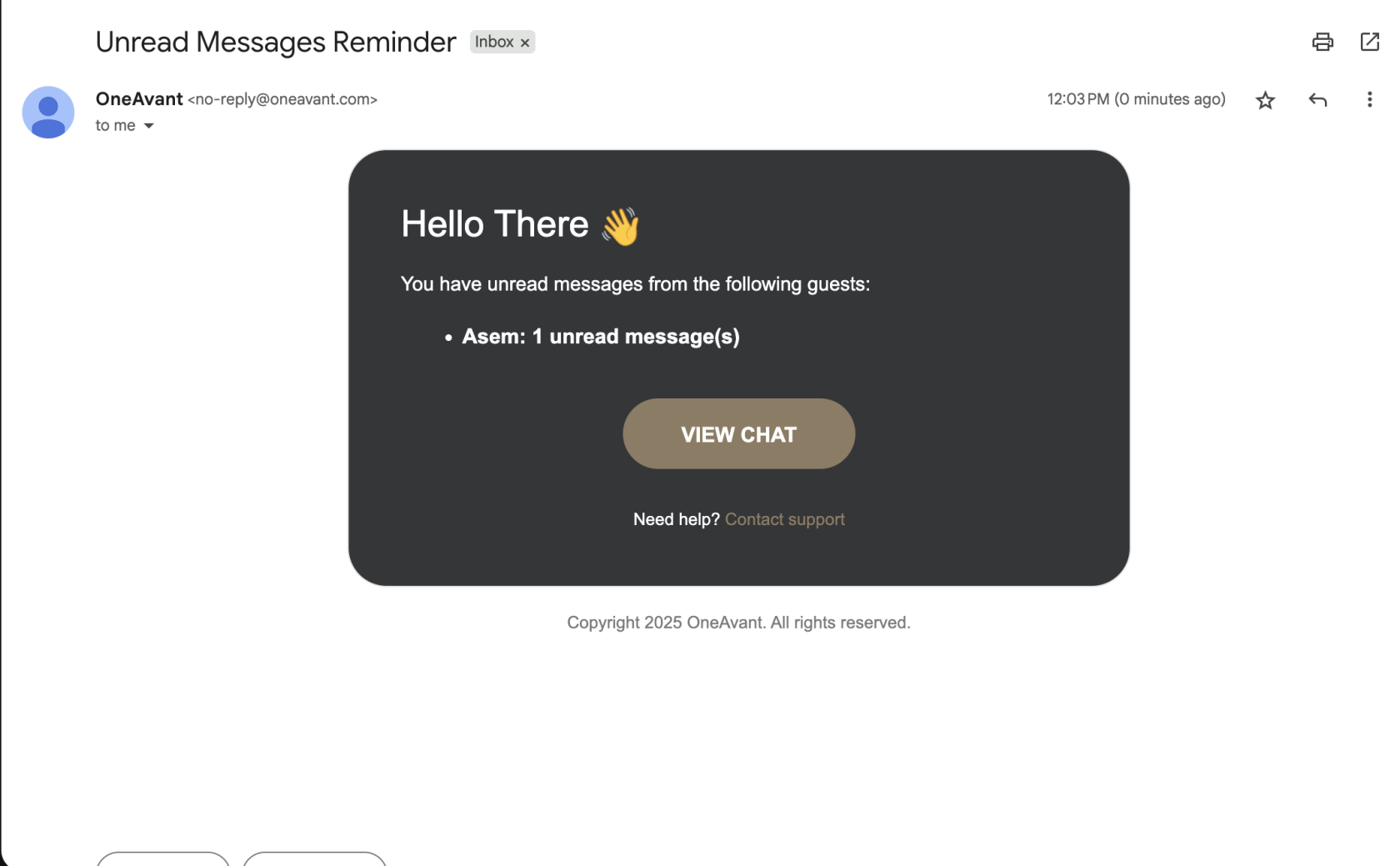
These extra notification channels ensure you never miss an important message—whether you're in the app or not.