Smart Devices & Guest App
📶 Smart Devices on the Dashboard
The GMS with AvantEase Guest Experience App provides a centralized interface to monitor all smart devices installed across your property's rooms. From lights and AC units to blinds and locks, the dashboard helps ensure smooth operation and visibility.
🖥️ Viewing Smart Devices
-
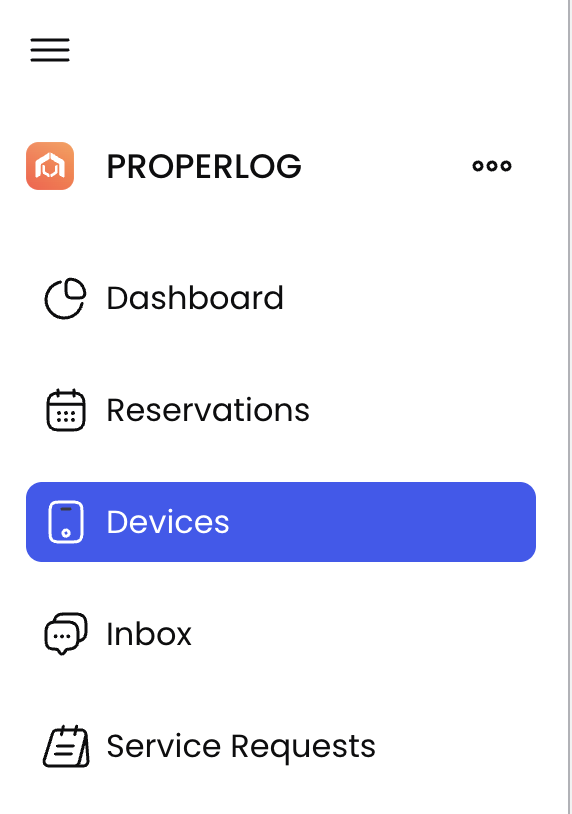
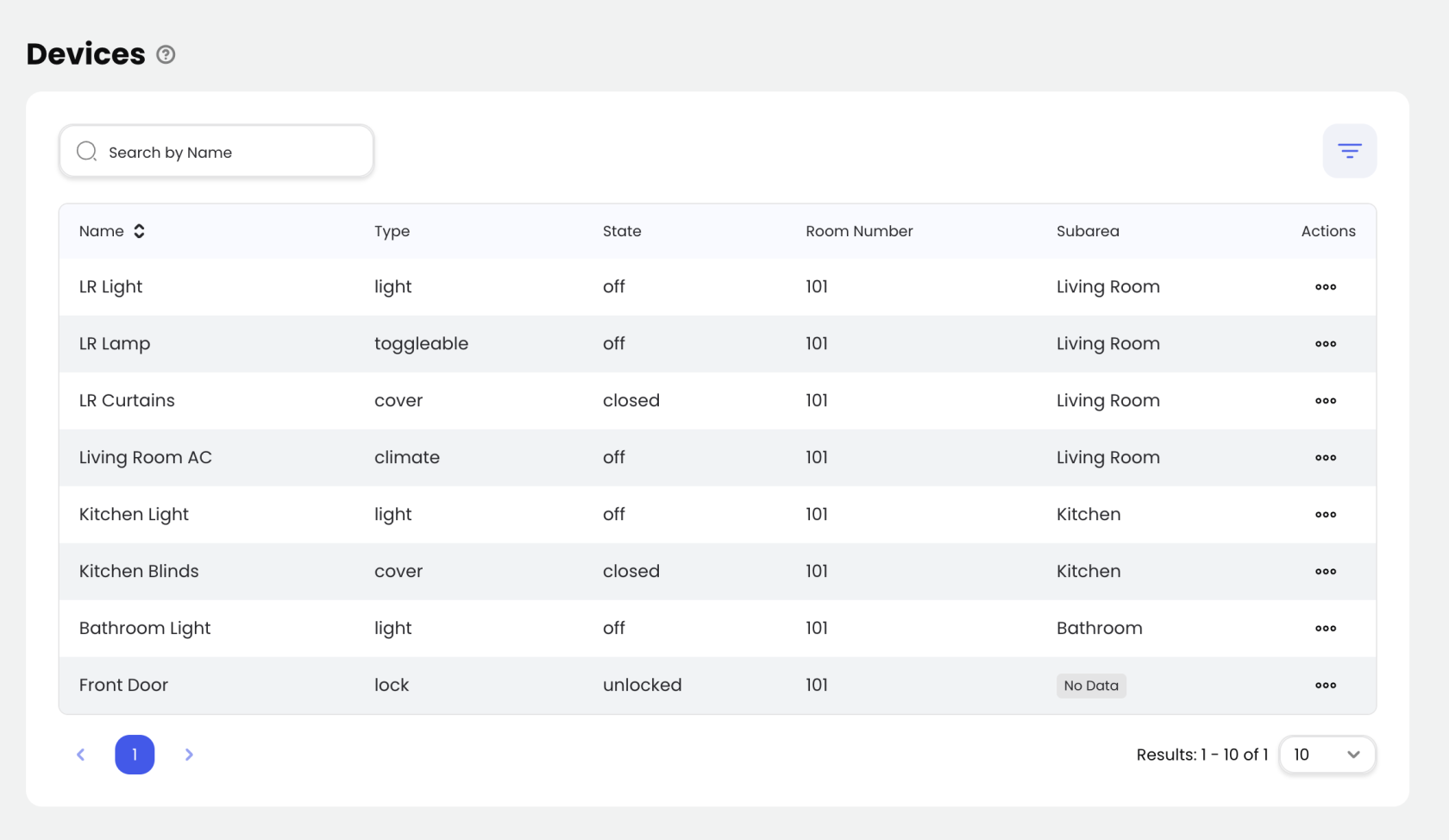
Access the Devices on the Dashboard Navigate to the dashboard and click on Devices on the sidebar to view all devices installed across the property.
-
Browse and Search
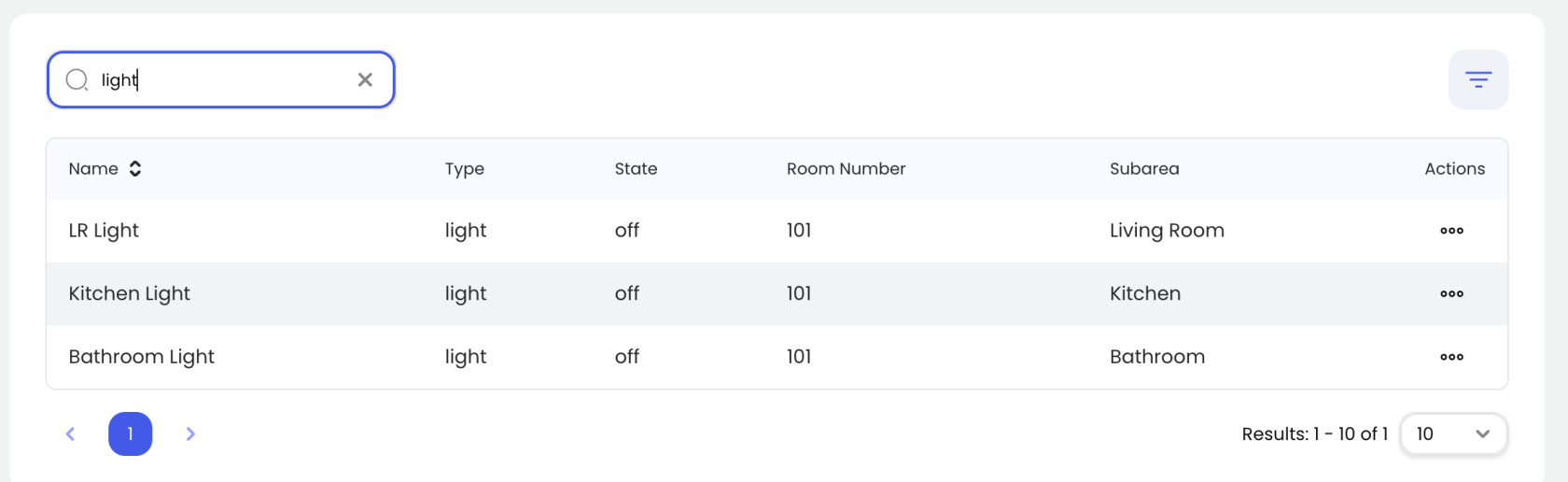
- Use the search bar to quickly locate devices by name.
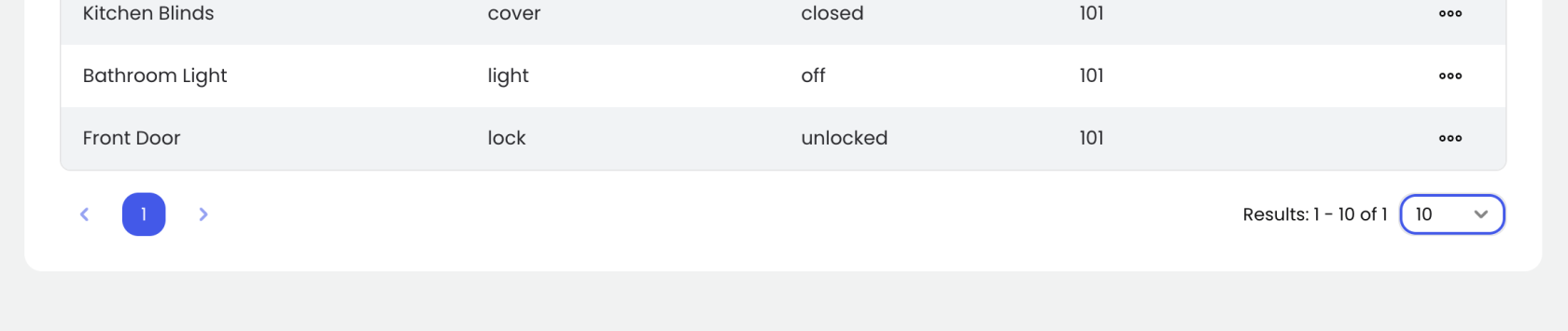
- Easily navigate large device lists using pagination controls at the bottom of the table.
-
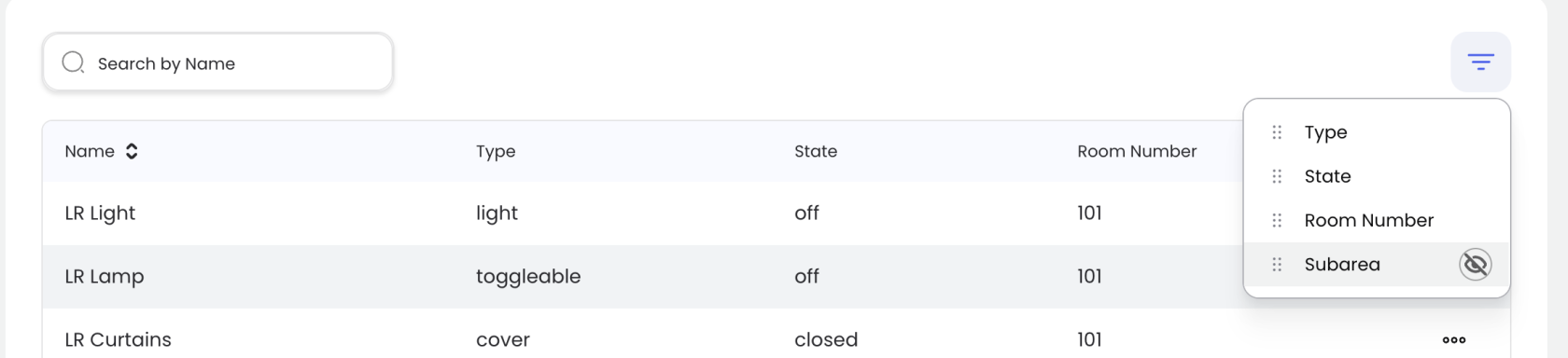
Customize Your View
- Click the column settings icon to show or hide specific columns in the table.
- Tailor the display to your workflow by focusing only on the most relevant data fields.
-
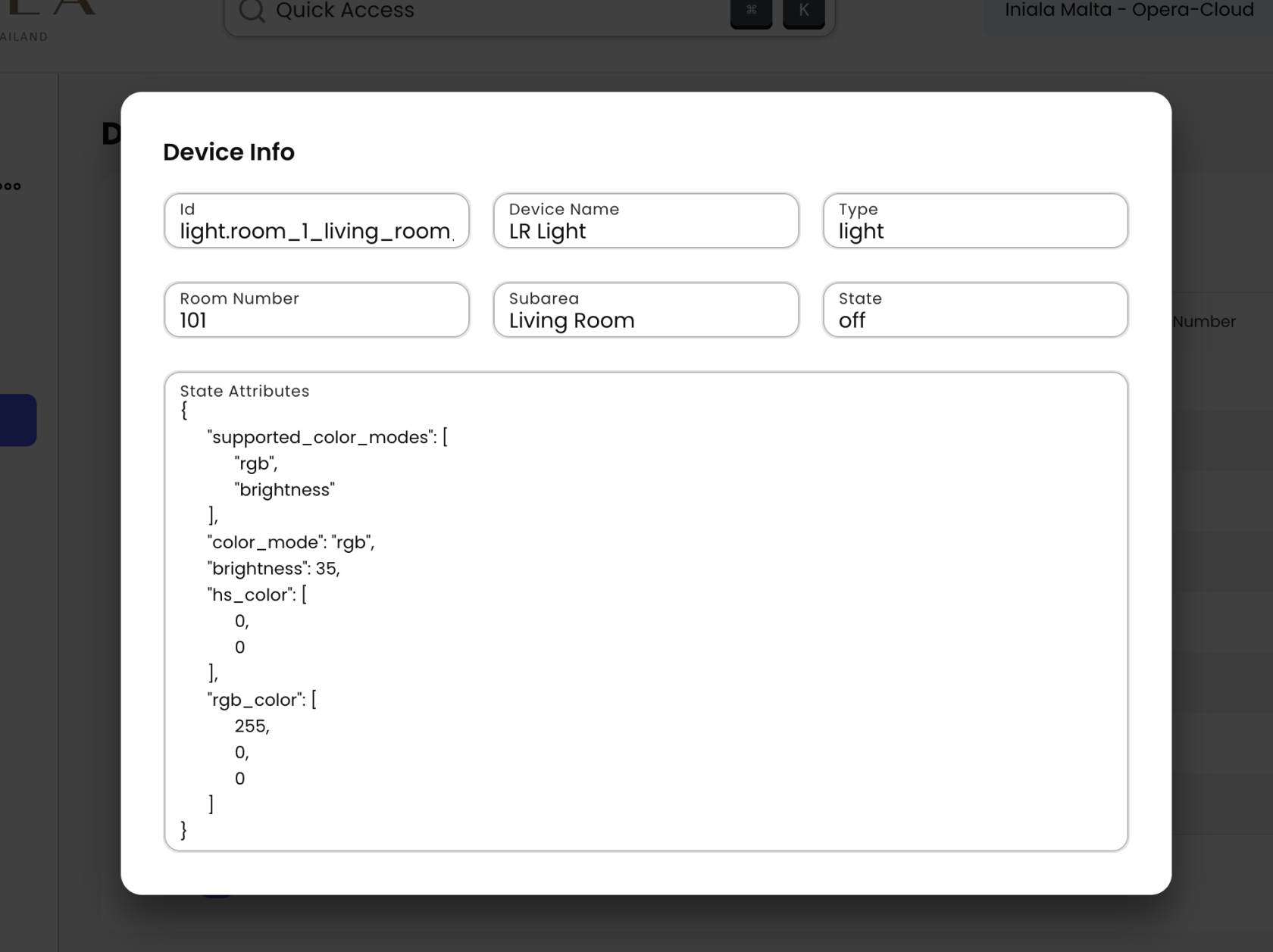
View Device Details
- Click the "More" icon (three dots) in a device row.
- Select "View" to access additional information about the device, such as technical specs, configuration details, or usage status.
🌟 Managing In-Room Devices with the Guest App
The AvantEase Guest App empowers hotel guests with full control over the smart devices in their room, offering a seamless and modern stay experience. From adjusting lighting to setting the perfect room temperature, all controls are at your fingertips.
📲 Navigating to Room Devices
-
Log in to the Guest App using your email or room code as explained here.

-
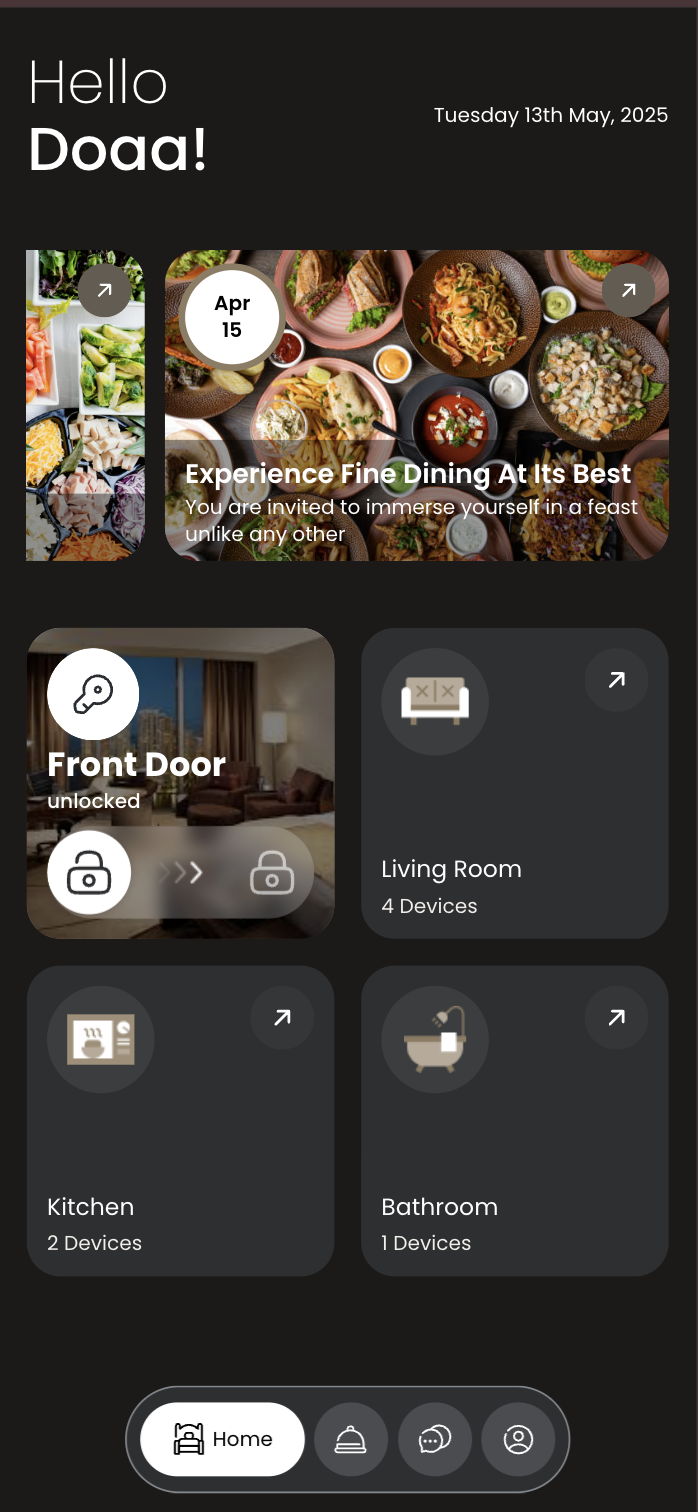
Upon login, you'll land on the Home Page, which displays the various spaces (e.g., Bedroom, Bathroom, Living Area) within your room.
-
Tap on any space to view and control its devices.
-
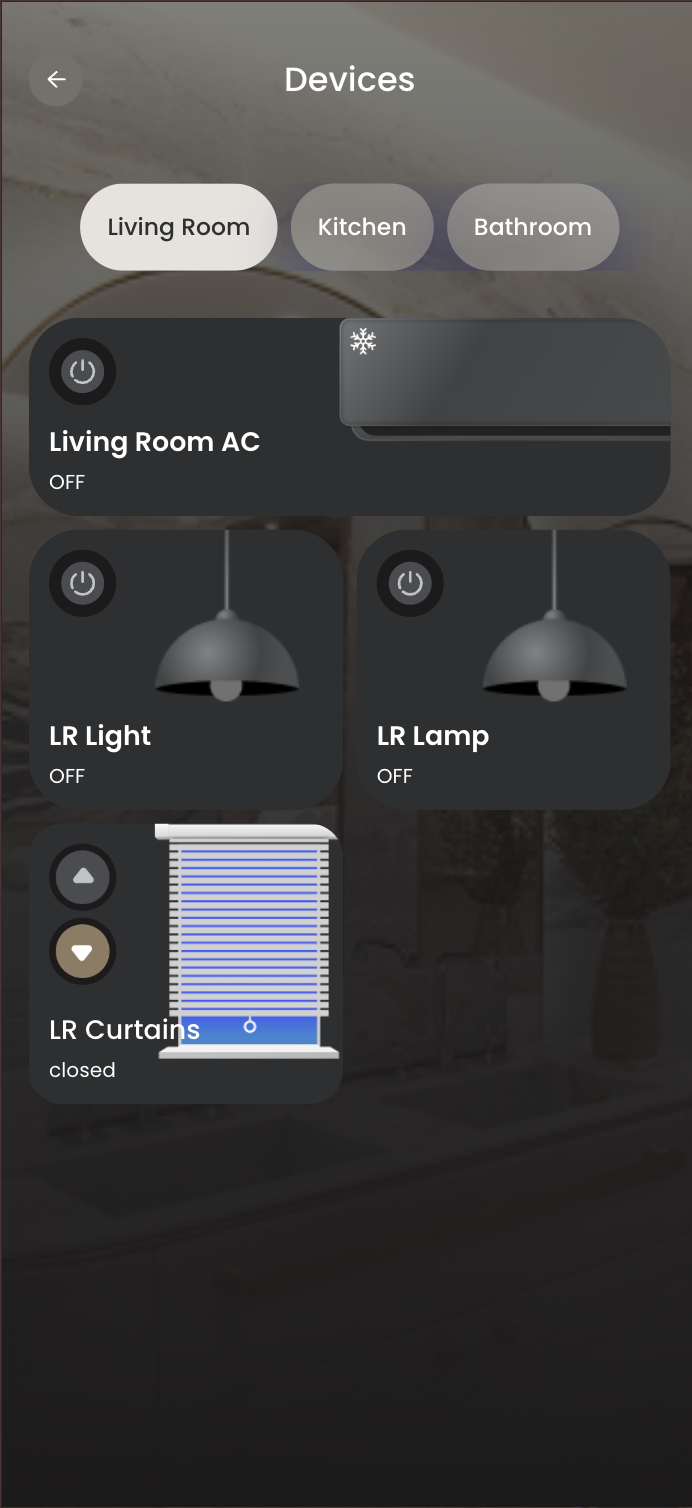
Once in a space, you can also use the navigation menu at the top to switch between spaces quickly.
⚙️ Basic Device Controls
-
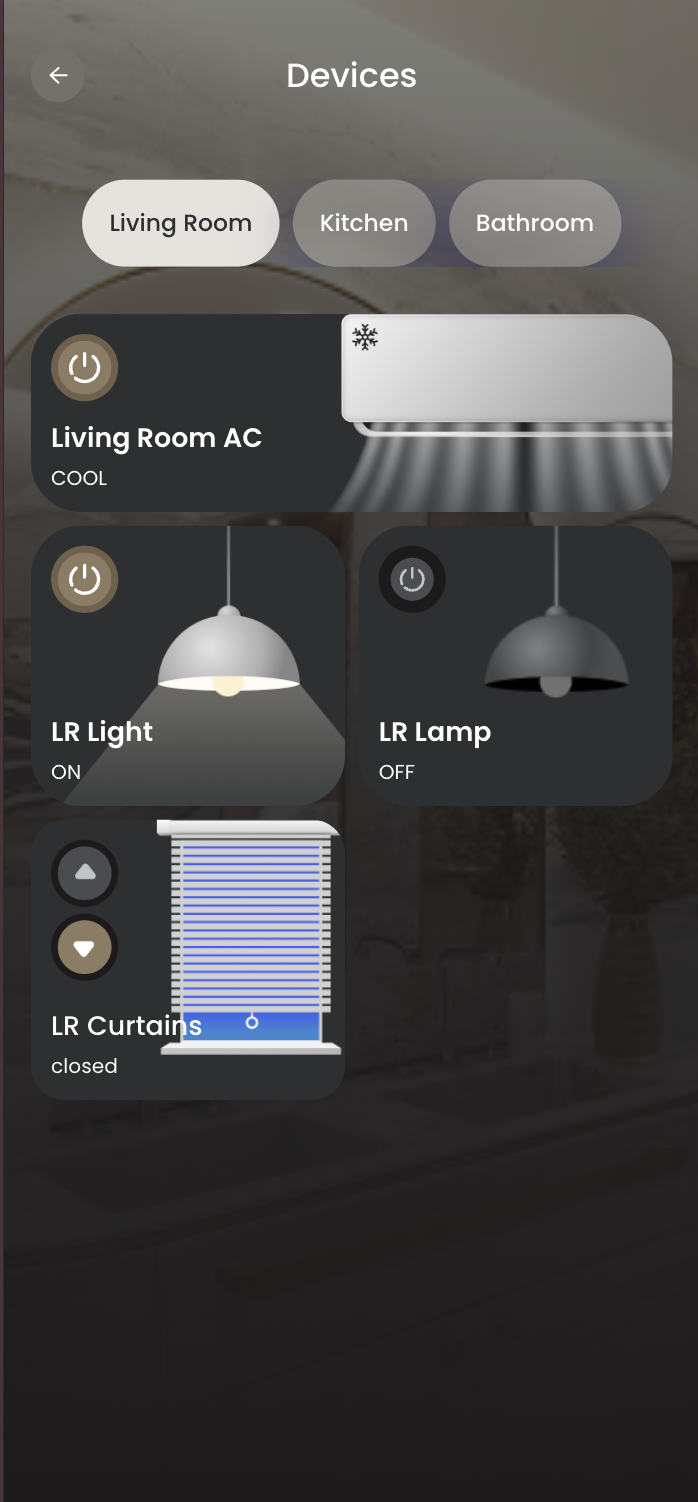
Power Control Tap the power icon on a device card to turn lights or the air conditioner (AC) on or off.
-
Curtains & Blinds Use the arrow buttons on the curtain or blind card to open or close them as desired.
🎛️ Advanced Controls
-
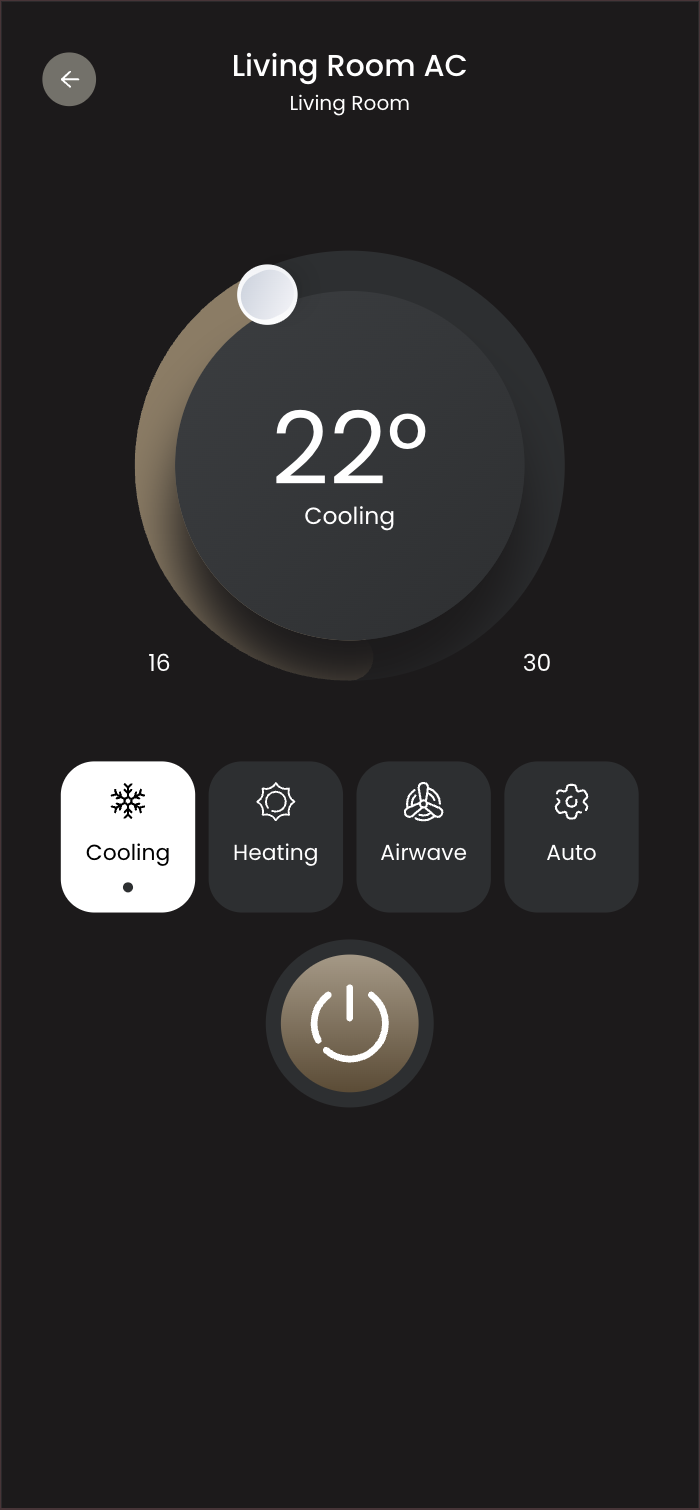
Air Conditioner Settings Tap on the AC card to open advanced controls. From there, you can:
-
Adjust the temperature
-
Switch between modes
-
-
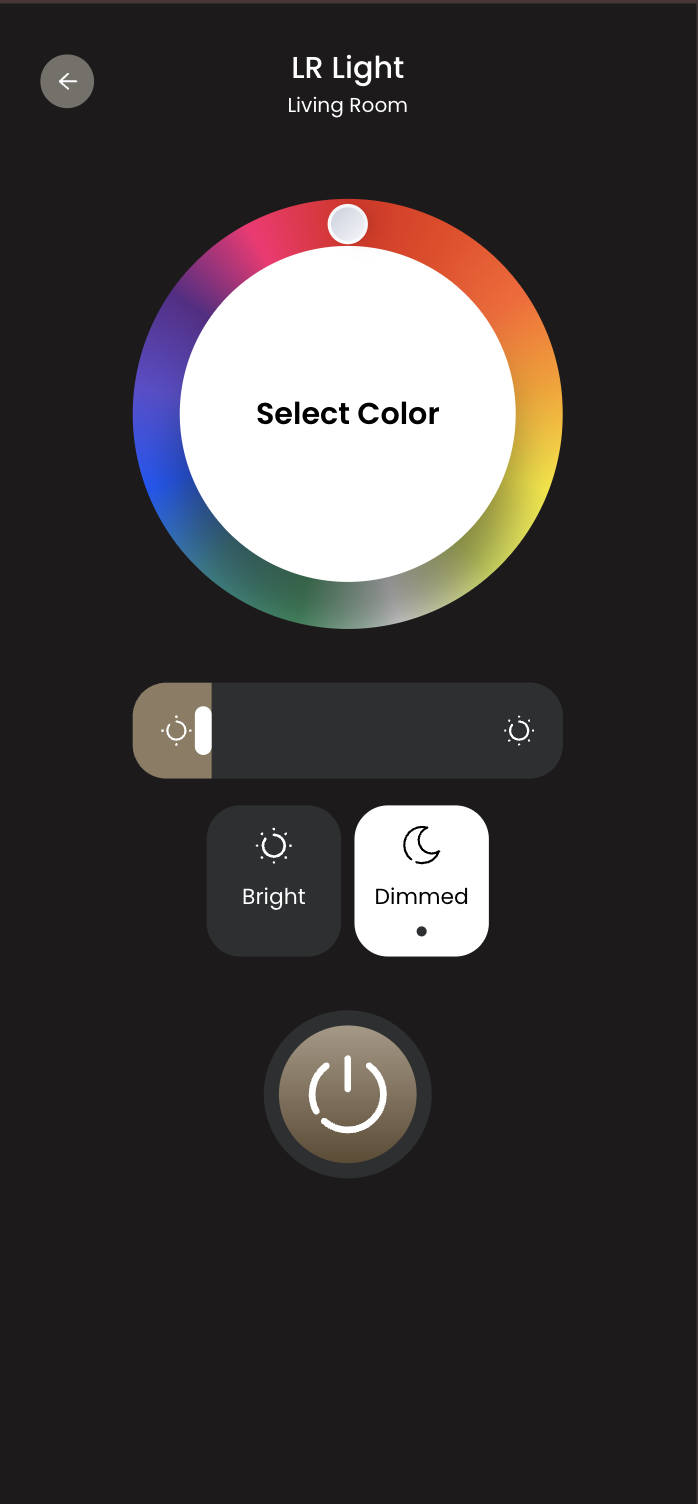
Lighting Settings Some lights offer additional customization. Tap on the light card to:
-
Adjust brightness
-
Change the light color (for color-enabled bulbs)
-