Opera Cloud Integration
🔗 Opera Cloud Integration
GMS offers a powerful integration with Opera Cloud, enabling seamless synchronization of reservations, rooms, and guest data directly into GMS.
Report Uploads
This section guides you through importing data from your Opera Cloud portal into GMS using generated reports.
Important: To use this feature, your property must be configured as an Opera-cloud type in GMS. This process is not compatible with any other property type.
Downloading Required Reports from Opera Cloud
Required Reports
To import data into GMS, you must download the following reports from your Opera Cloud portal:
| Report Code Name | Report Name | Report Group |
|---|---|---|
| cf_roomclasses | Room Classes | Configuration |
| cf_roomtypes | Room Types | Configuration |
| cf_rooms | Rooms | Configuration |
| gibyroom | Guest In House By Room | Guest In House |
| pr_address | Profile Address | Profile |
| res_detail | Reservation Details | Reservation |
| resenteredon | Reservation Entered On and By | Reservation |
Export Format Requirements
When exporting reports from Opera Cloud:
- Use the Delimited format.
- Set the delimiter/separator as the
|(pipe) character. - Do NOT rename the files or change their extensions.
Uploading and Importing Reports
Accessing the Report Upload Section
You can navigate to the Report Uploads section in two ways:
-
Via the sidebar:
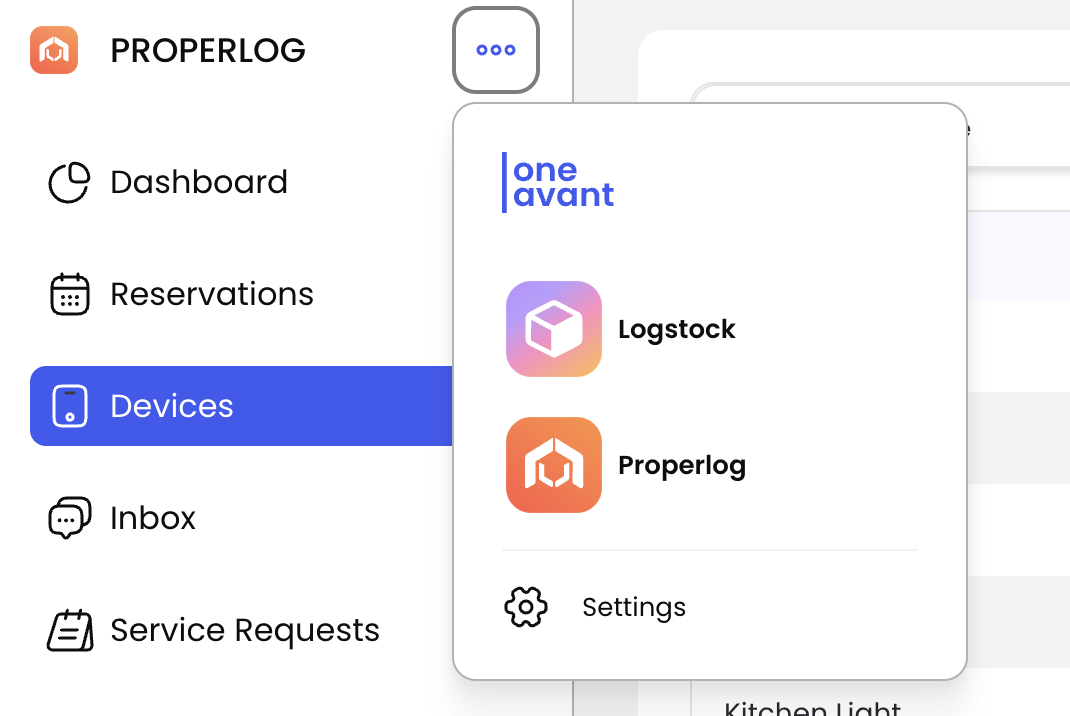
- Click the menu icon next to GMS.
- Select Settings.
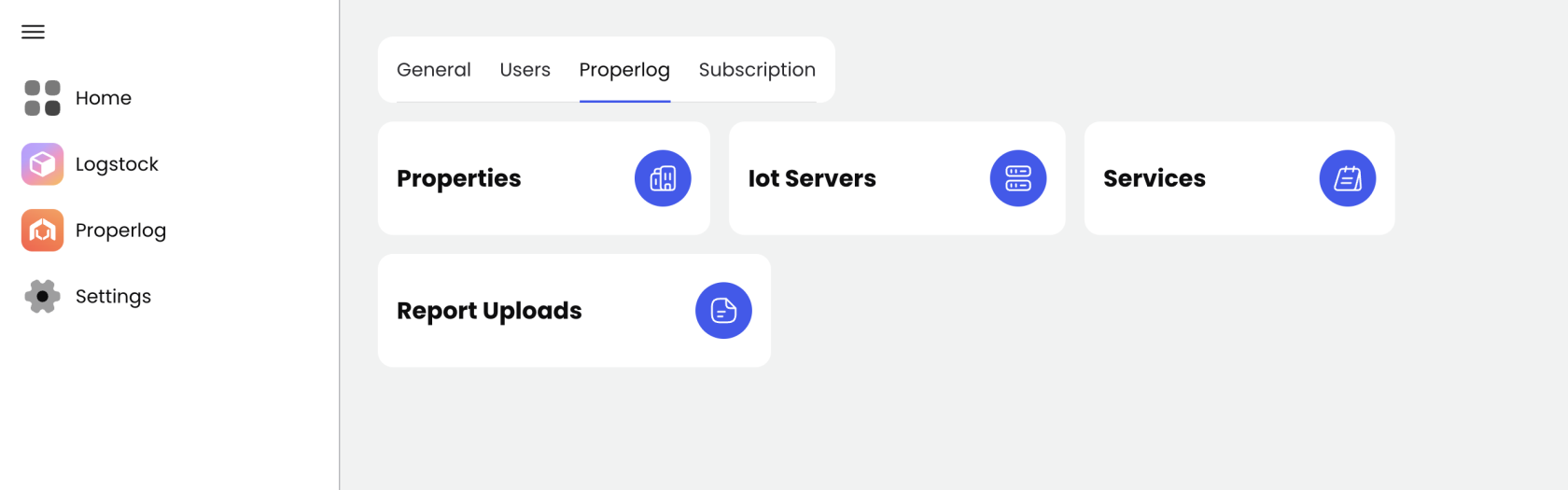
- Switch to the GMS tab.
- Click the Report Uploads card.
-
Via the header:
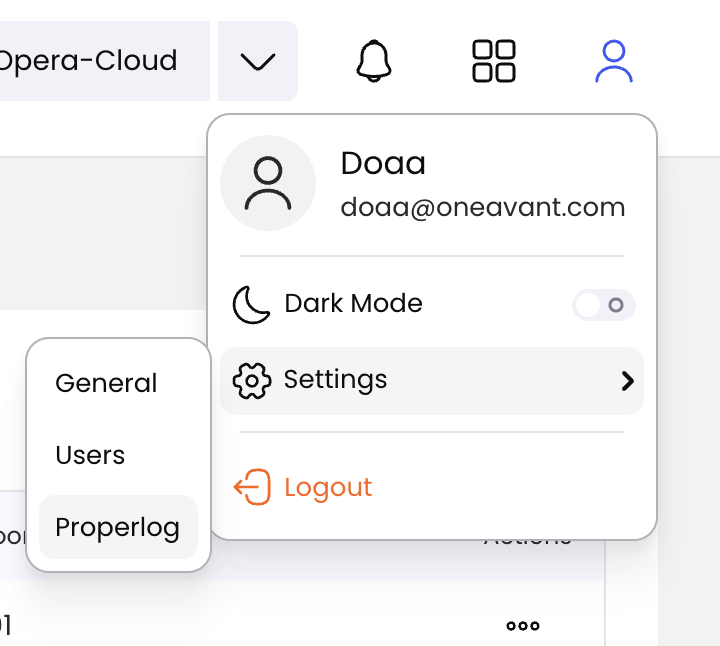
- Click the User icon in the header.
- Hover over Settings.
- Click GMS.
Triggering an Import Flow
Once you're in the Report Upload section:
Select a Property Location
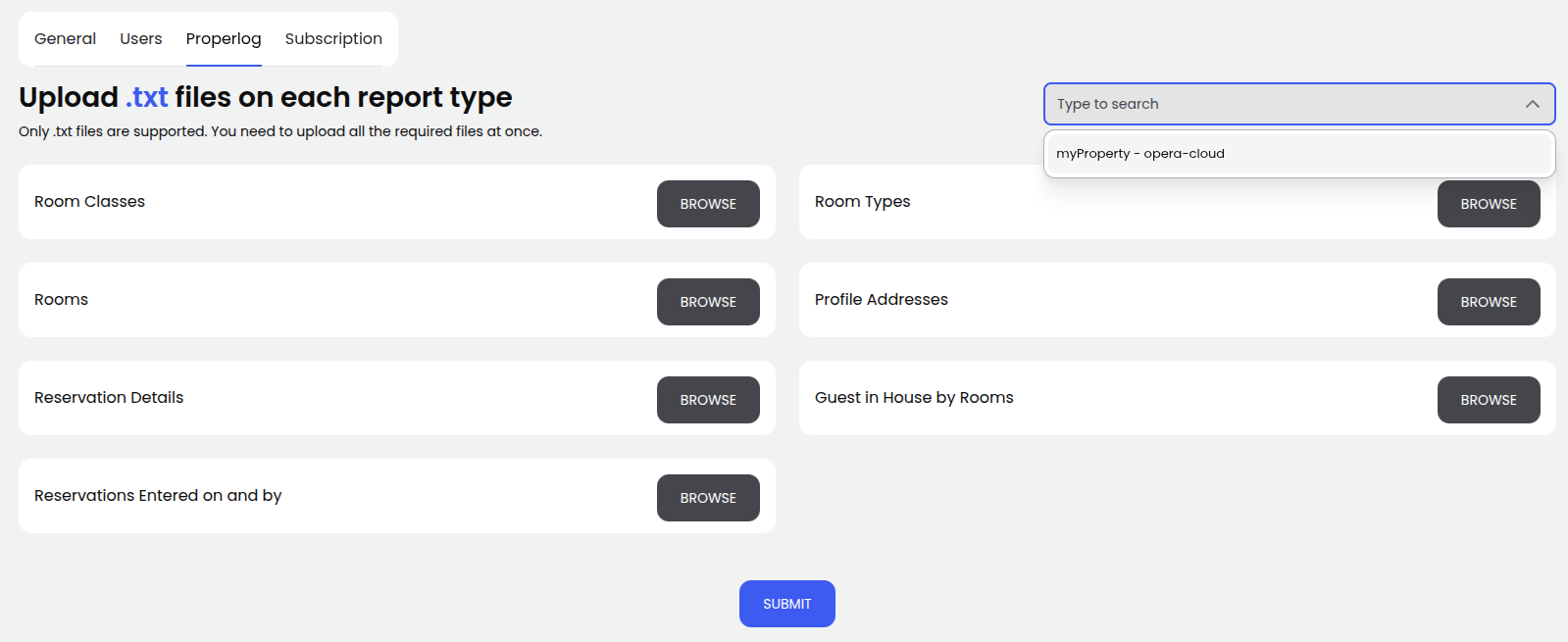
Use the dropdown in the top-right corner to select the Opera-cloud property you want to populate.
⚠️ If you haven’t yet created an Opera-cloud property, refer to the Property Locations section in the documentation.
Upload the Required Reports
Each report has its designated upload slot. Upload the correct file to each corresponding slot.
Reminder: Do NOT rename the files or alter their extensions after downloading from Opera Cloud.

Submit the Reports
After uploading all required files:
- Click the Submit button to trigger the data import process.
- You will receive a toast notification confirming the success or failure of the operation.

After a successful import flow, you can navigate back to Reservations, Guests, or Rooms to see what entries were added and where.
Custom Import Solutions
If you require a fully automated import solution (e.g., scheduled report imports without manual uploads), reach out to our team. We offer customized deployment solutions to support ongoing integration with Opera Cloud.