Chat
📥 This section will talk about the inbox page within GMS. The inbox page allows staff members to chat and send messages with guests who have active reservations, and it will also allow staff to view & update service requests and orders.
📫 Accessing the Inbox page
- Log in to the GMS dashboard using your staff or manager credentials.
- From the sidebar menu, click on "Inbox" to open the inbox page.
- The inbox page will display all chatrooms that you have access to.
Unread Messages badge
- Given your user is assigned to a reservation
- When receiving messages/service-requests from guests
- An unread-messages counter will appear displaying the total number of unread messages from all guests.

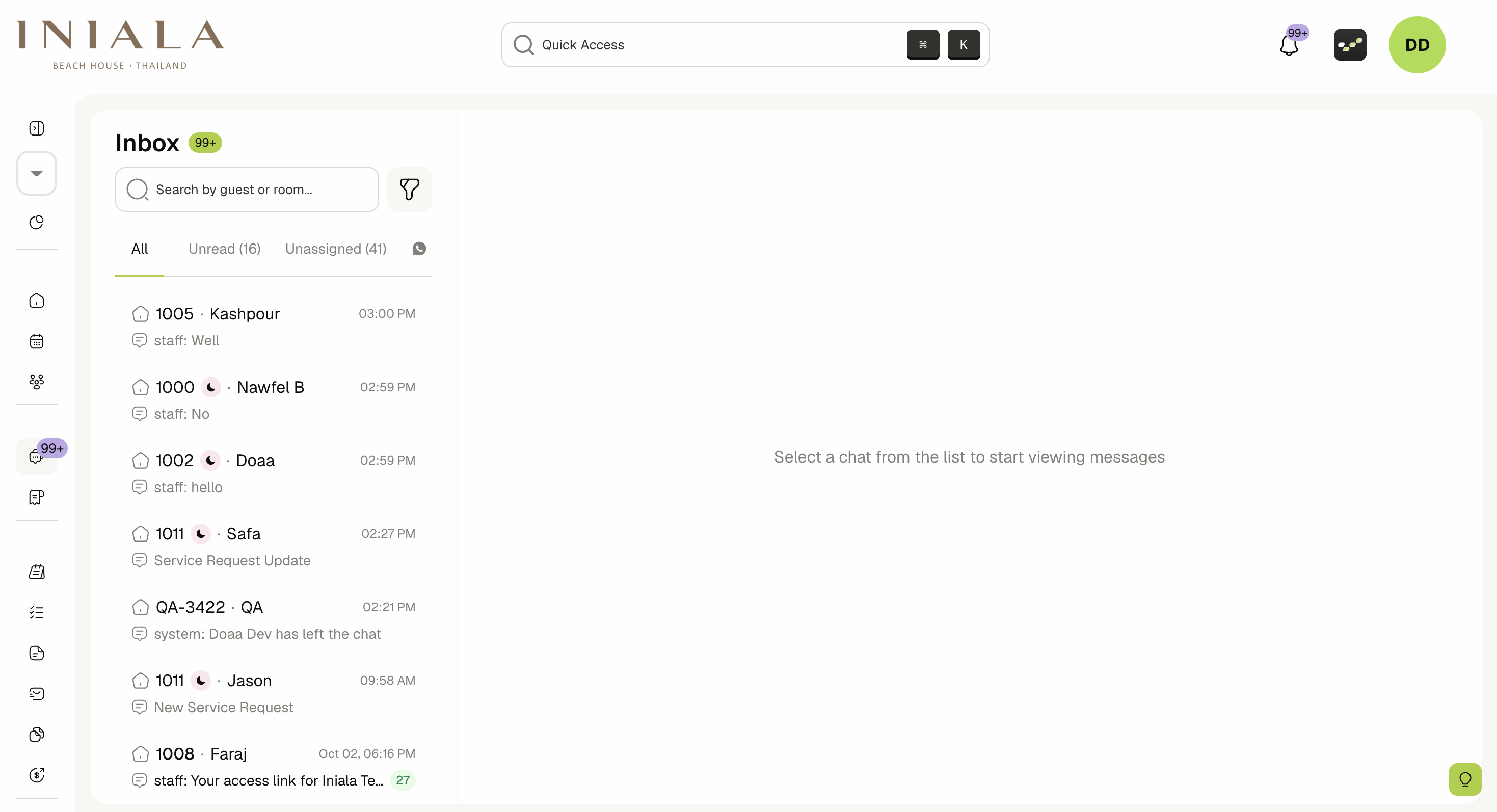
Filter Chats
You can use the search field to search for guests, and you can use the filters to filter out certain chats. You can also use the tabs to view all chats, unread chats and unassigned chats.


💬 Chat with Guest
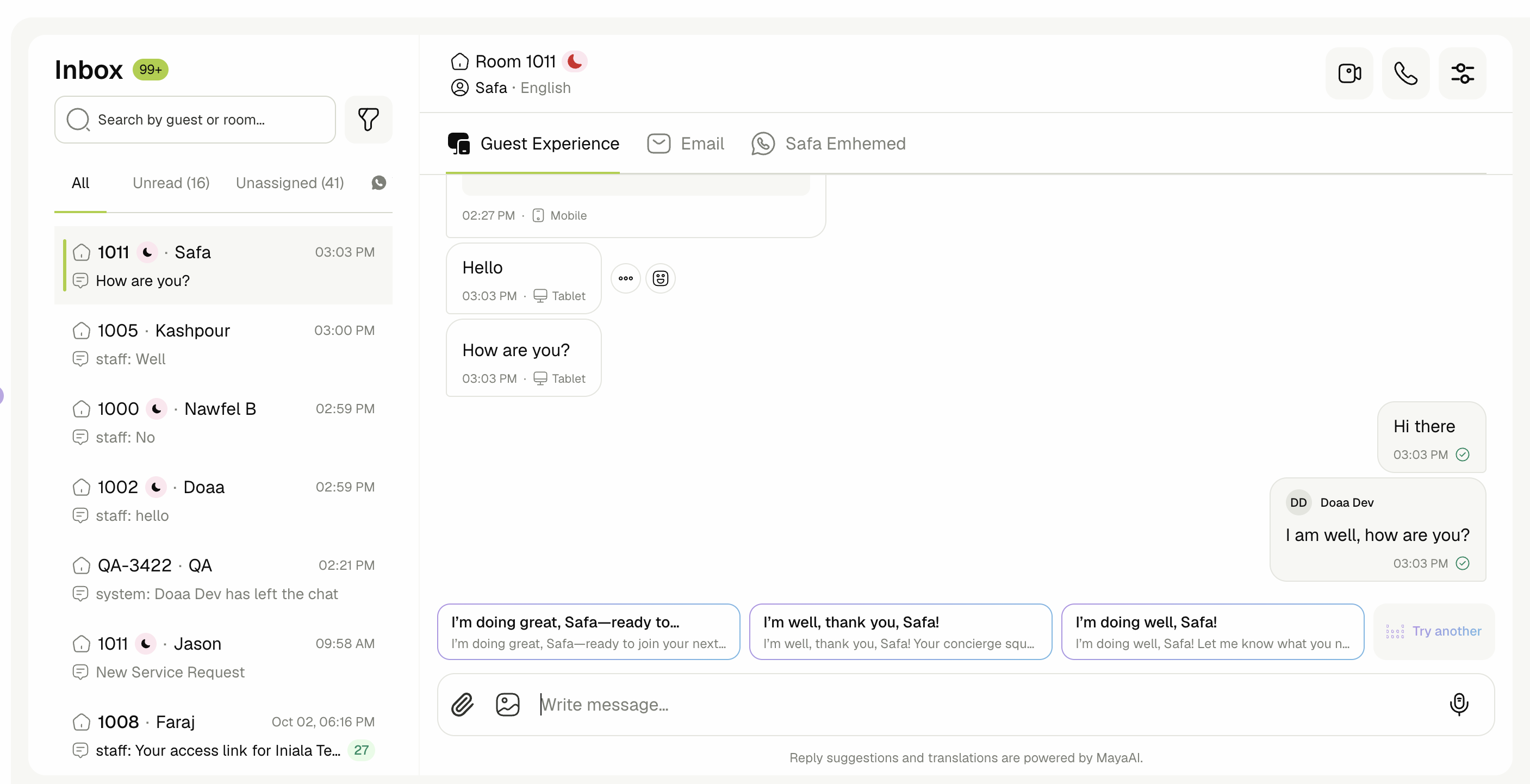
Click on a chat to open it, once you have entered a chatroom, you can start messaging the guest using the text field at the bottom. You can also send images using the image button in the bottom right.
You can also view and update different types of guest orders such as service requests and dining (refer to their respective documentaions)
Only assigned staff members can send messages to the guest. Even managers can't send messages unless they assign themselves to the chat first. If you don't see the text field or the image button, check the assigned staff for this reservation and make sure you are in the list.
🎙️ Voice Messages
Voice messages let you record and send audio straight from the chat instead of typing.
Recording and sending
- Click the microphone button at the right of the composer. It is shown only while the message field is empty.
- Allow microphone access if your browser prompts for it.
- Speak your message. The recording bar shows a red recording indicator, the elapsed time, and a live waveform.

Controls while recording
- Pause: stops the recording without discarding it. Click the microphone: button again to resume from where you left off.
- Listen back: while paused, a play button appears on the left of the recording bar so you can review the recording before you commit to sending it.
- Discard: cancels the recording and clears the bar. Nothing is sent to the guest.

Recordings are capped at 10 minutes, and recordings shorter than 1 second are not sent.
📎 File Attachments
Alongside images, you can attach documents to a conversation, booking confirmations, invoices, menus, or any paperwork a guest asks for.
Supported file types
| Category | Extensions |
|---|---|
| Documents | pdf, doc, docx, txt |
| Spreadsheets | xls, xlsx, csv |
| Presentations | ppt, pptx |
Each file must be 100MB or smaller. A file with an unsupported type or over the size limit is rejected as soon as you select it, and an Upload Failed notice explains which rule it broke. Use the image button for photos — images are handled separately and up to 10 can be attached at a time.
👥 Staff Assignment & Chat Translation
-
In the inbox page, if you do not have the Manage All Chat permission, you will only see the chatrooms of reservations you are assigned to. Please refer to the GMS Reservation article to see how to assign staff members to reservations.
-
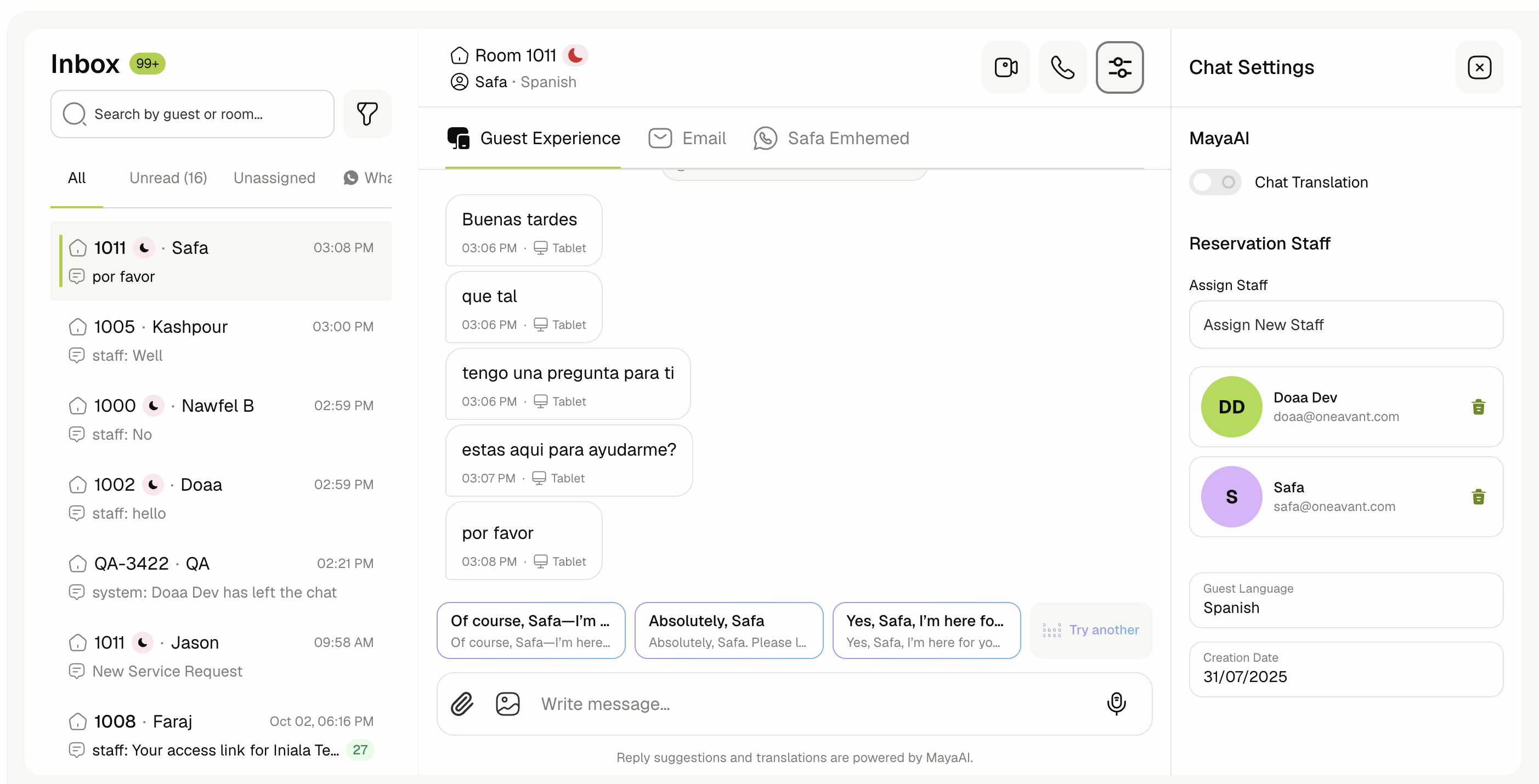
Click the icon button on the top right of the chat, there you can see a table of assigned staff members, you can add more and remove existing ones.
-
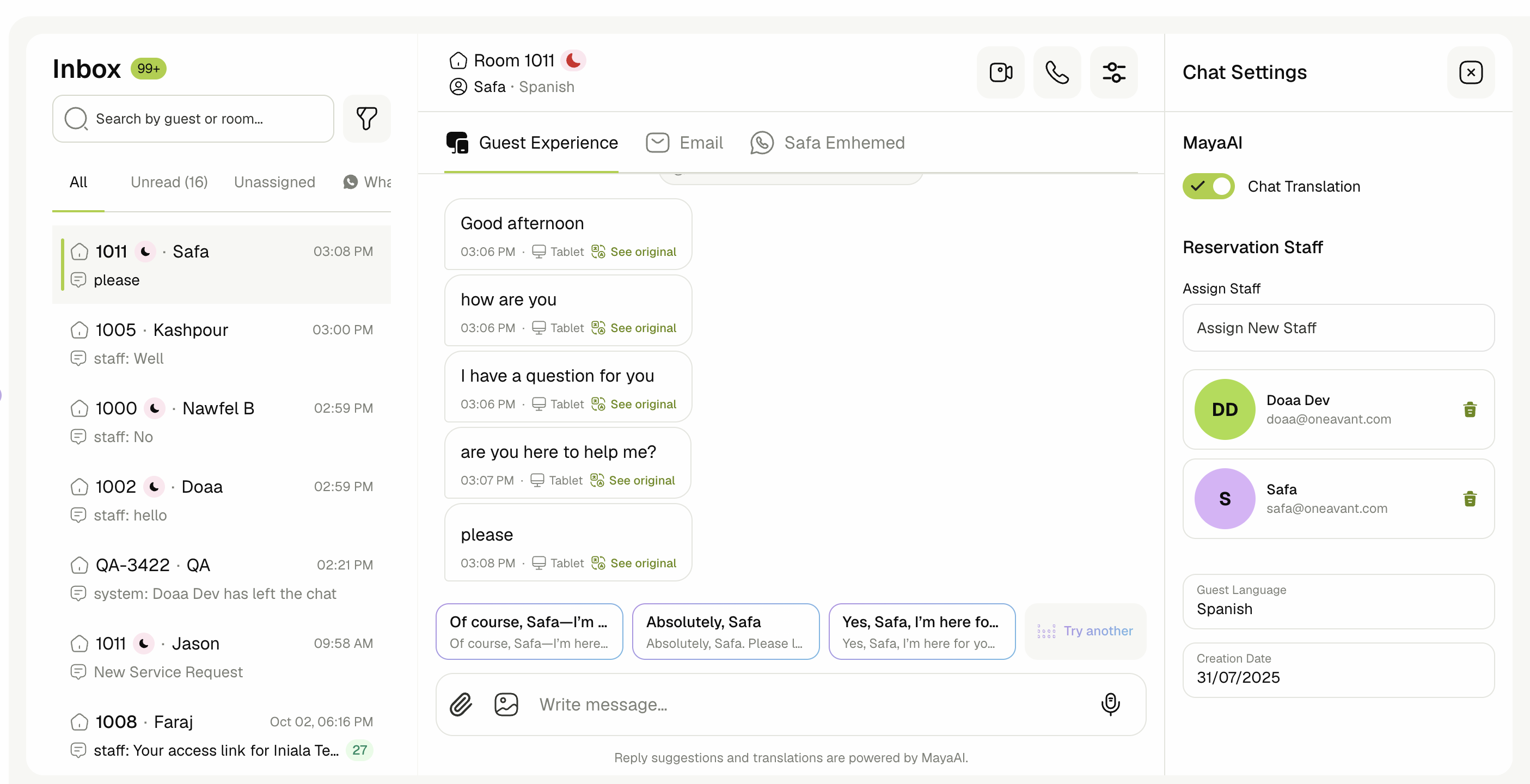
You can use the Chat Translation toggle (If you are using MayaAI) to translate message in different languages to English.
📥 Unread messages email reminder
To ensure staff never miss an important guest message, the system includes an automated email reminder feature that runs on a scheduled loop.
- A background cron job runs continuously and checks for guest messages that have been unread for at least 5 minutes.
- If such messages exist, an email is sent to the assigned staff member(s) associated with the conversation.
📧 Email Content
- The email includes a summary of all unread messages from guests across all active reservations assigned to the staff member.