Managing Guests
🙍♂️ Managing Guests in GMS
The Guest Management section in the GMS dashboard allows staff to view and manage guest profiles and personal preferences. This ensures each guest receives a personalized and comfortable stay.
🖥️ Accessing the Guest Management Section
-
Log in to the GMS dashboard using your staff or manager credentials.
-
From the sidebar menu, click on "Guests" to open the guest list view.
-
The guest table will display key information for each guest, such as:
-
Name
-
Contact Details


-
🔍 Searching, Filtering, Customizing, and Navigating
-
Use the search bar to quickly find guests by name.

-
Use the filters button to filter the guests by language.

-
-
Customize your view by clicking the column settings icon to show or hide specific fields.

-
Use the pagination controls at the bottom of the table to browse through the guest list efficiently.

⚙️ Viewing and Editing Guest Details
-
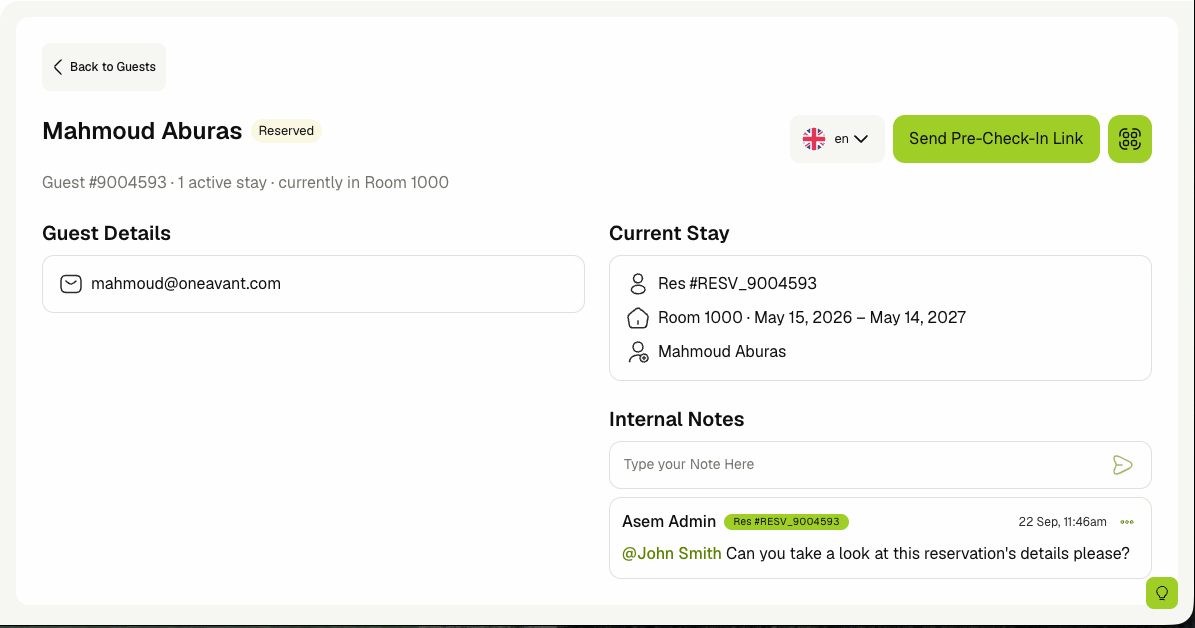
Click the View or Edit icons on a guest row to navigate to the guest details page. On this page you can:
- View the guest's details.
- Change the guest app language.
- Send a Pre-Check-In link (if the reservation status is 'Reserved').
- Generate a QR Code that lets you login into the app.

-
The guest details page also shows some of the guest's reservation details. You can click the reservation box to navigate to that reservation's details page.
📝 Guest Notes
The guest details page has a Notes section that works the same way as the reservation notes:
-
If you have permission, you can leave notes on the guest.
-
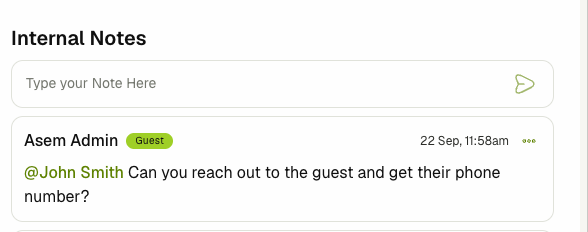
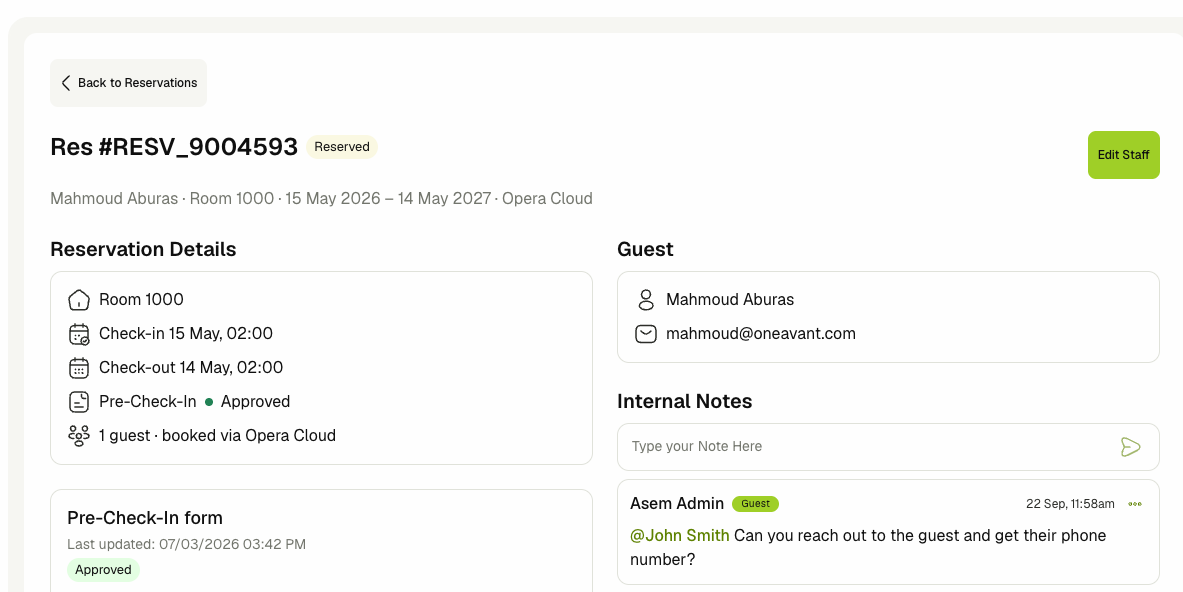
Notes left here also show up on any of the guest's reservations, tagged as guest notes, and notes left on a reservation show up here, tagged with the reservation they came from.
-
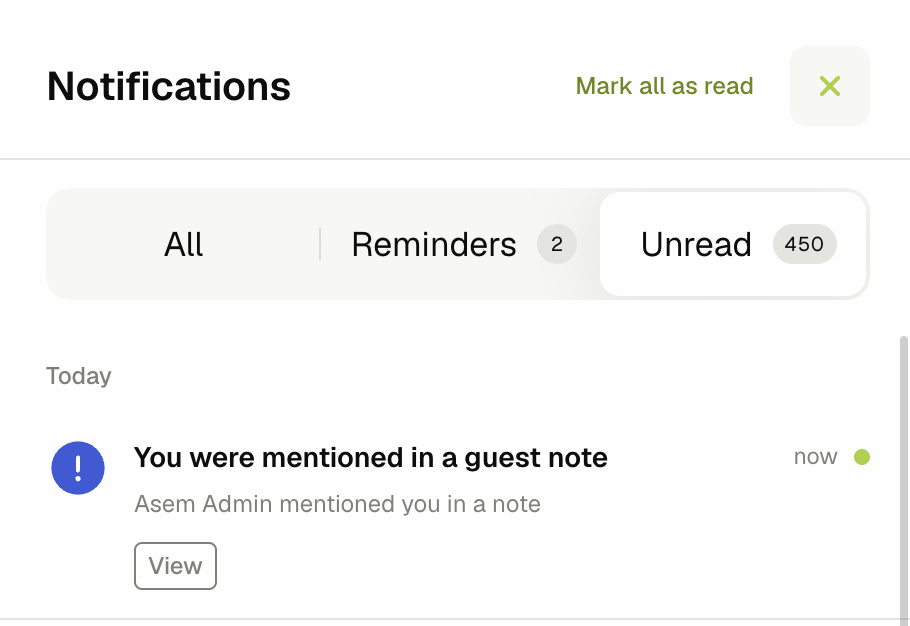
You can mention staff in a note. Staff who are assigned to the property, or who have permission to see all reservations, can be mentioned and will receive a notification about the note.