Escalation
🔔 Escalation watches guest requests that have not been dealt with in time and alerts your team automatically. You set a reminder time and an escalation time per property location, choose which role is alerted at each stage, and GMS handles the rest.
📍 Accessing Escalation
This section requires the Manage Notification Settings and View Locations permissions. Manage Notification Settings lives in the NOTIFICATIONS feature group of the GMS permissions card. See Roles & Permissions.
-
Log in to the GMS dashboard.
-
Select the correct Property Location from the left sidebar.
-
Open GMS Settings.
-
Click Escalation in the settings menu on the left.
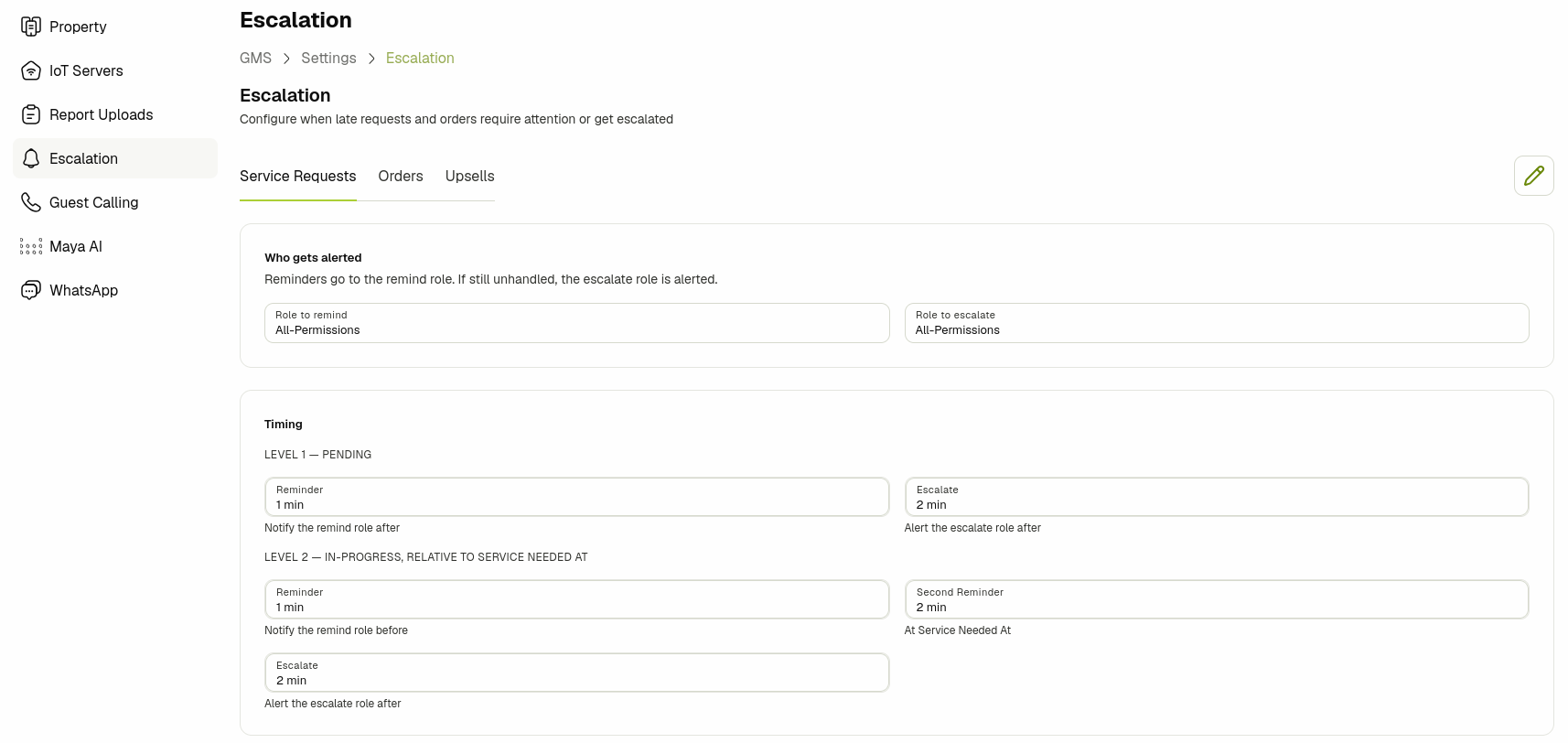
The page opens on the Service Requests tab, in read-only mode.
🔔 How Escalation Works
Escalation applies to three kinds of guest request, each configured on its own tab:
- Service Requests
- Orders
- Upsells
Each category has two roles and two levels.
The two roles
- Role to remind: alerted first, as a nudge. This is usually the team that fulfils the request.
- Role to escalate: alerted second, when the request is still unhandled. This is usually a supervisor or duty manager.
The two levels
- Level 1 covers a request nobody has picked up yet. The clock starts when the guest submits the request.
- Level 2 covers a request your team has accepted but not yet delivered. The clock is measured against the request's Service Needed At time, so the alerts land around the moment the guest is expecting service.
| Category | Level 1 applies while the status is | Level 2 applies while the status is |
|---|---|---|
| Service Requests | Pending | In Progress |
| Orders | Draft | Confirmed |
| Upsells | Pending | Not applicable |
Upsells have no Service Needed At time, so only the Level 1 timings apply to them. The Level 2 fields are hidden on the Upsells tab.
The five alerts
| Alert | Level | Alerts | Timed from |
|---|---|---|---|
| Reminder | 1 | Role to remind | Minutes after the guest submits the request |
| Escalate | 1 | Role to escalate | Minutes after the guest submits the request |
| Reminder | 2 | Role to remind | Minutes before Service Needed At |
| Second Reminder | 2 | Role to remind | Minutes after Service Needed At |
| Escalate | 2 | Role to escalate | Minutes after Service Needed At |
Each alert is sent at most once per request. When a request reaches a final status (Completed, Rejected, or Canceled) the remaining alerts for that request are never sent.
How the alerts are delivered
Alerts are sent as browser push notifications and mobile push notifications only. They appear in the notification bell and the Notifications Center like any other GMS notification, and clicking one opens the request.
Everyone holding the chosen role is alerted, across the whole tenant. Roles are not filtered by property location, so on a tenant with more than one property, a staff member at one property is alerted about requests at another. Use roles that match how your teams are actually split before you assign them here.
⚙️ Configuring Escalation
Escalation is configured per property location. A property with no saved settings sends no alerts at all — nothing is scheduled until you save the page for the first time.
-
Select the correct Property Location from the left sidebar.
-
Open GMS Settings and click Escalation.
-
Click the tab for the category you want to configure: Service Requests, Orders, or Upsells.
-
Click the pencil icon in the top-right of the page to switch from read-only to editing.
-
Select a role in the Role to remind field.
-
Select a role in the Role to escalate field.
-
Fill in the timing fields described below.
-
Repeat steps 3 to 7 for the other two tabs.
-
Click Save.
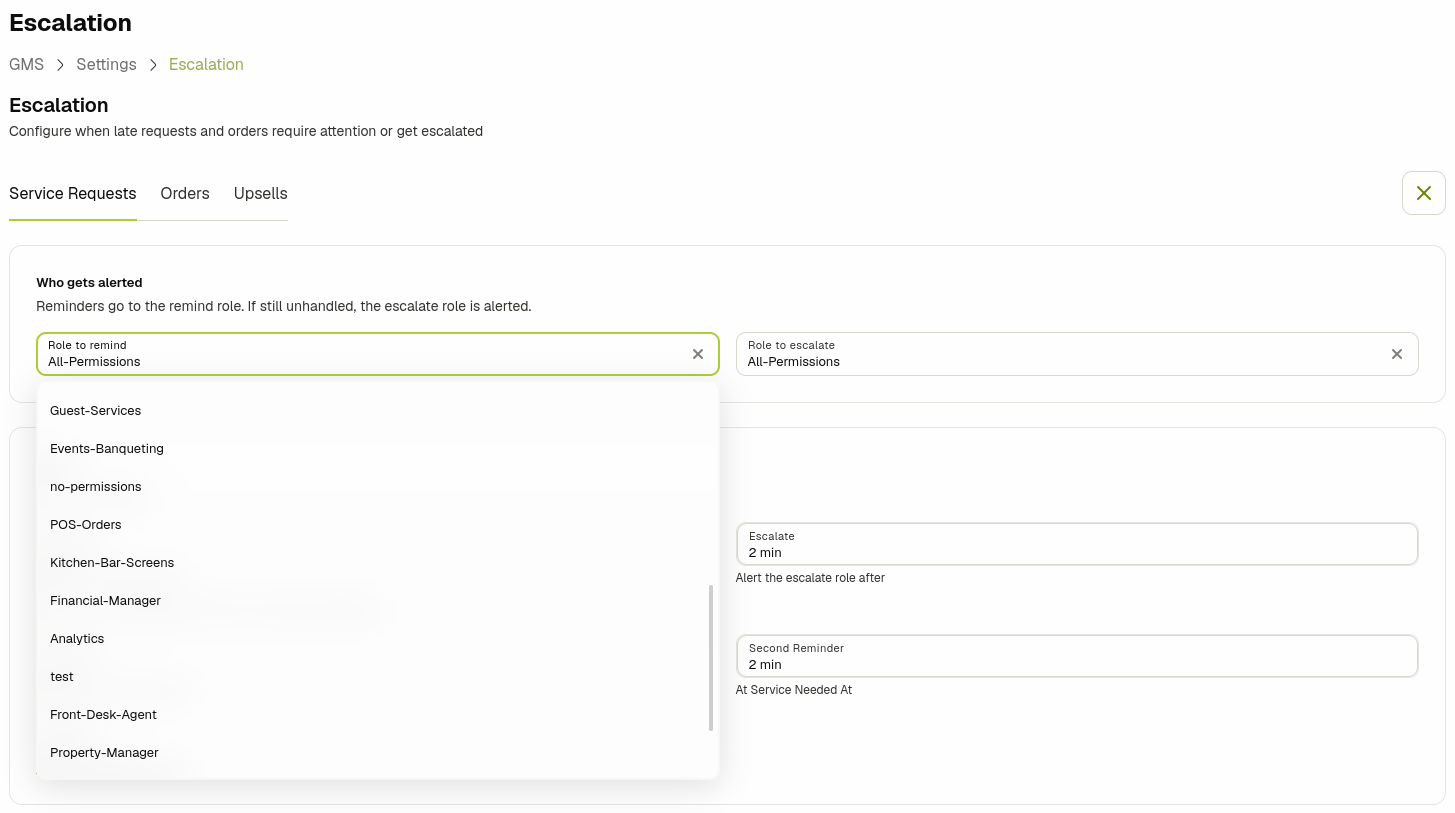
GMS confirms with Escalation settings saved successfully and the page returns to read-only.
The fields are:
| Field | Description |
|---|---|
| Role to remind | The role alerted by the Level 1 Reminder, the Level 2 Reminder, and the Second Reminder. Leave empty to send no reminders. |
| Role to escalate | The role alerted by the Level 1 and Level 2 Escalate alerts. Leave empty to send no escalations. |
| Level 1: Reminder | Minutes after the request is created before the remind role is alerted. |
| Level 1: Escalate | Minutes after the request is created before the escalate role is alerted. |
| Level 2: Reminder | Minutes before Service Needed At that the remind role is alerted. |
| Level 2: Second Reminder | Minutes after Service Needed At that the remind role is alerted again. Enter 0 to send this alert exactly at Service Needed At. |
| Level 2: Escalate | Minutes after Service Needed At before the escalate role is alerted. |
Every timing field is required and accepts a whole number of minutes from 0 to 1440 (24 hours). Saving with a field left empty shows Please enter a value for every timing field and nothing is saved.
::⚠️ Saving starts escalation for that property. From the moment you click Save, every new request at that property location is put on the clock. Save also writes all three tabs at once, not only the tab you were editing, so review every tab before saving the first time. :::
To stop escalation alerts for a property without changing anything else, clear both Role to remind and Role to escalate on each tab and save. Requests keep being tracked and still appear under Requires Attention, but nobody is notified.
📋 Working the Requires Attention Tab
Requests that reached an Escalate alert are collected on their own tab so your team has one place to clear the backlog.
This section requires the View Service Requests permission for service requests and orders, and the View Upsells permission for upsells.
-
Click Guest Requests in the sidebar.
-
Open the Requires Attention tab. The tab shows a red badge with the number of items waiting.
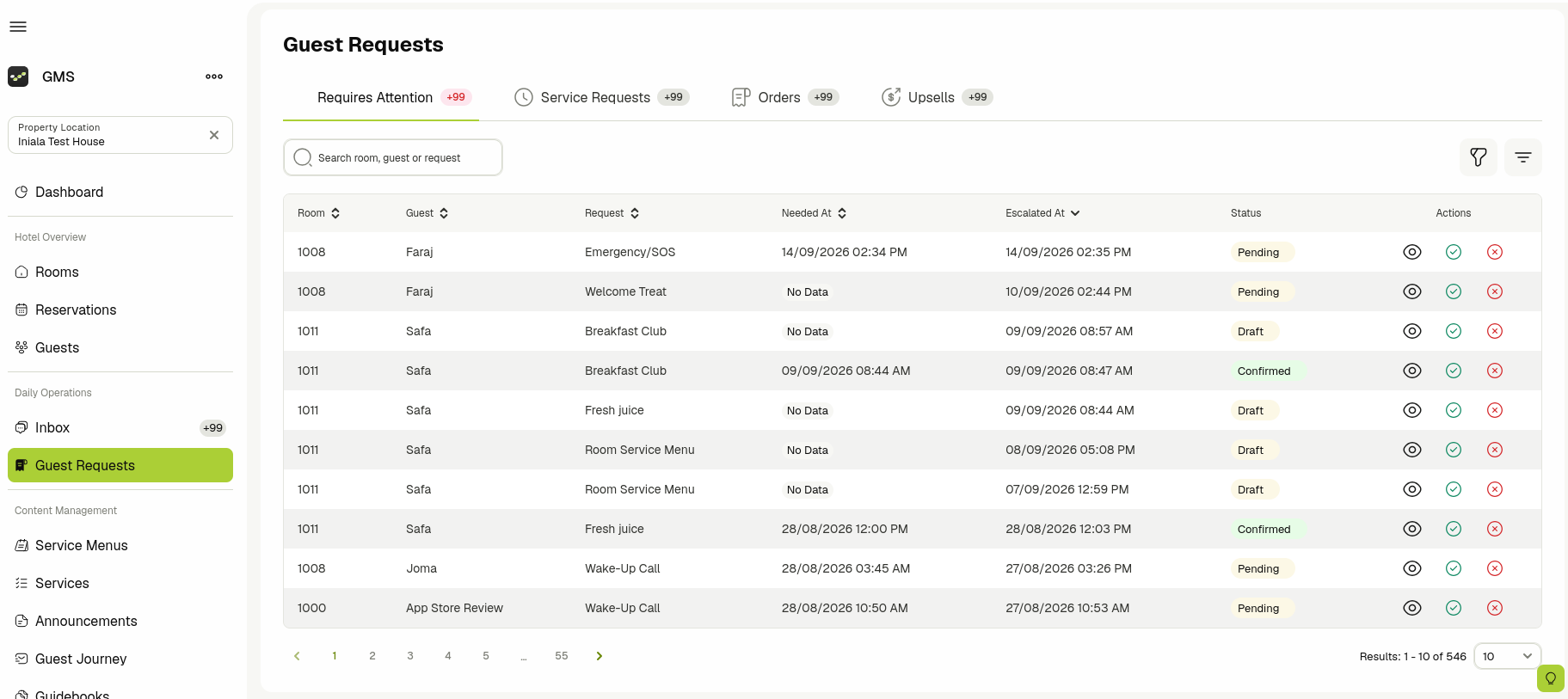
The list shows:
- Room: The guest's room number.
- Guest: The guest's name.
- Request: The service, order, or upsell that was requested.
- Needed At: The Service Needed At time, when the request has one.
- Escalated At: When the most recent escalation was sent.
- Status: The current status of the request.
Use the search field to find an item by room, guest, or request name, and the Type filter to show only service requests, only orders, or only upsells. Click any column header to sort. The list refreshes on its own every few seconds, so items appear and disappear without a page reload.
Each row has these actions:
- View: Opens the request's details, the same view as on its own tab.
- Accept, Mark as ready, or Mark as completed: Moves the request forward one step. The label changes to match the request's current status.
- Reject: Rejects the request. Rejecting asks for a reason before it is submitted, and the guest is notified.
An item leaves the list as soon as its status becomes final, so working a request from anywhere in GMS clears it here too.
Only Escalate alerts put a request on this tab. A request that has only had a Reminder is still on the clock, but it does not appear here until it escalates.