💬 WhatsApp lets your team message guests on WhatsApp from the GMS dashboard. Guests' replies arrive in the Inbox, and automated guest messages, such as booking confirmations and pre-check-in reminders, can be sent over WhatsApp instead of email.
This guide matches the GMS dashboard in staging as of October 6, 2026.
📍 Accessing WhatsApp Settings
Viewing the WhatsApp settings requires the View GMS Settings permission. Connecting the account, linking numbers, and managing templates requires the Manage WhatsApp Settings permission.
- Log in to the GMS dashboard.
- Click Settings in the sidebar.
- Click WhatsApp in the GMS Settings menu.
If you don't see WhatsApp in the menu, WhatsApp isn't enabled for your account yet. Contact OneAvant to enable it.
🔗 Connecting Your WhatsApp Business Account
Before you can message guests, connect your company's Meta WhatsApp Business Account. You connect it once, and it is shared by all your properties. You can connect it here or in the last step of setting up a property location.
When no account is connected, the page shows two options:
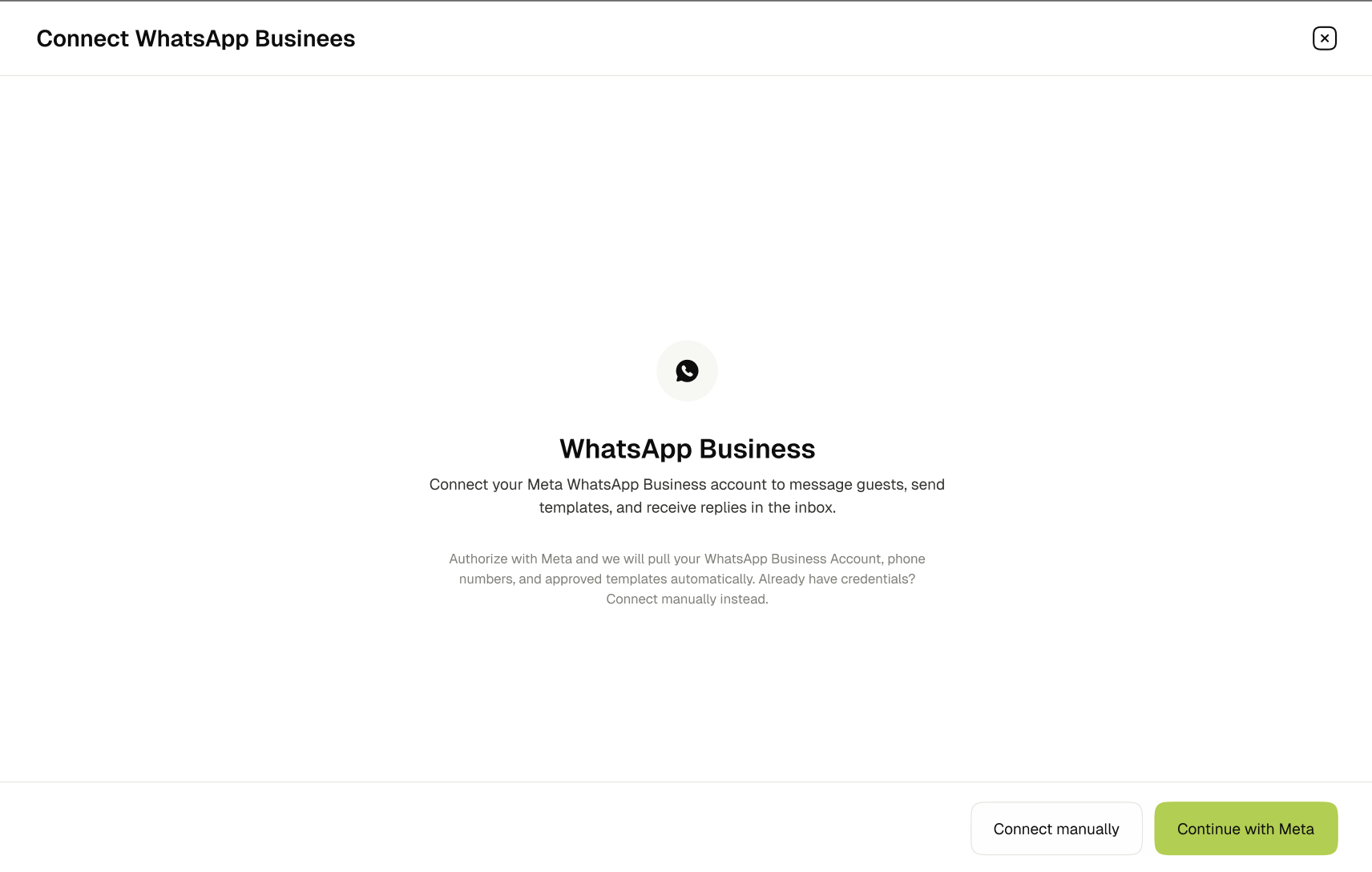
Continue with Meta (recommended)
- Click Continue with Meta. A Meta window opens.
- Click Continue with Facebook, sign in to Meta, and select your WhatsApp Business Account.
- When the window closes, the Assign locations card lists every phone number on the account.
- Select a Default location for each number. Messages from guests who don't match a reservation go to this location.
- Click Activate WhatsApp.
Allow pop-ups for the GMS dashboard. If your browser blocks the Meta window, you'll see Popup was blocked. Allow popups and try again.
Connect manually
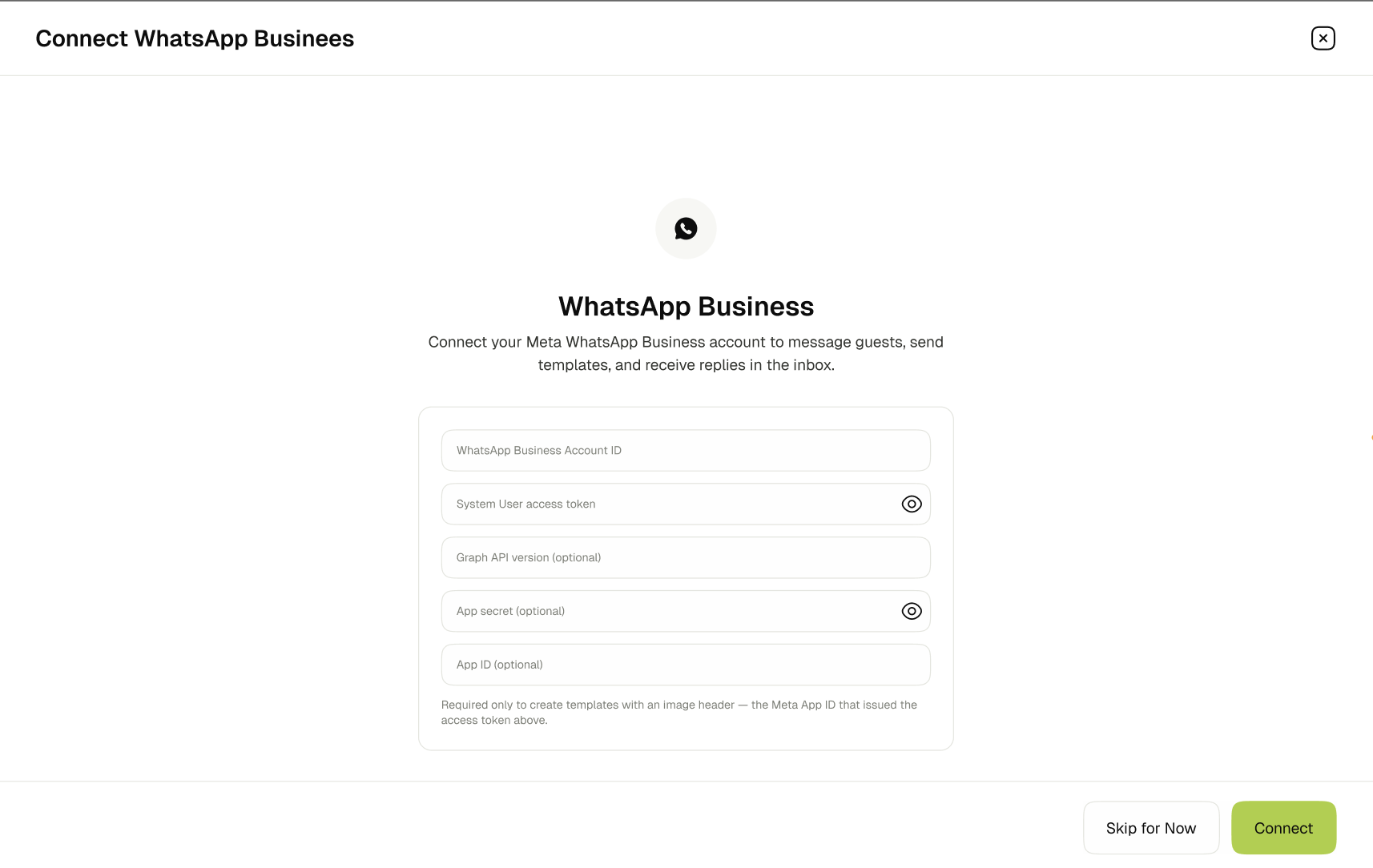
Use this option if you manage your own Meta app and already have its credentials.
- Click Connect manually.
- Fill in the WhatsApp Business Account ID and the System User access token.
- (Optional) Fill in the Graph API version, App secret, and App ID. The App ID is only needed to create templates with an image header.
- Click Connect account.
- Link a phone number to each property. See Linking Phone Numbers.
📶 Checking the Connection
Once connected, the top of the page shows the account, its health, and the number for the selected property.
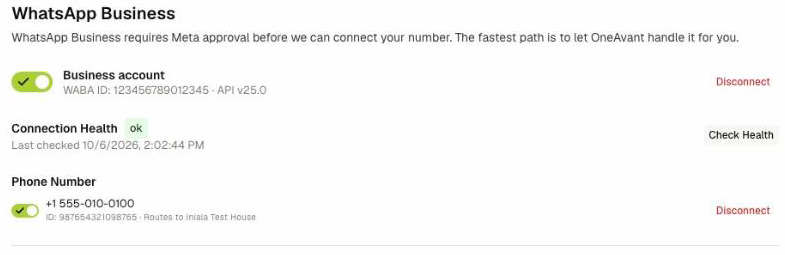
- Business account — Your WhatsApp Business Account ID and API version. The switch turns WhatsApp on or off for every property. While it's off, no messages are sent and incoming messages are not received.
- Connection Health — ok, warning, or error, with the time it was last checked. Click Check Health to check again. When there's a problem, the issues are listed below it.
- Phone Number — The number linked to the selected property and the location it Routes to.
If the account shows pending_verification, Meta is still approving your number or display name. Click Refresh status once Meta has approved it. If it shows error, click Reconnect and enter your credentials again.
The most common health issues are:
| Issue | What to do |
|---|---|
| WhatsApp access token expires in N day(s) | Reconnect before the token expires to avoid an interruption. |
| WhatsApp access token has expired or was rejected by Meta | Click Reconnect. Messaging is stopped until you do. |
| WhatsApp phone number verification is still pending | Wait for Meta's approval, then click Refresh status. |
| No WhatsApp business phone numbers are configured | Link a number. See Linking Phone Numbers. |
| WhatsApp account is disabled | Turn the Business account switch back on. |
Disconnect next to Business account removes the account for all properties. Stored credentials are deleted and messaging stops for every number. Past conversations are kept.
📞 Linking Phone Numbers
Each property uses one WhatsApp number. Guests' messages to that number go to that property's inbox.
- Select the property in the Property Location selector at the top of the sidebar.
- Under Phone Number, click Link Phone Number.
- If the account has more than one free number, select the number and click Link to Property. If only one is free, it is linked straight away.
The switch next to a linked number turns that number on or off. To stop using a number for the property, click Disconnect next to it and confirm.
A number can't be moved to another location after linking. Disconnect it, switch to the other property, and link it again. To add a new number, add it in Meta first.
📝 Managing Message Templates
WhatsApp only lets you start a conversation, or write to a guest more than 24 hours after their last message, with a template that Meta has approved. Templates are shared by all your properties.
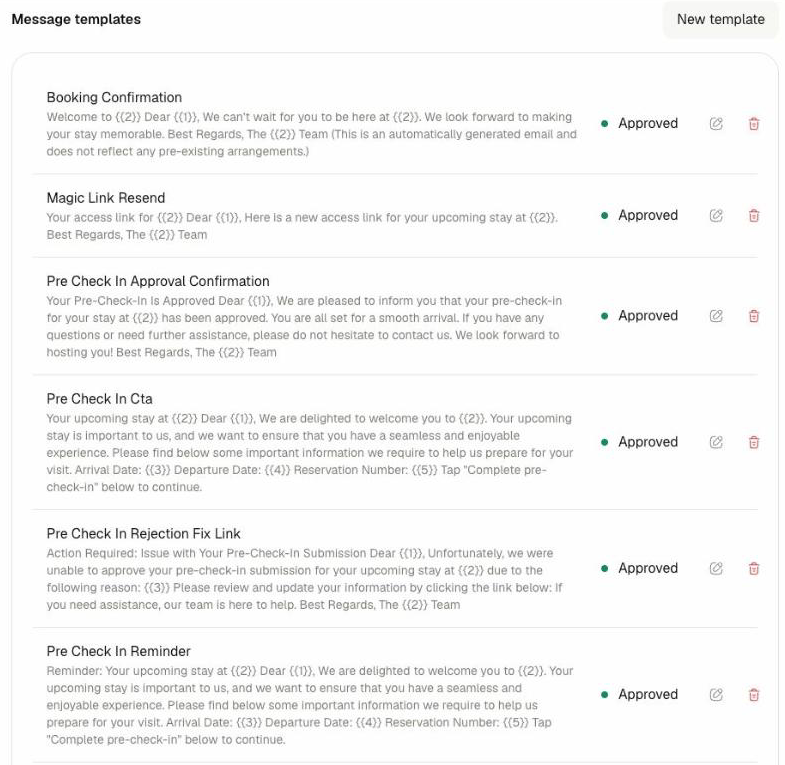
The Message templates section lists your templates with their status: Approved, Pending, Rejected, Paused, or Disabled. If Meta rejects a template, the reason is shown under it.
Built-in templates
When you connect WhatsApp, the GMS creates the templates used by the Guest Journey and submits them to Meta:
| Template | Sent when |
|---|---|
| Booking Confirmation | A booking is confirmed. Includes an Open your guest app button. |
| Pre Check In Cta | The guest is invited to complete pre-check-in. |
| Pre Check In Reminder | The guest hasn't completed pre-check-in yet. |
| Pre Check In Submission Confirmation | The guest submits pre-check-in. |
| Pre Check In Approval Confirmation | Staff approve the pre-check-in. |
| Pre Check In Rejection Fix Link | Staff reject the pre-check-in and ask the guest to fix it. |
| Magic Link Resend | Staff send the guest a new login link. |
Don't edit or delete the built-in templates. The GMS restores its own wording, and Meta blocks reusing a deleted template's name for 4 weeks.
Creating a template
-
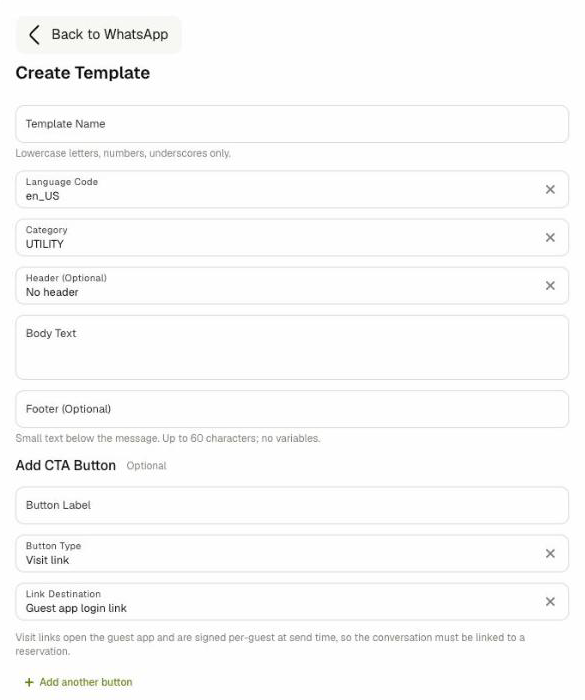
Click New template.
-
Fill in the Template Name using lowercase letters, numbers, and underscores only (for example,
late_checkout_offer). -
Check the Language Code, for example
en_US. -
Select a Category: UTILITY for service messages, MARKETING for offers, or AUTHENTICATION for codes.
-
(Optional) Choose a Header: No header, Text heading (up to 60 characters), or Image (JPEG or PNG, up to 5 MB).
-
Write the Body Text, up to 1024 characters. Use variables for details that change per guest, either numbered like
{{1}}or named like{{guest_name}}. -
(Optional) Add a Footer, up to 60 characters, without variables.
-
(Optional) Under Add CTA Button, add buttons:
- Visit link — Opens the Guest app login link, Pre-check-in link, or Upsells link. Up to 2 per template. These only work in conversations linked to a reservation.
- Call phone number — Calls the number you enter. Up to 1 per template.
- Quick reply — Sends the button's text back as the guest's reply.
Button labels can be up to 25 characters.
-
Click Submit.
The template is sent to Meta for review and shows as Pending. Meta usually reviews templates within a day. You can send it once it's Approved.
To change a template, click its edit icon. The name and language can't be changed after creation.
💬 Messaging Guests on WhatsApp
WhatsApp conversations appear in the Inbox (Daily Operations > Inbox).
- Conversations that match a reservation open with the guest's chat. Each WhatsApp number the guest uses has its own tab next to Guest Experience and Email.
- Messages from numbers that don't match a reservation appear under the WhatsApp tab of the inbox, labeled with the phone number.
The 24-hour window
You can reply freely for 24 hours after the guest's last message. The bar above the message box shows how long is left, for example WhatsApp window open · 5h 12m left to reply freely.
After 24 hours, it shows 24-hour window closed · only approved templates can be sent. The message box is hidden, and you can only send an approved template. The window opens again when the guest replies. Sending a template does not reopen it.
To send a template, click one of the template cards above the message box, or Browse all. If the template has variables, fill them in and click Send template.
A template without variables is sent as soon as you click it. There is no confirmation step.
What you can send
While the window is open, you can send text, images, videos, files, and voice messages, reply to a specific message, and react with an emoji.
| Type | Limit |
|---|---|
| Image | 5 MB |
| Video | 16 MB, up to about 7 minutes |
| Voice / audio | 16 MB |
| File | 100 MB. PDF, Word, Excel, PowerPoint, TXT, or CSV. |
Ticks under your messages show their status: one grey tick for sent, two grey ticks for delivered, two blue ticks for read, and a red ✕ if it failed.
Linking a conversation to a guest
If a guest writes from a number that isn't on their reservation, link the conversation yourself so it opens with the guest's chat:
- Open the conversation and click the Chat settings icon in its header.
- Under Link to Guest, search by guest name or room, and select the guest.
- Click Save, then confirm.
To undo it, click Unlink under Linked Numbers. The conversation moves back to the WhatsApp tab of the inbox.
Guests are matched by the phone number in their reservation. The number needs its country code (for example +44… or 0044…). Numbers in local format, such as 07…, can't be reached on WhatsApp.
Notifications
You get a notification when a guest writes on WhatsApp:
- For conversations linked to a reservation, only the staff assigned to the reservation are notified. If no one is assigned, no one is notified.
- For other conversations, everyone with access to all chats is notified.
When any staff member opens a conversation, it is marked as read for the whole team. Unread counts also clear once the 24-hour window closes.
🧭 Sending Guest Journey Messages over WhatsApp
You can send Guest Journey messages over WhatsApp instead of email:
- Open Guest Journey under Content Management.
- On each message card, choose WhatsApp instead of Email.
The messages that support WhatsApp are the booking confirmation and all the pre-check-in messages.
If a WhatsApp message can't be delivered, it is sent by email instead. For example, this happens when the guest has no reachable number or the template isn't approved yet. The result is recorded in the guest's Email tab in the inbox.
You can also send a guest a new login link over WhatsApp. On the guest's details page, click Send Login Link and check WhatsApp.
🚫 Scope Notes
- You can connect one WhatsApp Business Account per company and link one number per property.
- There is no opt-in or consent tracking. Make sure you have the guest's permission to contact them on WhatsApp.
- Staff can't delete WhatsApp messages once sent.
- MayaAI doesn't reply to guests on WhatsApp automatically. Suggested replies are still available while the window is open.
- Interactive list messages, locations, and contact cards can't be sent. Stickers from guests show as Unsupported message type.
- The business profile, quality rating, and messaging limits are managed in Meta's WhatsApp Manager, not in the GMS.
Related Docs
- Property Locations — Connect WhatsApp while setting up a property.
- Chat — Reply to guests in the inbox.
- Guest Journey — Configure the automated guest messages.
- Roles and Permissions — Grant the Manage WhatsApp Settings permission.