Guidebooks
📚 Guidebooks let staff build guest-facing information pages inside GMS, organize them into sections, publish or unpublish them, and monitor how often guests open or interact with them.
📍 Accessing Guidebooks
- Log in to GMS with permission to manage guidebooks.
- Select the correct Property Location from the left sidebar.
- In Content Management, open Guidebooks.
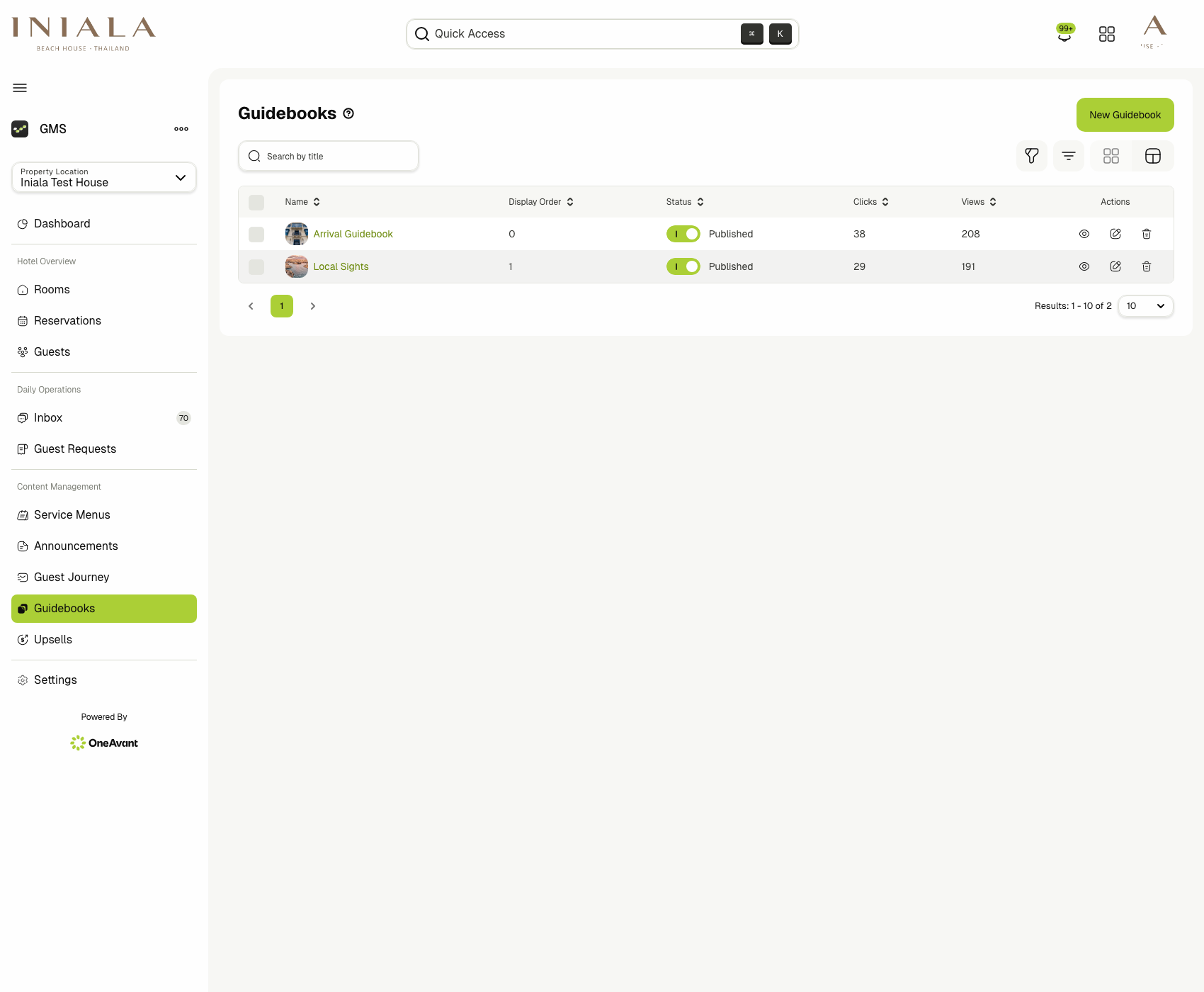
The list page shows all guidebooks created for the selected property location.
📋 Viewing and Managing Guidebooks
-
The guidebooks table shows the main admin summary for each guidebook:
- Name
- Display Order
- Status
- Clicks
- Views
- Actions
-
Use Search by title to find a guidebook quickly.
-
The Published toggle in the status column controls whether the guidebook is visible to guests.
-
Row actions let staff:
- Open the guidebook details page
- Edit the guidebook
- Delete the guidebook
-
Selecting one or more rows reveals bulk actions such as:
- Unpublish
- Delete
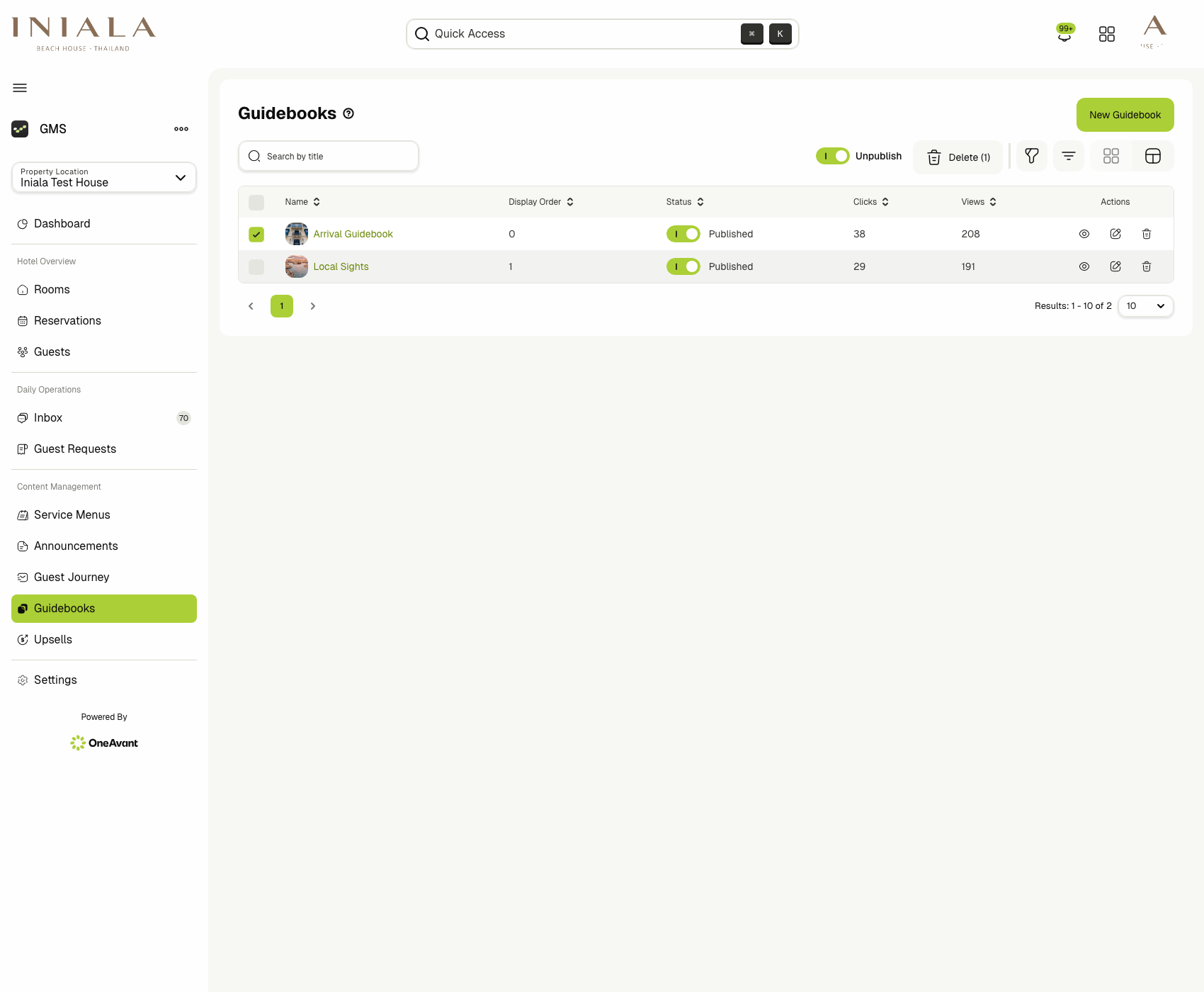
Display Order controls how guidebooks are sorted for guests. Higher-priority guidebooks should be given the order you want them to appear with.
➕ Creating a Guidebook
-
Click New Guidebook.
-
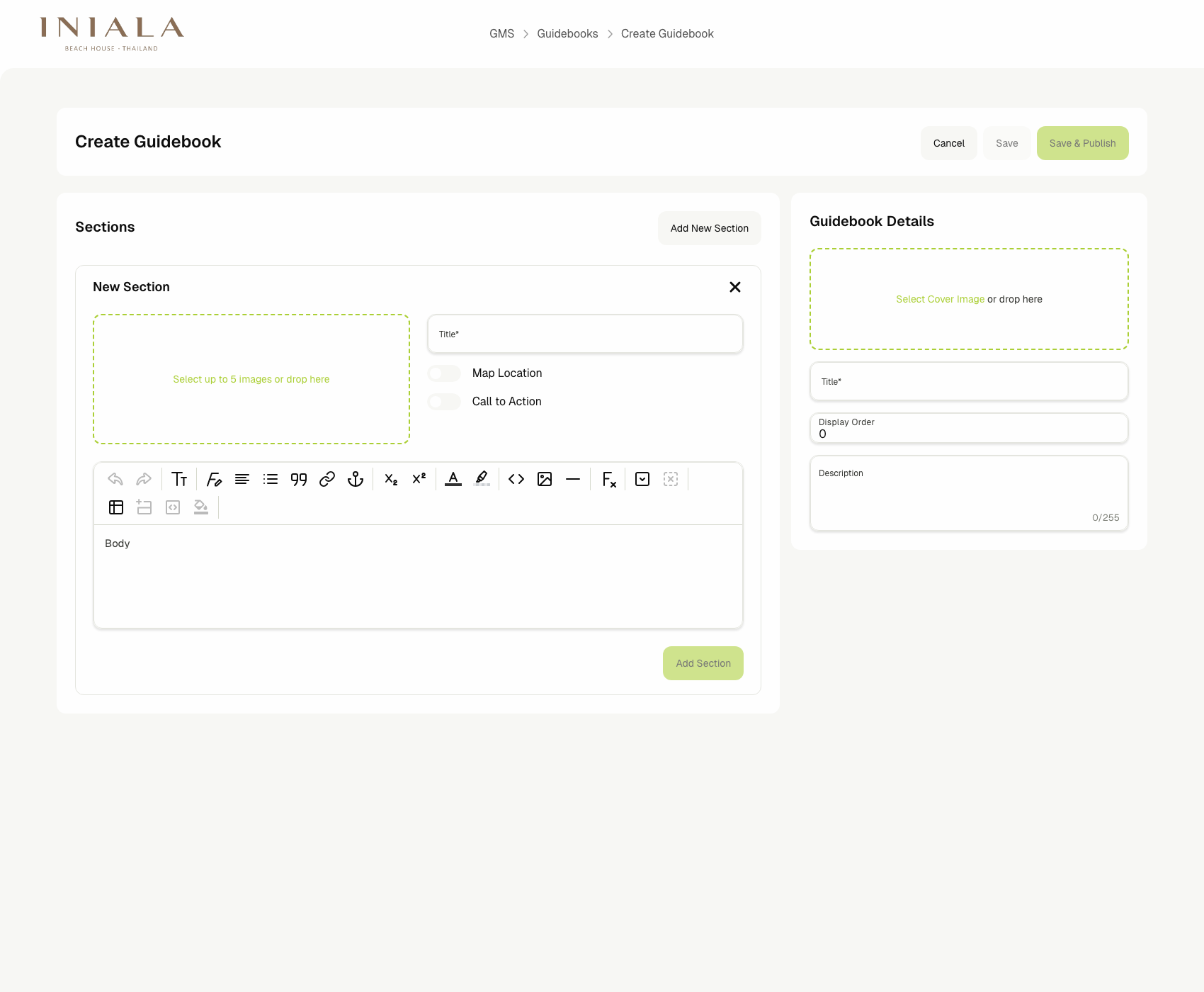
Complete the Guidebook Details panel on the right side.
-
Add one or more content sections from the Sections panel.
-
Choose:
- Save to keep the guidebook as a draft
- Save & Publish to make it available to guests immediately
The current create screen includes these guidebook-level fields:
- Cover image
- Title
- Display Order
- Description
🧱 Building Guidebook Sections
Each guidebook is made of ordered sections.
-
Use Add New Section to create a section.
-
Each section currently supports:
- Up to 5 images
- A Title
- Optional Map Location
- Optional Call to Action
- A rich-text Body
-
The editor supports formatted text such as headings, emphasis, lists, and links.
-
Map links and other clickable content are intended to be guest-facing, so they should be added with final wording and valid URLs.
After a guidebook is saved, staff can continue managing sections from the guidebook details view.
🗂️ Ordering and Maintaining Sections
Opening a guidebook shows its section workspace by default.
-
The header gives a quick summary of:
- Views
- Clicks
- Sections
-
Each section card shows its image preview, title, and a shortened content preview.
-
Use the drag handle on the left side of a section to reorder it.
-
Use the section action icons to:
- Edit the section
- Delete the section
-
Use Add Section to append more sections after the guidebook is already created.
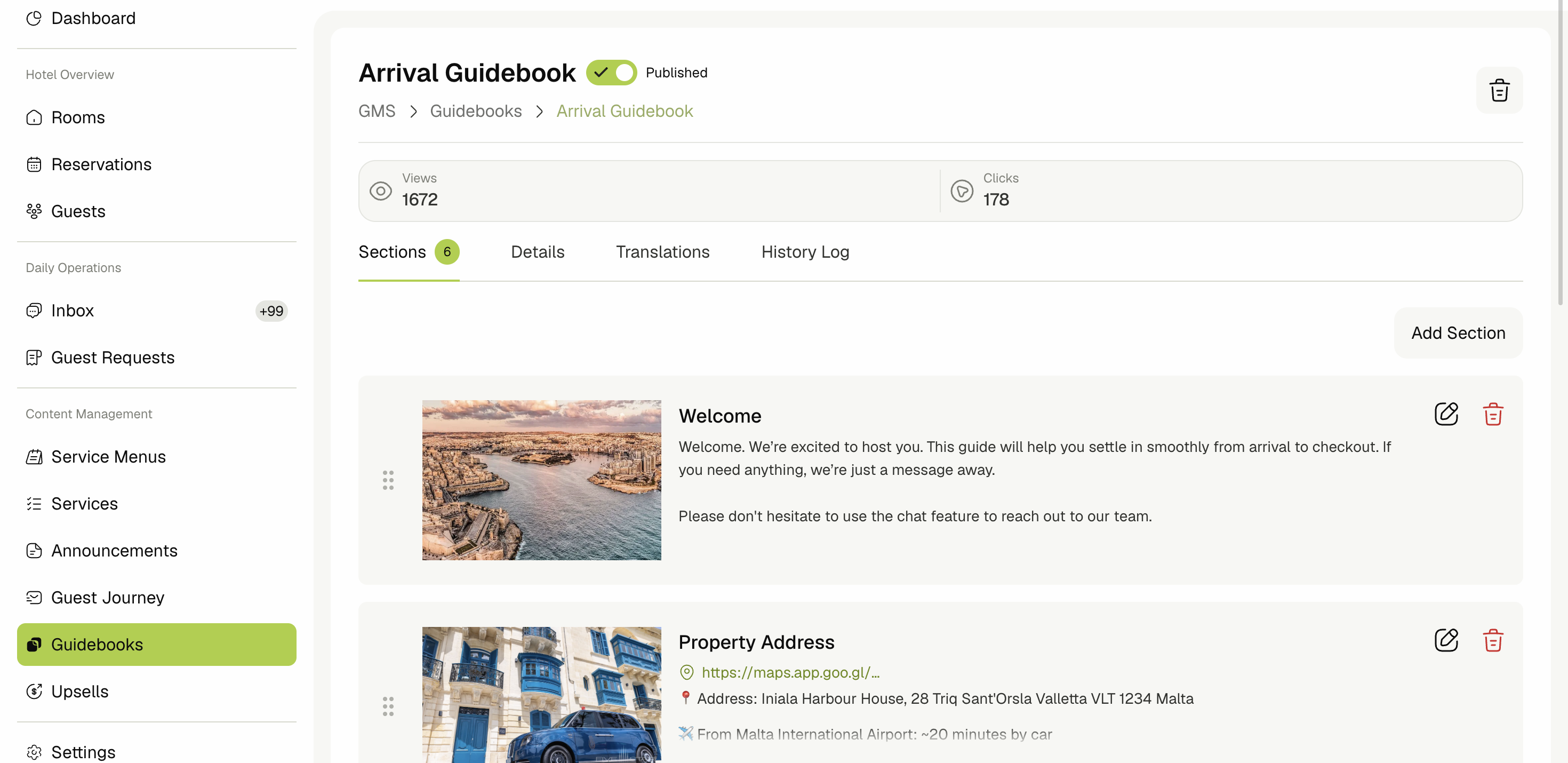
The section order shown here is the order guests see in the guidebook. On tablet, this order also drives the section index.
📝 Reviewing Guidebook Details
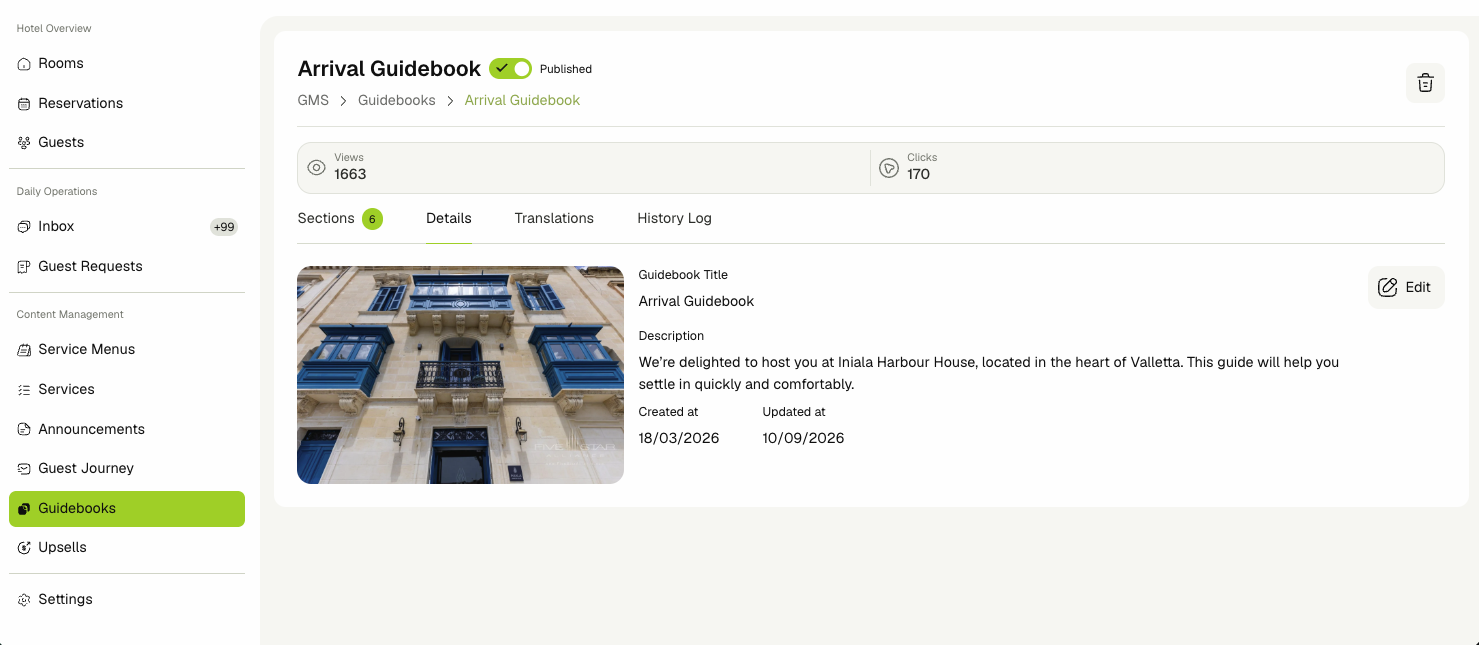
The Details tab provides a read-only summary of the guidebook metadata.
The current details screen shows:
- Guidebook Title
- Description
- Display order
- Created at
- Updated at
From this tab, staff can also open the guidebook metadata editor and update the main cover image or descriptive fields without leaving the guidebook record.
🌐 Guidebook Translations
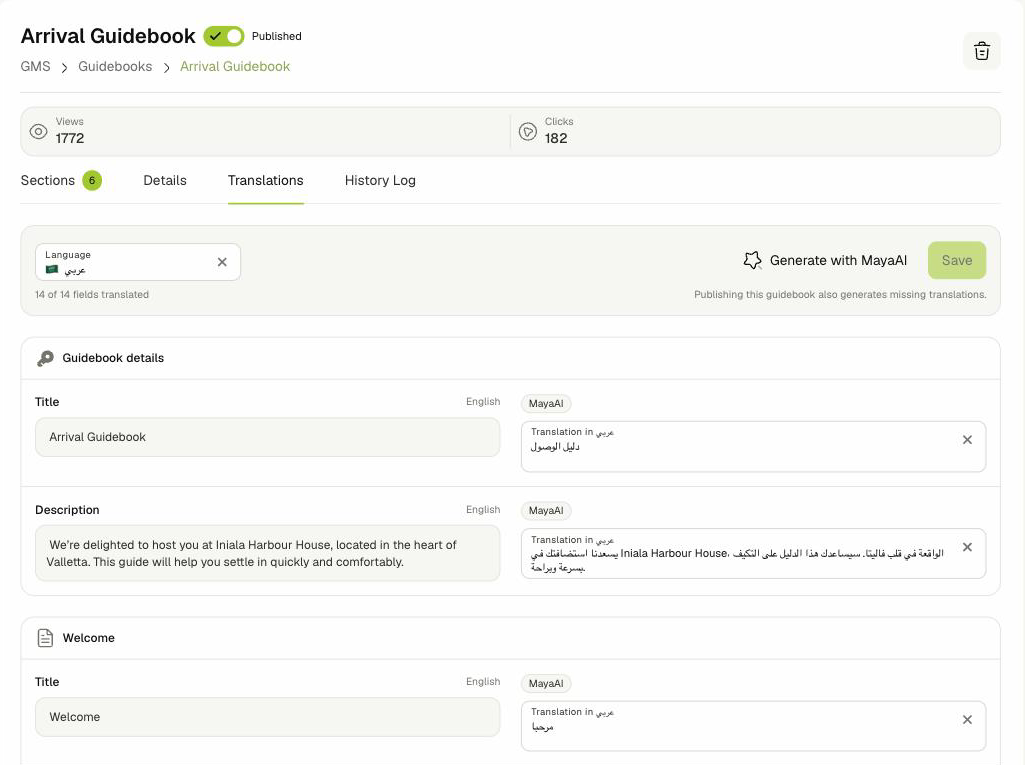
The Translations tab lets staff review and edit the guidebook content in other languages besides English.
The translated fields are the guidebook Title and Description, plus each section's Title, Body, and Call to action. Fields are grouped under Guidebook details and then under each section's title.
-
Open the guidebook and click the Translations tab.
-
Select a Language from the dropdown. Every field appears with its English text on the left and the translation on the right.
-
Fill in translations in either of two ways:
- Generate with MayaAI — Translates every field into every supported language at once. Fields your team has edited are kept as they are.
- Manual editing — Type in any Translation in field.
-
Click Save. The number on the button shows how many fields have unsaved edits.
The counter (e.g. 14 of 14 fields translated) shows how many fields have a translation for the selected language.
Save your edits before you switch language. Switching discards edits you haven't saved.
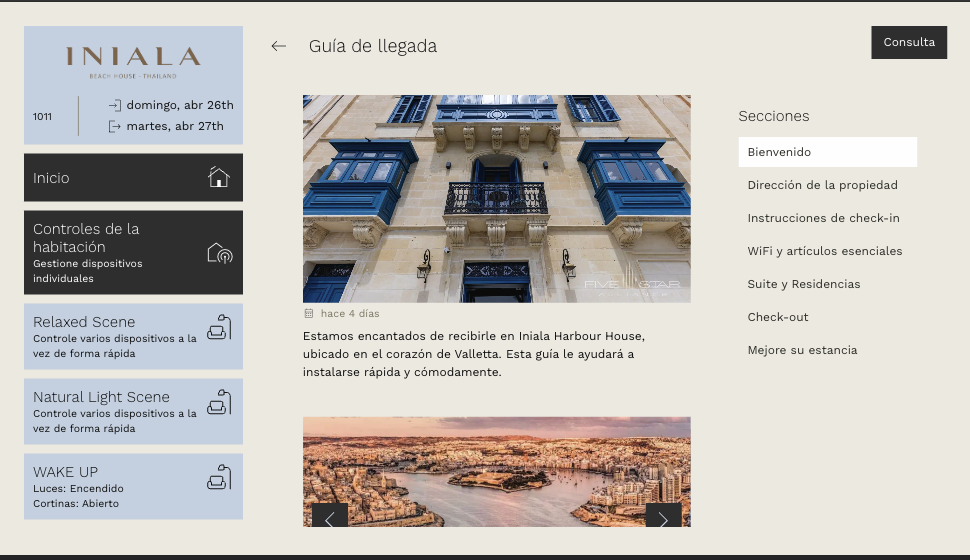
Once saved, the guest app shows the guidebook in the guest's selected language. Any field without a translation is shown in English.
Saving or publishing the guidebook also generates translations for any fields that are still missing or whose English text changed. For labels, supported languages, and permissions, see Translating Your Content.
🕘 Using the History Log
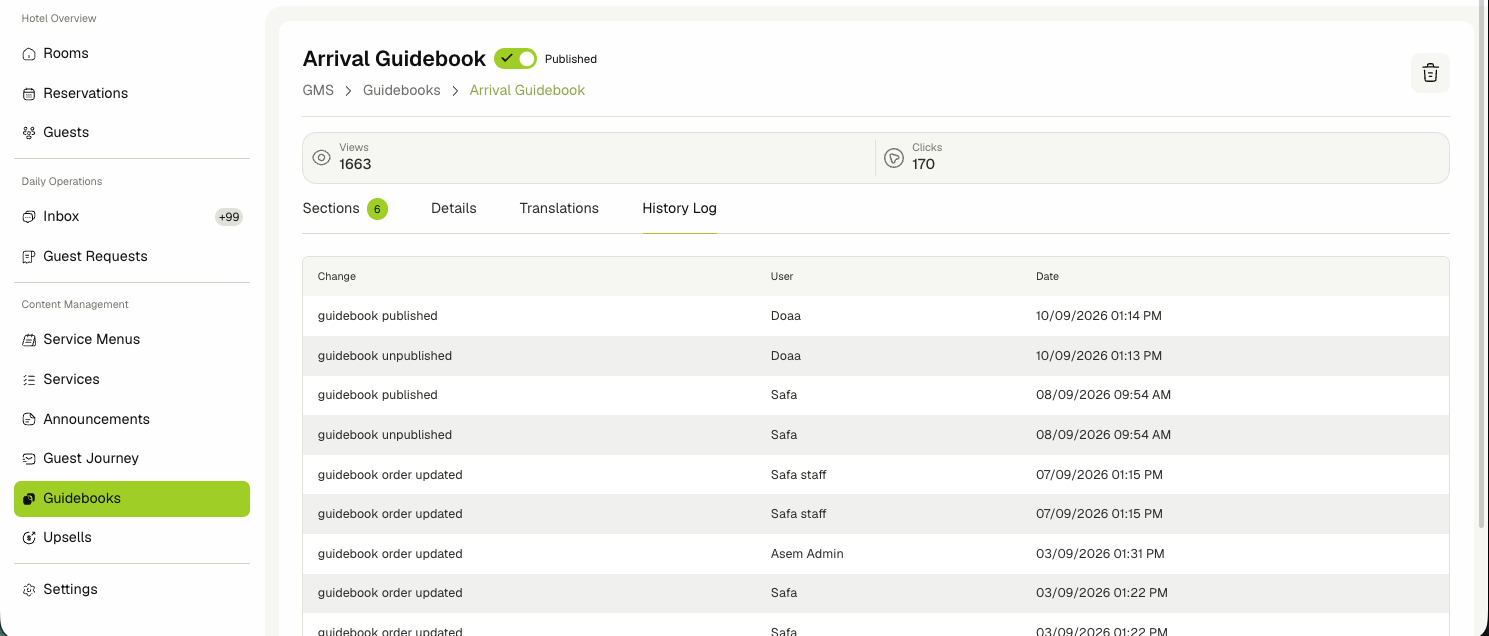
The History Log tab records the guidebook audit trail.
-
Each entry shows:
- The Change
- The User
- The Date
-
This is useful for confirming when a guidebook was updated or published and who made the change.
📱 Guest Experience
According to the delivered GMS-1030 stories, published guidebooks are shown
to eligible guests from the guest app home.
- Guests should see the available guidebooks as a dedicated Guidebooks section.
- Guidebook cards can include the title and a short preview or thumbnail.
- Opening a guidebook displays all sections in a single continuous page.
Navigation differs by device:
- On tablet, guests see a section index and can jump to any section.
- On mobile, guests move through the same content by scrolling.
Interactive content such as external links and map links can be opened from the guest view, and those interactions contribute to the guidebook's click metrics.
📊 Engagement Tracking
- Opening a guidebook contributes to its Views metric.
- Clicking supported guidebook links contributes to its Clicks metric.
- Staff can use those metrics to decide which guidebooks are performing well, which ones need better content, and which ones may no longer need to stay published.