Managing Your OPERA Cloud Connection
🔗 Once a property is connected to Oracle OPERA Cloud, GMS keeps it in sync on its own. This guide explains what GMS imports and keeps up to date, and how to check the connection, see the events OPERA Cloud sends, backfill missing data, and disconnect or reconnect a property.
📍 Accessing the Connection Settings
The actions on this page require the Manage PMS Connection permission. See Roles & Permissions.
- Select the property in the Property Location selector in the sidebar.
- Click Settings in the sidebar.
- Click Property in the settings menu.
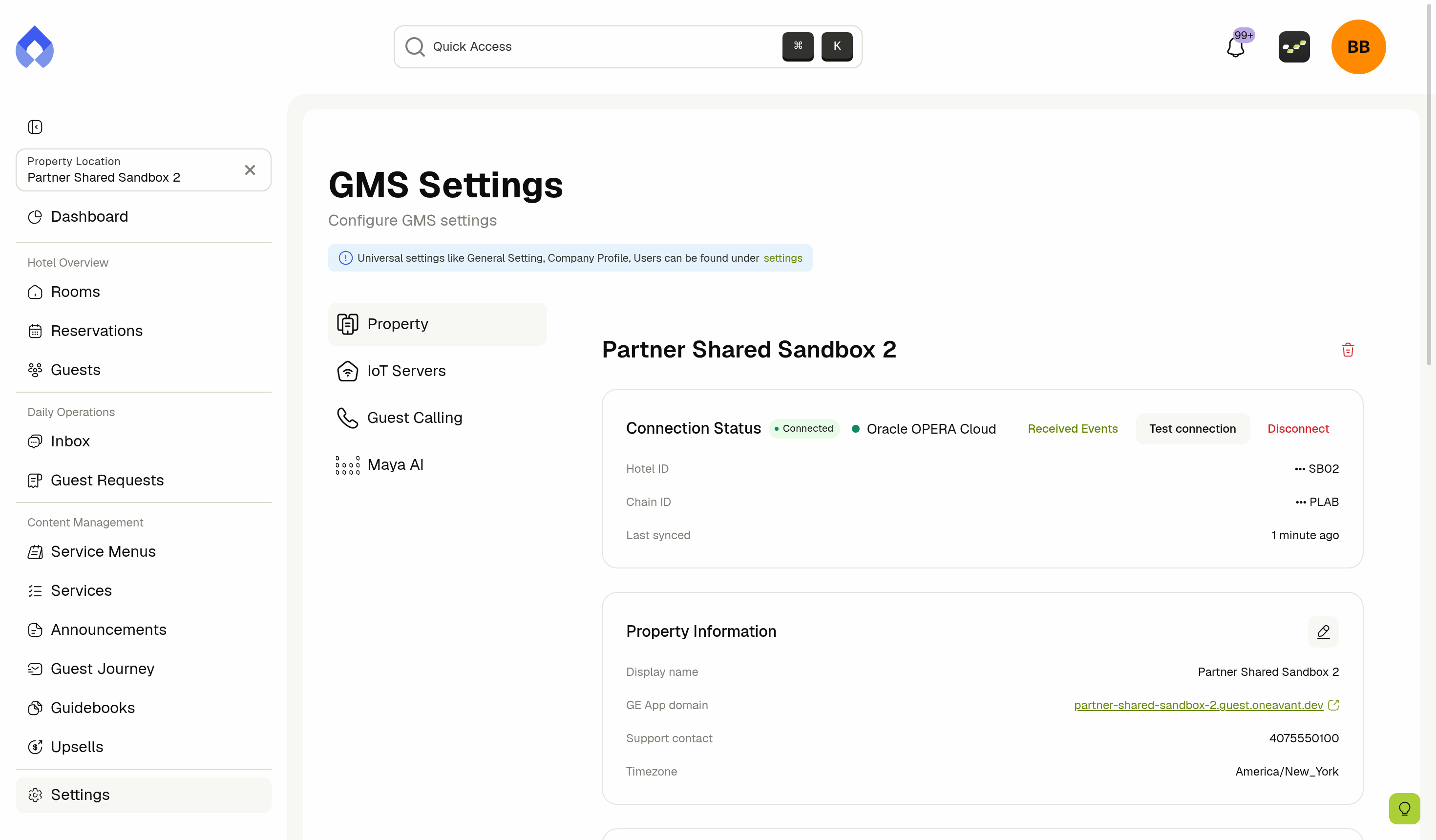
The connection lives in two cards at the top of the page: Connection Status and Data Backfill. For the property's other cards, see Property Locations.
📋 What Syncs From OPERA Cloud
GMS keeps a copy of the property's OPERA Cloud data in two ways:
- Imports: The initial import when you connect the property, and any backfills you run afterwards, read the data for a period in one go.
- Live events: From then on, OPERA Cloud sends GMS each change the moment it happens, and GMS applies it within seconds.
| Data | Imported | Kept up to date by live events |
|---|---|---|
| Room classes, room types, and rooms | Yes | GMS re-reads the room inventory when it changes in OPERA Cloud. |
| Room occupancy | Yes | When a room becomes occupied or vacant. |
| Reservations | Yes | When a reservation is created, changed, or canceled, and when the guest checks in or out. |
| Guest profiles | Yes | When a guest's profile changes. |
Some GMS features act on these changes automatically:
- When a guest checks out, GMS clears Do Not Disturb on their room.
- When OPERA Cloud's night audit moves the property to the next business date, GMS sends that day's scheduled Guest Journey emails.
- New reservations can receive a booking confirmation, depending on your Pre-Check-In and Guest Journey settings.
GMS only reads from OPERA Cloud. It never creates or changes reservations, guests, or rooms in OPERA Cloud, so OPERA Cloud stays your source of truth.
🔗 Connection Status
The Connection Status card shows the PMS the property is connected to, Oracle OPERA Cloud, with a status badge:
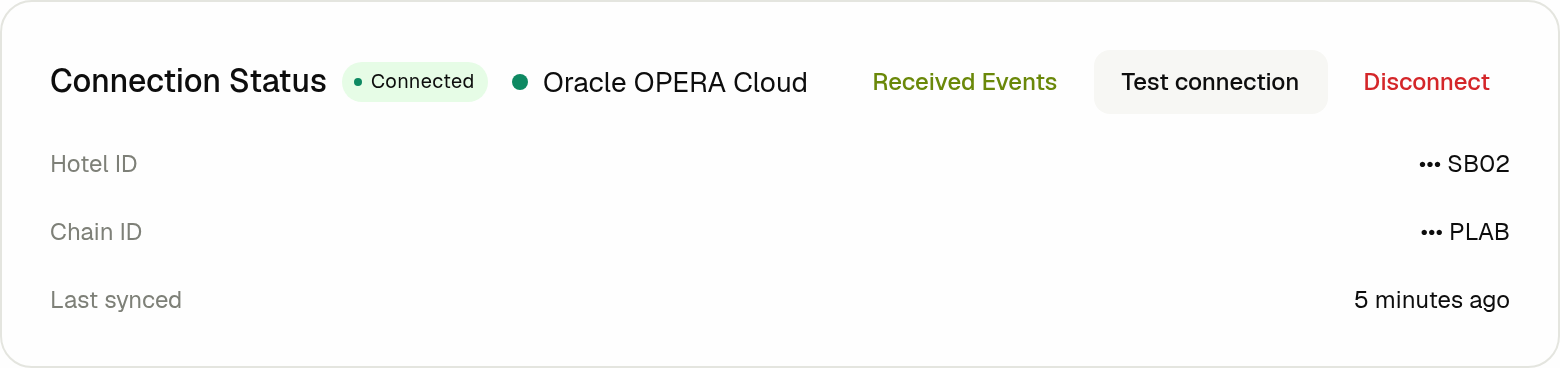
| Status | What it means |
|---|---|
| Connected | GMS can reach OPERA Cloud and data is syncing. |
| Testing | The connection was just set up or changed and has not been tested yet. |
| Error | The last test could not reach OPERA Cloud. Syncing is paused until the connection works again. |
| Disconnected | Someone disconnected the property. Nothing syncs until you reconnect. |
Below the badge, the card shows:
- Hotel ID and Chain ID: The property's codes in OPERA Cloud, partly masked.
- Last synced: When GMS last received data from OPERA Cloud. While the property is disconnected, it reads Paused with the time of the last sync.
🧪 Testing the Connection
Use Test connection to check that GMS can still reach OPERA Cloud, for example after your OPERA Cloud administrator changes something on their side.
- Click Test connection on the Connection Status card.
- Read the result in the message at the top-right of the screen. PMS connection is working. means everything is in order.
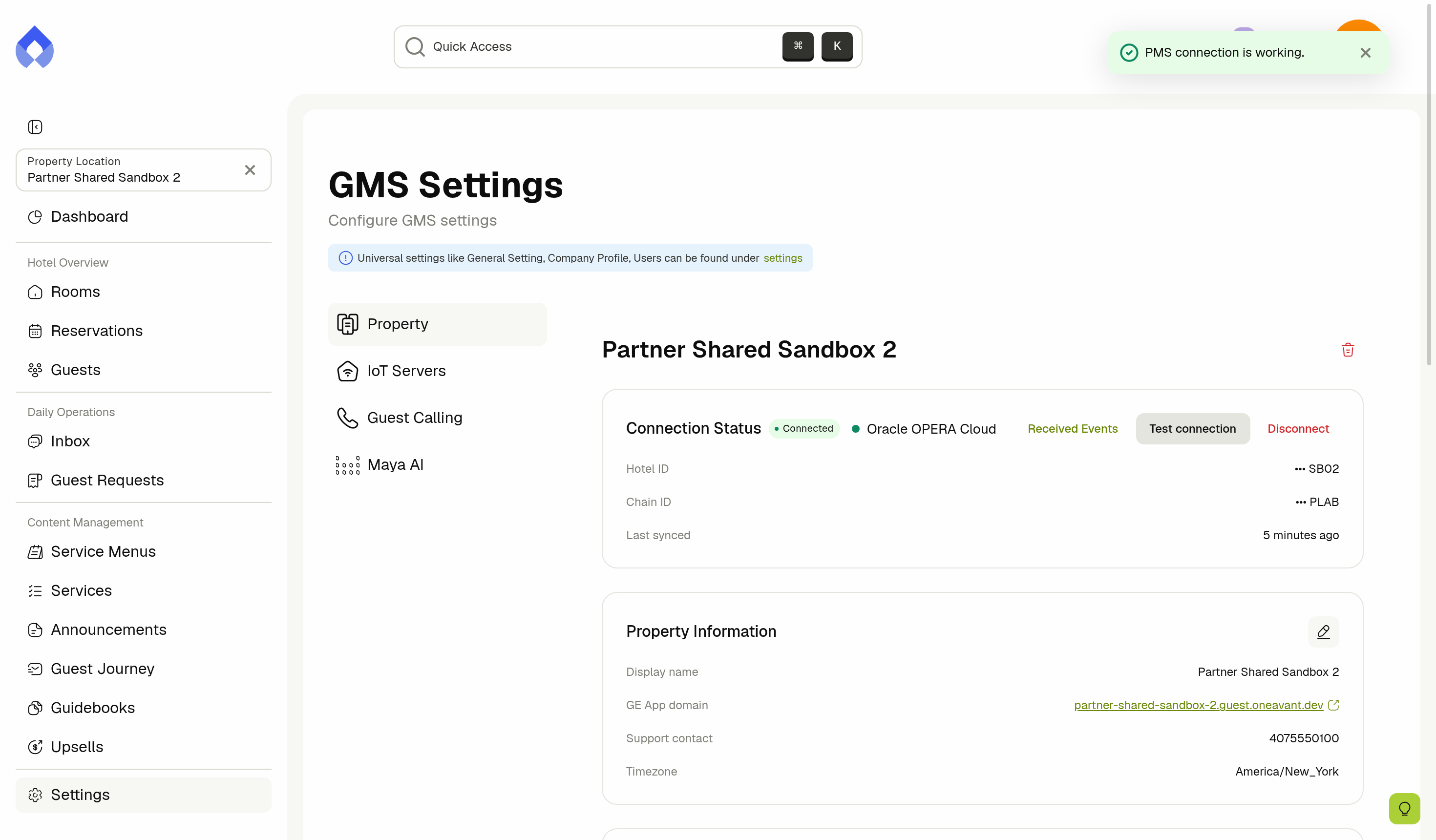
If the test fails, the message explains why, the status changes to Error, and syncing pauses. Once the problem is fixed, click Test connection again to bring the property back to Connected.
📡 Received Events
Received Events lists the most recent live events OPERA Cloud sent for the property. It shows what actually arrived, not which events are configured in OPERA Cloud.
- Click Received Events on the Connection Status card.
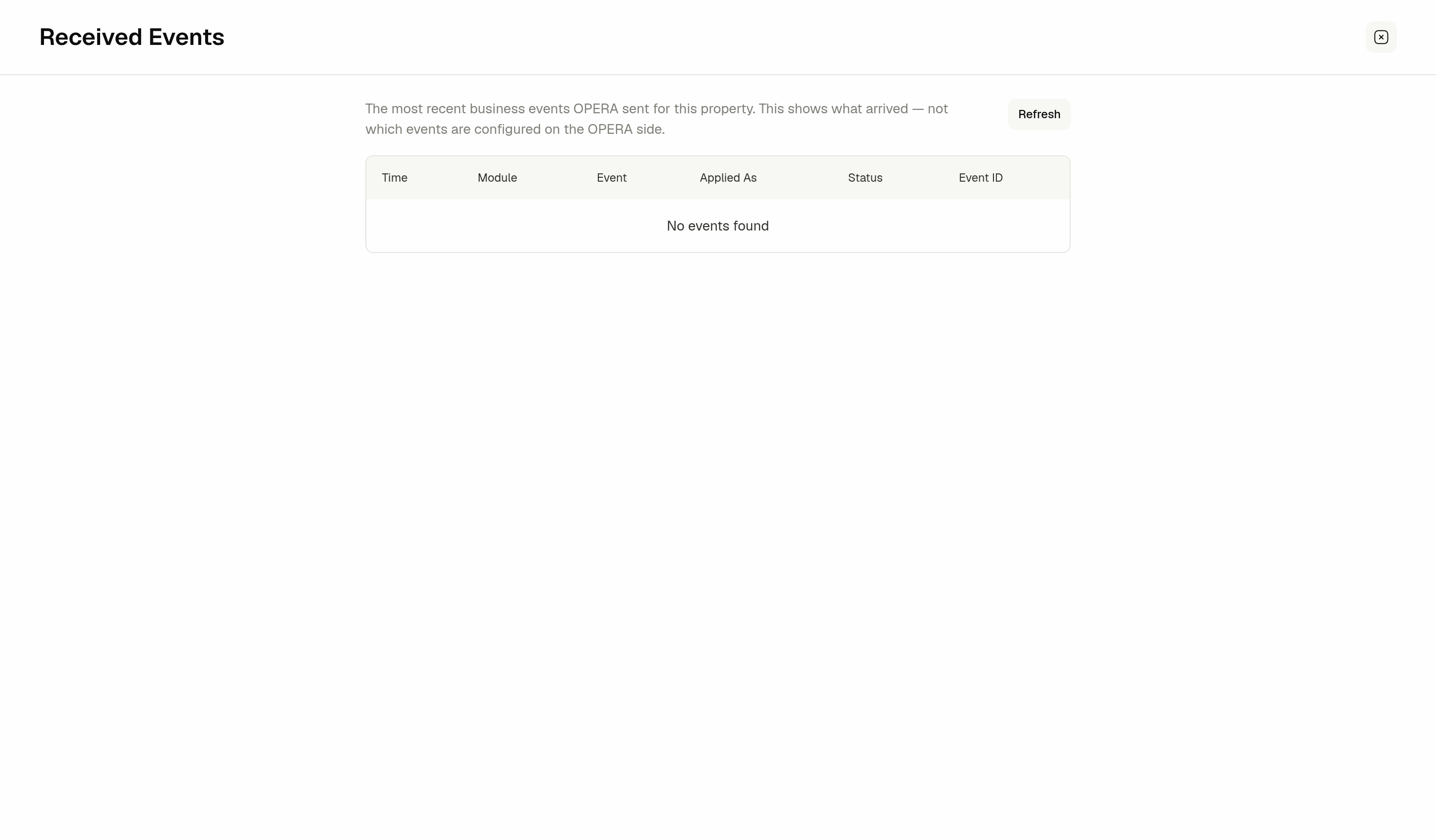
- Click Refresh to load the latest events.
Each row shows:
- Time: When the change happened in OPERA Cloud.
- Module and Event: What changed, as OPERA Cloud names it.
- Applied As: What GMS updated as a result.
- Status: Pending, Processing, Success, Failed, or Skipped.
- Event ID: Click the copy icon to copy the event's ID, for example to share with OneAvant support.
If some events could not be applied, the Connection Status card shows an alert: You have N failed events. Click Retry to process them again.
🔄 Data Backfill
A backfill imports a period of data from OPERA Cloud in one go. Use it to bring in reservations outside the initial import's window, or to fill a gap after the property was disconnected.

The badge next to the title reads Ready To Sync while the property is connected, and Not Ready otherwise. The table lists every import that has run for the property, including the initial one:
| Column | Description |
|---|---|
| From / To | The period the import covered. |
| Status | Pending, Running, Success, Partial, or Failed. |
| Changes | How many records the import added or updated. |
| Failures | How many records could not be imported. |
| Started | When the import started. |
| Actions | Click the eye icon to see the import's details. |
➕ Running a Backfill
- Click New Backfill.

- Select the period in the Reservation Date Window field.
- Click Create Backfill.
The message Backfill started. confirms it, and the new import appears in the table. A backfill refreshes the room inventory and imports every reservation arriving or departing in the period, plus the stays already in house at its start, along with their guest profiles. Records that are already in GMS are updated rather than duplicated.
Only one import runs for a property at a time. If one is still running, wait for it to finish before you start another.
🔍 Backfill Details
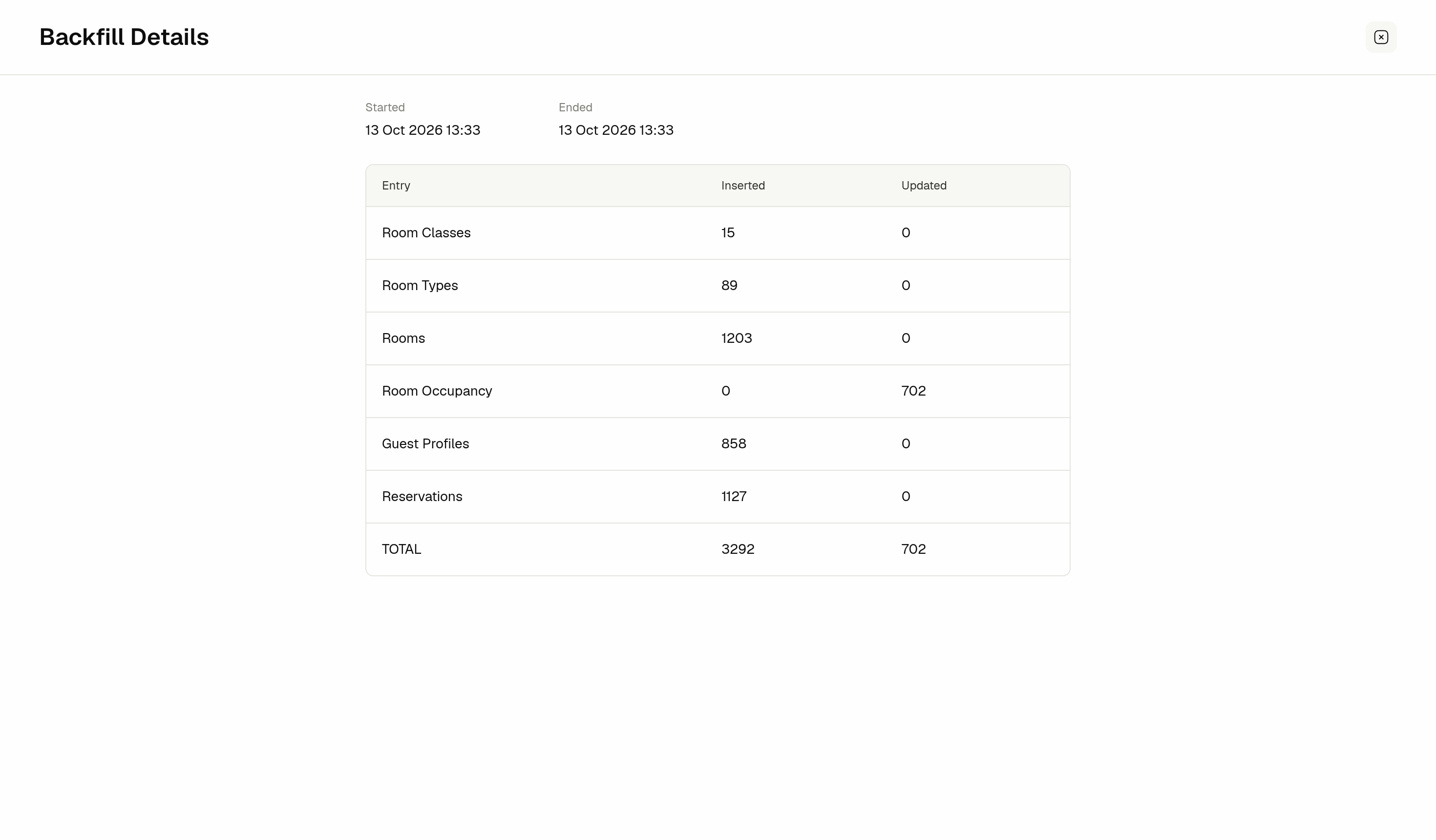
Click the eye icon on a row to open Backfill Details. It shows when the import Started and Ended, and for each kind of data how many records were Inserted and Updated, with a TOTAL row. If the import failed, the reason is shown below the table.
If live events stop for longer than OPERA Cloud keeps them, about a week, GMS runs a catch-up backfill automatically when they resume. You only need to start one yourself for periods outside that gap.
🔌 Disconnecting a Property
Disconnecting stops the sync for the property. Nothing is deleted.
- Click Disconnect on the Connection Status card.
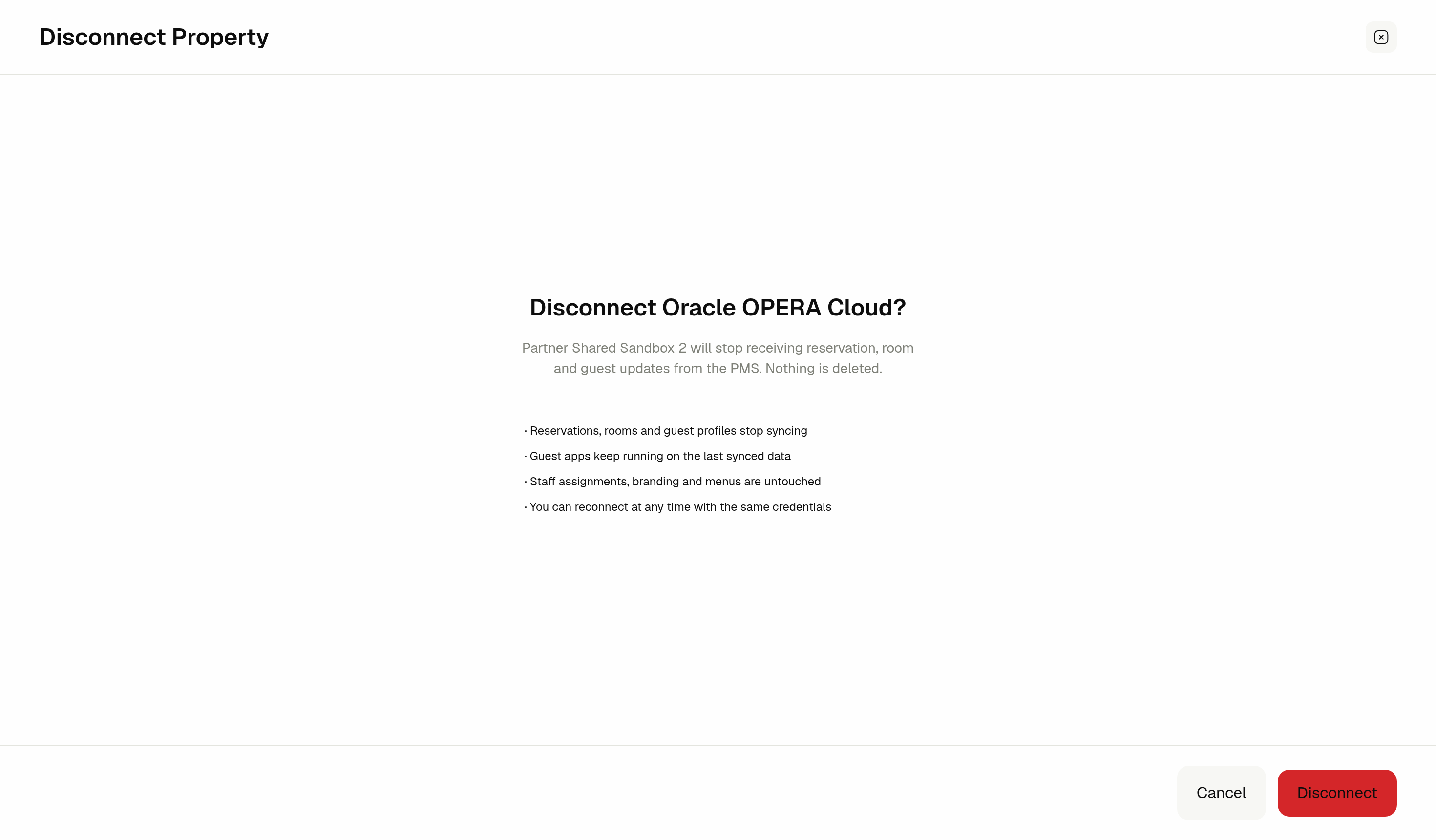
- Review what disconnecting means:
- Reservations, rooms and guest profiles stop syncing.
- Guest apps keep running on the last synced data.
- Staff assignments, branding and menus are untouched.
- You can reconnect at any time with the same credentials.
- Click Disconnect.
The message Connection disconnected. Syncing stopped. confirms it. The status changes to Disconnected and Reconnect replaces the other buttons on the card.
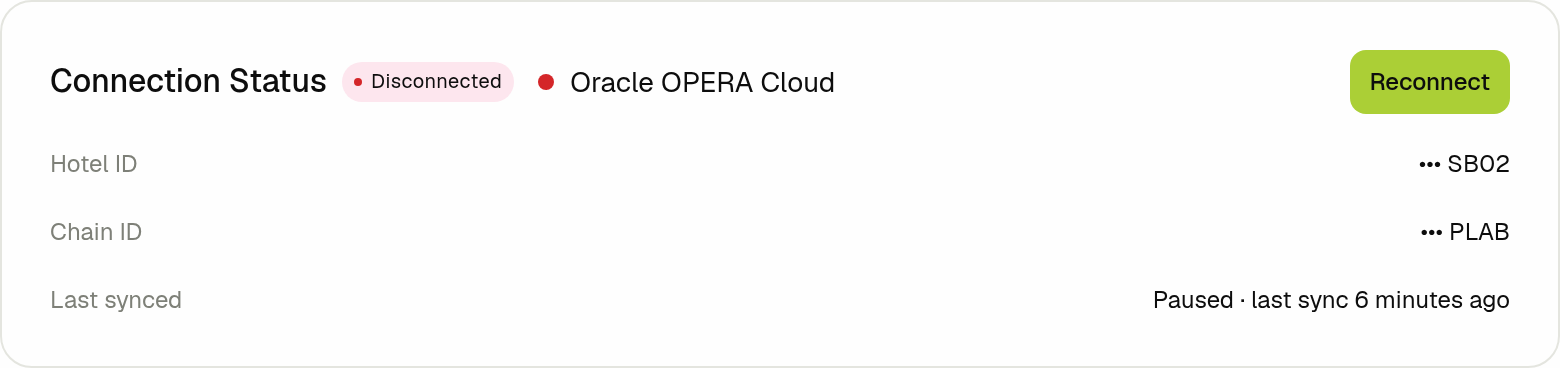
While a property is disconnected, changes made in OPERA Cloud don't reach GMS. Reservations, check-ins, and guest updates stay as they were at the last sync until you reconnect.
🔔 Connection Needs Attention
While a property's connection is in Error or Disconnected, the other GMS pages show a red banner for it:

- Reconnect: Opens the reconnect page for the property.
- View details: Opens the property's settings page.
The banner stays until the connection works again.
♻️ Reconnecting a Property
- Click Reconnect on the Connection Status card, or on the Connection needs attention banner. The Reconnect PMS page opens.
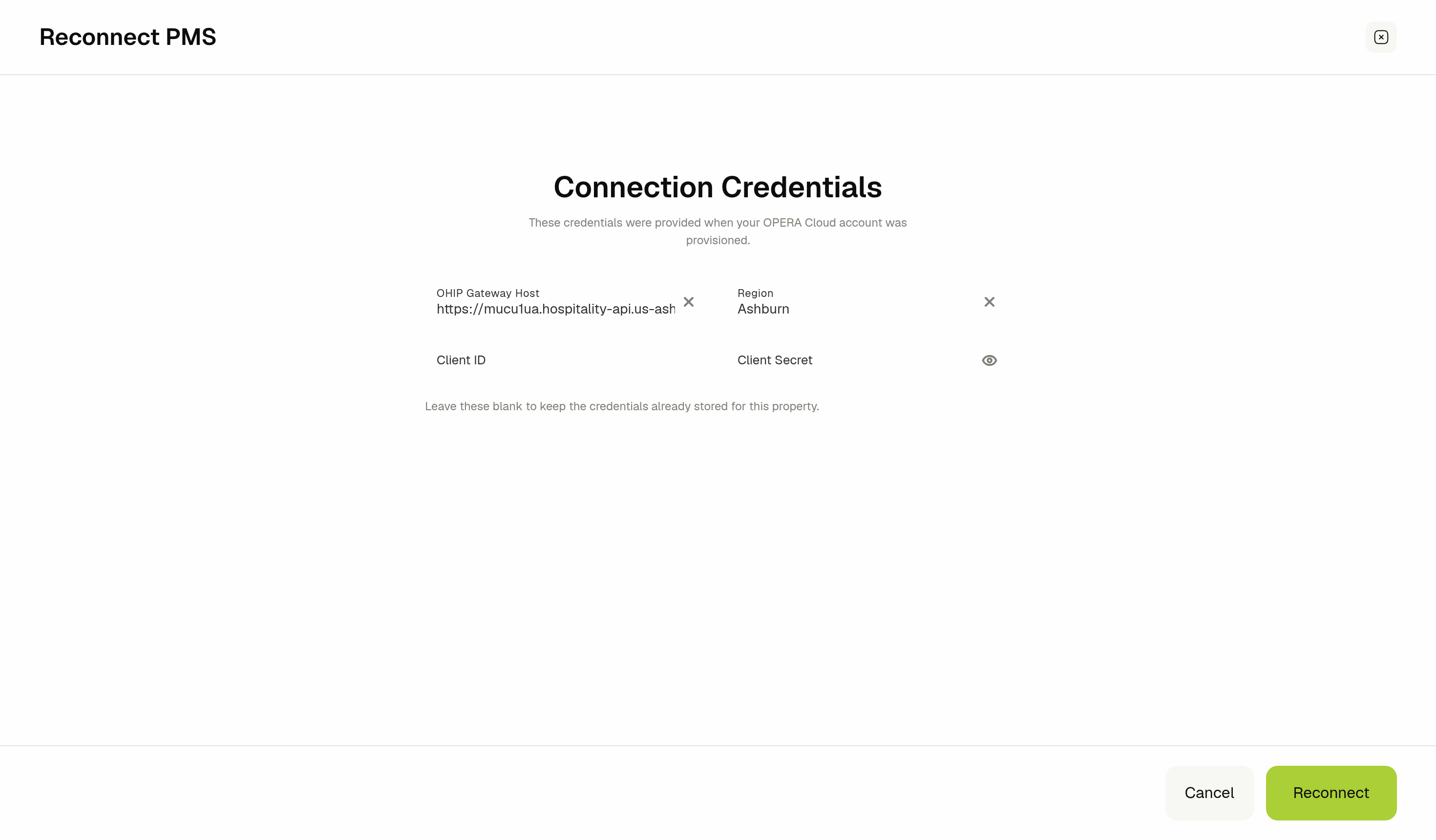
- Leave the fields as they are. OHIP Gateway Host and Region show the property's current values, and blank Client ID and Client Secret fields keep the credentials already stored for the property.
- Click Reconnect.
GMS tests the connection before it saves. The message Connection restored. Syncing resumed. confirms it, and the status returns to Connected.
OneAvant manages the connection's credentials. Change the values on this page only when OneAvant support gives you new ones. If reconnecting fails, contact OneAvant support.
After a long disconnection, run a backfill for the period the property was disconnected so GMS catches up on everything that changed.
Related Docs
- Connecting Oracle OPERA Cloud: connect a property and approve OneAvant's requests in OPERA Cloud
- Property Locations: the rest of the property page: details, branding, and staff
- Managing Reservations: work with the reservations synced from OPERA Cloud
- Guest Journey: emails that follow reservations synced from OPERA Cloud
- Roles & Permissions: the Manage PMS Connection permission