Managing Reservations
📅 Managing Reservations in GMS
The GMS dashboard offers an intuitive interface for viewing and managing room reservations across your property. Staff can easily track booking details, search records, customize views, and assign responsibilities—all from a single page.
🖥️ Accessing and Navigating the Reservations View
-
Log in to the GMS dashboard with your staff or manager credentials.
-
From the sidebar, click on "Reservations" to open the main reservations view.


-
You'll see a list of all reservations, with key details such as:
- Room Number
- Reservation Number
- Guest Name
- Check-In Date
- Check-Out Date
- Pre-Check-In (if feature and permissions are enabled)
Calendar View
You can click the calendar icon button above the table to view the reservations in the calendar view.

🔍 Searching, Filtering & Customizing
-
Search by room number or guest name using the search bar.

-
Filter click the filter icon button to open the filters popup and choose and apply the provided filters.


-
-
Customize columns by showing or hiding fields using the column settings icon.

-
Use pagination controls at the bottom to browse large sets of reservations.

⚙️ Reservation Actions & Viewing Details
-
Click the row's "View/Eye icon button" to be navigated to the reservation details page.

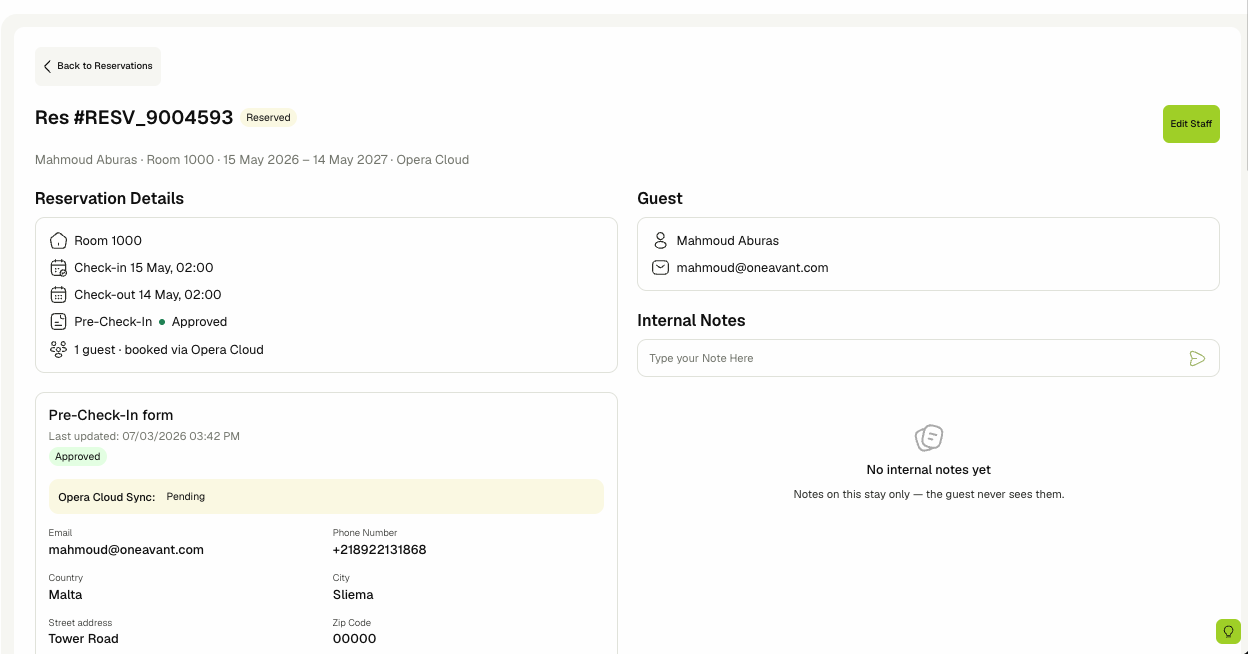
The reservation details page shows the reservation and guest information, including:
- The reservation data (dates, room, status, and related details).
- The guest box, which you can click to navigate to that guest's details page.
- The pre-check-in data, shown under the reservation data, if you have permission to view pre-check-in.
- An Edit Staff option, which opens the same staff assignment popup used from the reservations list, letting you assign or unassign staff without leaving the page.
📝 Reservation Notes
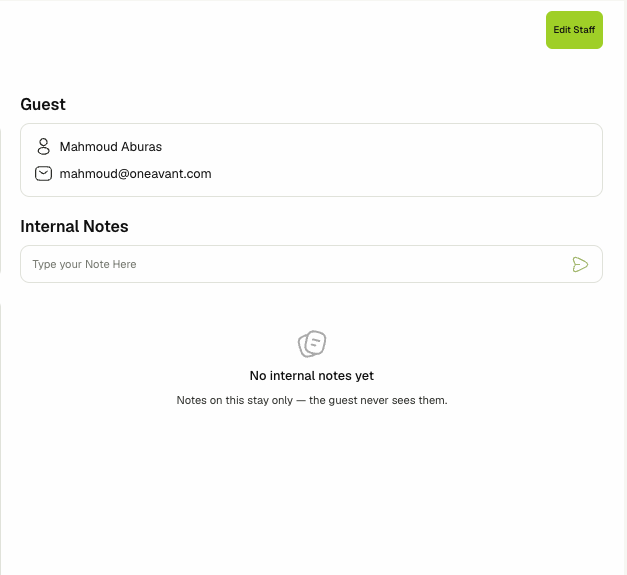
On the right side of the reservation details page you can see the Notes section, if you have permission to view it.
-
If you have permission, you can leave notes on the reservation.
-
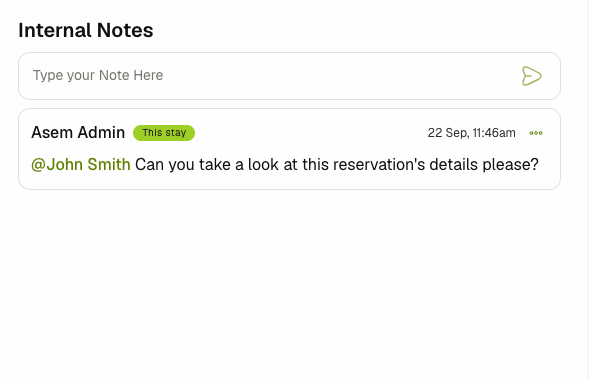
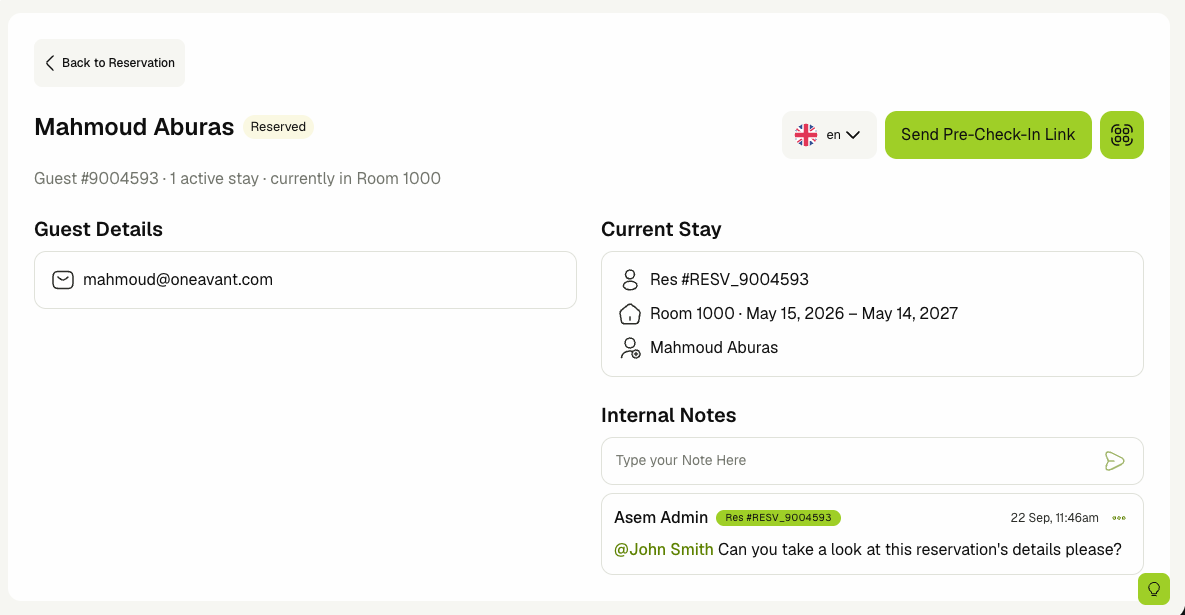
Notes left here also show up on the guest's page, tagged with the reservation they came from.
-
The reverse is also true: notes left on the guest's page show up here, tagged as guest notes.
-
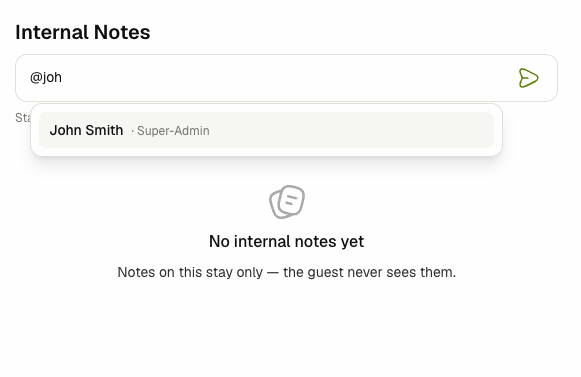
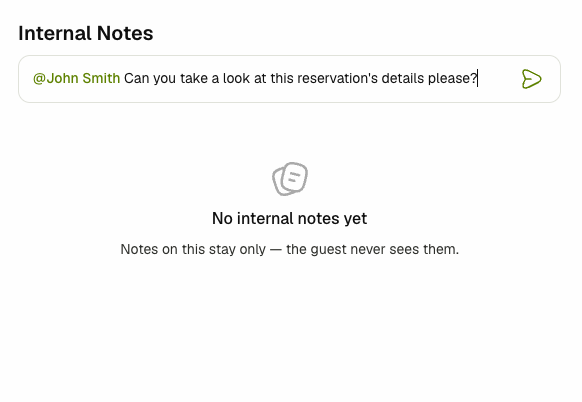
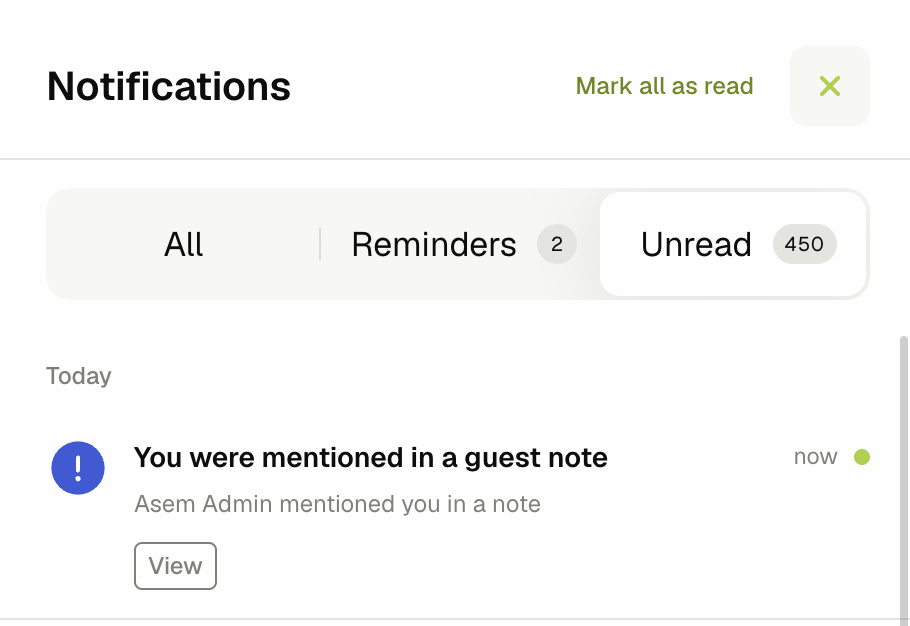
You can mention staff in a note. Staff who are assigned to the property and reservation, or who have permission to see all reservations, can be mentioned and will receive a notification about the note.
👥 Assigning or Removing Staff from a Reservation
-
Click the row's "Users icon button" to open the staff assignment popup.

-
To assign a staff member:
-
Click on the select field, and select a staff member from the list. They will appear in the staff table.

-
-
To unassign a staff member:
-
In the staff member row, click the trash icon button.
-
A confirmation popup will appear—click "Confirm" to complete the unassignment.

-