Maya AI
✨ Maya AI is OneAvant's AI assistant working inside the GMS Inbox. Maya reads the context around a conversation, the reservation, the guest, the property's services and menus, the messages already exchanged, and uses it to translate incoming guest messages and to draft replies your staff can send. This guide is for managers and administrators who configure Maya, and for staff who use it day to day.
📍 Accessing Maya AI
This section requires the View GMS Settings permission. See Roles & Permissions.
-
Log in to the GMS dashboard.
-
Select the correct Property Location from the left sidebar.
-
Open GMS Settings.
-
Click Maya AI in the settings menu on the left.
The page opens with the Live Chat Translation card, the Context-Aware Suggestions card, and the Guidelines table.
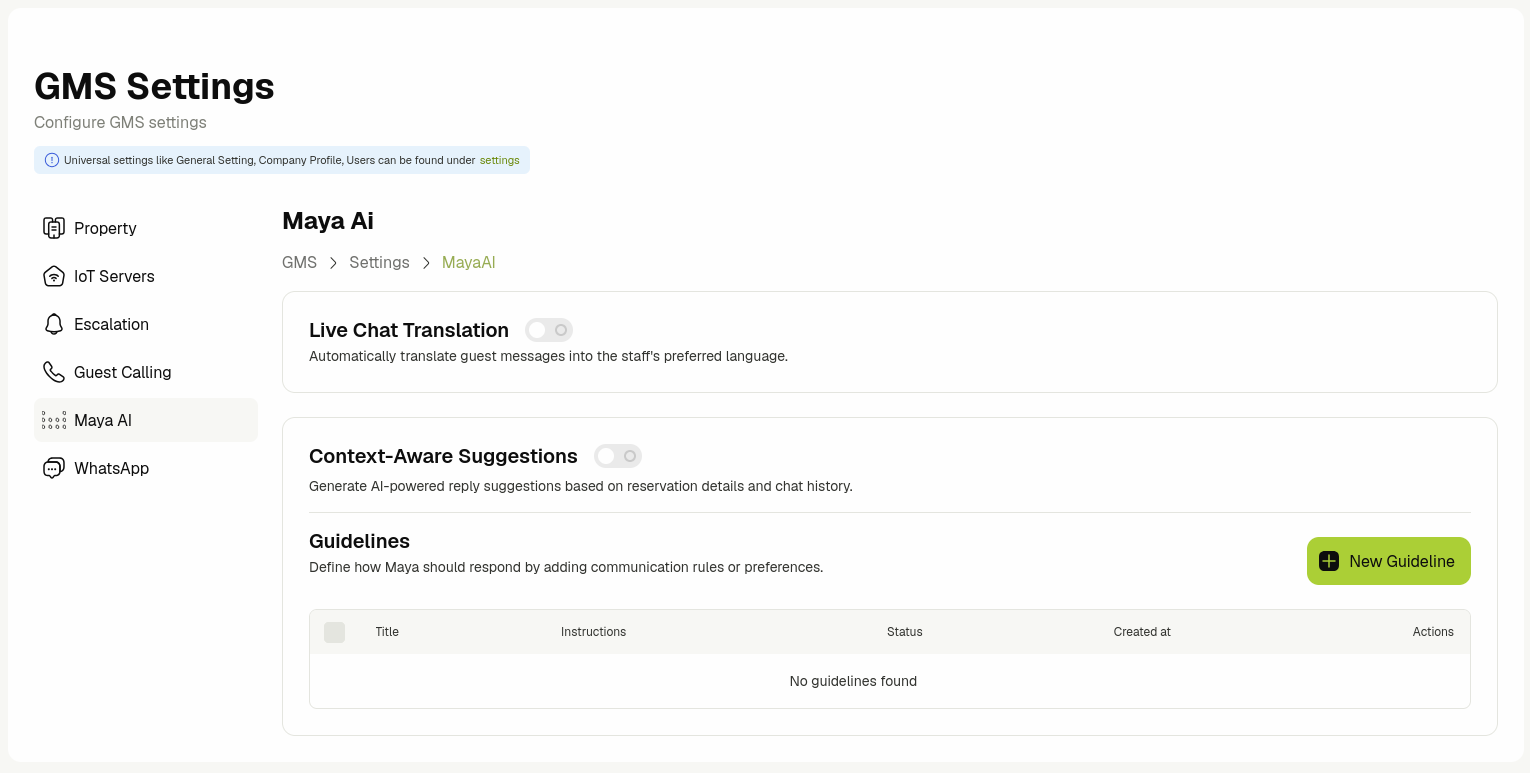
If Maya AI does not appear in the settings menu, the Maya module is not enabled for your tenant. Contact your OneAvant account manager to have it added to your subscription.
⚙️ Configuring Maya AI
Both toggles on this page save the moment you click them. There is no Save button.
-
Select the correct Property Location from the left sidebar. The page stays empty until a location is selected.
-
Click the Live Chat Translation switch to turn guest-message translation on or off for this property location.
GMS confirms with Live chat translation updated successfully.
-
Click the Context-Aware Suggestions switch to turn reply drafting on or off for this property location.
GMS confirms with Context aware suggestions updated successfully.
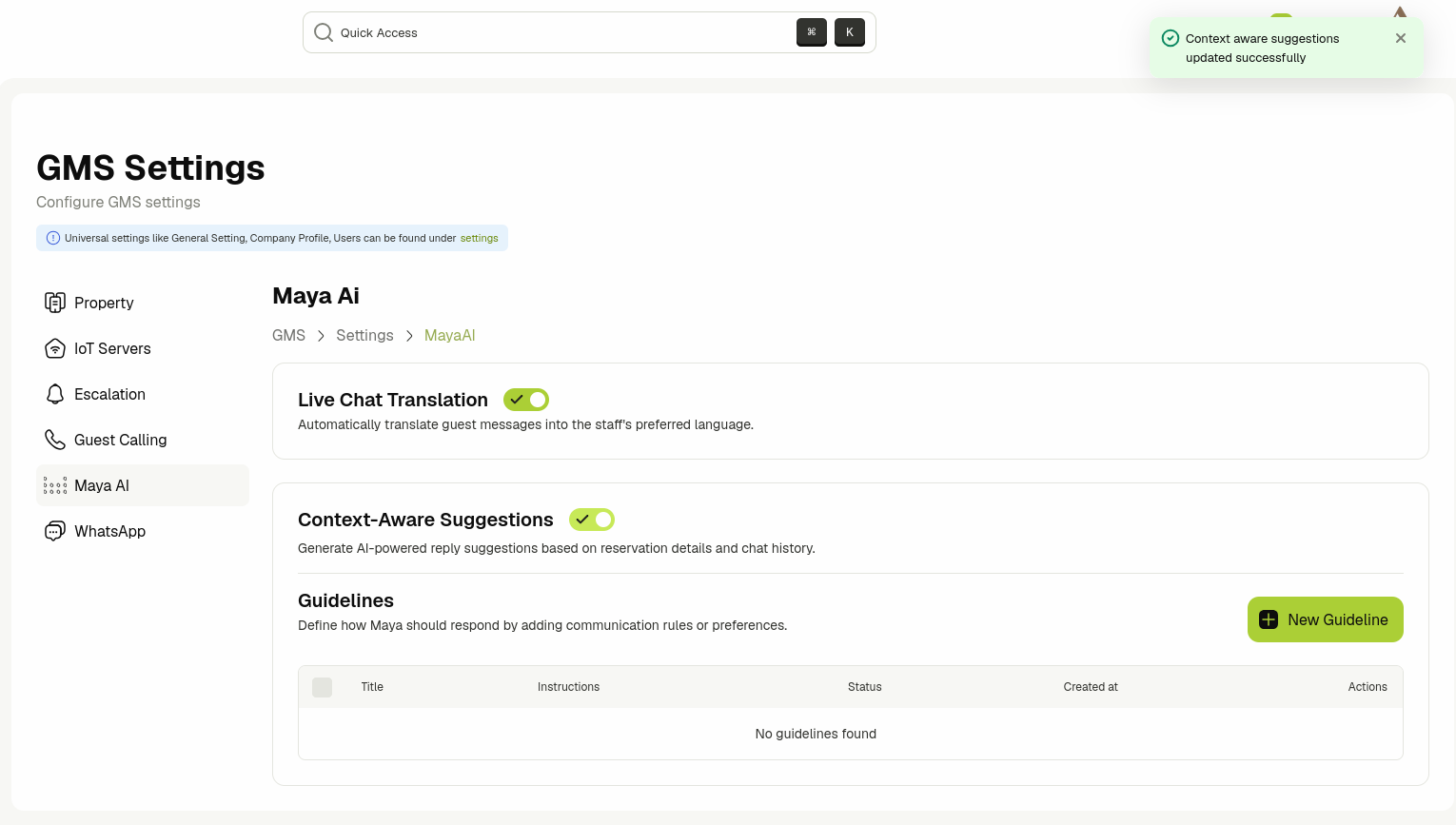
The two settings are:
| Setting | What it does when enabled |
|---|---|
| Live Chat Translation | Allows guest messages to be translated in the Inbox. This is the property-wide permission for translation, it does not start translating anything on its own. Each chat still has to be switched on individually. |
| Context-Aware Suggestions | Shows three suggested replies above the message box in every chat at this property location, refreshed each time a guest sends a message. |
Turning Context-Aware Suggestions off removes the suggestion strip for every staff member working that property location, not only for you. The same applies to Live Chat Translation: every chat at that location stops translating immediately, and each chat's own Chat Translation switch is greyed out until the property-wide setting is turned back on.
📋 Viewing Guidelines
A guideline is a house rule written in plain language that Maya follows every time it drafts a reply. Use guidelines to lock in tone, house policy, and the phrases your property does and does not use.
The Guidelines table sits at the bottom of the Maya AI page and lists every guideline on the tenant, newest first.
The list shows:
| Column | Description |
|---|---|
| Title | The short internal name you gave the guideline. Maya sees this name as well as the instructions, so keep it meaningful. |
| Instructions | The rule itself, in plain language. |
| Status | Enabled or Disabled. Only enabled guidelines reach Maya. |
| Created at | The date the guideline was added. |
| Actions | The edit and delete icons for the row. |
➕ Creating a Guideline
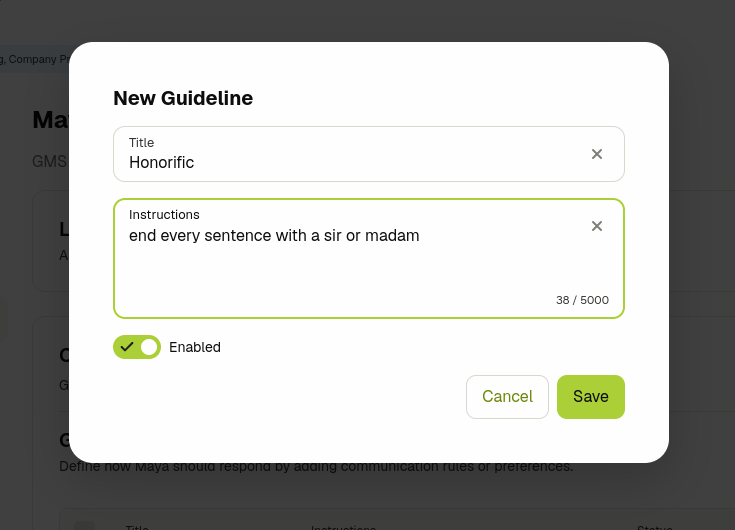
One rule per guideline. A short, specific instruction is followed far more reliably than a long paragraph covering five unrelated topics, and single-purpose guidelines are much easier to disable when a policy changes.
Good examples:
- Tone of voice: "Always address the guest by their first name and keep replies to two sentences or fewer."
- Room upgrades: "Never promise a room upgrade. Say that the front desk will check availability and confirm."
- Languages: "Reply in the same language the guest used in their last message."
🌐 Live Chat Translation in the Inbox
Translation uses two switches, and a chat is only translated when both are on:
| Switch | Where | Scope | Default |
|---|---|---|---|
| Live Chat Translation | GMS Settings > Maya AI | The whole property location | On |
| Chat Translation | The Chat Settings panel inside a chat | That one conversation | Off |
Turning translation on for a conversation
-
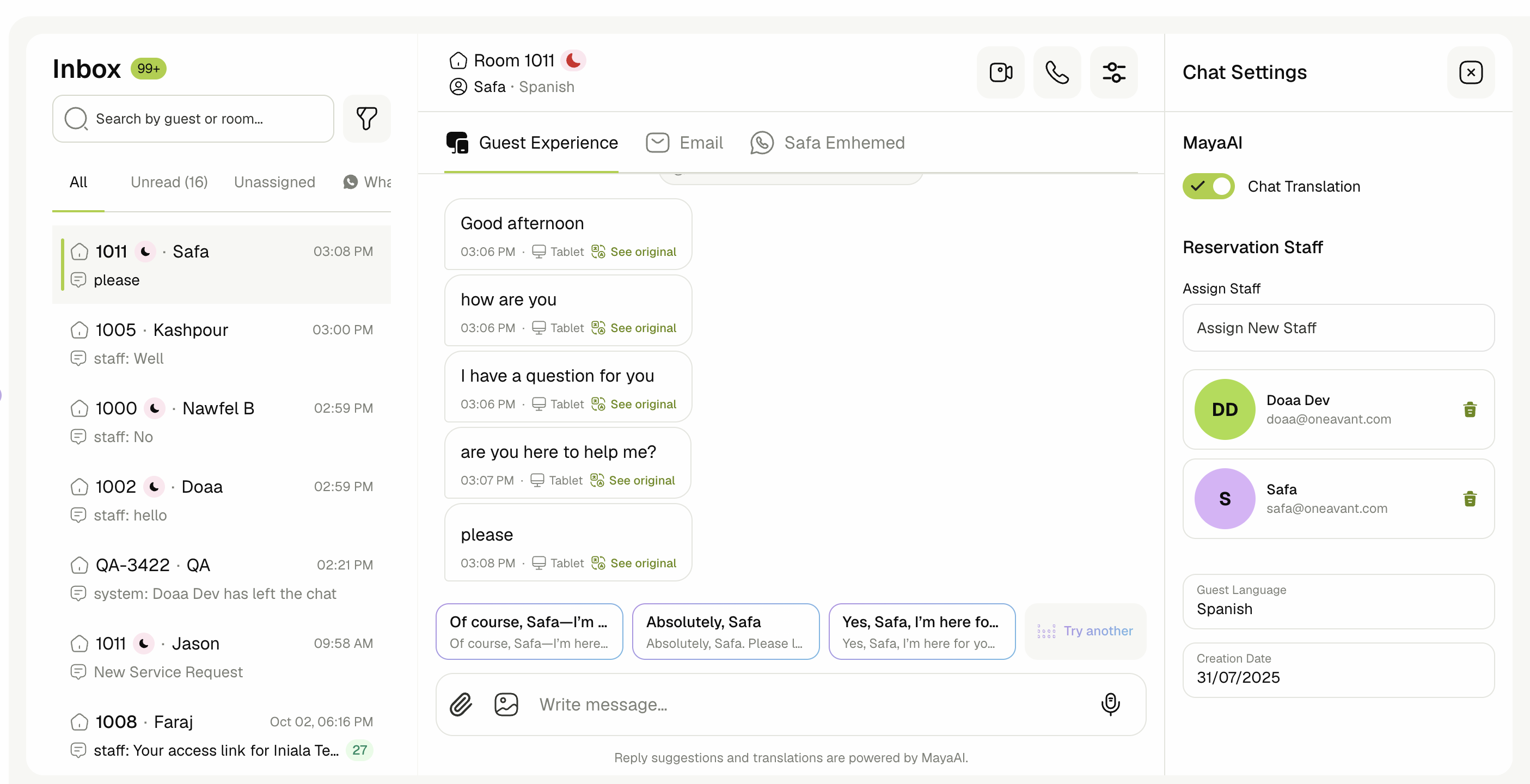
Click Inbox in the sidebar and open the chat.
-
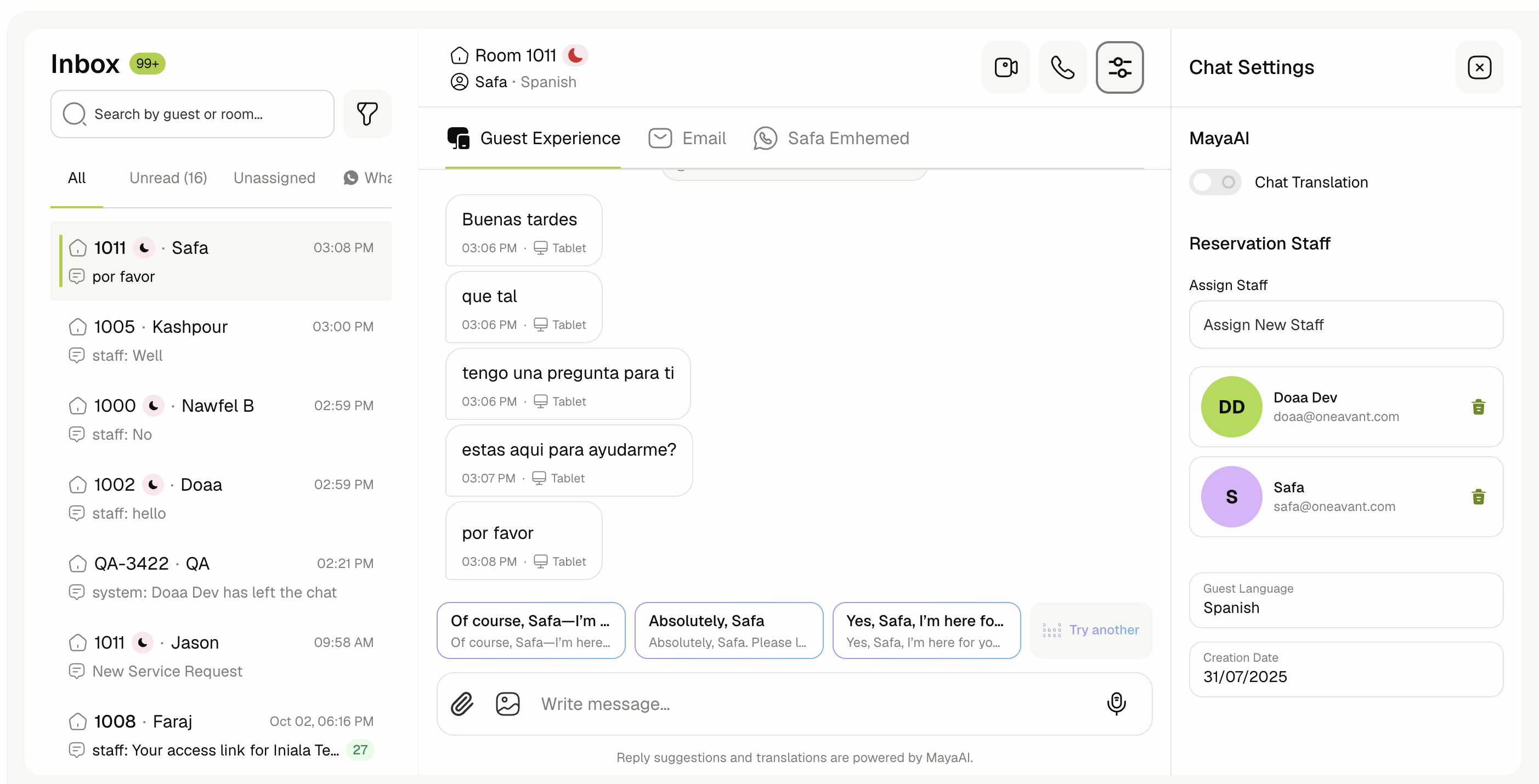
Click the settings icon in the top-right of the chat to open the Chat Settings panel.
-
Find the MayaAI section at the top of the panel.
-
Click the Chat Translation switch.
If the Chat Translation switch is greyed out, the panel shows Live translation is disabled. You can enable it in Settings → MayaAI. A manager needs to turn Live Chat Translation on for the property location first.
What gets translated
- Text messages sent by the guest, translated into English.
- The message preview shown for that chat in the Inbox list, so a translated conversation is readable without opening it.
What does not get translated
- Messages sent by staff.
- Images, voice messages, and file attachments.
- Service request, order, and system messages.
Reading a translated message
A translated guest message shows the English text in the bubble. The word Original appears next to the sender's name in the bubble header, click it to switch that message back to the language the guest wrote in, and the link changes to Translation to switch back again.
💬 Suggested Replies in the Inbox
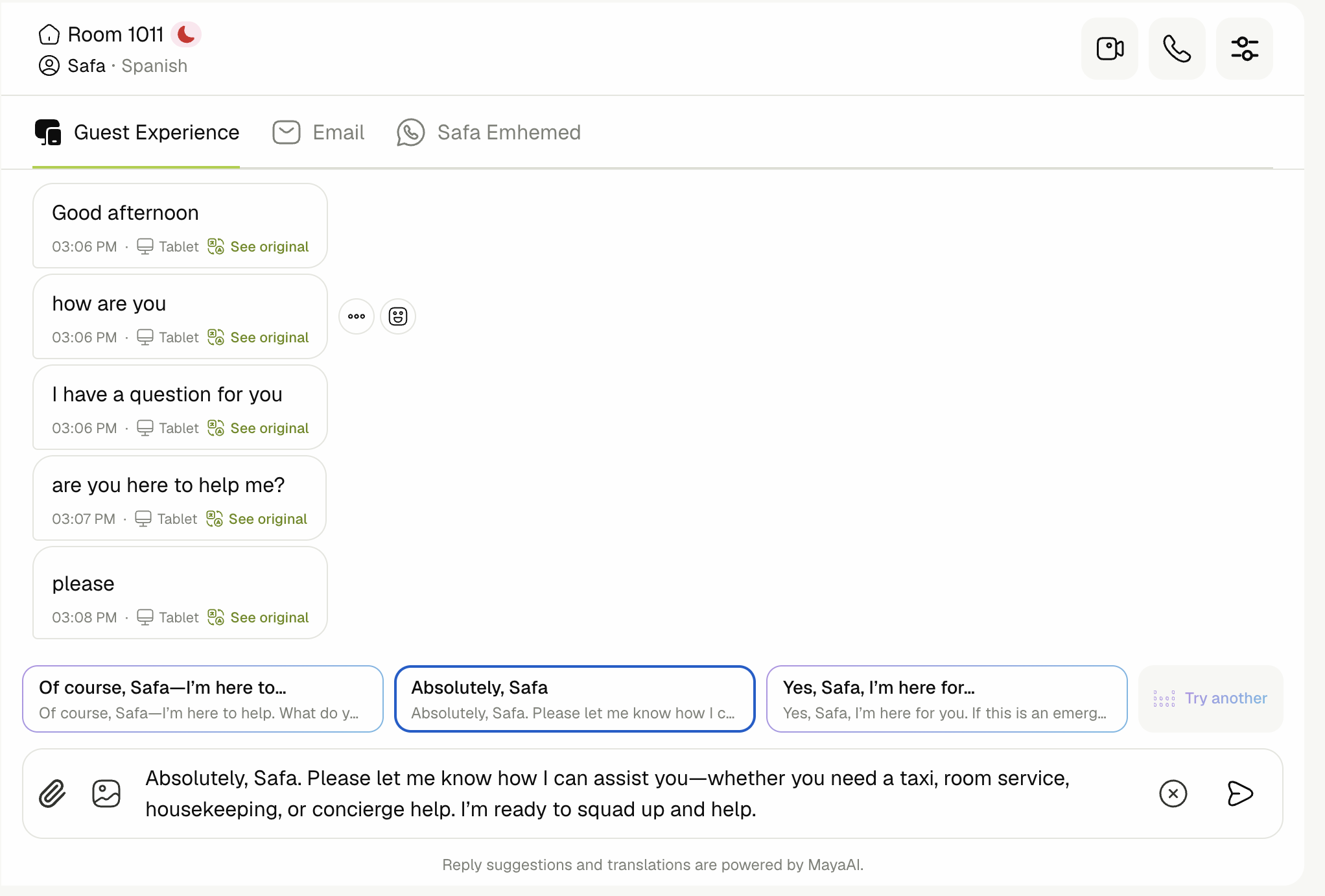
When Context-Aware Suggestions is enabled for the property location, three suggested replies appear as chips directly above the message box in every chat.
Using a suggestion
-
Click a suggestion chip. The text drops into the message box.
-
Edit the text as needed.
-
Click the send button.
Getting a different set
Click Try Another to the right of the chips. Maya generates three fresh suggestions for the same conversation.
When suggestions refresh on their own
- When you open a chat.
- Each time the guest sends a new message.
- After you send a reply, the current set is cleared, the next guest message brings a new one.
The line Reply suggestions and translations are powered by MayaAI below the message box confirms Maya is active for that conversation.
📋 What Maya Knows About Each Chat
Maya is given the following before it drafts a reply. Everything here is read from data your team already maintains in GMS, the better that data is kept, the better the suggestions are.
| Source | What Maya receives |
|---|---|
| Property | Property name, address, timezone, currency, and support phone number. |
| Guest | Guest name and guest details. |
| Reservation | Check-in and check-out dates, room number, room type, and number of persons. |
| Services | Every service configured for the property, with its description and status. |
| Announcements | Announcement titles, categories, descriptions, and their start and end dates. |
| Service Menus | Menu names, availability, and their items with prices and categories. |
| Smart devices | The devices in the guest's room, with type and current status. |
| Conversation | The last 30 messages in that chat. |
| Guidelines | Every guideline currently set to Enabled. |