Services
🛎️ Services are the requests guests can send from the guest app, such as a wake-up call, room cleaning, or a taxi. From this page you can add services, control when guests can request them, enable or disable them, set the order guests see them in, and review their translations.
This guide matches the GMS dashboard in staging as of October 6, 2026.
📍 Accessing Services
Viewing services requires the View Services permission. Adding, editing, enabling, disabling, and reordering services requires the Manage Services permission.
-
Log in to the GMS dashboard.
-
Select the correct Property Location at the top of the sidebar.
-
Click Services under Content Management in the sidebar.
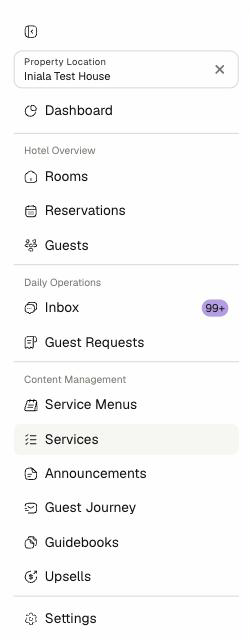
Services used to live under Settings > GMS. Old bookmarks to that page now open the new Services page automatically.
📋 Viewing Services
The Services page lists every service for the selected property location, in the order guests see them.
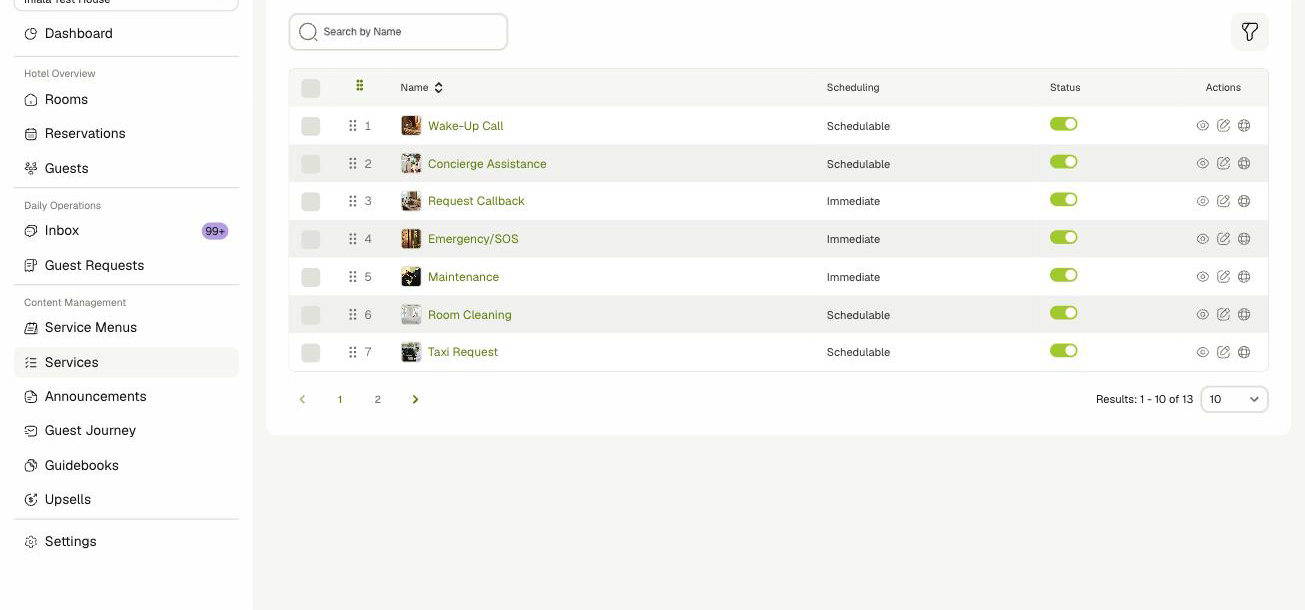
| Column | Description |
|---|---|
| Name | The service name and image. Click the name to open its details. |
| Scheduling | Schedulable services let guests pick a time. Immediate services are requested for right now. |
| Status | Whether the service is visible to guests. See Enabling and Disabling Services. |
| Actions | View, Edit, and Translations for the service. |
-
Search — Find a service by name with the Search by Name field.
-
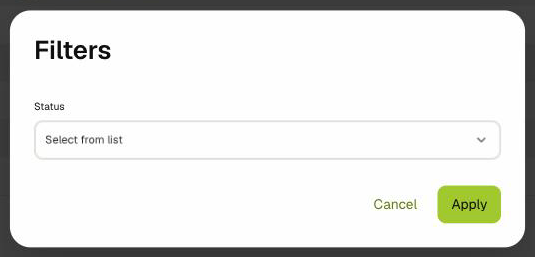
Filter — Click the filter icon, select Active or Inactive under Status, and click Apply.
-
Pagination — Move between pages and change how many rows are shown at the bottom of the table.
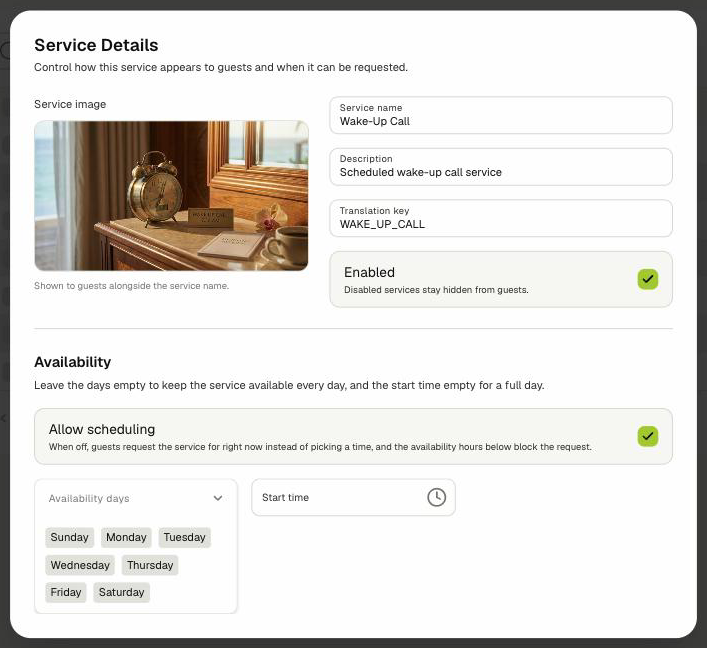
To see a service's full details without changing anything, click its name or the View icon.
➕ Adding a Service
-
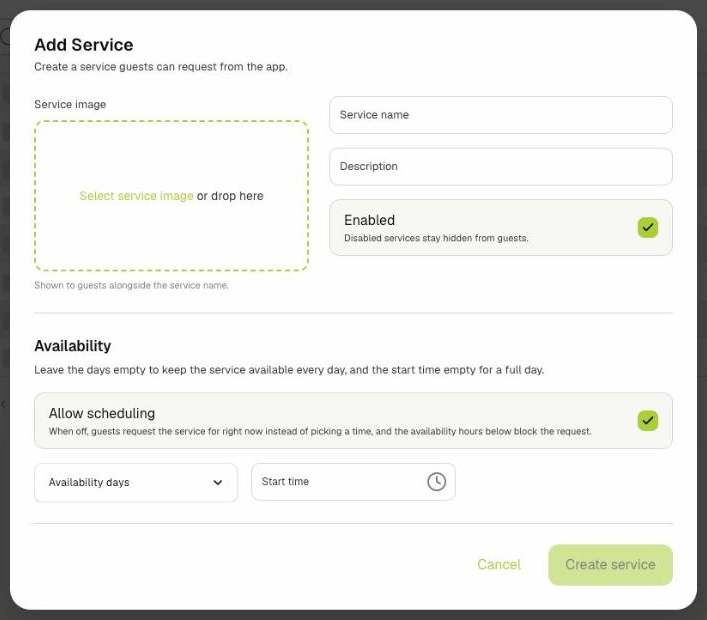
Click Add Service in the top-right corner.
-
(Optional) Click Select service image or drop an image onto the box. The image is shown to guests next to the service name.
-
Fill in the Service name. It must be between 2 and 100 characters.
-
(Optional) Fill in the Description, up to 255 characters.
-
Leave Enabled checked to show the service to guests right away, or uncheck it to keep the service hidden for now.
-
Set the Availability options. See Setting Availability.
-
Click Create service.
The new service is added to the list.
The Service name can't be changed after the service is created. It links the service to its guest-app translations, so check the spelling before you save.
If you don't see the Add Service button, service creation isn't enabled for your property yet.
🕒 Setting Availability
The Availability section controls whether guests choose a time for the service and when it can be booked.
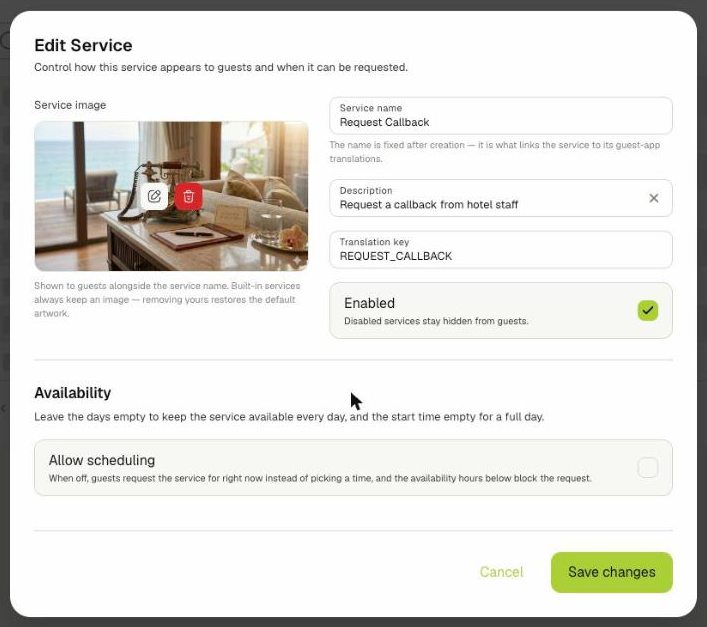
- Allow scheduling — When checked, guests pick a date and time for the service. When unchecked, guests request the service for right now, and the service shows as Immediate in the list.
- Availability days — The days the service can be booked. Leave this empty to make the service available every day.
- Start time / End time — The hours the service can be booked. End time appears once you set a Start time. Leave Start time empty to make the service available all day.
When Allow scheduling is checked, you must select at least one day or set a Start time.
To run a service past midnight, set an End time earlier than the Start time (for example, 22:00 to 02:00). The form shows Closes the next day to confirm.
Availability times use the property location's timezone.
When Allow scheduling is unchecked, the day and time fields are hidden.
✏️ Editing a Service
-
Click the Edit icon on the service's row.
-
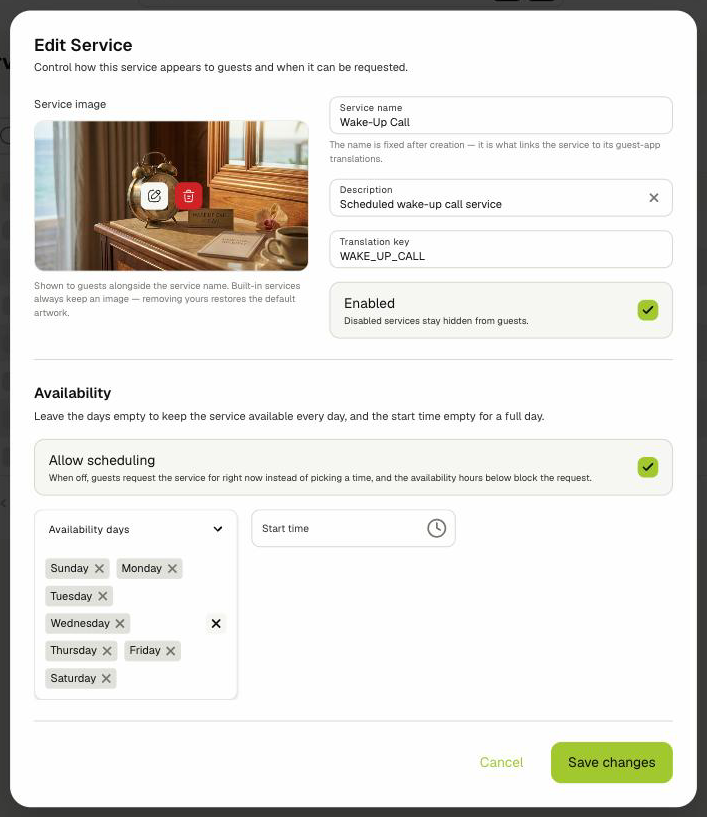
Update the fields you need. You can change everything except the Service name and Translation key.
-
Click Save changes.
To replace the image, hover over it and click the edit icon. To remove it, click the delete icon.
The services OneAvant provides with every property, such as Wake-Up Call and Room Cleaning, always keep an image. Removing the image from one of these restores its default artwork.
🔁 Enabling and Disabling Services
Disabled services are hidden from guests in the guest app. They stay in the list so you can enable them again later.
-
One service — Click the switch in the Status column, then click Confirm.
-
Several services — Select the checkboxes on their rows. Use the Enable / Disable toggle that appears above the table, then click Confirm.
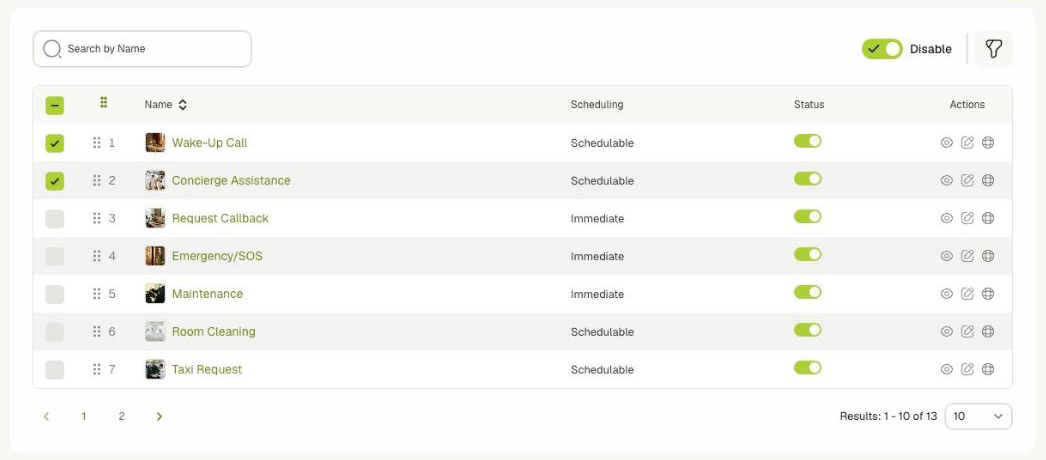
You can also check or uncheck Enabled in the Edit Service form.
↕️ Reordering Services
Drag a row by its handle (⠿) to a new position. The new order is saved immediately, and guests see services in the same order in the guest app.
🌐 Reviewing Translations
Click the Translations icon on a service's row to see how its name appears in each guest-app language.
-
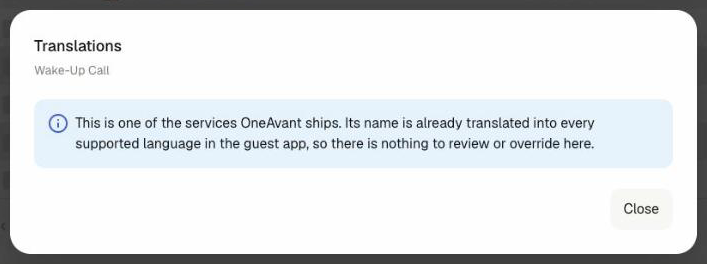
Built-in services — The services OneAvant provides are already translated into every supported language, so there is nothing to review.
-
Services you add — Select a Language to review the name in that language. Each translation is labeled MayaAI if it was generated, Edited if someone changed it, or Not translated.
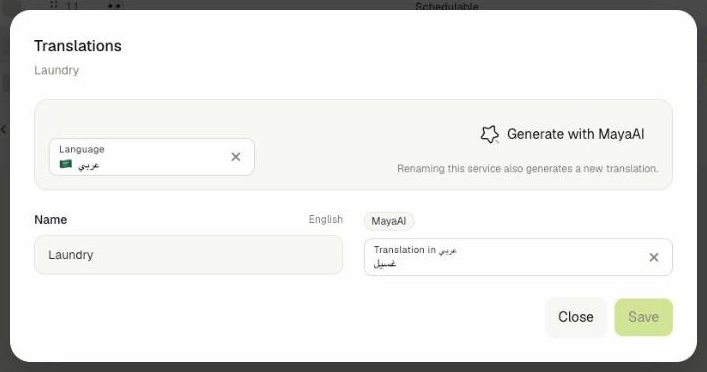
To update a translation for a service you added:
- Select the Language.
- Edit the text in the Translation in field, or click Generate with MayaAI to create a new one.
- Click Save.
Renaming a service you added also generates a new translation. If a translation shows Base text changed, review it or generate it again.
📱 Guest Experience
Guests see enabled services in the guest app, in the order set on this page, with their image and translated name.
- For a Schedulable service, the guest picks a date and time within its availability.
- For an Immediate service, the guest sends the request for right now.
Guests can have only one open request per service at a time.
🚫 Scope Notes
- Services can't be deleted from the dashboard. Disable a service to hide it from guests.
- Only the service Name has translations. The Description is not translated.
Related Docs
- Service Menus — Build orderable menus, such as food or spa menus, for guests.
- Roles and Permissions — Grant the View Services and Manage Services permissions.