Connecting Oracle OPERA Cloud
🔌 Oracle OPERA Cloud is the Property Management System (PMS) GMS connects to. Once a property is connected, GMS imports its rooms, reservations, and guest profiles and keeps them up to date as changes happen in OPERA Cloud. This guide walks you through connecting a property, from the details you give GMS to approving OneAvant's requests in OPERA Cloud and the first import.
📍 Accessing the Connect a Property Wizard
Connecting a property requires the Manage PMS Connection permission (in the PMS CONNECTION feature group) and the Manage Locations permission (in the LOCATIONS feature group). See Roles & Permissions.
You connect OPERA Cloud while you add a property. Where you start depends on whether your tenant already has properties:
-
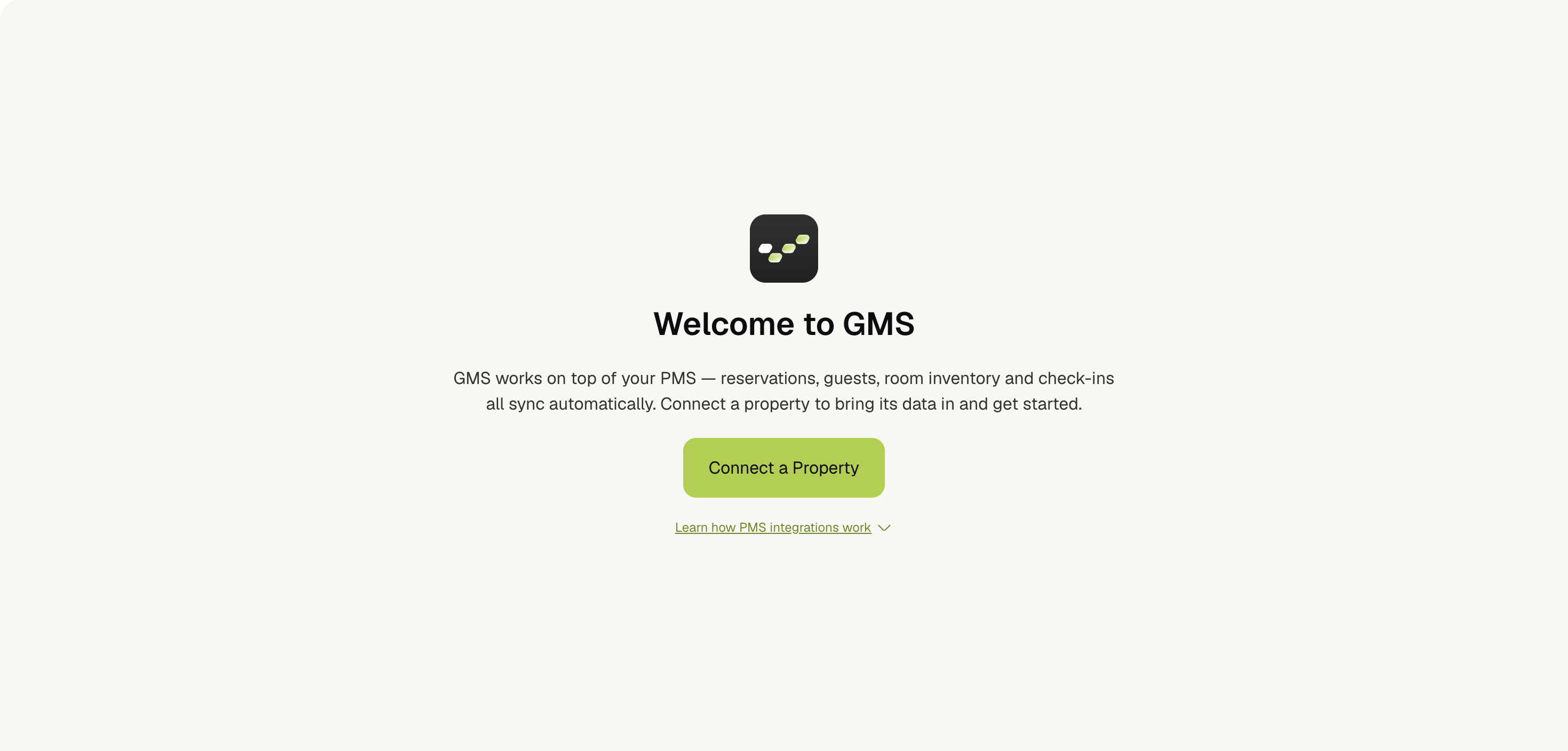
Your first property: When you open GMS without any properties, you land on the Welcome to GMS page. Click Connect a Property.
-
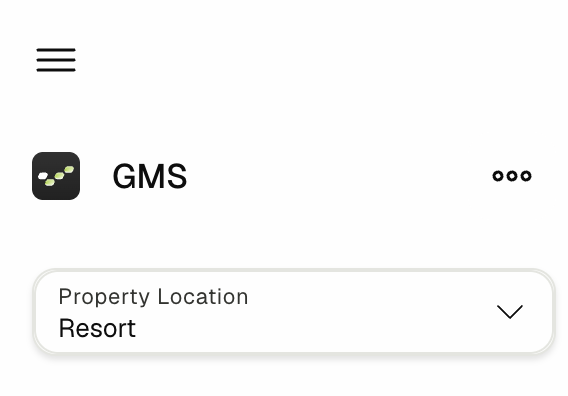
Another property: Click the Property Location selector in the sidebar, then select Add property.
Both open the Connect a Property wizard. Its progress bar tracks four steps: Choose PMS, Authenticate, Property Info, and Theme & Branding. Between Authenticate and Property Info, the wizard waits while you approve two requests in OPERA Cloud.
📋 Details You Need From OPERA Cloud
You don't need any API keys or passwords. OneAvant holds the credentials for the connection, so all GMS asks for is where your property lives in OPERA Cloud:
| Field | What to enter |
|---|---|
| Environment | Live (Production) for your live hotel, or Test (UAT) for a test or training environment. |
| Region | The region your OPERA Cloud is hosted in, for example Frankfurt or Ashburn. |
| Chain ID | Your OPERA Cloud chain code. |
| Hotel ID | This property's hotel code in OPERA Cloud. |
| Enterprise ID | Your enterprise ID, shown in the environment details of your Oracle Hospitality Integration Platform (OHIP) portal. |
Enter the codes exactly as they appear in OPERA Cloud. Chain, hotel, and enterprise codes are usually in uppercase. If you are not sure about a value, ask your OPERA Cloud administrator before you start.
You also need someone who can approve integration requests in your OHIP portal, usually your OPERA Cloud administrator. You will need them twice during the setup.
🔌 Step 1: Choose Oracle OPERA Cloud
- Select the Oracle OPERA Cloud card. A green tick appears in its corner.
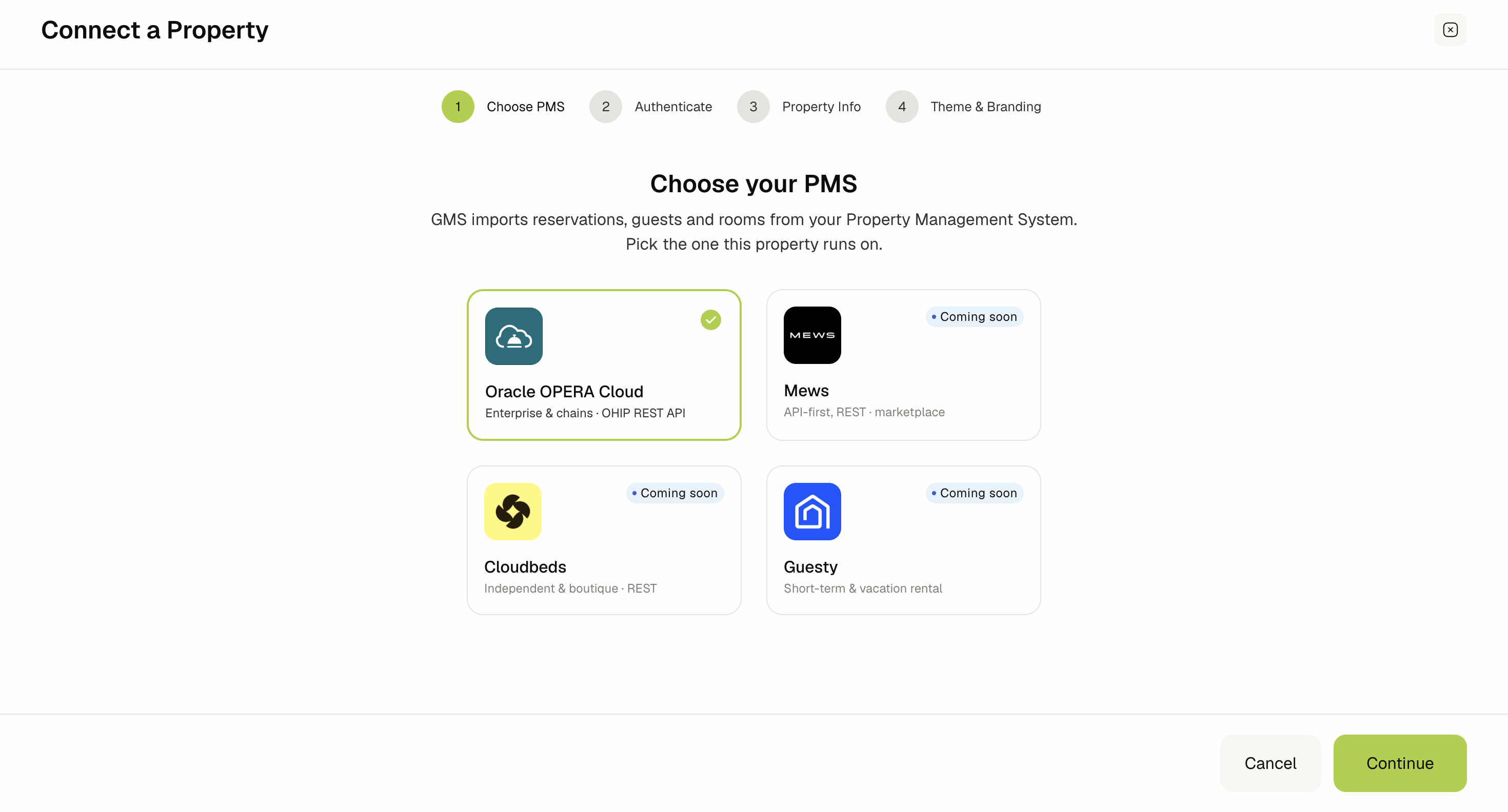
- Click Continue.
Mews, Cloudbeds, and Guesty are shown with a Coming soon badge and cannot be selected yet.
🔑 Step 2: Enter Your OPERA Cloud Details
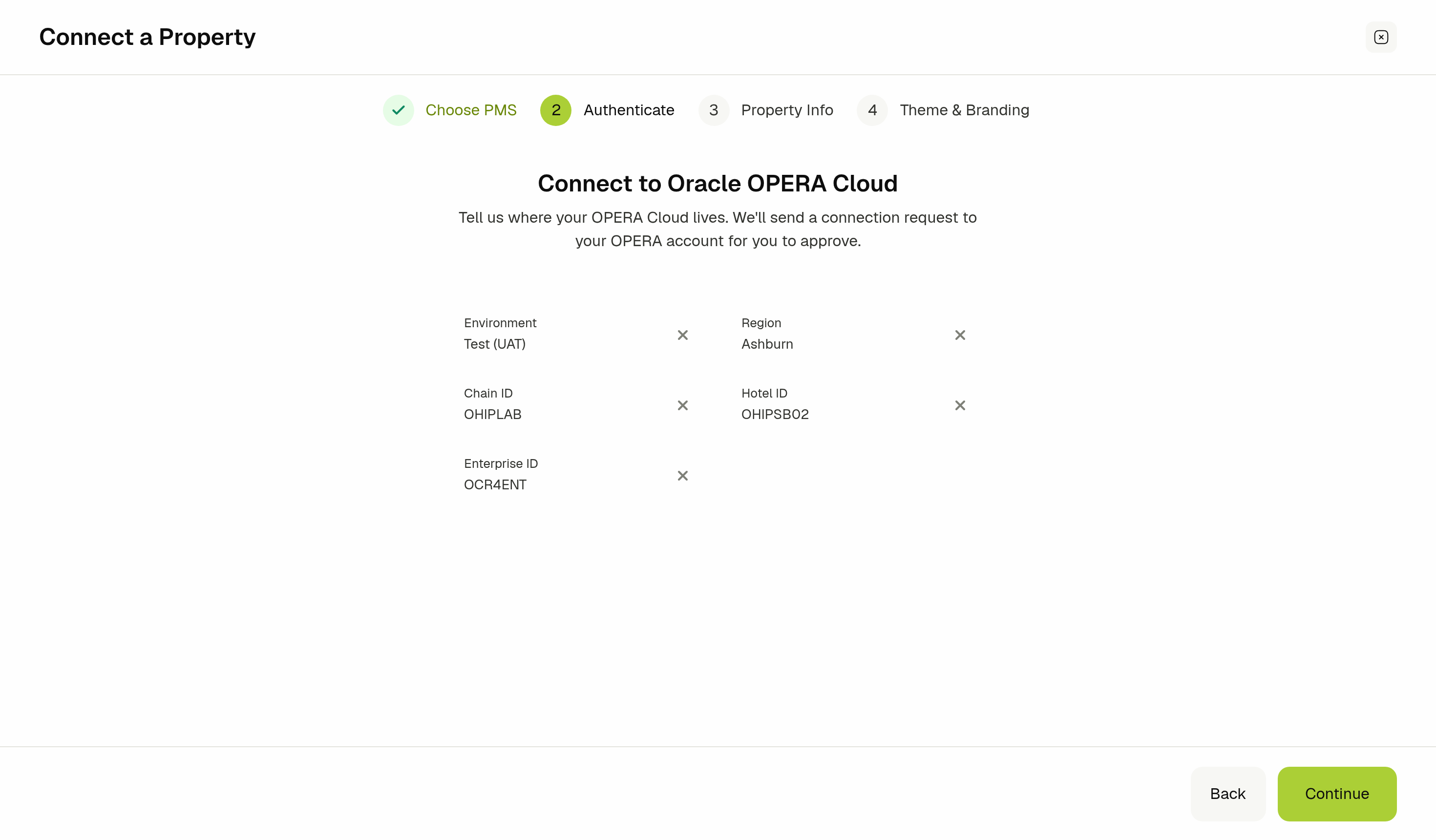
The Connect to Oracle OPERA Cloud step asks where your OPERA Cloud lives.
- Select the Environment: Live (Production) or Test (UAT).
- Fill in the Region, Chain ID, Hotel ID, and Enterprise ID. See Details You Need From OPERA Cloud for what goes in each field.
- Click Continue.
GMS saves your details and notifies the OneAvant team, who send a connection request to your OPERA Cloud from OneAvant's OPERA Cloud application.
If GMS can't save your details, the step is titled Update Information and shows the reason in red. Correct the field it points to and click Continue again.
✅ Step 3: Approve the Connection Request
The wizard now shows We’re Processing Your Request while you approve OneAvant's connection request.
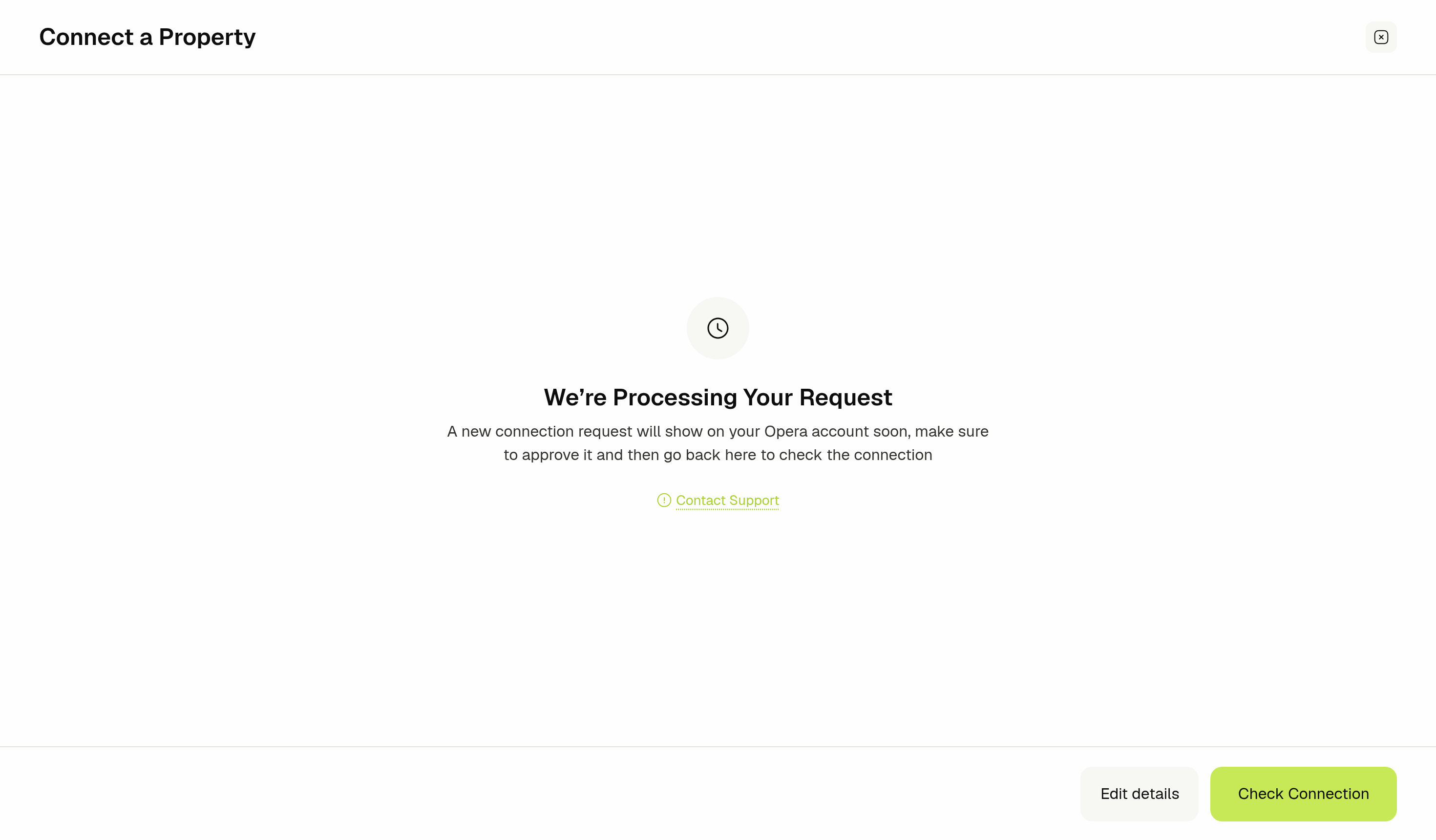
- Wait for the OneAvant connection request to appear in your OHIP portal.
- Ask your OPERA Cloud administrator to approve the request for this property.
- Return to the wizard and click Check Connection.
When the check passes, the wizard moves on. If it doesn't, a message in red explains what GMS is still waiting for:
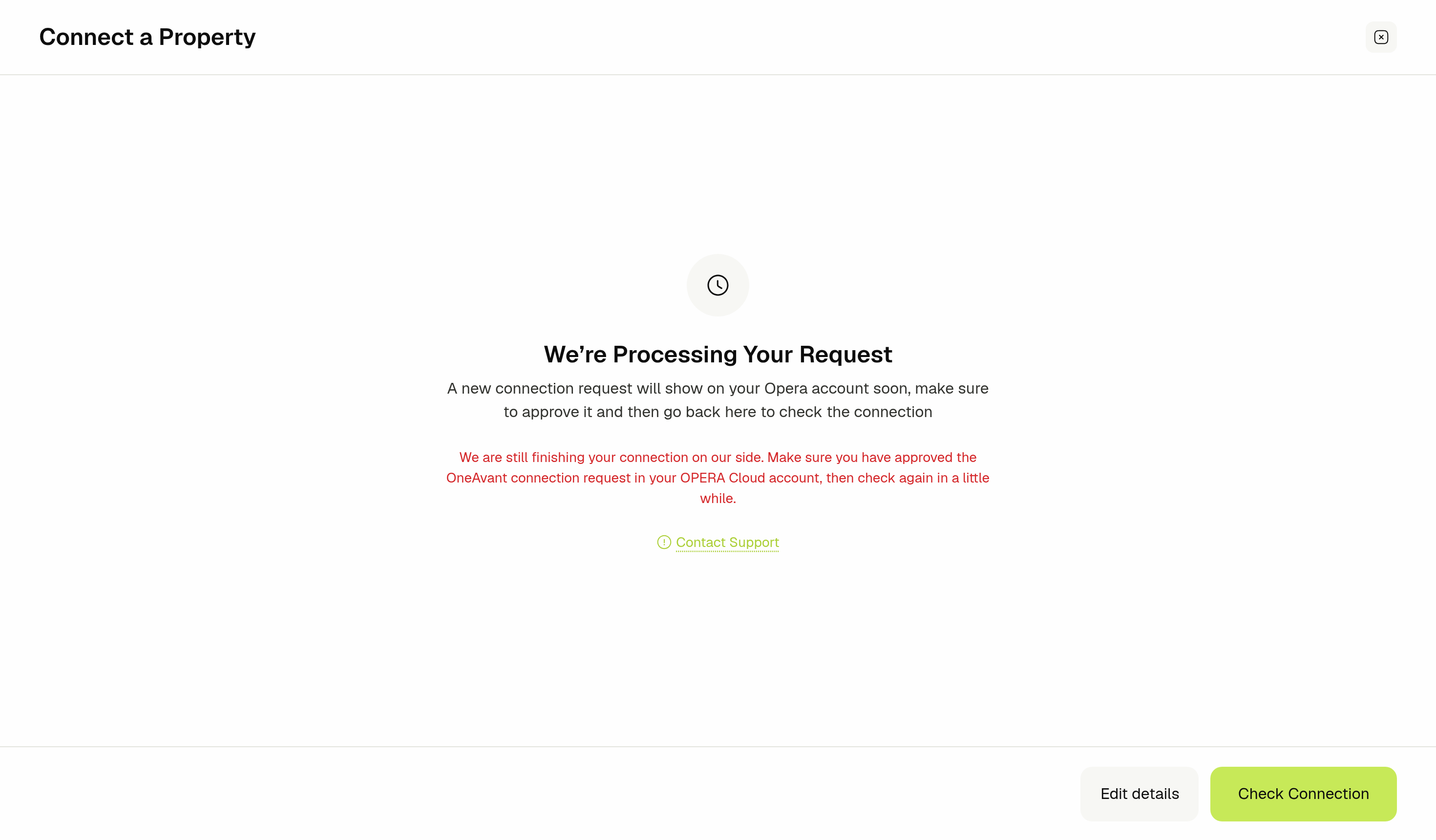
| Message | What it means |
|---|---|
| We are still finishing your connection on our side… | The OneAvant team is completing the setup after your approval. Check again in a little while. |
| OPERA Cloud has not accepted the connection yet… | The request has not been approved yet, or the approval is not active yet. Approve it in OPERA Cloud, then check again. |
Oracle can take a few minutes to activate an approval. Wait about five minutes after approving before you click Check Connection.
You don't have to keep the wizard open while you wait. Close it and come back later through Add property, or Connect a Property for your first property. The wizard reopens on the step you left.
- Edit details: Go back to the details form to correct what you entered. Changing the details sends the OneAvant team a new request.
- Contact Support: Email the OneAvant support team if the request does not appear or the check keeps failing.
📡 Step 4: Accept the Live Events Request
Live events are how OPERA Cloud tells GMS about changes the moment they happen: new, changed, and canceled bookings, check-ins and check-outs, room occupancy, and guest profile updates. They are a second request, which the OneAvant team sends once your connection is approved.
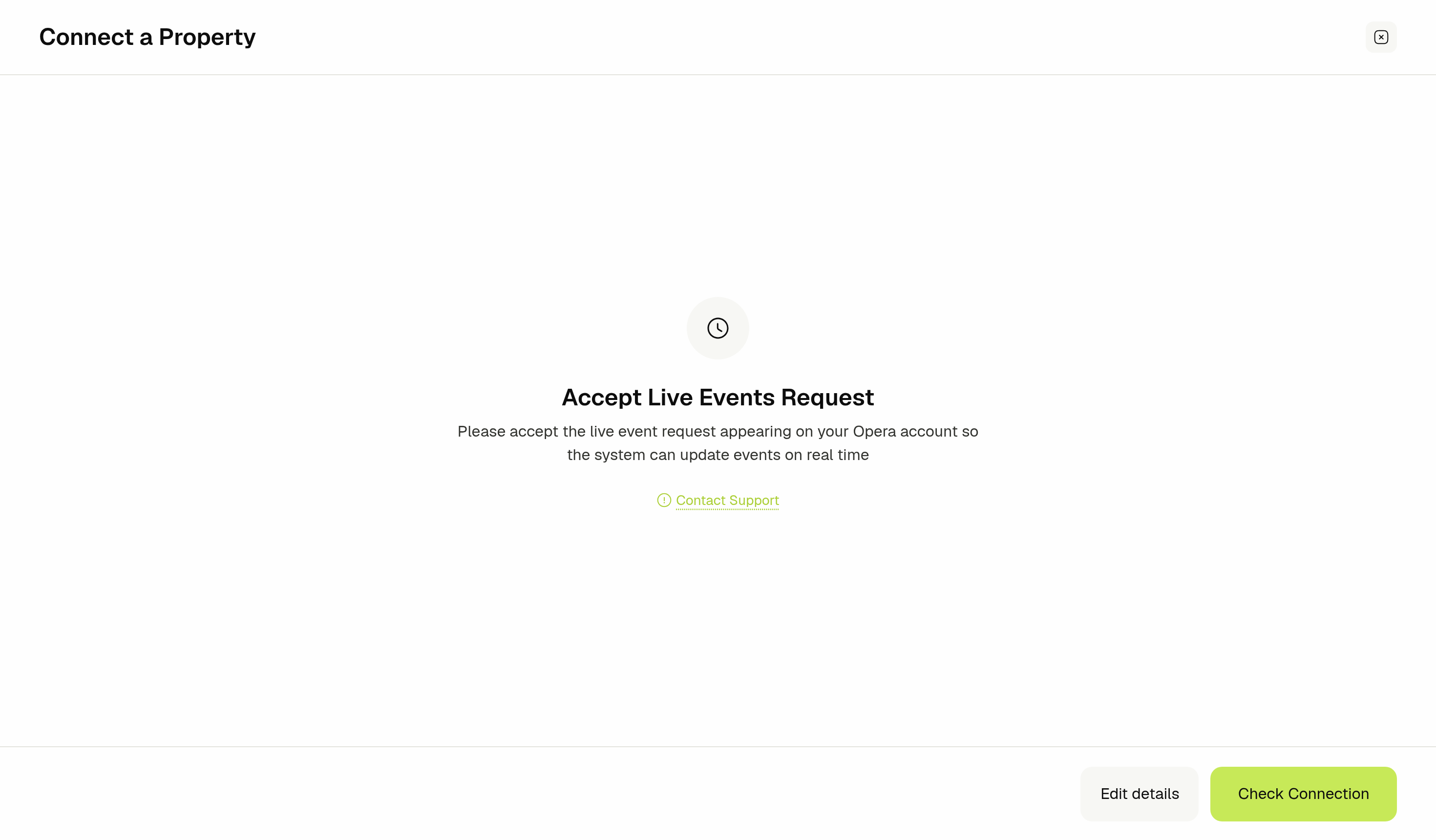
- Wait for the OneAvant live events request to appear in your OHIP portal.
- Ask your OPERA Cloud administrator to accept it.
- Return to the wizard and click Check Connection.
Until the request is accepted, the check shows Live events are not enabled yet:
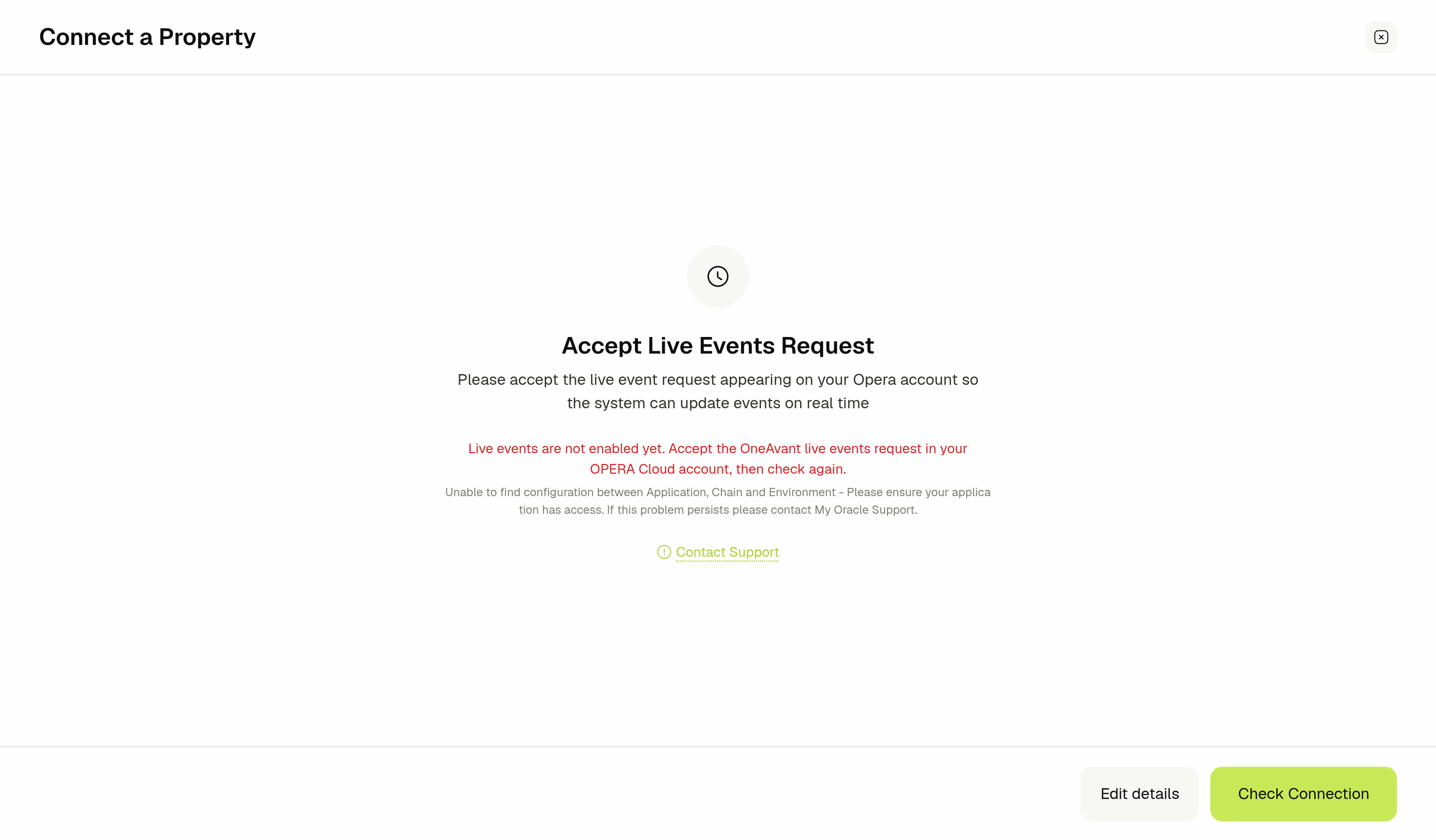
If live events are already enabled for your chain, for example because another of your properties is connected, GMS detects it and skips this step.
🏨 Step 5: Confirm Property Details
GMS reads the property's details from OPERA Cloud and fills in what it finds. A grey panel confirms what was imported: Imported from Opera Cloud.
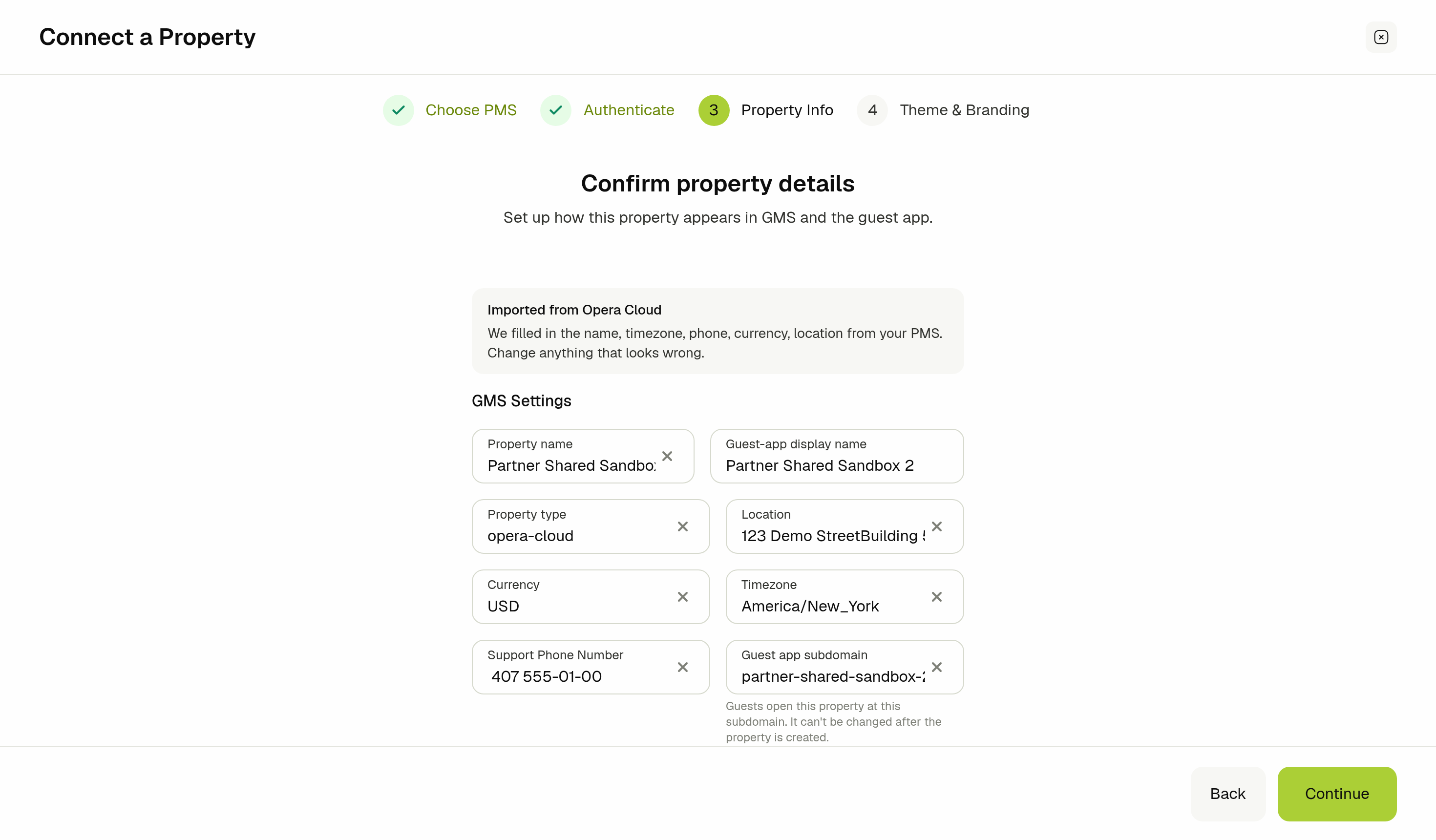
- Review the GMS Settings fields and change anything that looks wrong:
- Property name: The name your team sees in GMS.
- Guest-app display name: The name guests see in the guest app.
- Property type: The PMS this property runs on.
- Location: The property's address.
- Currency: The property's currency.
- Timezone: The property's timezone.
- Support Phone Number: The number guests can call for help.
- Guest app subdomain: The web address guests open the guest app at.
- Click Continue.
The Guest app subdomain can't be changed after the property is created. Check it before you continue.
If OPERA Cloud has no details for the property, or GMS can't read them, the panel reads Couldn't import from Opera Cloud. Fill in the fields yourself and continue.
🎨 Step 6: Theme & Branding
Choose the logo, brand color, theme, and branding images guests see in the guest app and on the room tablet. A live preview shows your choices as you make them. See Theme & Branding in Property Locations for each option.
- Set up the property's branding.
- Click Finish & start sync.
⏳ Step 7: The Initial Import
Finish & start sync creates the property, connects it to OPERA Cloud, and starts the Initial sync. The Property connected screen shows each part of the import as it runs.
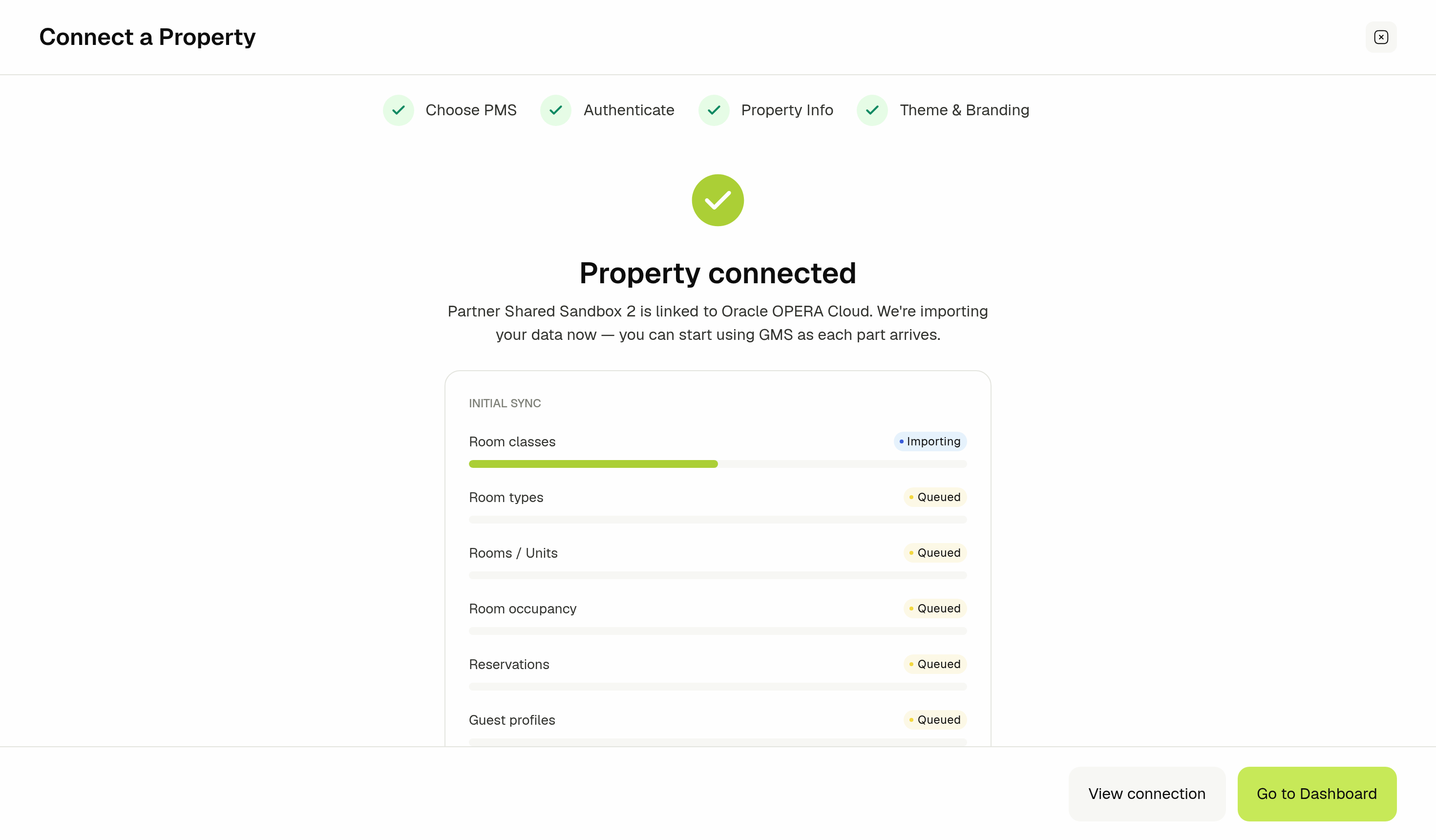
Each row has its own progress bar and status: Queued while it waits, Importing while it runs, and Done when it finishes. The count next to a row shows how many records were imported.
- Room classes and Room types
- Rooms / Units
- Room occupancy: Which rooms are occupied or vacant.
- Reservations: Every reservation arriving or departing between 7 days ago and 21 days from now, plus the guests currently in house.
- Guest profiles: The guests on those reservations.
- Finishing up
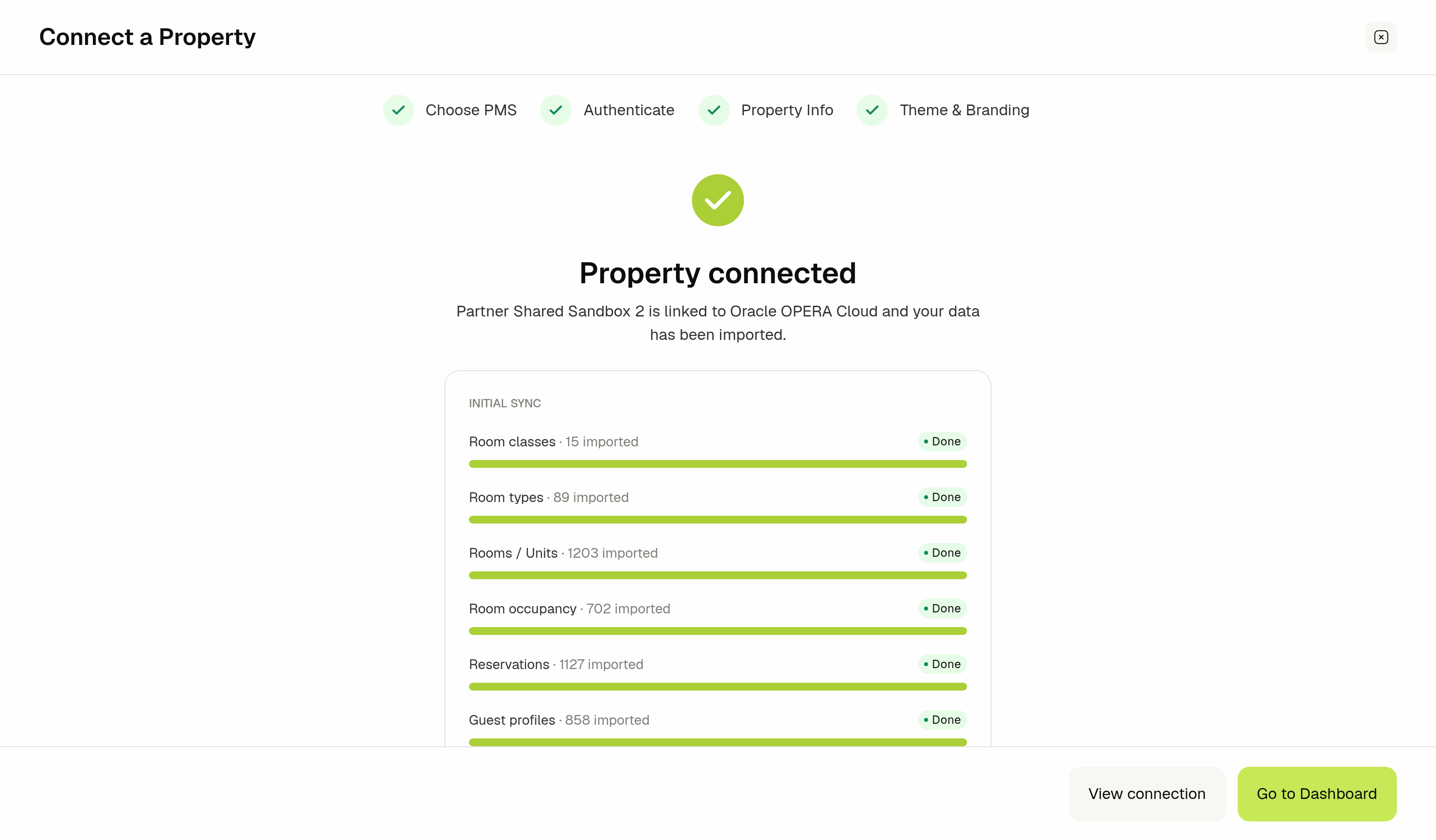
You don't have to wait for the whole import. You can start using GMS as each part arrives. When the import is done:
- Click View connection to open the property's connection settings.
- Click Go to Dashboard to start working in GMS. If WhatsApp is available on your account, the button reads Continue and takes you on to connecting WhatsApp Business.
If the import fails, the screen reads Import failed and shows the reason. Click Retry import to run it again, or retry later from the property's Data Backfill card. The property itself is already created.
To bring in older reservations or bookings further ahead than the initial 28-day window, run a Data Backfill once the property is connected.
🚫 Scope Notes
The current release does not cover:
- Connecting more than one property at a time. While a connection is in progress, Add property reopens it. Finish it before you start the next property.
- Connecting an existing property that was added without a PMS. The wizard always creates a new property. Contact OneAvant support to connect an existing one.
- PMS systems other than Oracle OPERA Cloud.
Related Docs
- Managing Your OPERA Cloud Connection: what syncs, checking the connection, backfills, and reconnecting
- Property Locations: property details, branding, and staff once the property is set up
- Roles & Permissions: the Manage PMS Connection and Manage Locations permissions
- Managing Reservations: work with the reservations imported from OPERA Cloud