Production Executions
Executions record actual production runs, track quantities produced, and tie together recipes, inventory movements, and production floors. Most executions are created automatically by the Planning system, but they can also be created manually.
Executions List
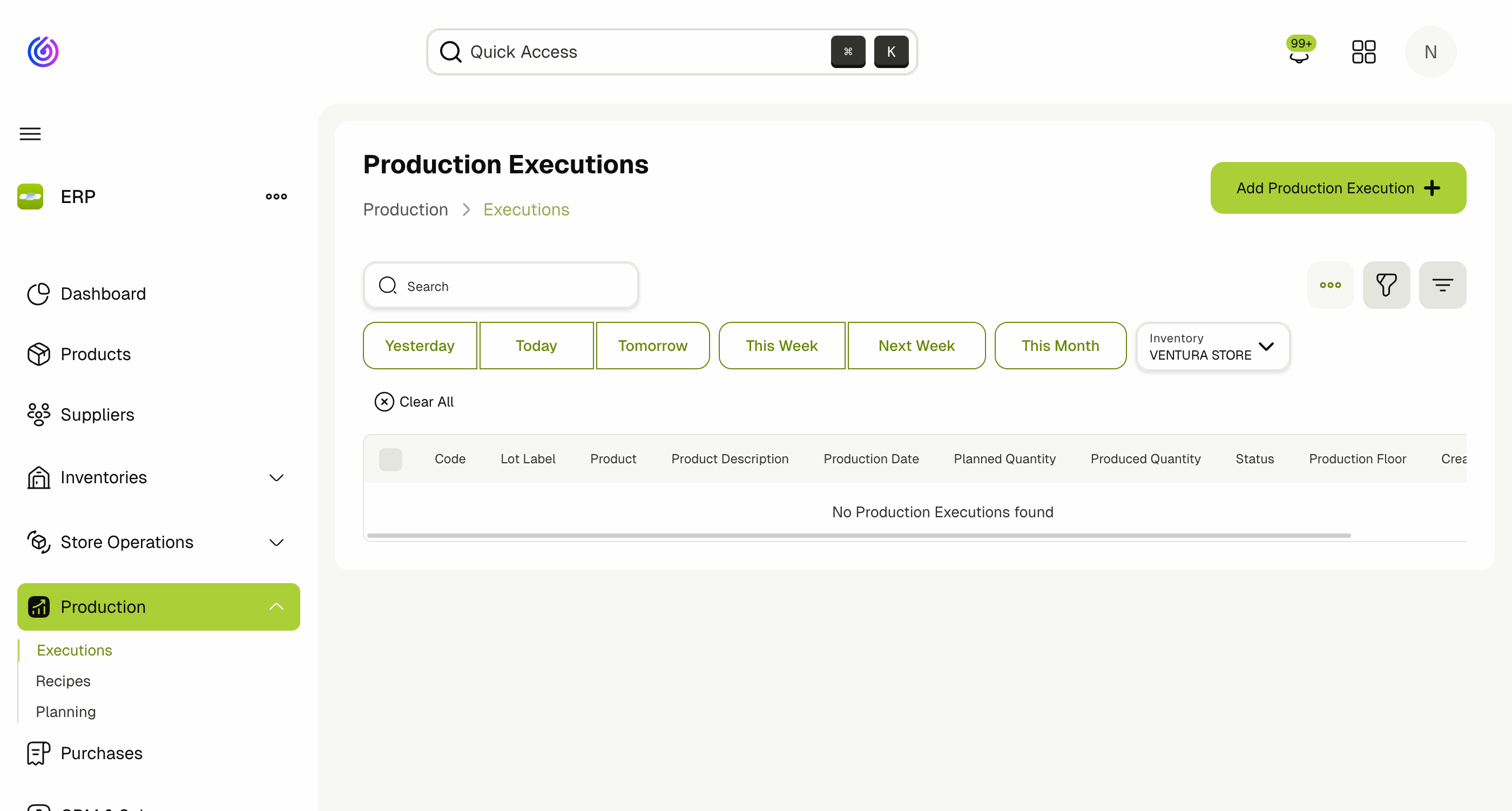
Navigate to Production > Executions to review scheduled and completed runs.
Filters
- Date filters: Yesterday, Today, Tomorrow, This Week, Next Week, This Month.
- Inventory: Filter by production floor.
- Search: Search by code, lot label, or product name.
Columns
| Column | Description |
|---|---|
| Code | System-generated execution code |
| Lot Label | The traceability label for this production run |
| Product | The product being produced |
| Product Description | Description of the product |
| Production Date | Scheduled production date |
| Planned Quantity | Target quantity to produce |
| Produced Quantity | Actual quantity produced (filled upon completion) |
| Status | Current status of the execution |
| Production Floor | The inventory/location where production takes place |
| Created At | When the execution was created |
Execution Statuses
| Status | Description |
|---|---|
| Draft | The execution has been created but production has not started or completed |
| Completed | Production is finished and the output has been recorded |
Once an execution is marked as Completed, it cannot be modified or moved.
Add a Production Execution Manually
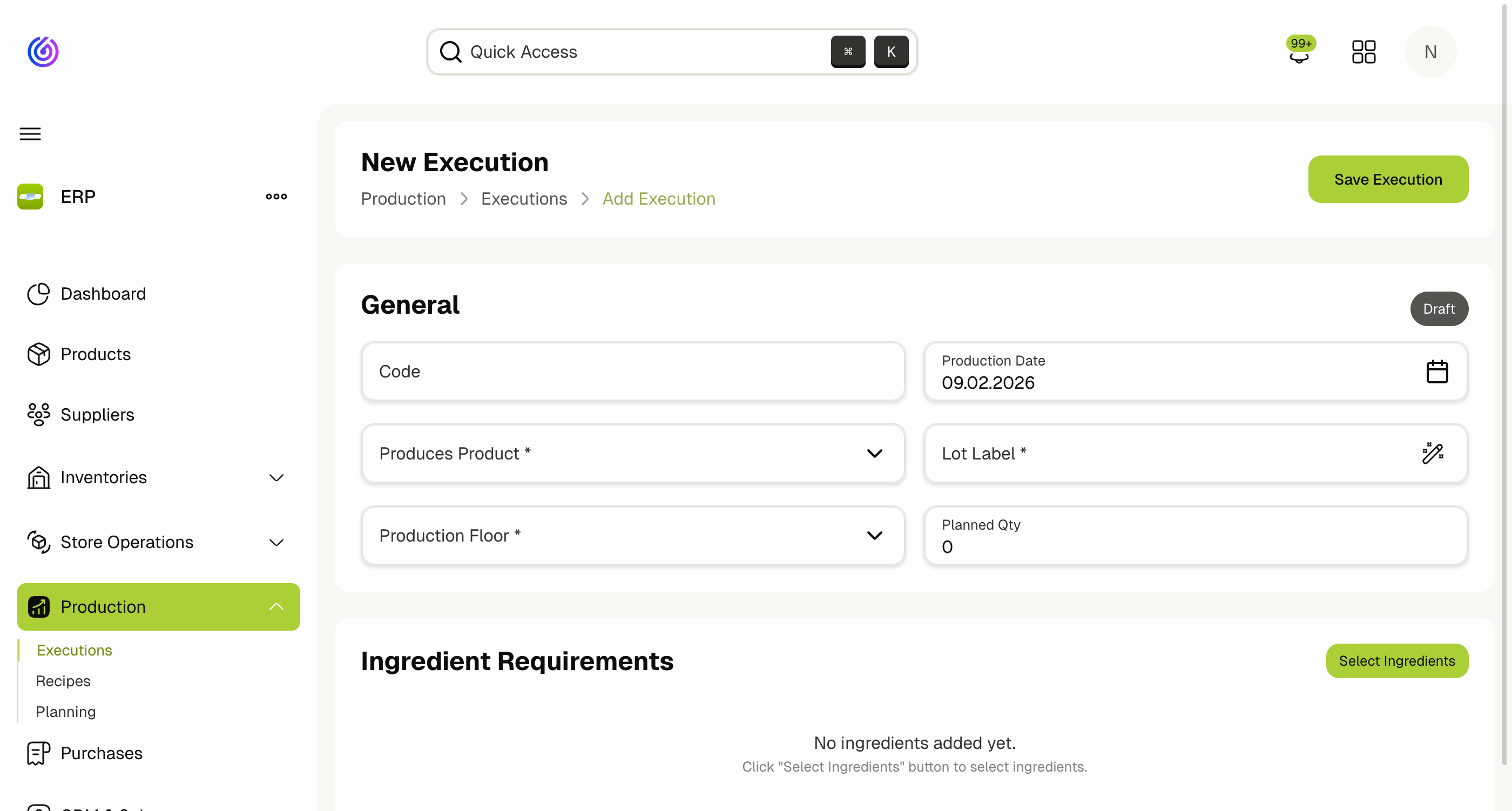
While most executions are created through Planning, you can also create them manually:
- Click Add Production Execution.
- Set Production Date, Produces Product, Lot Label, and Production Floor.
- Enter Planned Qty.
- Select Ingredient Requirements for the run.
- Save the execution.
Execution Detail View
Click on an execution's Code in the list to open the detail view. This page shows:
General Information
- Production date, product, lot label, production floor, planned and produced quantities, and status.
Ingredient Requirements
Each execution lists the materials and sub‑recipes required. For each requirement, you can see:
- Material/Product — the ingredient needed.
- Required Quantity — how much is needed for this execution.
- Status indicator — shows where the ingredient is in the supply chain:
- For supplied ingredients (materials with a supplier): the status reflects the material requisition and trolley building progress (e.g., whether it has been requisitioned, picked, issued, or placed in a trolley).
- For sub‑recipe ingredients (products made by another execution): the status reflects the child execution's progress (Draft or Completed).
Predecessor Executions
If an execution was generated from a plan, this section shows:
- Parent executions — which planned products require this execution. For example, a Tomato Sauce execution might show Pizza, Lasagna, and Pasta as parents.
- Required quantities per parent — how much each parent recipe needs from this execution.
This is especially useful for shared sub‑recipes that serve multiple parent products.
Complete an Execution
- Open the execution detail page.
- Enter the Produced Quantity — the actual amount produced.
- Click Complete (or Finalize).
You need the Finalize Production Executions permission to complete an execution.
Bulk Actions
From the executions list, you can:
- Bulk Create — create multiple executions at once.
- Bulk Update — update quantities or dates for selected executions.
- Bulk Delete — remove selected draft executions.
- Export CSV — export the executions list, raw materials, or raw material stocks to CSV.
- Generate PDFs — create printable recipe cards for selected executions.
Permissions
| Permission | Description |
|---|---|
| View Production Executions | View the executions list and detail pages |
| Create Production Executions | Create new executions manually |
| Update Production Executions | Edit existing executions |
| Finalize Production Executions | Mark executions as complete |
| Delete Production Executions | Remove draft executions |
| Move Production to Another Date | Move executions to another planning date |
| Override Production Execution Blueprints | Override the recipe assigned to an execution |
| View Production Execution Costs | View cost information on the execution detail page |
How Executions Link Everything
- Recipes define the ingredient requirements for each execution.
- Planning creates executions and links sub‑recipe dependencies.
- Store Operations issues materials (requisitions, picking, sending) to the production floor.
- Trolley Building stages picked materials for the run.
- Purchases supply missing materials when stock is insufficient.
Related Docs
- Production Recipes — Define recipes and sub‑recipes
- Production Planning — Schedule production runs
- Trolley Building — Stage materials for production
- Store Operations — Material requisitions, picking, and issuing
- Purchases — Purchase requisitions for missing stock