Trolley Building
Trolley Building prepares picked and issued materials into organized trolleys before they are consumed in production executions. It helps the production floor receive complete, traceable sets of materials grouped by production run.
Overview
Navigate to Store Operations > Trolley Building to view and manage trolley building documents.
The trolley building list page shows all trolley documents with their status, production details, and dates.
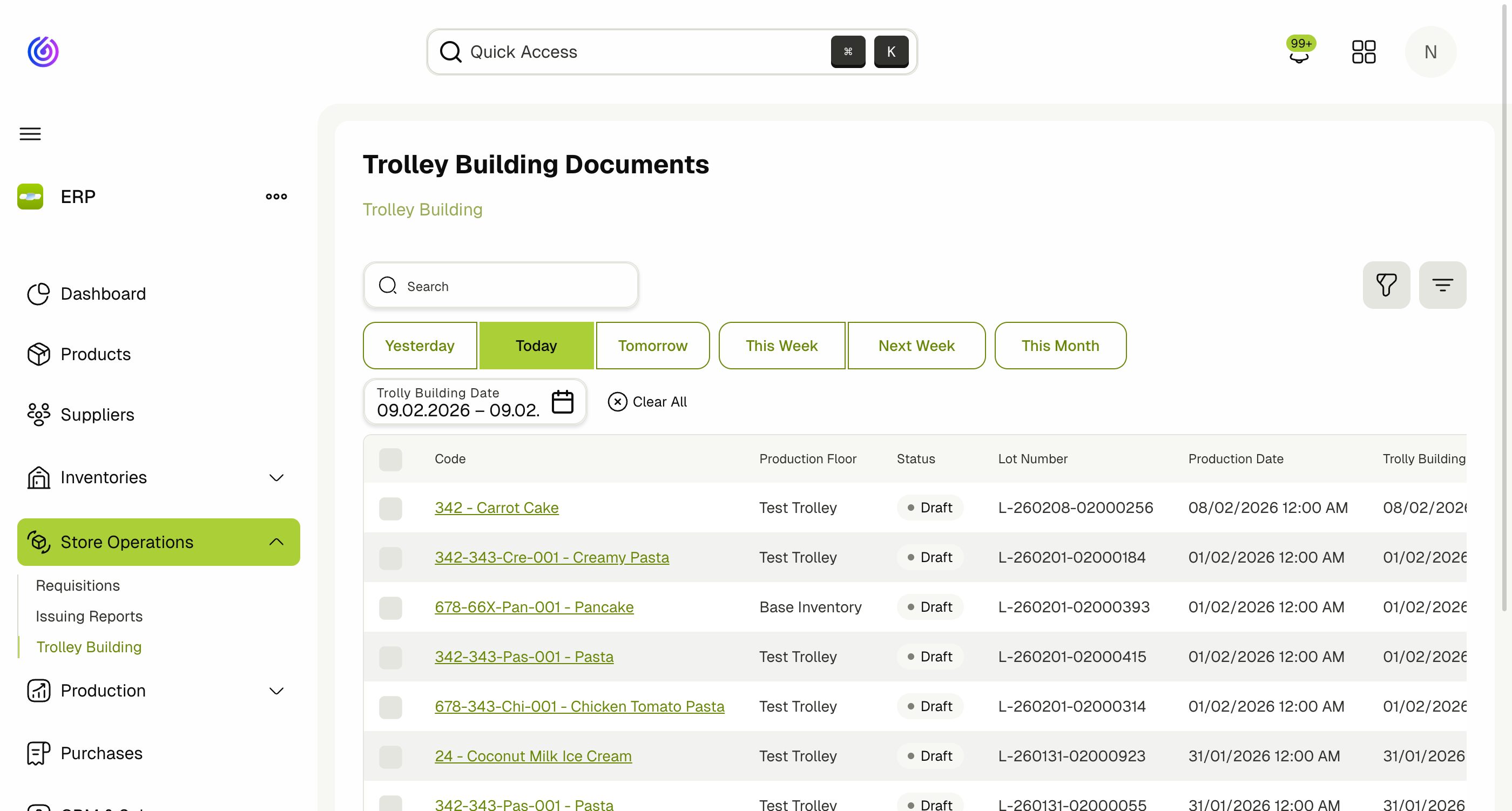
Columns
| Column | Description |
|---|---|
| Code | The trolley document code (linked to the execution and product) |
| Production Floor | The inventory where production takes place |
| Status | Current status of the trolley document |
| Lot Number | The lot label for traceability |
| Production Date | The date production is scheduled |
| Trolly Building Date | The date the trolley is being prepared |
| Created At | When the document was created |
| Updated At | Last modification date |
Filters
- Date filters: Yesterday, Today, Tomorrow, This Week, Next Week, This Month.
- Trolly Building Date: Filter by a custom date range.
- Search: Search by code or product name.
How Trolley Building Works
Automatic Creation
Trolley building documents are automatically created by the system when materials are issued to an inventory that is configured as a Trolley Inventory (tagged for trolley building). Contact your technical support team to ensure your trolley inventory is configured correctly.
The automatic creation flow:
- A production plan is saved, generating production executions and material requisitions.
- Materials are picked and issued through Store Operations.
- When materials are issued to a trolley inventory, the system automatically creates trolley building documents, grouping materials by production execution.
Manual Creation
Trolley building documents can also be created manually if needed:
- Click Create from the trolley building list page.
- Select the materials and quantities.
- Assign the trolley to a production execution.
Trolley Document Statuses
Trolley documents progress through the following statuses:
| Status | Description |
|---|---|
| Draft | The trolley document has been created but no materials have been completed |
| Partially Completed | Some materials in the trolley have been completed (transferred to the destination) |
| Completed | All materials have been completed and transferred |
| Partially Approved | Some materials have been approved by the receiving party |
| Partially Rejected | Some materials have been rejected |
| Approved | All materials have been approved |
| Rejected | All materials have been rejected |
| Finalized | The trolley document is finalized and linked to the production execution |
| Cancelled | The trolley document has been cancelled |
Material Statuses within a Trolley
Each material in a trolley document has its own status:
| Status | Description |
|---|---|
| Pending | The material is waiting to be placed in the trolley |
| Completed | The material has been transferred to the destination inventory |
| Approved | The material has been accepted by the production floor |
| Rejected | The material has been rejected and stock is returned to the source inventory |
Working with Trolley Documents
Complete Materials
Completing a material means the stock is transferred from the source inventory to the trolley/destination inventory.
- Open a trolley document.
- Select the materials you want to complete.
- Click Complete.
- The stock will be moved to the destination inventory and the material status changes to Completed.
Approve Materials
Once materials are completed (transferred), the production floor can approve or reject them:
- Open a completed trolley document.
- Review the materials.
- Click Approve to accept the materials — the material status changes to Approved.
Reject Materials
If materials are not acceptable (wrong quantity, quality issues, etc.):
- Click Reject on the material.
- The stock is returned to the source inventory.
- The material status changes to Rejected.
Finalize
Once all materials are approved (or a combination of approved and rejected), the trolley document can be finalized, linking it to the production execution.
Connection to Production Executions
Trolley building documents are directly linked to production executions:
- Each trolley document is associated with one or more production executions.
- Materials in the trolley map to the ingredient requirements of those executions.
- The execution detail page shows the trolley building status for each supplied ingredient.
Permissions
| Permission | Description |
|---|---|
| View Trolley Building Documents | View the trolley building list and detail pages |
| Create Trolley Building Documents | Create new trolley building documents |
| Update Trolley Building Documents | Edit existing trolley building documents |
| Delete Trolley Building Documents | Remove trolley building documents |
To view the linked production executions from within a trolley document, the user also needs the View Production Executions permission.
Related Docs
- Production — Production flow overview
- Production Executions — Track and complete production runs
- Store Operations — Material requisitions, picking, and issuing
- Production Planning — Schedule production runs