Production Recipes (Blueprints)
Recipes (Blueprints) define how a product is produced—its ingredients, sub‑recipes, steps, and expected yields. Every production execution and planning cycle starts with a recipe.
Recipes List
Navigate to Production > Recipes. The list shows each recipe's product code, description, status, type, category, production floor, yield rate, and scrap rate.
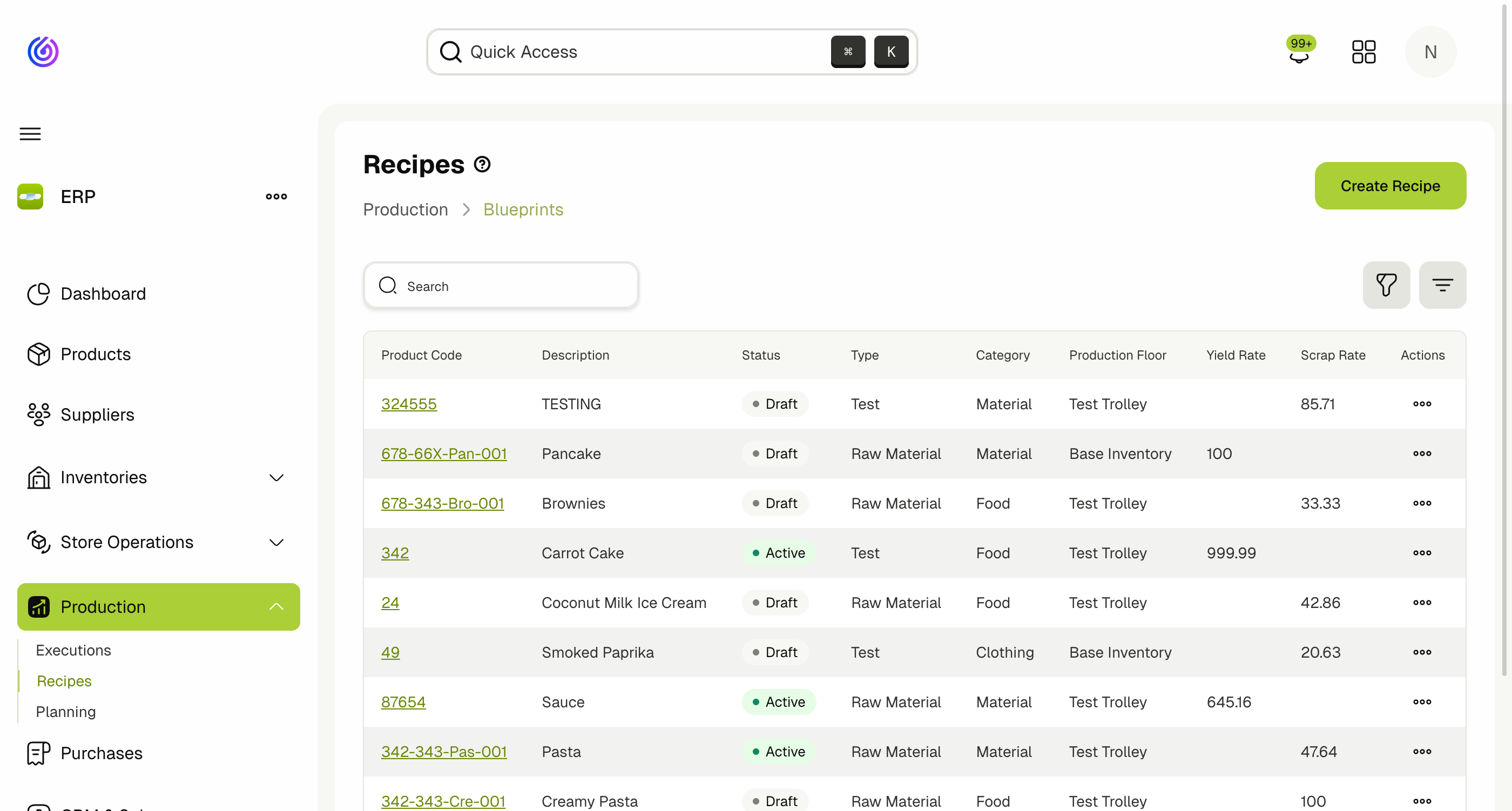
- Status: Recipes can be Draft or Active. Only Active recipes are available for use in planning and executions.
- Production Floor: The inventory designated as the production location for this recipe.
- Yield Rate / Scrap Rate: Expected output percentage and waste percentage.
Create a Recipe
- Click Create Recipe.
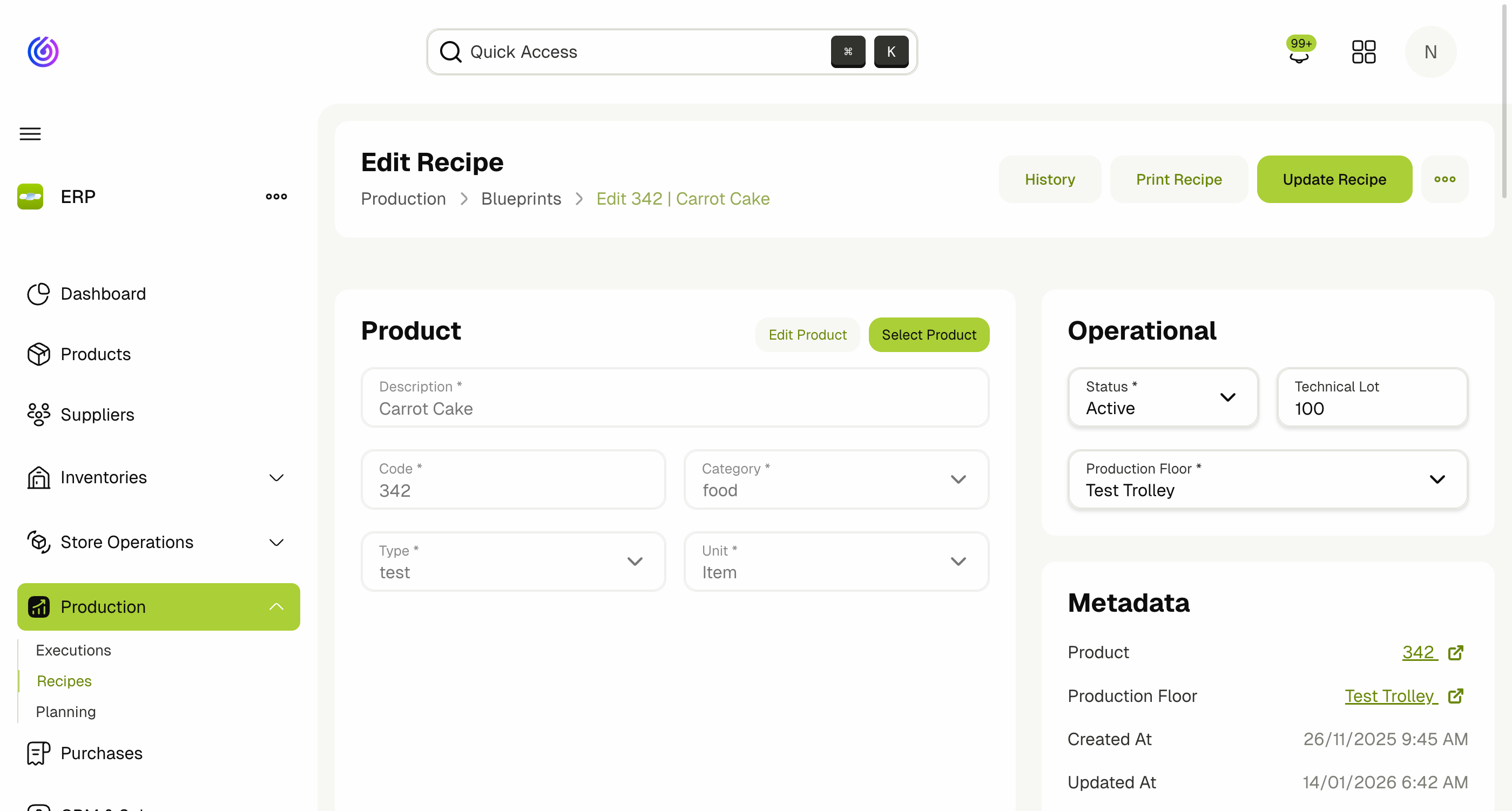
- Select the Product this recipe will produce. The product must have a type with the Producible toggle enabled.
- Fill in Description, Code, Category, Type, and Unit.
- Set Operational fields:
- Status: Draft or Active.
- Technical Lot: A label used to group production batches for traceability.
- Production Floor: Select the inventory where production will take place.
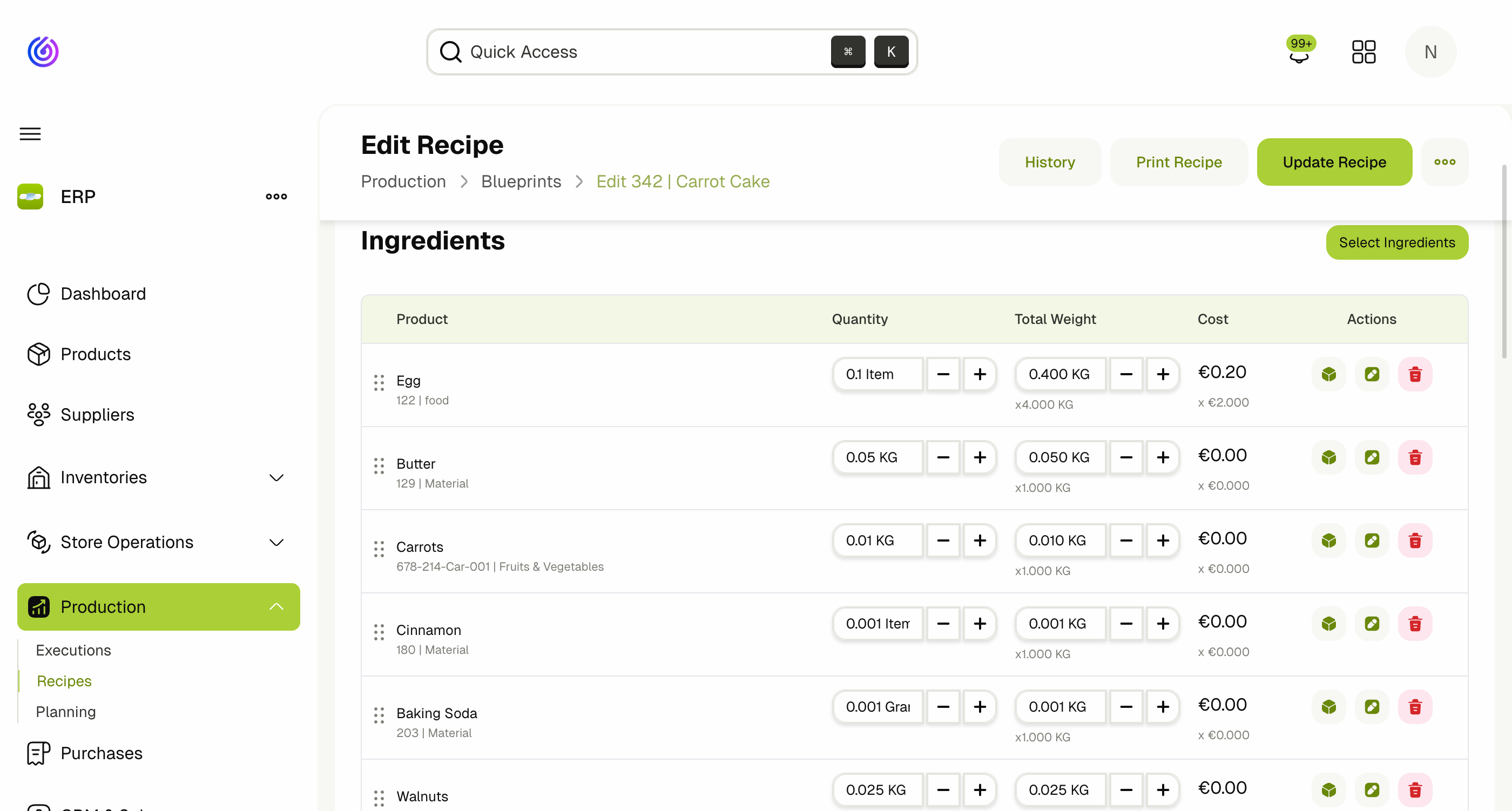
- Add Ingredients — the raw materials or supplied products needed.
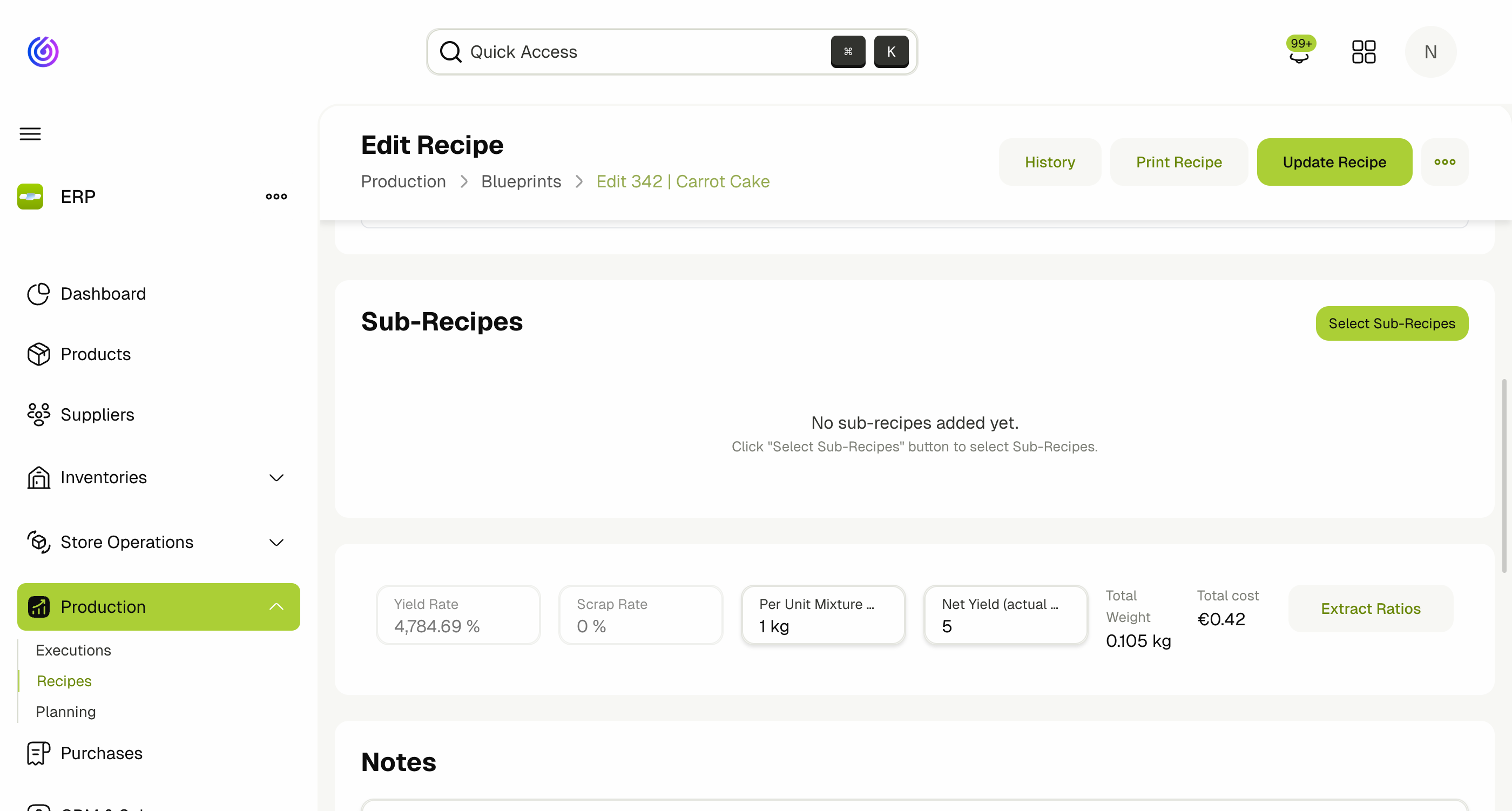
- Add Sub‑Recipes (optional) — link to other recipes that produce intermediate products needed by this recipe. For example, a Pizza recipe may include a Tomato Sauce sub‑recipe and a Dough sub‑recipe.
- Add Steps — sequential production instructions for operators.
- Add Notes — any additional information.
- Review Yield/Scrap values and click Save.
Sub‑Recipes
Sub‑recipes allow you to define shared intermediate products that are reused across multiple parent recipes. This is one of the most powerful features of the production system.
Example:
- Pizza needs Dough and Tomato Sauce.
- Pasta needs Tomato Sauce.
- Lasagna needs Tomato Sauce and Pasta sheets.
By defining Tomato Sauce as a separate recipe and linking it as a sub‑recipe in Pizza, Pasta, and Lasagna, the system can:
- Automatically calculate the total Tomato Sauce quantity needed across all planned products.
- Merge the Tomato Sauce production into a single execution instead of creating duplicates.
- Track predecessor/dependency relationships between executions.
Adding a Sub‑Recipe
- In the recipe editor, scroll to the Sub‑Recipes section.
- Click Add Sub‑Recipe.
- Select an existing recipe to link as a sub‑recipe.
- Set the Quantity required per unit of the parent recipe.
Sub‑recipes can be nested — a sub‑recipe can itself have sub‑recipes. The system handles the full dependency tree during planning.
Pre‑Prepare Days
Each sub‑recipe can have a Pre‑Prepare Days value. This tells the system how many days in advance the sub‑recipe should be produced relative to the parent recipe's production date.
For example, if a Pizza is planned for Wednesday and the Dough sub‑recipe has 1 pre‑prepare day, the Dough execution will be scheduled for Tuesday.
Yield, Scrap & Mixture Weight
At the bottom of the recipe editor you will find the yield and cost summary bar. These fields control how the system calculates expected output, waste, and ingredient scaling.
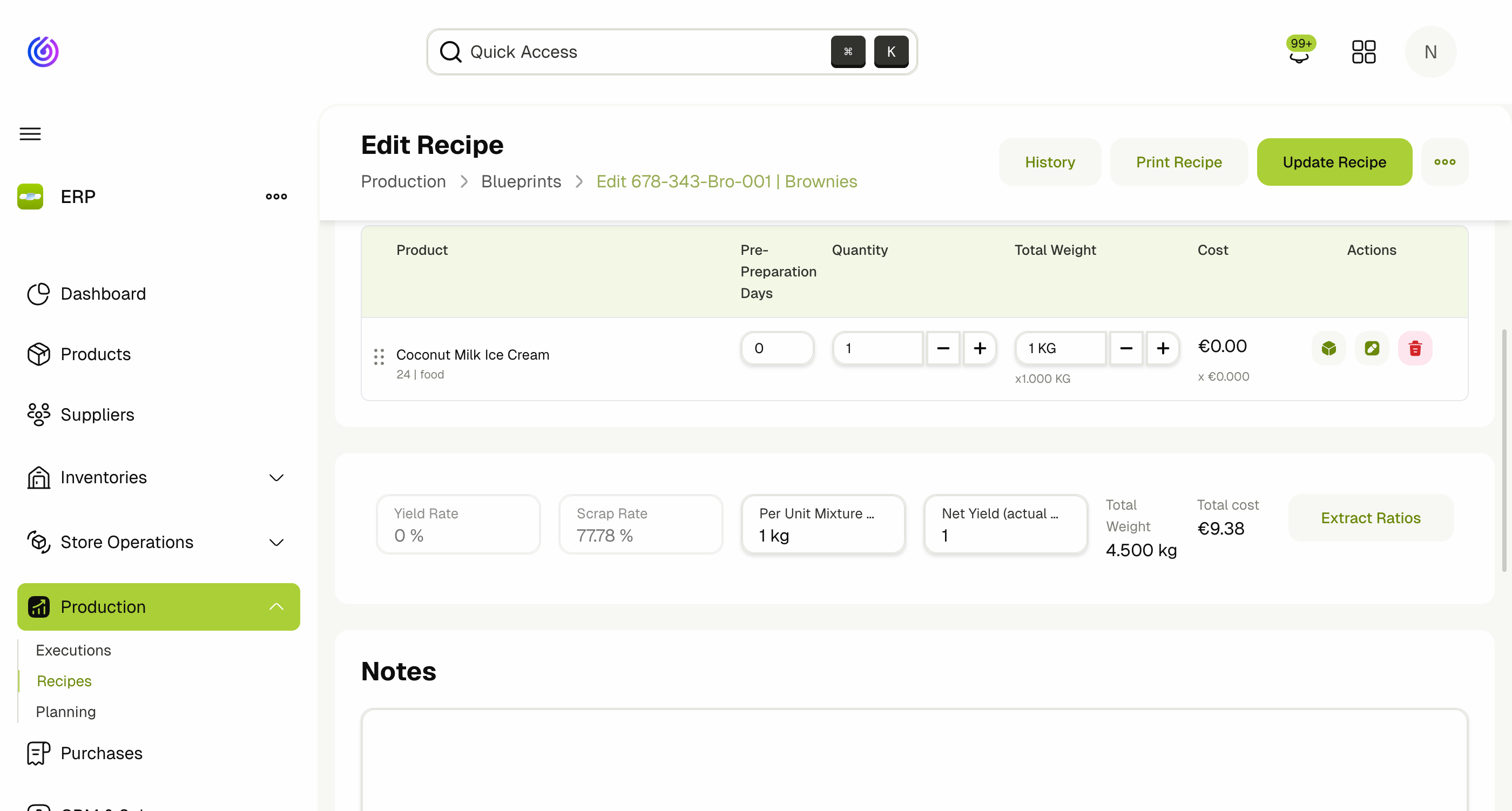
| Field | Description |
|---|---|
| Yield Rate | The percentage of total mixture weight that becomes finished product. Calculated automatically from Net Yield and Total Mixture Weight. |
| Scrap Rate | The percentage of total mixture weight lost during production (waste, evaporation, trimming, etc.). Calculated automatically. |
| Per Unit Mixture Weight | The weight of one "portion" or "unit" of the recipe. Used as the scaling factor when extracting ratios. |
| Net Yield (actual batch) | The actual weight of finished product the full batch produces. This is the most important value — it represents what you actually get out of the recipe. |
| Total Weight | The total weight of all ingredients and sub-recipes combined. Only ingredients whose product category has Include in Mixture Weight enabled are counted toward this total. |
| Total Cost | The sum of all ingredient and sub-recipe costs. |
How Total Mixture Weight Is Calculated
The system adds up the weight contribution of each ingredient and sub-recipe:
- Regular ingredients (weight-based unit, e.g. KG): the Quantity value is used directly.
- Regular ingredients (non-weight unit, e.g. Pieces): the product's Average Unit Weight is multiplied by the quantity.
- Sub-recipes: the sub-recipe's Net Yield is multiplied by the quantity. This means a sub-recipe contributes its actual finished output weight, not its raw input weight.
Only materials whose product category has the Include in Mixture Weight toggle enabled are included in the Total Mixture Weight calculation. This lets you exclude packaging, consumables, or other non-production materials from the weight calculation.
Yield Rate & Scrap Rate
These rates are calculated automatically from the Net Yield and Total Mixture Weight:
- Yield Rate = Net Yield ÷ Total Mixture Weight × 100
- Scrap Rate = 100 − Yield Rate
For example, if a recipe has a Total Mixture Weight of 4.5 kg and a Net Yield of 1 kg, the Yield Rate is ~22.2% and the Scrap Rate is ~77.8%.
Extract Ratios
The Extract Ratios button normalises a full-batch recipe down to a per-unit recipe. This is useful when you have entered quantities for an entire production batch but want to store the recipe as a per-unit (per-portion) formula that the system can scale up during planning.
How It Works
When you click Extract Ratios, the system:
- Takes the current Per Unit Mixture Weight value (defaults to 1).
- Calculates a division factor:
Per Unit Mixture Weight ÷ Net Yield. - Scales every ingredient and sub-recipe quantity by this factor — each quantity is multiplied by the division factor.
- Sets the Net Yield to the Per Unit Mixture Weight value (since the recipe now represents one portion).
- Resets the Per Unit Mixture Weight to 1.
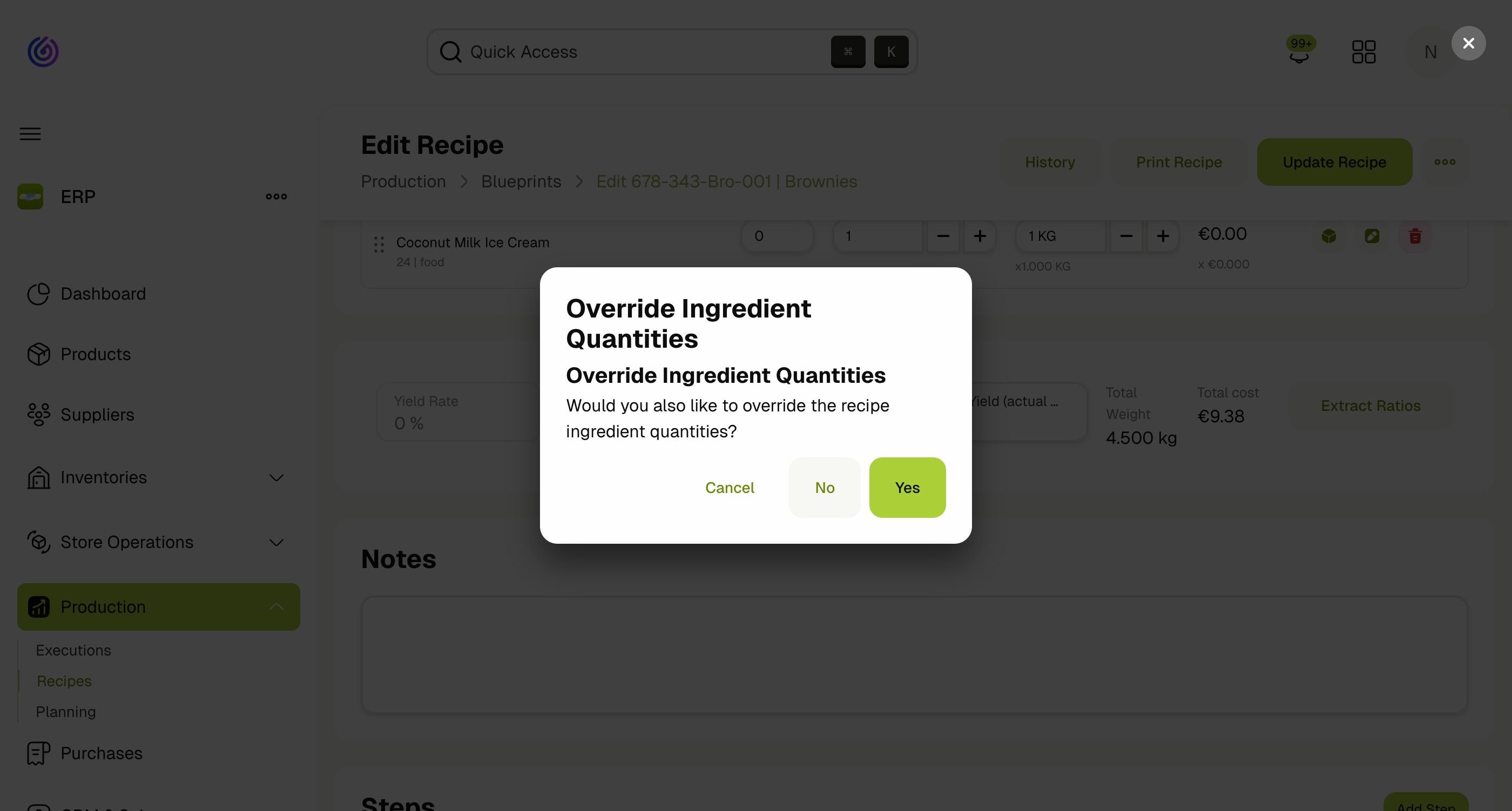
A confirmation dialog will ask if you want to override the ingredient quantities. Choose Yes to apply the scaling, No to update only yield values without changing quantities, or Cancel to abort.
Example
Suppose you have a batch recipe for Brownies:
| Before Extract | After Extract | |
|---|---|---|
| Cocoa Powder | 0.75 KG | 0.75 KG |
| Brown Sugar | 0.75 KG | 0.75 KG |
| Coconut Milk Ice Cream (sub-recipe) | 1 | 1 |
| Net Yield | 1 kg | 1 kg |
| Per Unit Mixture Weight | 1 kg | 1 |
In this example, the Per Unit Mixture Weight and Net Yield are already equal (both 1), so Extract Ratios would not change the quantities. However, if the recipe had been entered as a batch of 10 portions (Net Yield = 10 kg, Per Unit Mixture Weight = 1 kg), the division factor would be 1 ÷ 10 = 0.1, and all quantities would be divided by 10.
Use Extract Ratios when you first create a recipe from a real-world batch. Enter the full batch quantities, set the Per Unit Mixture Weight to the desired portion size, then click Extract Ratios. The system will scale everything down to a single portion, which can then be scaled back up automatically during planning.
Editing and Managing Recipes
Edit a Recipe
- Click the recipe's Product Code link in the list, or use the Actions menu (⋯) and select Edit.
- Make your changes and click Save.
Set a Recipe Active
A recipe must be set to Active before it can be used in production planning or executions:
- Open the recipe for editing.
- Change the Status from Draft to Active.
- Save the recipe.
Delete a Recipe
Use the Actions menu (⋯) on the list page and select Delete, or delete from the edit page.
Generate Recipe PDF
You can generate a printable PDF of one or more recipes:
- Single recipe: From the recipe edit page, click the PDF/print action.
- Multiple recipes: Select recipes in the list and use the bulk PDF action.
Permissions
| Permission | Description |
|---|---|
| View Production Blueprints | View the recipes list and detail pages |
| Create Production Blueprints | Create new recipes |
| Update Production Blueprints | Edit existing recipes |
| Delete Production Blueprints | Remove recipes |
| View Blueprint Costs | View cost information on recipes and PDFs |
How Recipes Link to the Flow
- Recipes are required for Planning — they provide the bill of materials and sub‑recipe dependencies.
- Ingredient requirements from recipes feed into Store Operations for picking/issuing materials.
- Sub‑recipe links drive the automatic creation of predecessor executions during planning.
See Production Planning and Production Executions.