Guest Calling
📞 Guest Calling in GMS lets you configure voice and video calling for each property, manage which staff appear as callable contacts for guests, and control the order and availability of those contacts in the guest apps.
📍 Accessing Guest Calling
- Log in to the GMS dashboard.
- Open Settings.
- Click Guest Calling to open the Guest Calling settings page.


🏨 Selecting a property
Guest Calling is configured per property. Use the property selector to choose the property you want to manage. All changes on this page apply only to the selected property.
📱 Enabling voice and video calling
Use the toggle switches for Voice Calling and Video Calling to turn each mode on or off independently.
-
When a mode is enabled, both staff (admin) and guests can use that calling type where the product supports it.
-
When a mode is disabled, the corresponding calling option is hidden for users—it is not available for that property.

👥 Managing contacts
The contacts list defines who guests can call and in what order entries appear.
Reorder contacts
- Each row has a drag handle on the left.
- Drag contacts up or down to change the order. Guests see contacts in this order in the app.
Edit or delete a contact
-
Hover over a contact row to reveal Edit and Delete.
-
Use Edit to update the contact’s details.
-
Use Delete to remove the contact from the list (you may be prompted to confirm).


➕ Adding a contact
-
Click Add contact to open the contact form.
-
Select a staff member to associate with this contact.
-
Set a display role—this is the label guests see for that person (for example, “Front Desk” or “Concierge”).
-
Set availability (when this person should appear as a callable contact). Guests see contacts according to these rules, so you can limit who is offered based on time of day or schedule.
-
Save the form. The new contact appears in the list and can be reordered like any other.

💼 Making calls from the admin side
From GMS, staff can place outbound calls to guests through the Inbox.

Starting a call
-
Open the Inbox and go to the chat for the guest you want to call.
-
When you are in that guest’s conversation, find the call controls in the top bar (shown when the guest call list / calling UI is available).
-
Click a call button. A dropdown opens where you choose whether to ring the guest’s mobile app or the in-room tablet app.


What happens on the guest side
The guest receives the incoming call. They may not answer, decline it, or accept it.
Controls during an active call (while you remain on the chat)
If you make a call and you are still on their chat page:
-
A banner with call details appears above the chat.
-
If you are on a voice call, you can switch to video.
-
You can mute or unmute your microphone.
-
You can end the call.


If you navigate away from the chat
If you move to another area of the system while the call is active, a floating call widget stays on screen. You can take the same actions from the widget (switch voice to video when supported, mute/unmute, end call) and drag the widget to a convenient spot on the page.

Video calls from the admin side
If you use the video button in the chat top bar to start a video call, a different in-call widget appears than for a voice-only call.
From the video call widget you can:
-
Mute or unmute your microphone
-
Enable or disable your camera
-
Expand the video to full screen, or leave full screen to return to the standard view
-
Drag the widget to a convenient spot on the page.


📲 Receiving a call as an admin
When a guest starts a call from the mobile app or the in-room tablet app, you receive an incoming call widget no matter where you are in GMS—you do not need to be on the Inbox or that guest’s chat.
From the incoming call widget you can:
-
Ignore the call
-
Decline the call
-
Accept the call

After you accept, use the same in-call controls described earlier in this guide: for voice calls (banner, floating widget, mute/unmute, switch to video when available, end call) and for video calls (the video widget, camera on or off, full screen, drag to reposition, end call).
📱 Making calls from the Mobile Guest App
To place a call from the mobile Guest App:
- Open Chat.
- Tap the menu button in the top-right corner.
- In the dropdown, choose voice call or video call.
- A sheet opens with available staff (the contacts configured for Guest Calling on your property). You can switch between voice and video, pick a staff member, then start the call.


An outgoing call screen appears while the call connects.
While the call is ringing
- You can cancel before anyone answers.
When staff answers
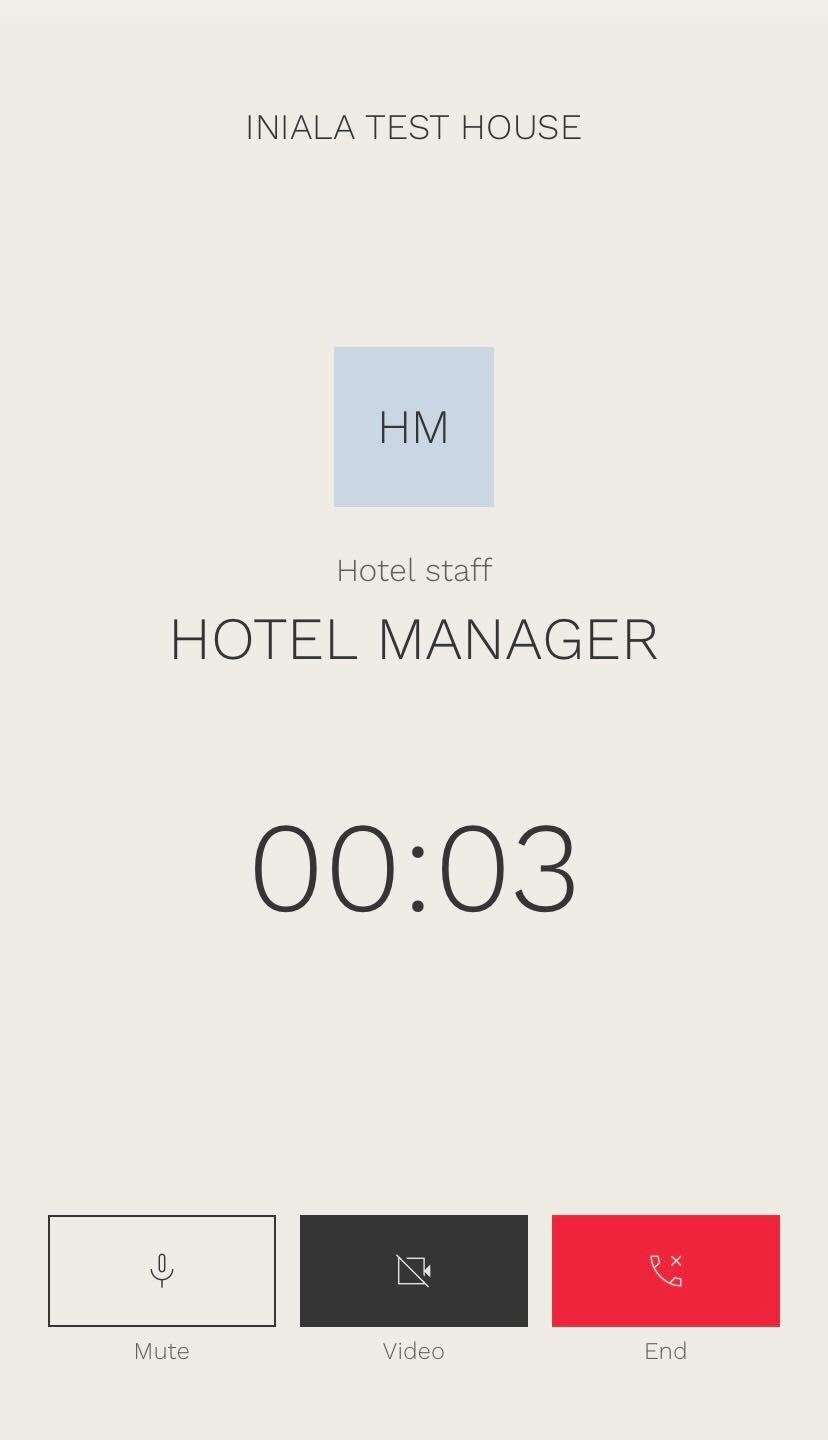
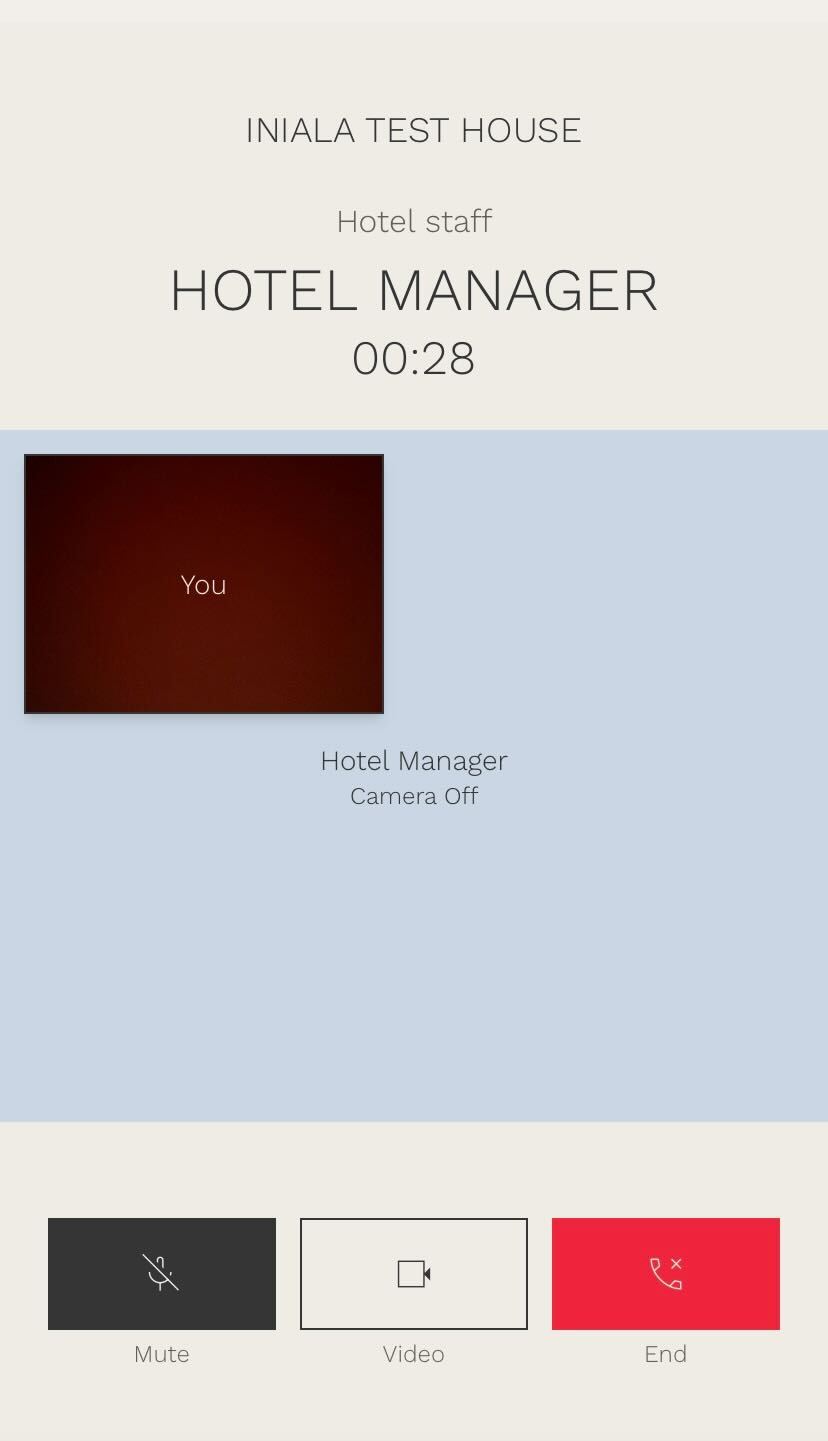
If a staff member accepts your call, you can:
-
Use speaker mode
-
Mute or unmute your microphone
-
Switch from voice to video when supported
-
End the call

📞 Accepting a call as a guest (mobile)
When staff calls your mobile Guest App, an incoming call screen appears. You can decline or answer.
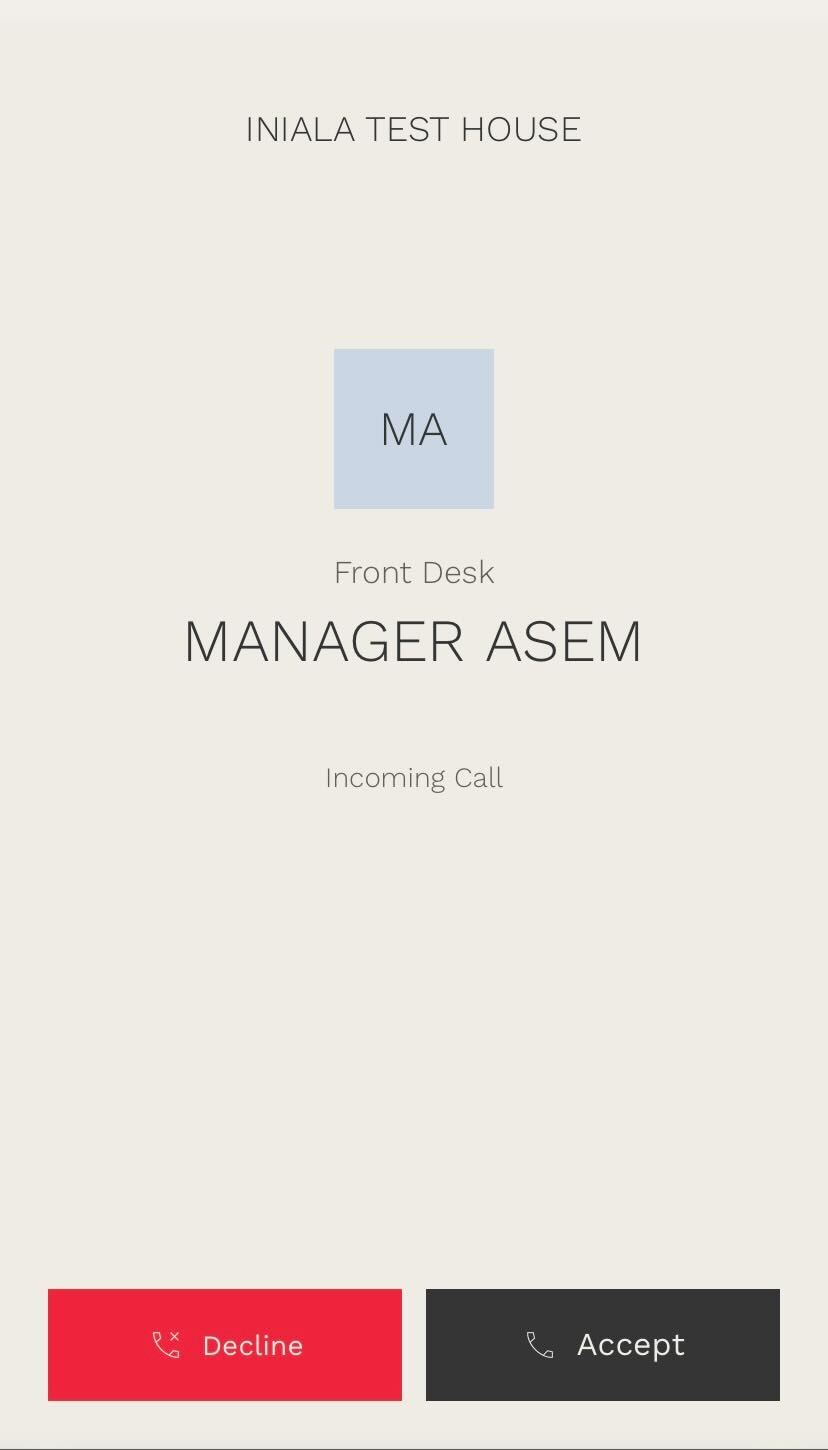
After you answer, use the same in-call options as above: speaker, mute/unmute, switch from voice to video when supported, and end the call.
🏠 Making calls from the room tablet app
From the in-room tablet, open Chat and tap a call button (voice or video) and a dropdown of the available staff will appear, select one and start the call.
Everything else matches the Mobile Guest App flows in this guide: cancel while ringing (when shown), speaker, mute/unmute, voice to video when supported, end the call, and decline or answer when staff call you—according to what your property has enabled.


This setup ensures guests only see calling options you intend for each property, with contacts ordered and timed to match how your team operates.