Guest Journey
✉️ Guest Journey lets staff review and manage the automated guest emails used across the stay lifecycle for the currently selected property location.
📍 Accessing Guest Journey
- Open the GMS dashboard.
- Select the correct Property Location from the left sidebar.
- Click Guest Journey from the main navigation.
The page opens a timeline-style view of the automated emails configured for the selected property.
🗂️ Understanding the Timeline
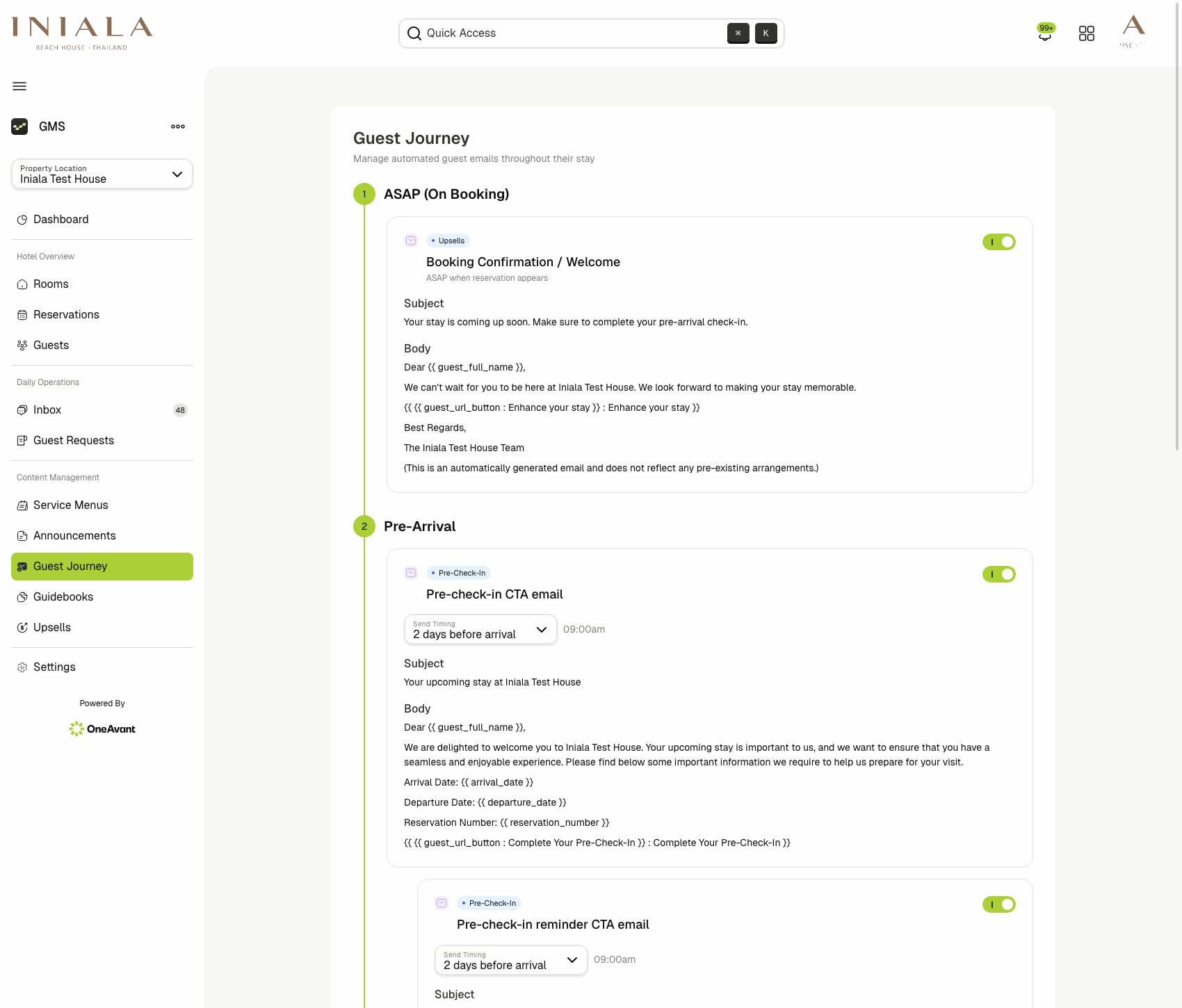
The journey is grouped into numbered stages so staff can understand when each email is sent.
The current staging setup includes:
- ASAP (On Booking)
- Pre-Arrival
- Pre-Check-In Action (Event-Based)
Each email card shows:
- The related feature tag, such as Upsells or Pre-Check-In
- The email title
- Whether the email is enabled
- The current subject line
- The message body preview
This makes the page a single place to review how guest-facing automations are sequenced for the property.
⏰ Pre-Arrival Emails
The main pre-check-in scheduling controls live in the Pre-Arrival stage.
The current flow includes:
- Pre-check-in CTA email
- Pre-check-in reminder CTA email
For these scheduled emails, staff can review:
- Whether the automation is enabled
- The send timing relative to arrival
- The send time of day
- The subject and body that will be used
The email copy includes reservation-aware placeholders such as:
{{ guest_full_name }}{{ arrival_date }}{{ departure_date }}{{ reservation_number }}- The guest action button link
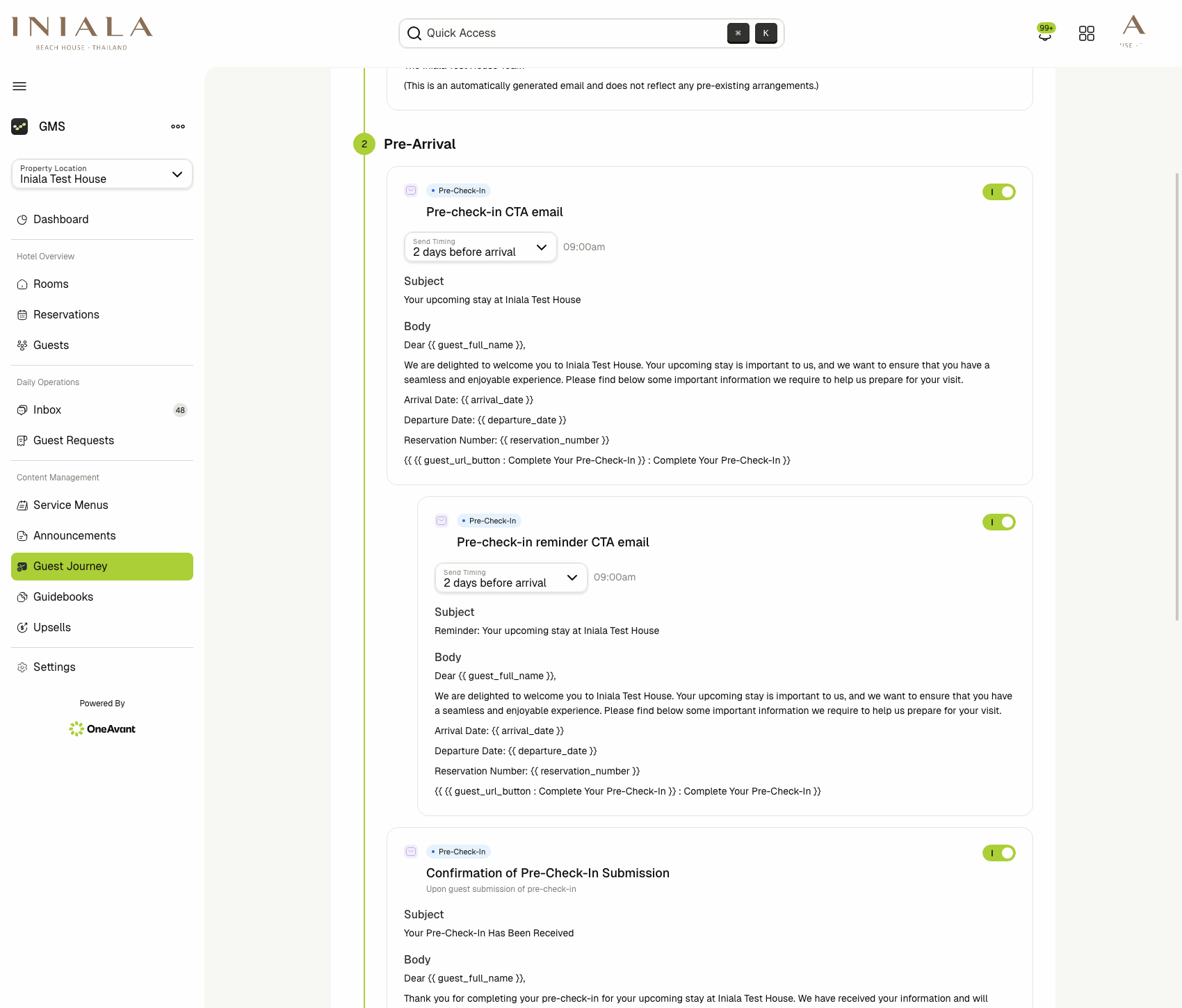
The reminder email depends on the main pre-check-in CTA flow. In the delivered workflow from GMS-1108, disabling the CTA also disables the reminder.
⚡ Event-Based Emails
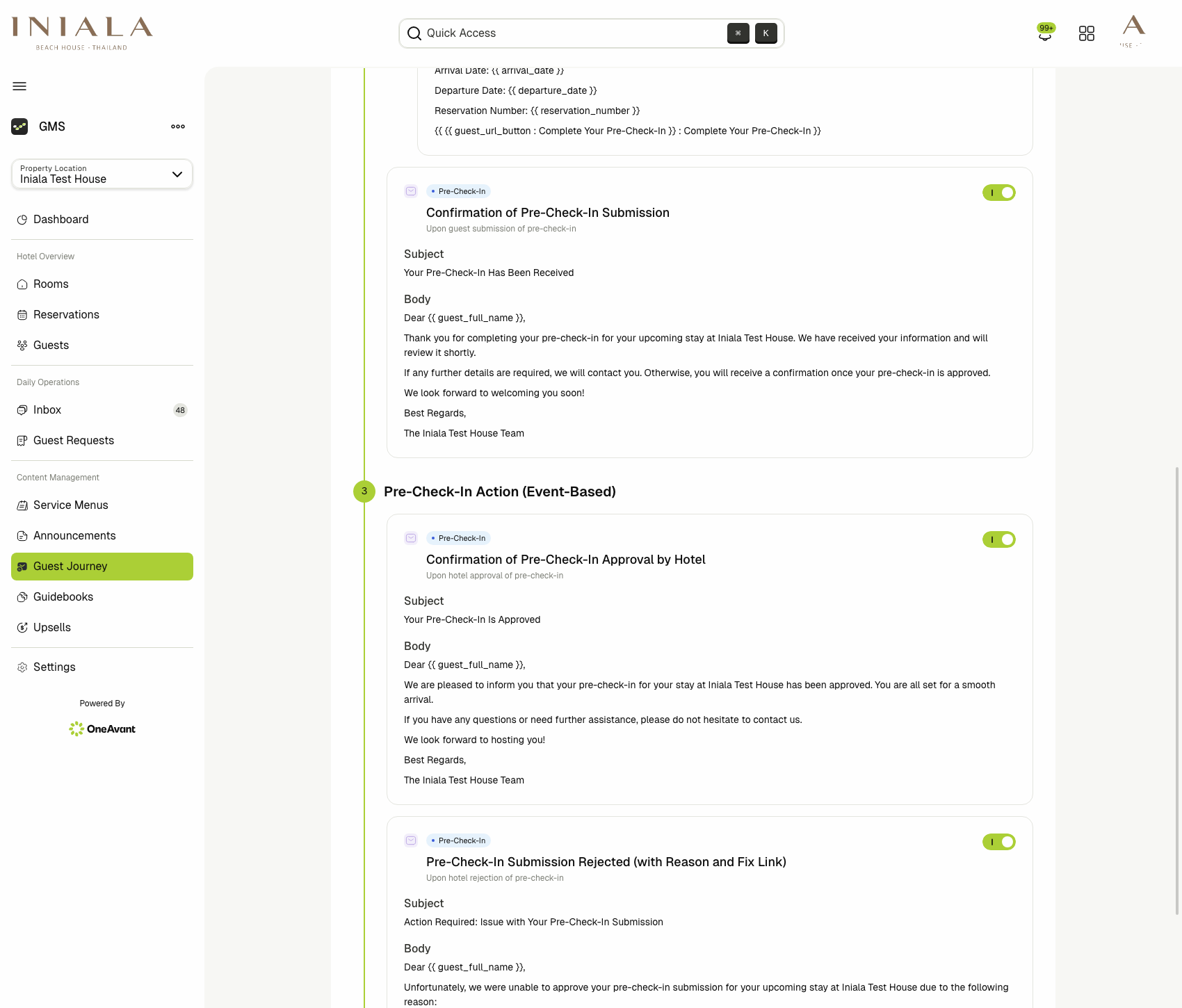
The Pre-Check-In Action (Event-Based) stage contains emails that are sent automatically after a workflow event happens rather than on a calendar-based schedule.
The delivered event-based emails are:
- Confirmation of Pre-Check-In Submission
- Confirmation of Pre-Check-In Approval by Hotel
- Pre-Check-In Submission Rejected (with Reason and Fix Link)
These are triggered by the system when:
- The guest submits pre-check-in
- The hotel approves pre-check-in
- The hotel rejects pre-check-in
Because these messages are event-driven, staff review them in the timeline but do not schedule them relative to arrival.
📨 Tracking Email Activity Per Reservation
Guest Journey is not only a configuration screen. The delivered flow also surfaces the automated-email history inside the reservation conversation.
To review it:
- Open Inbox.
- Select the guest conversation or reservation thread.
- Open the Emails tab.
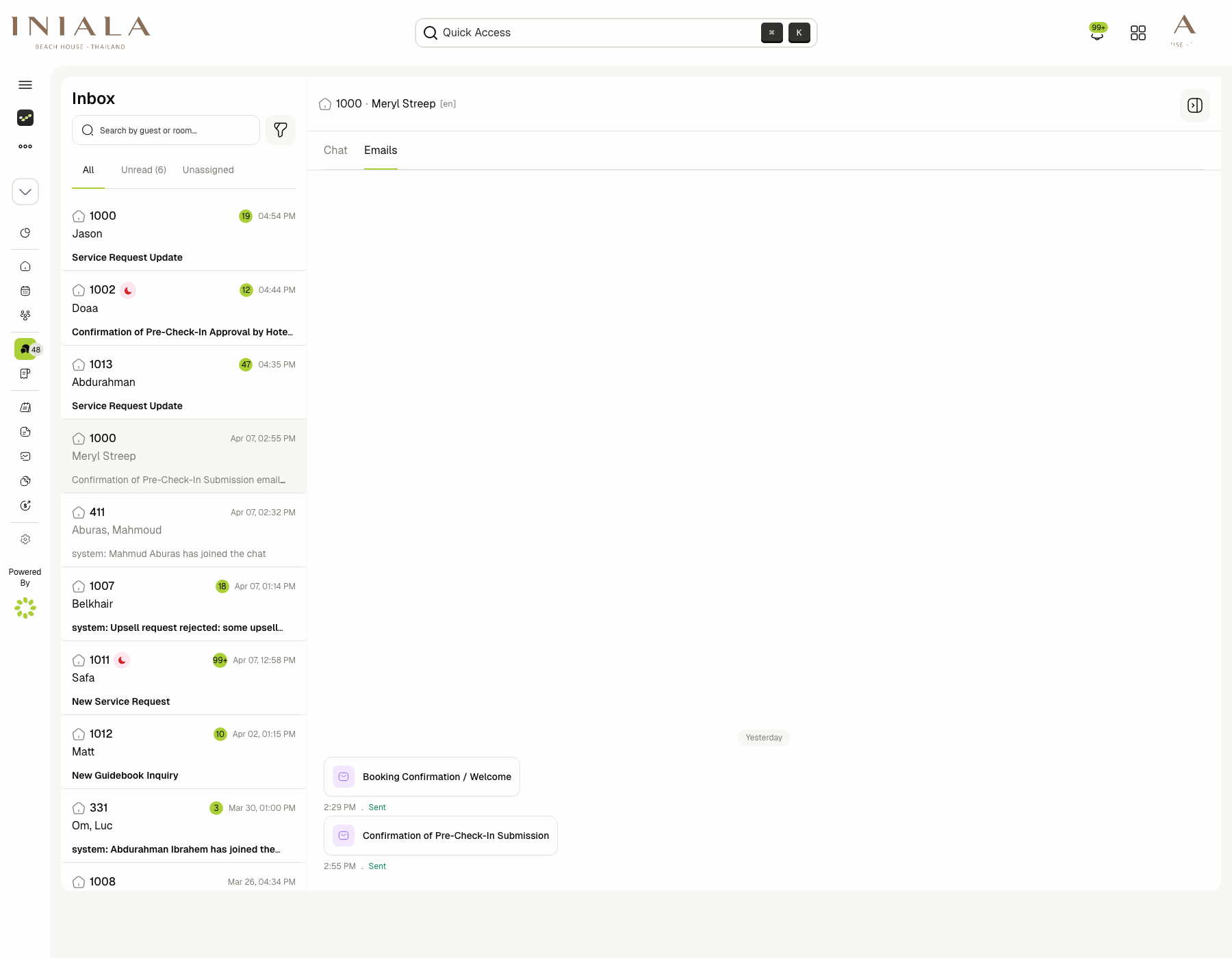
This tab shows the read-only automated email log for that reservation, such as:
- Booking Confirmation / Welcome
- Confirmation of Pre-Check-In Submission
- Confirmation of Pre-Check-In Approval by Hotel
Each entry is recorded as part of the reservation timeline so staff can confirm what was sent without leaving the thread.
🔍 What Staff Can Verify From the Log
The delivered scope for GMS-1108 includes per-reservation processing results
for automated emails, including:
- Delivery status
- Sent time
- Failure reason, when applicable
In practice, this gives staff a single operational trail for the reservation's automated pre-check-in communication.
🚫 Scope Notes
The current delivered feature is for automation visibility and guest-journey configuration. It does not cover:
- Two-way email replies
- SMS delivery
- Promotions outside the configured guest-journey flow
- Full template-management workflows such as language administration or custom freeform email-template editing