Upsells
💸 The Upsells section in GMS allows staff to create revenue-driving offers for guests, control where those offers appear, and manage the resulting upsell requests from one place.
📍 Accessing Upsells
- Log in to the GMS dashboard with a staff or manager account that has access to upsells.
- Open the Upsells section from the main dashboard navigation.
Once opened, you can manage existing upsell offers, create new ones, and review their performance.
📋 Viewing and Managing Upsell Offers
-
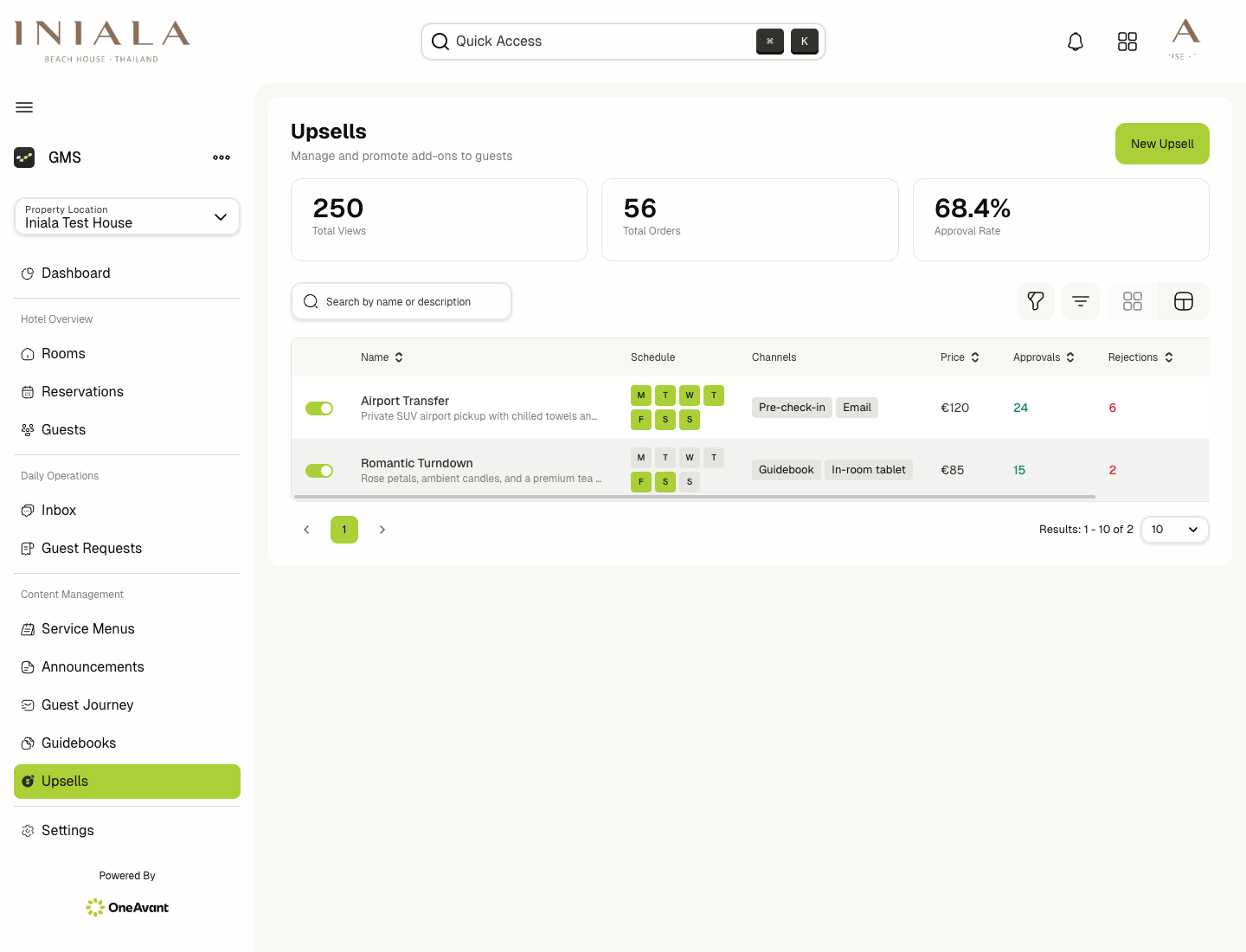
The upsell management page shows all created offers with key information such as the offer title, status, assigned channels, and availability rules.
-
You can switch between list view and card view, depending on how you prefer to browse offers.
-
Use the search bar to quickly find an upsell by name.
-
Use the filters to narrow the results by:
- Enabled or disabled status
- Assigned channel such as pre-check-in, email, or guest-facing surfaces
- Availability rules such as room-type restrictions or schedule rules
-
Each upsell includes actions that let you view, edit, or delete the offer.
-
Opening an upsell also gives staff access to its basic performance metrics, including:
- Views
- Orders
- Approvals
- Rejections
➕ Creating or Editing an Upsell
-
Click Create Upsell to add a new offer, or open an existing upsell and choose Edit.
-
Fill in the upsell details, such as:
- Title
- Description
- Price
- Image
- Assigned channels
- Availability rules
-
Save the form to publish the new or updated upsell to the system.

Typical availability and targeting rules include:
- Showing the offer only for selected room types
- Restricting the offer to selected days
- Choosing where the offer should appear, such as:
- Pre-check-in
- Dedicated upsell email
- Guest-facing surfaces such as guidebooks or tablet/home experiences
Guests only see upsells that are enabled, assigned to the current channel, and compatible with the reservation's availability rules.
🤝 Upsells During Pre-Check-In
-
When a guest reaches the upsell step in the pre-check-in flow, the system only shows offers assigned to the pre-check-in channel.
-
Guests can move through the offers one by one and either:
- Swipe to accept or skip an upsell
- Use the on-screen select or reject actions
-
After reviewing the offers, guests are shown a review step where they can see all offered upsells, change their selections, and continue.
-
Before submission, the guest sees a final summary with:
- The selected upsells
- The total price
-
After submission, the selected upsells are created in the system as upsell requests.
📧 Upsells Through the Dedicated Email Flow
-
If the dedicated upsell email channel is enabled, guests can receive an email with an Enhance your stay action.
-
That link opens a focused upsell web view that contains only the upsell-selection flow.
-
In this flow, guests can:
- View only offers assigned to the email channel
- Review their selected upsells
- Confirm the total price
- Submit the selected offers as upsell requests
The dedicated email flow is separate from pre-check-in, but the guest selection and submission experience follows the same idea: review offers, confirm selections, and submit requests.

🧾 Viewing Purchased Upsells in Guest Pre-Check-In Data
-
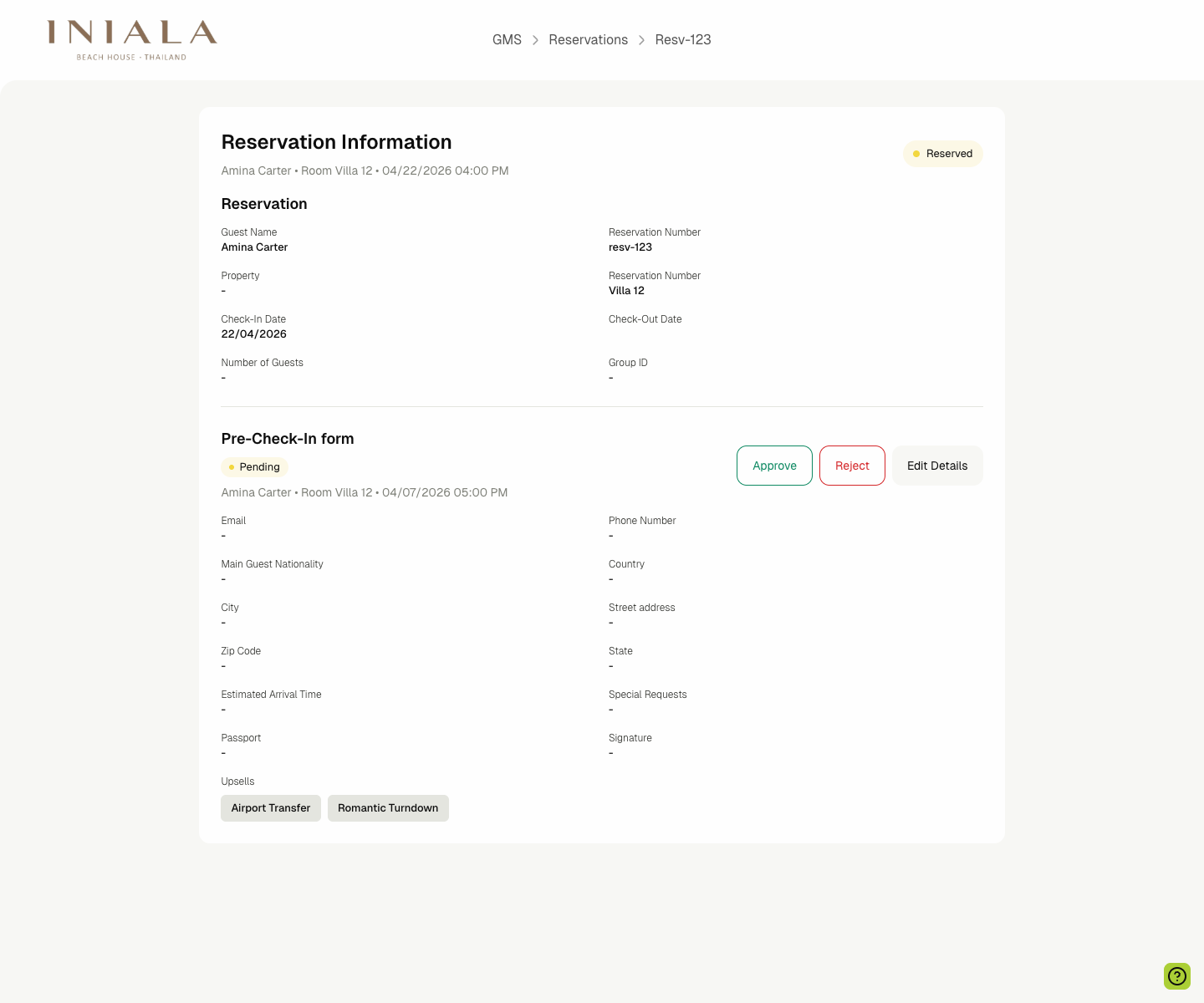
Staff can review a guest's submitted upsells directly from that guest's pre-check-in data.
-
If the guest selected one or more upsells, the page shows a list of the purchased offers with their details.
-
From there, staff can click View in Requests to jump directly to the guest requests page with the upsell tab already selected.
✅ Managing Upsell Requests
-
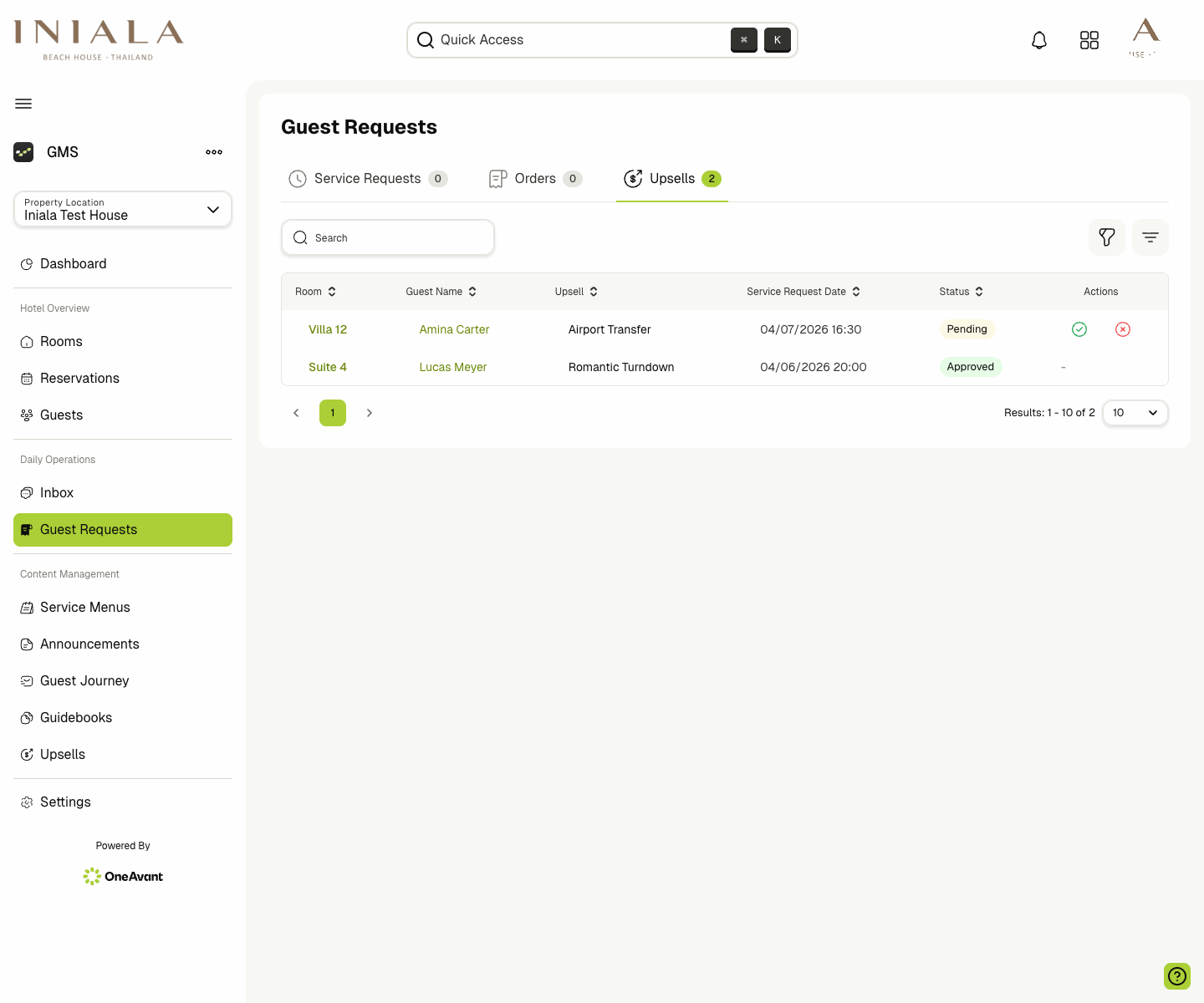
Submitted upsells appear in the guest requests area as upsell requests.
-
Staff can review each request and update its status from the upsell requests workflow.
-
Depending on the situation, staff can:
- Approve the request
- Reject the request
-
If rejection reasons are enabled for your workflow, staff can record a reason while rejecting the request so the action is easier to track internally.
-
Once updated, the request status is reflected in the requests workflow and in the related guest journey data.
🔔 Notifications
-
When a guest submits an upsell, the relevant staff members are notified based on the property's notification setup.
-
This helps teams act quickly on guest requests and approve or reject offers without leaving the GMS workflow.